Consulter les notes des élèves
Note
Cette documentation a été traduite à l'aide d'un outil de traduction automatique assisté par l'IA. Les traductions sont fournies « telles quelles », sans aucune garantie quant à leur exactitude. La version anglaise de ce contenu fait office de source officielle et fait autorité.
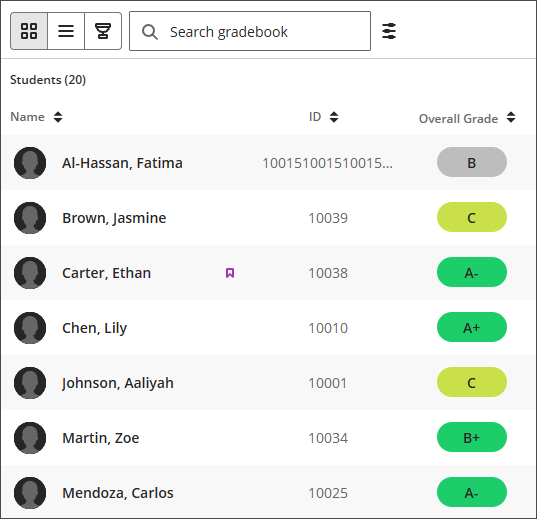
La vue en grille affiche chaque élève inscrit sur une ligne, avec sa note globale et les notes de chaque élément dans les colonnes, ce qui vous permet d’avoir un aperçu des résultats de toute votre classe en un coup d’œil.
Lire le tableau
Colonnes « Élément » : affichent la note de l'élève pour chaque élément noté, à raison d'une colonne par élément.
Cliquez sur les flèches de tri de la colonne Nom, ID, Note globale ou de n’importe quelle autre colonne pour trier les données par ordre croissant ou décroissant. L'ordre d'affichage des noms (Prénom, nom ou nom, prénom) et l'affichage ou non de la colonne « Numéro d'étudiant » sont définis dans les paramètres du carnet de notes.
L'icône en forme de bannière violette indique que l'élève bénéficie d'un aménagement.
Consulter les informations détaillées d'un étudiant
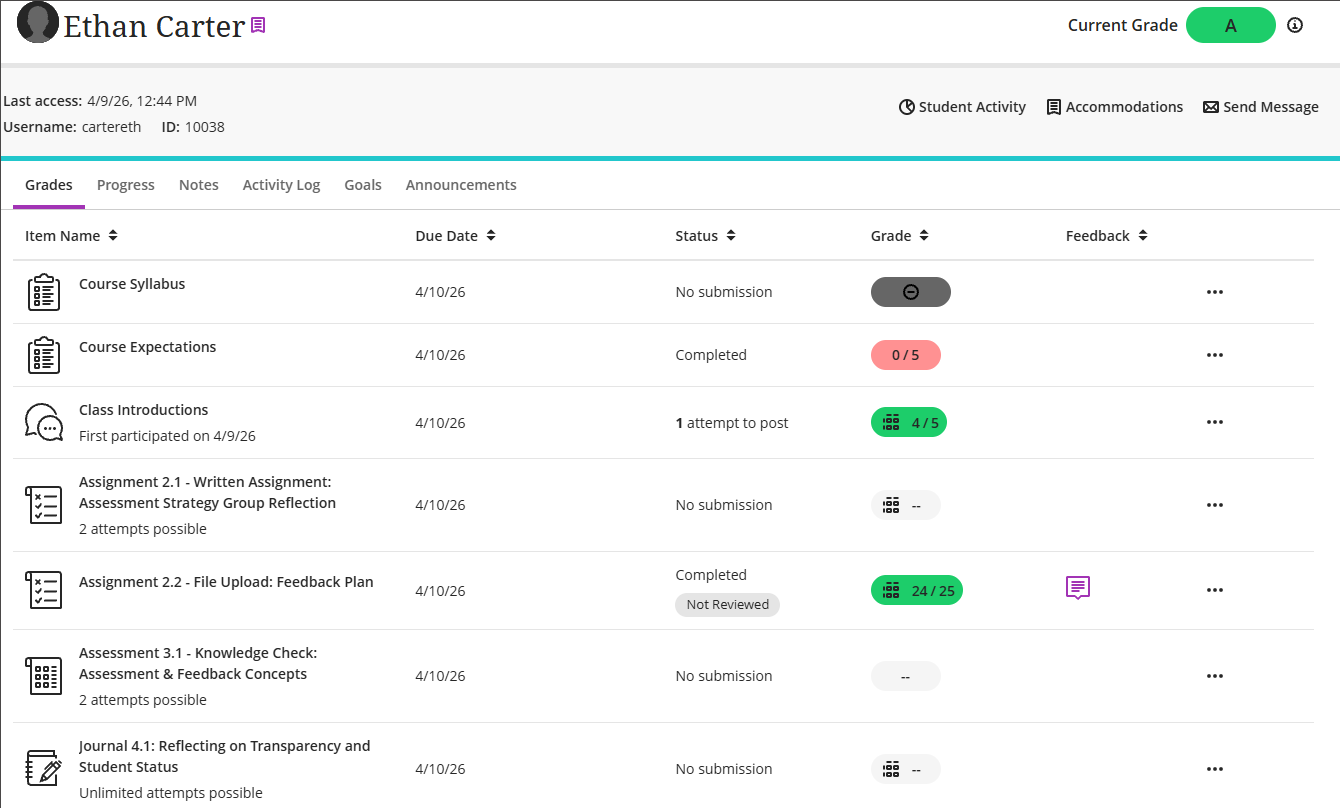
Sélectionnez le nom d’un élève pour afficher ses informations. De là, vous pouvez :
Recherchez la date du dernier accès de l’étudiant au cours.
Calculez leur résultat global.
Envoyez un message directement à l'étudiant.
Ajoutez ou gérez une mesure d'adaptation pour l'élève, telle que décrite dans la section « Mesures d'adaptation ».
Les étudiants bénéficiant d’un aménagement particulier sont signalés par un drapeau situé à droite de leur nom. Si vous notez sans que les noms des élèves soient visibles (notation anonyme), les indicateurs d’aménagements, d’exceptions et d’exemptions sont également masqués.