February 2026 Release Notes (4000.8)
Release Information
Tip
For maintenance release build numbers and bug fixes, visit Maintenance Releases.
For release status and delays, visit Blackboard Status.
Instructional Design
Stack blocks vertically in Documents
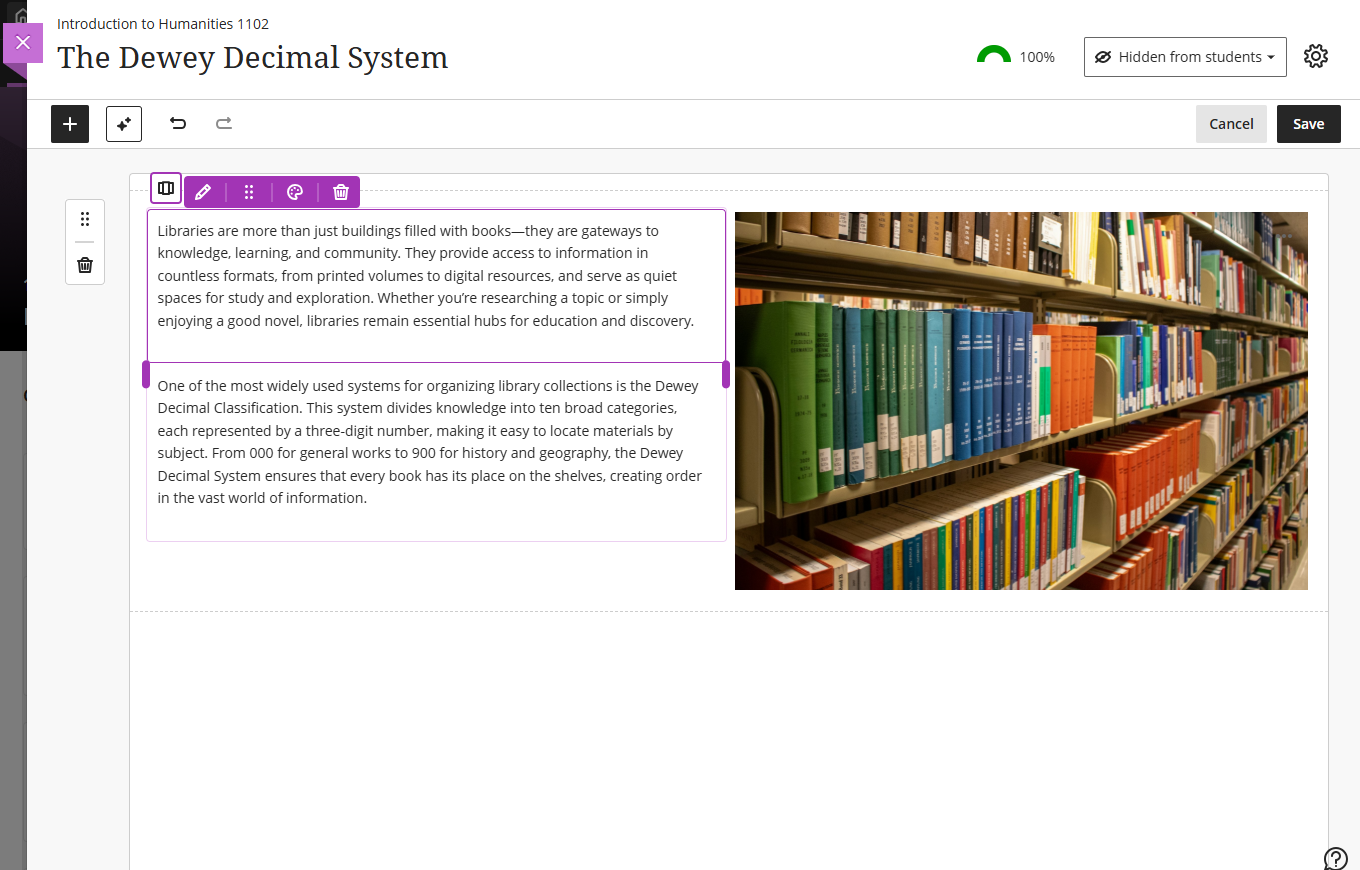
Instructors can stack blocks in a single column in Documents to create cleaner layouts and reduce whitespace. A new toggle in the block toolbar allows switching between column-level and block-level editing. In column mode, actions apply to the entire column. In block mode, instructors can resize, move, or delete individual blocks.
Columns can also be dropped into another block’s area for more flexible layouts. These changes work with existing features such as undo/redo, printing, and AI layout generation. This enhancement also includes accessibility improvements for screen readers.
Image 1: Instructors can stack blocks in a single column, such as next to an image in a column.
Administrators
Availability: Available to all Ultra courses.
Activation: None needed.
Configuration: None needed.
Mastery Learning and Learning Pathways
Organize terms with parent-child relationships
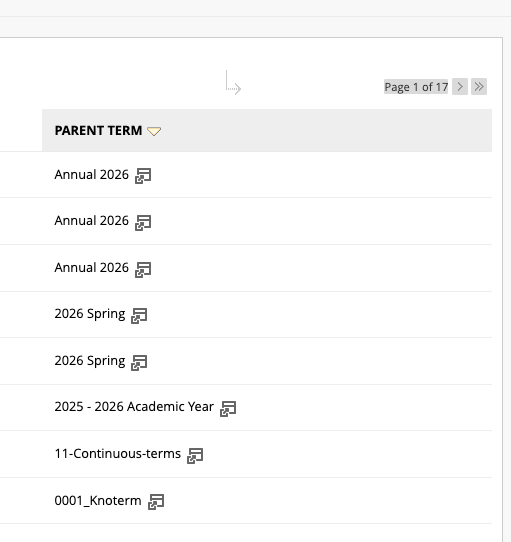
Institutions can create a parent Annual term with child terms such as Semester, Trimester, or Quarter. A new column shows term type on the Term page.
Administrators can sort courses by subject and terms by type for better reporting and analytics. These updates help administrators, program directors, and instructional designers organize data and review trends.
Image 1: Institutions can create a parent Annual term with child terms.
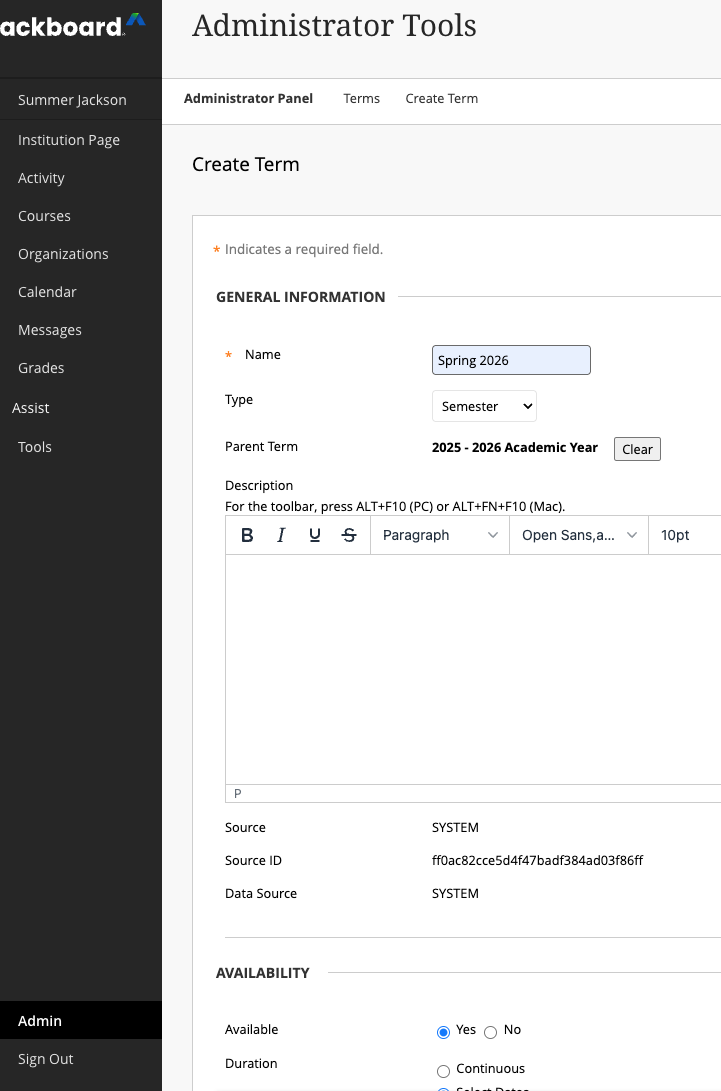
Image 2: The parent terms display in the Parent Term column on the Term page.
Administrators
Availability: Available to all Ultra courses.
Activation: None needed.
Configuration: None needed.
Enhanced achievement usability
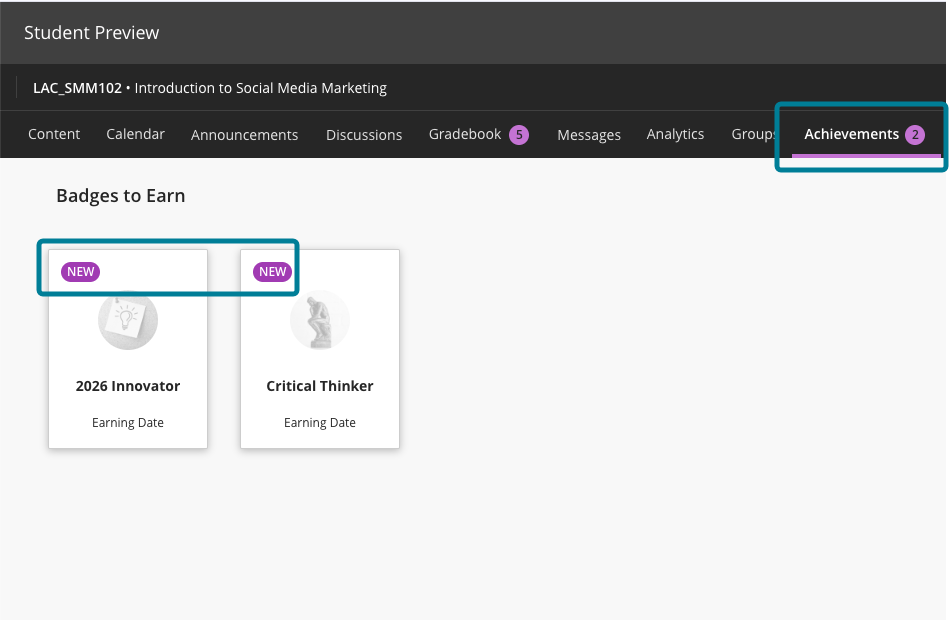
For students, the Achievements tab displays a count of unread badges. The New pill appears consistently in Earned and To Earn sections. The Delete Badge dialog uses clearer wording. Instructors and students can more easily distinguish between Course Badges and Open Badges with improved labels, icons, and descriptions.
Accessibility updates include improved aria-labels and alt-text. Styling for OpenBadge images has been updated to remove forced round shapes.
Image 1: In the student view, the Achievements tab displays a count of unread badges, and the new badges have a New pill.
Administrators
Availability: Available to all Ultra courses.
Activation: None needed.
Configuration: None needed.
Improved accessibility for custom badge options
Accessibility enhancements improve badge workflows for instructors and students. Screen readers now provide clearer descriptions for buttons and image previews. Aria-labels and alt-text are consistent across views.
Tooltips were added to buttons for better context. Decorative images are marked correctly, and fallback alt-text is provided for custom images. These changes make badge creation and viewing more inclusive and easier to navigate.
Administrators
Availability: Available to all Ultra courses.
Activation: None needed.
Configuration: None needed.
Learner Progression & Personalized Experience
Use automations to remind students to check their feedback
Instructors can create automations that send a message to students who have unread feedback after an instructor-defined number of days. This feature saves time by automatically encouraging students to review their feedback, promoting student engagement.
Instructors
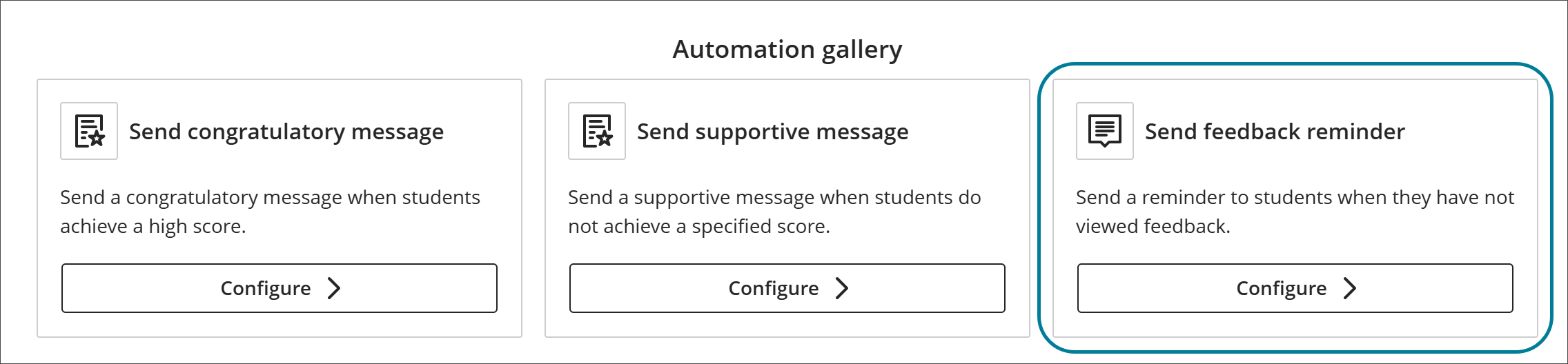
This release adds the Send feedback reminder option to the Automation gallery.
Image 1: The Automation gallery now includes Send feedback reminder.
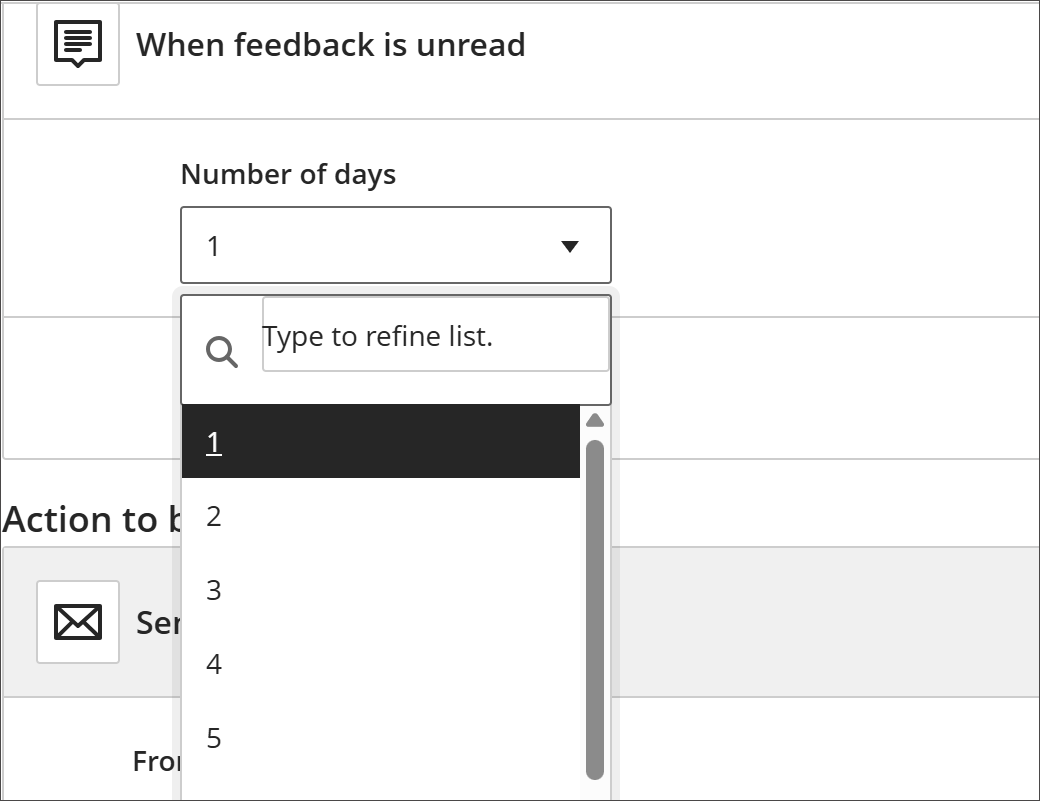
For the automation trigger, instructors select how many days feedback must remain unread before the message is sent.
Image 2: The Automation trigger includes a dropdown menu for the number of unread days.
A default reminder message is provided, and instructors can fully customize it at this stage. The message is sent to the student when the rule is triggered.
Administrators
Availability: Available to all Ultra courses.
Activation: None needed.
Configuration: The Automations feature is turned off by default. Administrators can turn it on or off by going to the Administrator Panel. Select Configure in The Ultra Experience is Here! module. Select Automations to turn automations on or off.
Users need the following privileges to work with automations:
Course/Organization > Automations > Add allows users to create new automations.
Course/Organization > Automations > Delete allows users to delete automations.
Course/Organization > Automations > Edit allows users to edit existing automations.
Course/Organization > Automations > View allows users to view existing course automations.
Integrations
Visualize LTI data in Anthology Adopt
Institutions can now track and segment LTI tool usage within Anthology Adopt, enabling richer insights and targeted user experiences. Adopt can identify individual LTI launches, which allows administrators to monitor adoption, analyze usage patterns, and deliver contextual guidance.
Key improvements include
Unique Identifiers for LTI Launches. Each LTI tool now includes a unique handle (GUID) added as a DOM attribute (e.g., data-launch-handle). Adopt uses this identifier to:
Recognize and tag a specific LTI Tool events
Segment users based on the usage of a specific LTI Tool
Map identifiers to meaningful names for reporting and analysis
Contextual Tracking. Additional attributes capture where the LTI was launched (e.g., course outline, gradebook), enabling deeper insights into usage patterns.
This enhancement enables tracking of LTI tool usage from the Tools section in the navigation panel.
This allows users to
Identify instructor engagement with specific LTIs
Deliver contextual in-app guides to improve user experience
Make data-driven decisions about instructional technology usage
Administrators
Availability: Available to all Ultra courses. using Adopt integration
Activation: None needed.
Configuration: DOM attributes for LTI launches are automatically included. Administrators configure tracking and segmentation within Adopt.
Grade Export: Launch Grade Approval and Transfer Tool directly to column level
Administrators can set the Grade Approval and Transfer Tool to open at the column level, bypassing the course level. This setting prevents instructors from approving an entire course’s grades without viewing the grades at the column or grade level, ensuring that columns are not inadvertently approved through a full course approval.
Image 1: The Launch directly to column level option now appears in the Grade Approval and Transfer settings.

Administrators
Availability: Available to all Original and Ultra courses.
Activation: None needed.
Configuration: None needed.
Institutional Hierarchy: Restrict Content Copy Search for Node Administrators
We’ve improved governance and security for institutions using Institutional Hierarchy (IH) by restricting content copy searches for Node Administrators. Previously, Node Administrators could search and view all courses across the system when using the Copy Course Item or Copy Organization Item tools, even outside their assigned IH scope. This behavior created privacy concerns and required workarounds such as self-enrollment.
Enhancements include:
Node Administrators can now search and copy content only from courses within their assigned IH node or directly granted permissions.
This update enforces institutional boundaries without removing copy or archive capabilities.
Eliminates the need for manual enrollment or elevated permissions, reducing administrative overhead and maintaining clean user lists.
This change ensures compliance with institutional governance models while preserving essential administrative functionality.
Administrators
Availability: Available to all Ultra and Original courses.
Activation: None needed.
Configuration: Ensure Node Admins have appropriate copy and archive privileges assigned through their system roles.
Blackboard Admin
Opt out of upcoming features
Administrators can now opt in or opt out of specific product functionalities directly from the Admin Panel both before and after an official release. This update gives administrators greater control over when new capabilities are enabled, so teams can adopt features on their own timelines and with more confidence.
Image 1: An Upcoming Feature area allows administrators to opt in or out for upcoming features before they are released.
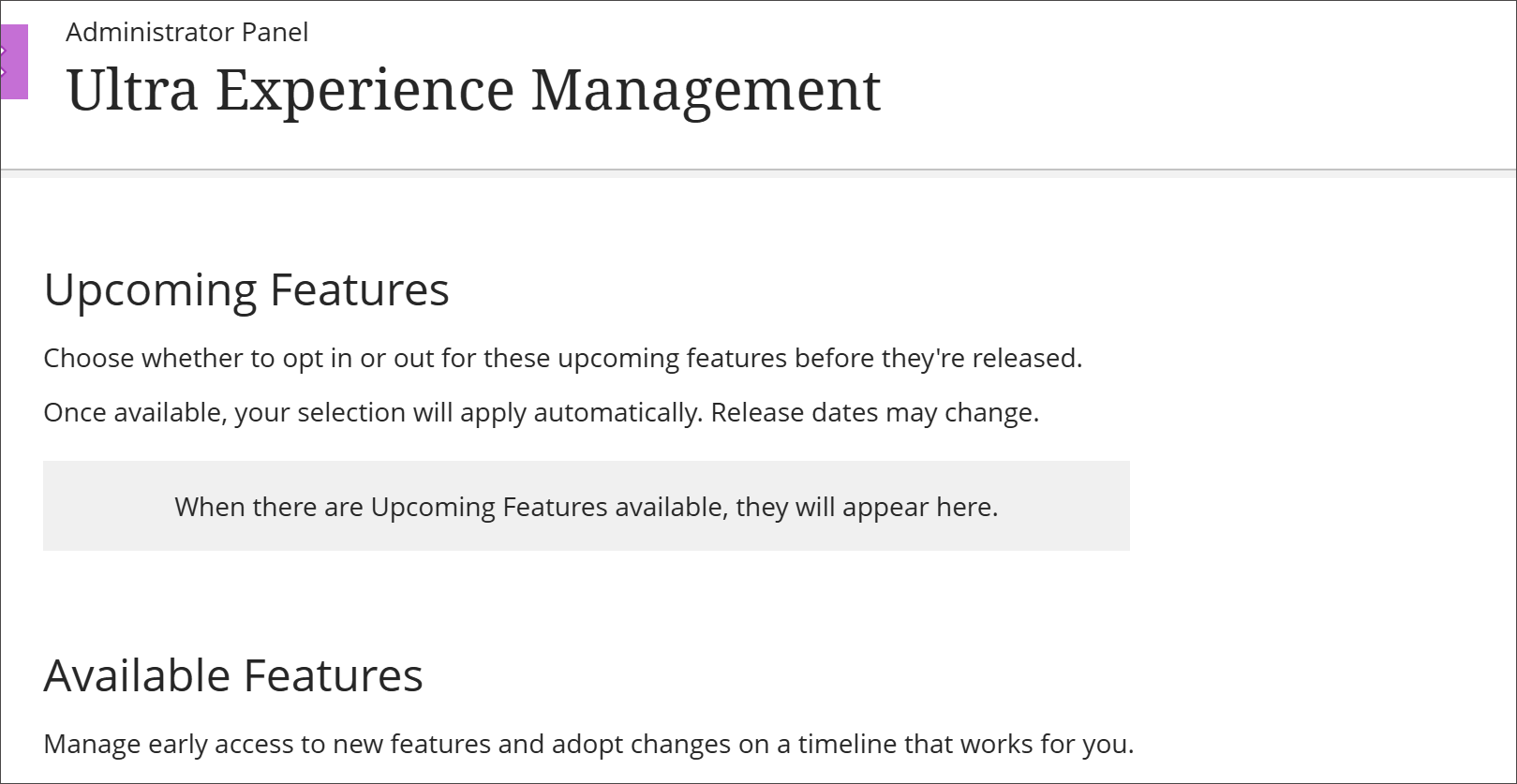
Please note that not all features will have a feature flag.
Administrators benefit from:
More control: Decide which features to turn on or off without waiting for release windows.
Less monitoring: No need to stay on standby during release days to check when features become available.
Clear visibility: Quickly identify which features are active in production.
Safer testing: Test and prepare for new functionality before enabling it broadly.
Upcoming features will be updated with each production release. This improvement streamlines feature adoption, reduces administrative burden, and gives institutions flexibility in managing change.
Administrators
Availability: Available to all Ultra courses.
Activation: None needed.
Configuration: None needed.
Premium
Video Studio: Students can download videos they create for offline use
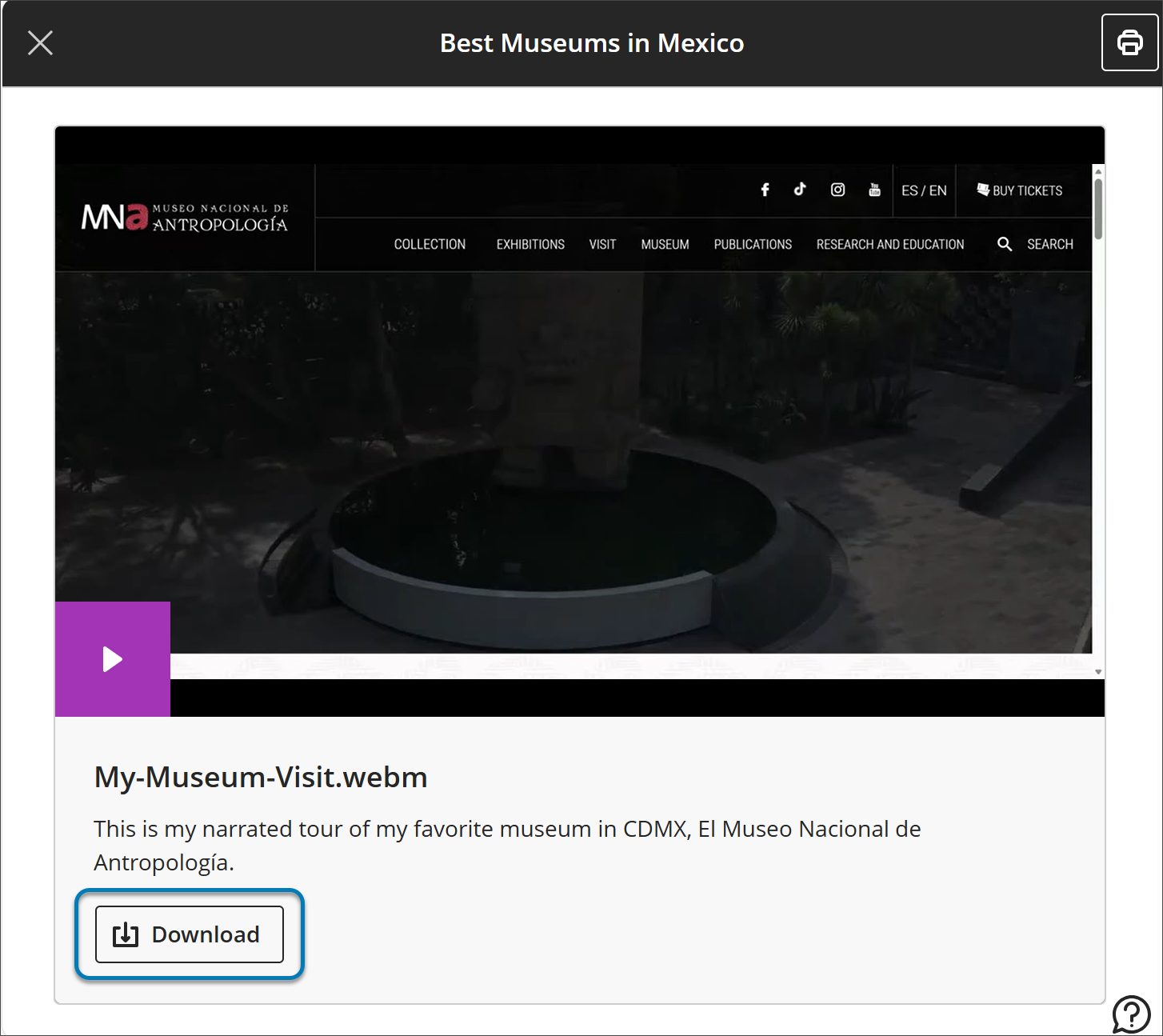
Students can now download the Video Studio recordings they create directly to their devices for offline access. This update builds on the recent feature allowing users to download recordings from instructors to access offline. Learners now have more flexibility to access and share their content without an internet connection.
Students
When students create a recording, they can select the download option to save the file to their device. This makes it easier to reference their own recordings on the go, such as during commutes, in areas with limited connectivity, or to retain a copy for future reuse.
Image 1: Students can now download their own Video Studio recordings for offline use.
Administrators
Availability: Available to all Ultra courses.
Activation: None needed.
Configuration: None needed.