AI-ontwerpassistent en Unsplash-configuratie
Note
Deze documentatie is vertaald met behulp van AI-ondersteunde machinevertaling. Vertalingen worden geleverd 'zoals ze zijn', zonder garantie van de juistheid ervan. De Engelse versie van deze inhoud is de officiële en leidende versie.
AI-ontwerpassistent en Unsplash-configuratie
De AI Design Assistant helpt instructeurs bij het maken en ontwerpen van nieuwe cursussen. Het is bedoeld om instructeurs te inspireren en het maken van cursussen efficiënter te maken. Anthology werkt samen met Microsoft om deze functionaliteit te bieden.
De AI Design Assistant biedt de volgende generatieve AI-gefaciliteerde functionaliteiten in Ultra:
Genereer trefwoorden voor de royaltyvrije afbeeldingsservice in Ultra aangedreven door Unsplash - Stelt trefwoorden voor de Unsplash-zoekopdracht voor efficiëntie voor.
Leermodules genereren – Helpt cursusleiders door een cursusstructuur voor te stellen.
Afbeeldingen van leermodules genereren – Maakt en stelt afbeeldingen voor voor elke leermodule.
Toetsvragen en vragenbanken genereren – Inspireert cursusleiders door een reeks vragen voor te stellen in een toets of door een vragenbank samen te stellen op basis van een Learn-document.
Opdrachten genereren – Helpt bij het genereren van opdrachten die het denken van een hogere orde aanmoedigen.
Een rubriek genereren - Stelt een beoordelingsrubriek voor met structuur en criteria voor een bepaalde beoordeling, waardoor de instructeur efficiënter wordt en transparantie biedt bij het beoordelen van studenten.
Genereer een AI-gesprek - Creëert een gesprek tussen een Student en een AI-persona in een socratische vraagoefening of rollenspelscenario.
Documentafbeeldingen genereren - Genereert afbeeldingen voor gebruik in een document, waardoor documenten visueel aantrekkelijker worden voor Studenten.
Documentlay-out voorstellen - Maakt aantrekkelijke lay-outs voor documenten, inclusief afbeeldingen, kenniscontroles en koppen.
Belangrijk
Deze functionaliteiten zijn onderhevig aan de beperkingen en beschikbaarheid van de Azure OpenAI Service en kunnen worden gewijzigd. Raadpleeg de relevante releaseopmerkingen voor meer informatie.
AI-ontwerpassistent en Unsplash-functies inschakelen
Ga naar het configuratiescherm voor systeembeheer. Selecteer in de sectie Integraties onder de categorie Bouwstenen de optie Geïnstalleerde tools. Selecteer AI-ontwerpassistent en Unsplash. Je hebt nu toegang tot alle opties op de pagina AI-configuratie.
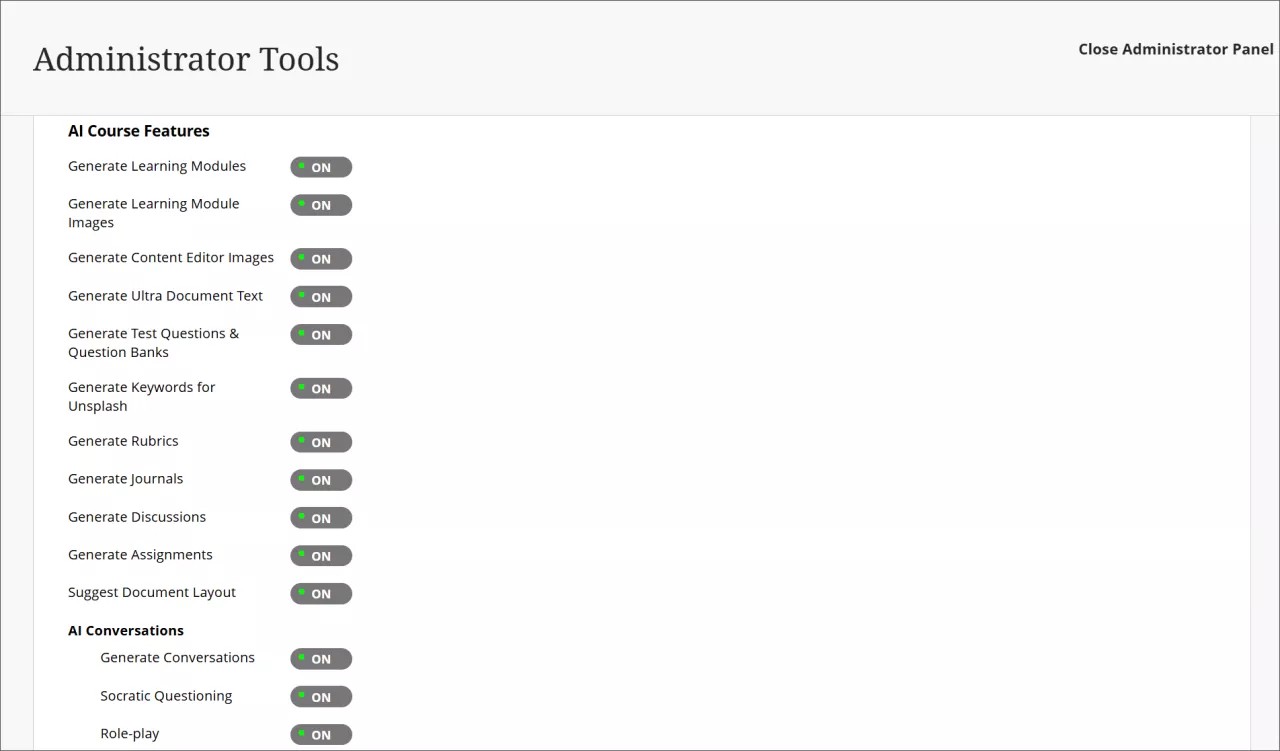
Je kunt de beschikbaarheid bepalen van elke functie van de AI-ontwerpassistent. Je kunt op ieder moment alle, enkele of geen functies selecteren die je wilt inschakelen.
Unsplash is een afzonderlijke functie die ook toegankelijk is via de pagina AI-ontwerpassistent. Als je Unsplash inschakelt, hebben cursusleiders toegang tot de Unsplash-galerie met stockfoto's die kunnen worden gebruikt als afbeelding voor leermodules en cursusbanners.
Je moet ook bevoegdheden activeren. Wijs de bevoegdheid Use AI Design Assistant toe voor de juiste cursusrollen (bijvoorbeeld Cursusleider). Ga naar het onderwerp 'Cursus- en organisatierollen' voor meer informatie over het toewijzen en beheren van bevoegdheden.
AVA – AI Virtual Assistant Configuration
AVA – AI Virtual Assistant helps instructors and students by providing intelligent, AI-powered features within Blackboard LMS. Blackboardhas partnered with Microsoft and AWS to provide this functionality.
Visit our Blackboard AVA – AI Virtual Assistant page to learn more about AVA's AI-facilitated functionalities, key facts, and Trustworthy AI principles.
AVA provides the following generative AI-facilitated functionalities in Blackboard LMS:
AI Playground – AVA AI Playground provides a dedicated, institutionally managed space within Blackboard LMS, allowing instructors and students to experiment and innovate with teaching and learning.
Responses to Student Messages – AVA scans the course from the student's perspective to provide automated, relevant replies to common student questions sent to instructors.
Generate Attempt Feedback Summaries from Rubrics – Generates high-quality overall feedback for student submissions evaluated using a rubric, based on rubric criteria, performance levels, and any criterion-level feedback.
Revise Submission Feedback – Rewrites instructor-authored comments into more polished, student-friendly language to help instructors deliver clearer, more impactful feedback.
Belangrijk
These functionalities are subject to the limitations and availability of the Azure OpenAI Service and AWS Bedrock and subject to change. Please check the relevant release notes for details.
Availability and licensing
AVA features are included in your Blackboard LMSlicense until 30 June 2026. After that date, a specific AVA license will be required to continue using these features.
AVA and Existing AI Design Assistant Settings
AVA settings are managed within the same building block as the AI Design Assistant (AI Design Assistant and Unsplash). Turning on or off AVA features does not affect AI Design Assistant settings, and vice versa. Each feature can be controlled independently.
Turn on AVA features
To access AVA settings, go to the Administrator Panel. In the Integrations section, under the Building Blocks category, select Installed Tools. Find and select the AI Design Assistant and Unsplash building block, then select Settings. The AVA configuration options are located under the AVA section of this page.
You can control the availability of each AVA feature individually. You can select all, some, or none of the features to turn on at any time.
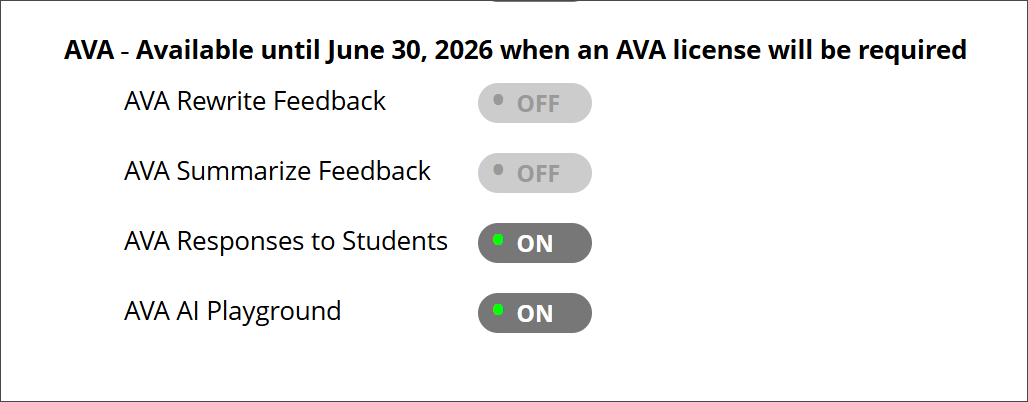
AI Playground
In the building block settings under AI Design Assistant and Unsplash, the option AVA AI Playground is available under the AVA heading. The default state is off.
Once AI Playground is enabled at system level, it is accessible through the Tools option in the Base Navigation menu for all Blackboard users.
Responses to Student Messages
To turn on this feature, navigate to the AVA section within the AI Design Assistant and Unsplash settings and select AVA Responses to Students. The default state is off.
Administrators can:
Turn the feature on globally for the entire institution, or
Enable it at the course level through Course Settings. Instructors can also turn it on or off with Course Settings.
When enabled at the administrator level, the feature is available to instructors but remains off by default. Instructors can turn on AVA autoreplies in their individual Course Settings at any time. For more information about the functionality, navigate to the Messages topic for instructors.
Generate Attempt Feedback Summaries from Rubrics
In the building block settings under AI Design Assistant and Unsplash, the option AI Summarization is available. The default state is off.
When this feature is turned on, the privilege must be assigned to course roles. The required privilege is:
Generate AI Feedback Changes in Course/Organization Control Panel
Assign this privilege to the appropriate course roles, such as Instructor, to allow access.
For more information about the functionality, navigate to the Grade Assignments with Flexible Grading topic for instructors.
Revise Submission Feedback
In the building block settings under AI Design Assistant and Unsplash, the option AI Summarization is available. The default state is off. The default state is off.
When this feature is turned on, the privilege must be assigned to course roles. The required privilege is:
Generate AI Feedback Changes in Course/Organization Control Panel
Assign this privilege to the appropriate course roles, such as Instructor, to allow access.
For more information about the functionality, navigate to the Grade Assignments with Flexible Grading topic for instructors.