Configureer de meldingsinstellingen
Note
Deze documentatie is vertaald met behulp van AI-ondersteunde machinevertaling. Vertalingen worden geleverd 'zoals ze zijn', zonder garantie van de juistheid ervan. De Engelse versie van deze inhoud is de officiële en leidende versie.
Meldingen kunnen worden verzonden als onderdeel van de processen voor het inrichten en extraheren van kolommen.
Configureer de meldingsinstellingen voor het exporteren van cijfers
Meld je aan bij Blackboard met een gebruikersaccount met systeembeheerdersrechten.
Ga naar het configuratiescherm voor systeembeheer.
Selecteer Platformextensies onder Cloudbeheer.
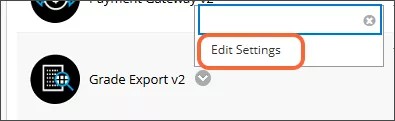
Kies Instellingen bewerken in het contextmenu voor Cijfer Export v2.
Zorg ervoor dat de wisselknop Beschikbaarheid van cijferexport is geselecteerd. Er verschijnt een schakelaar voor functies voor cijferreizen die u niet kunt selecteren; de tekst bevat meer informatie over de cijferreizen-extensie die beschikbaar is bij een betaalde betrokkenheid. Neem voor meer informatie over de extra functies van Cijfers Journey contact op met uw accountvertegenwoordiger.
Selecteer het tabblad Meldingsinstellingen.
Vul de velden in voor elk type melding.

Opmerking
/n is niet nodig om een nieuwe lijn op te zetten. U kunt retouren of nieuwe regels toevoegen aan de sjabloon.
Kolommen voor Opdracht en Cijfers
Deze e-mailmeldingen worden verzonden wanneer de cijferkolom en het proces van het indelen van de opdracht zijn afgerond.
Voer de e-mailadressen in die de e-mail moeten ontvangen in het veld Aan-adres. Dit is vaak een administratieve e-mail of een distributielijst.
Voer het e-mailadres in waarvan de e-mail lijkt te komen (bijvoorbeeld noreply@domain) in het veld Vanaf Adres.
Voer de onderwerpregel van de e-mail in het veld Onderwerp.
Voer het sjabloon voor de tekst van de e-mail in het veld Body Template.
Cijfer extraheren
Deze e-mailmeldingen worden verzonden wanneer het proces van cijferextractie is afgerond.
Voer de e-mailadressen in die de e-mail moeten ontvangen in het veld Aan-adres. Dit is vaak een admin-e-mail, een distributielijst of de $INSTRUCTORS$-token. Mensen in dit vakgebied ontvangen voor elke cursus een e-mail die in een uittreksel is opgenomen. Docenten ontvangen alleen e-mails voor hun eigen cursussen.
Voer beheerders-e-mailadressen in het veld Admin Naar Adres. Beheerders die in dit veld worden vermeld, ontvangen één e-mail zodra het proces van cijferextractie is afgerond, met een tekstbestand bijgevoegd waarin de cursus-ID's van alle cursussen in het fragment zijn opgenomen.
Voer het e-mailadres in waarvan de e-mail lijkt te komen (bijvoorbeeld noreply@domain) in het veld Vanaf Adres.
Voer de onderwerpregel van de e-mail in het veld Onderwerp.
Voer het sjabloon voor de tekst van de e-mail in het veld Body Template.
Melding van cijferevenement
Deze meldingen worden verzonden wanneer er wijzigingen worden aangebracht in de kolommen met cijfers die zijn toegevoegd door de integratie van de Grades Journey. Als een docent bijvoorbeeld per ongeluk een kolom met een geprovisioneerde cijfer verwijdert, wordt er een melding gestuurd naar het opgegeven e-mailadres om de beheerder hiervan op de hoogte te stellen zodat dit kan worden opgelost.
Kies de Type melding uit het menu.
Geen: er worden geen meldingen gestuurd
E-mail: meldingen worden per e-mail verzonden
Voer de e-mailadressen in die de e-mail moeten ontvangen in het veld Aan-adres. Dit is vaak een administratieve e-mail of een distributielijst.
Voer het e-mailadres in waarvan de e-mail lijkt te komen (bijvoorbeeld noreply@domain) in het veld Vanaf Adres.
Voer de onderwerpregel van de e-mail in het veld Onderwerp.
Voer het sjabloon voor de tekst van de e-mail in het veld Body Template.
Selecteer Verzenden om je instellingen op te slaan.