Opslagplaats voor leerobjecten
Note
Deze documentatie is vertaald met behulp van AI-ondersteunde machinevertaling. Vertalingen worden geleverd 'zoals ze zijn', zonder garantie van de juistheid ervan. De Engelse versie van deze inhoud is de officiële en leidende versie.
Gebruik de beheerweergave van de Opslagplaats voor leerobjecten (LOR) om objecten in de repository te ordenen, te bewerken, te verplaatsen en te verwijderen. Je kunt ook bijhouden waar elk object in verschillende cursussen en organisaties wordt gebruikt.
De LOR ondersteunt de volgende objecttypen:
Documenten
Leermodules
Mappen
Bestanden
Objecten en ondersteunde objecttypen beheren
Selecteer Extra en kies Opslagplaats voor leerobjecten.
Klik op de knop met de drie puntjes (...) voor de LOR.
Zodra je het menu hebt geopend, heb je de volgende opties:
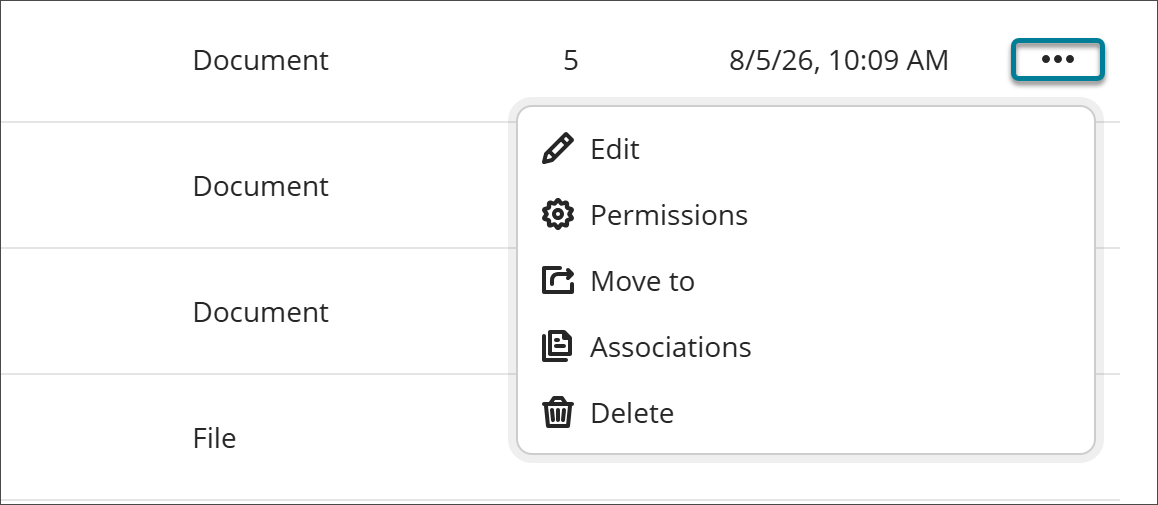
Bewerken
Kies Bewerken om het object aan te passen. Wijzigingen die je aanbrengt in objecten in de LOR worden doorgevoerd in alle gekoppelde objecten in cursussen en organisaties.
Opmerking
Wijzigingen worden niet toegepast als een cursus als voltooid is gemarkeerd of een einddatum in het verleden heeft.
Permissions
You can control which attribute of an object instructors can edit after it's added to a course or organization. When an attribute is open for editing, users with editing privileges can update it directly in the course or organization, and the change persists through future syncs.
Select Permissions.
Turn on the toggle for any attribute you want to allow editing for.
Select Save.
If you turn off the permission to edit an attribute after the object already has associations, any changes that users have made to individual objects will be reverted to the version that is in the LOR.
Ga naar
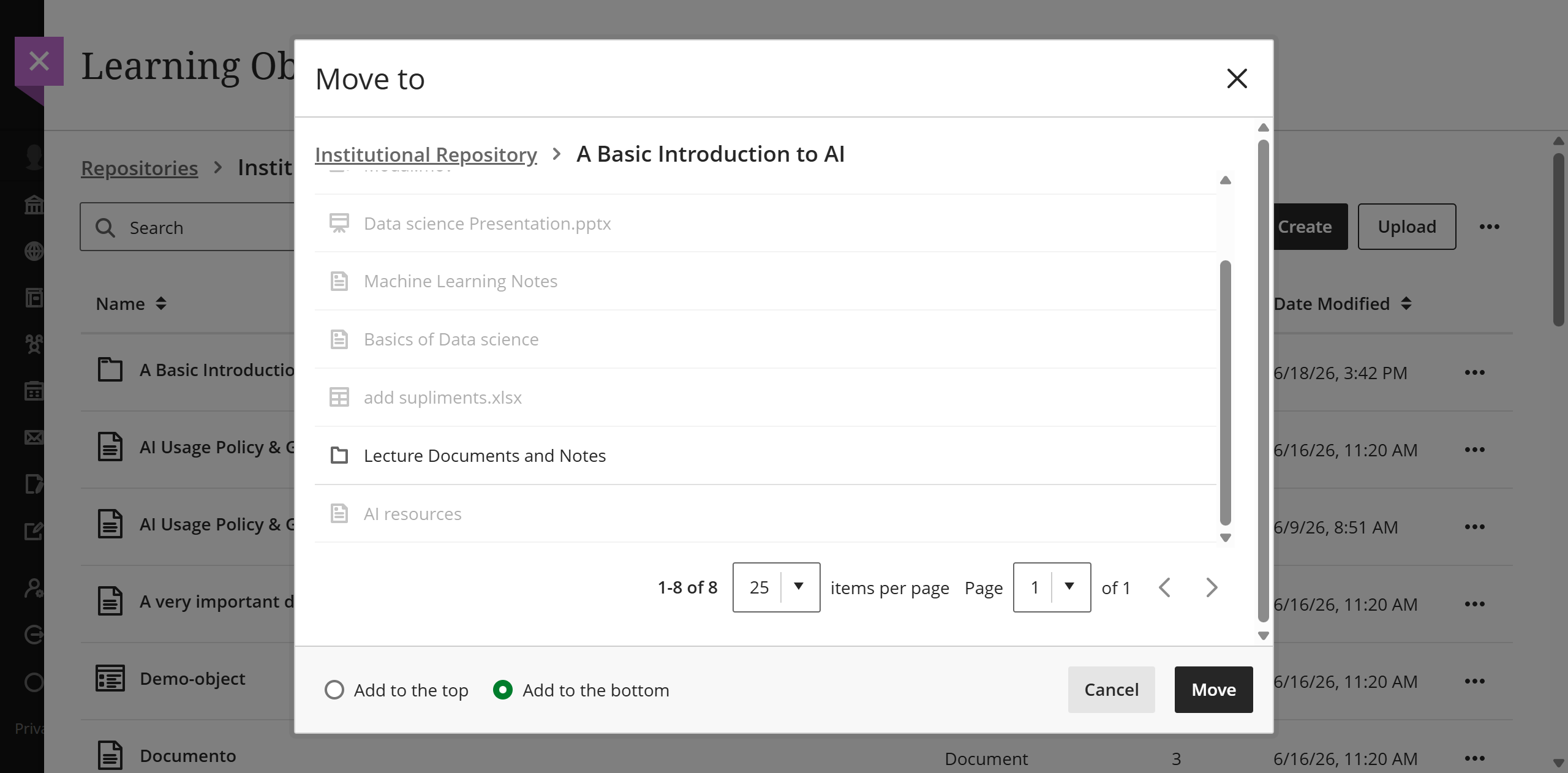
Je kunt inhoud verplaatsen tussen leermodules en mappen.
Selecteer Verplaatsen naar.
Ga naar de leermodule of map waar je het object wilt plaatsen.
Selecteer het keuzerondje om het object bovenaan of onderaan de doel-leermodule of -map te plaatsen.
Selecteer de knop Verplaatsen.
Opmerking
If moving a folder with nested items into another folder would violate the depth restrictions for courses and organizations, the folder can't be moved. In this case, a banner displays stating this is not possible in the LOR and the Move feature is disabled.
Koppelingen
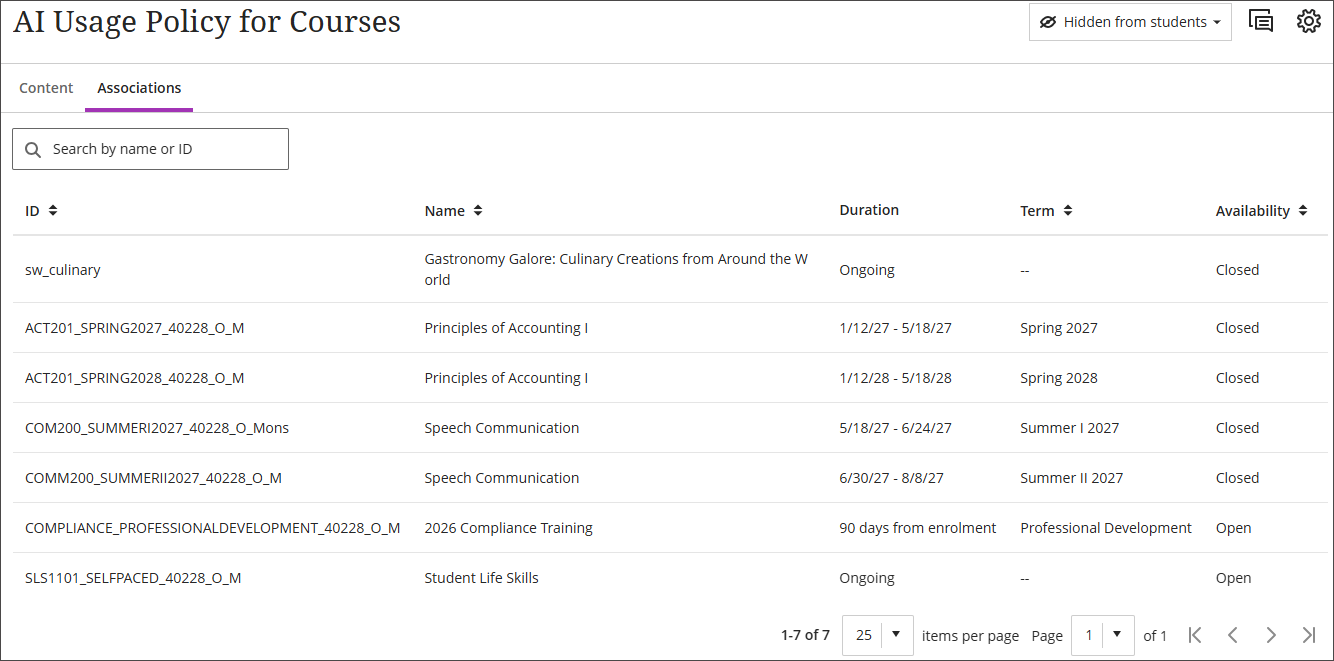
Via het menu Meer opties kun je een lijst met koppelingen voor een object openen. De pagina met koppelingen heeft sorteeropties en je kunt zoeken op cursus- of organisatienaam of ID.
Verwijderen
Als je Verwijderen selecteert, heb je twee opties.
Dit object verwijderen: Kies deze optie om het object uit de LOR te verwijderen, maar het blijft wel in alle gekoppelde cursussen en organisaties staan. Het object dat in de cursus of organisatie achterblijft, verliest zijn koppeling met de LOR en kan dan volledig worden bewerkt.
Dit object en alle bijbehorende objecten verwijderen: Selecteer deze optie om het object uit de LOR te verwijderen en uit alle actieve cursussen en organisaties waaraan het is gekoppeld. Objecten worden niet verwijderd uit cursussen die als voltooid zijn gemarkeerd of waarvan de einddatum al is verstreken.
View object source information
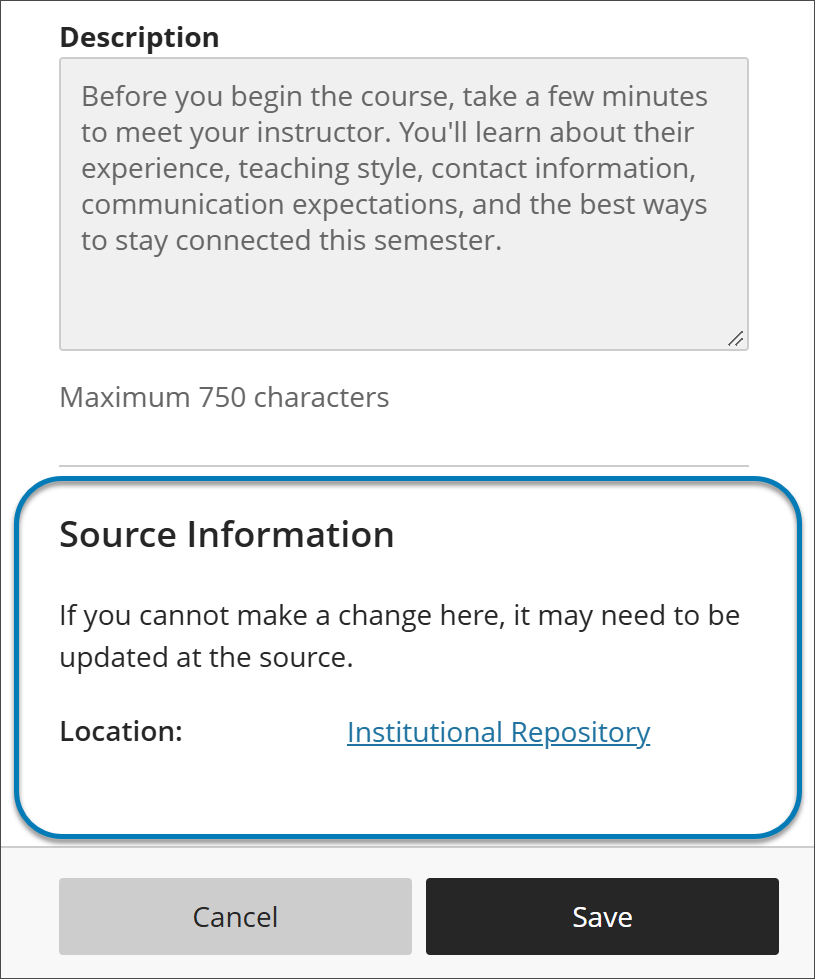
When an LOR object is used in a course or organization, its settings panel includes a Source Information section at the bottom. Use it to identify where the object is stored in the institutional hierarchy without leaving the course or organization.
Source Information lists the object’s location as a selectable link. It also notes that if you can’t change something about the object where you are, the change may need to be made at the source in the LOR.
Items zoeken
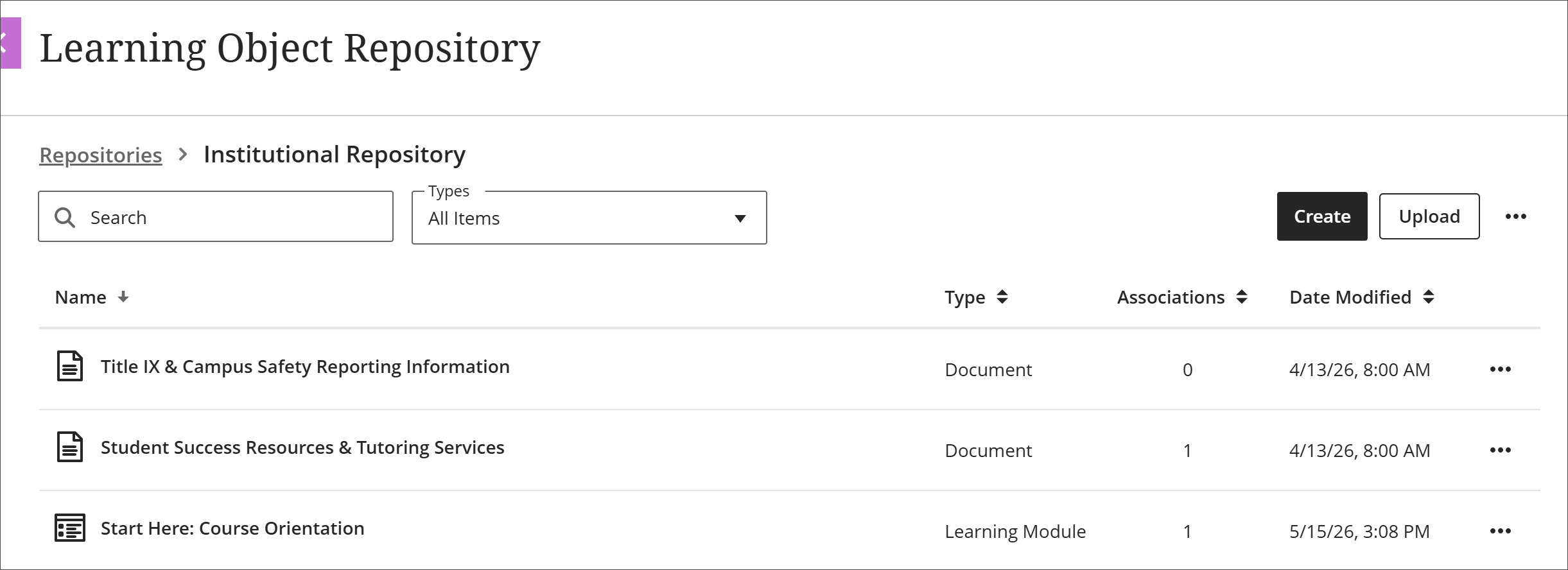
In het LOR-beheeroverzicht kun je objecten sorteren op naam, type, aantal koppelingen of wijzigingsdatum. Je kunt ook filteren op objecttype of zoeken op naam.
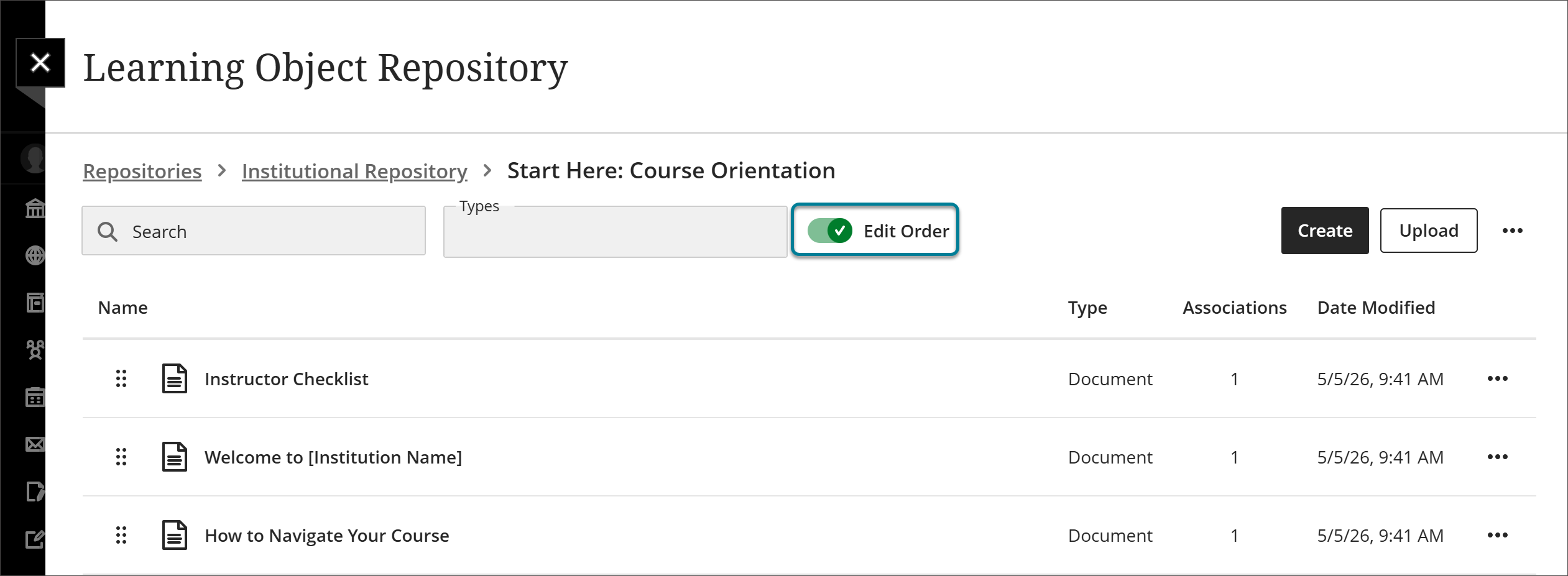
De volgorde van objecten in leermodules en mappen aanpassen
Als je objecten in de LOR-beheerweergave bekijkt, kun je ze sorteren, doorzoeken en filteren om de weergave aan je wensen aan te passen. Als je echter een leermodule of map in een cursus of organisatie invoegt, wil je dat de items daarin in een bepaalde volgorde staan.
Selecteer Extra en kies Opslagplaats voor leerobjecten.
Ga naar de leermodule of map.
Schakel de schakelaar Volgorde bewerken in.
Zet de items in de gewenste volgorde.
Use the reorder button to drag and drop objects.
Select the reorder button to open a menu with options to Move to top of page, Move up, Move down, or Move to bottom of page.
Schakel de schakelaar Volgorde bewerken uit.
De objecten zijn nu vergrendeld in de volgorde die je hebt ingesteld. Als de leermodule of map in een cursus of organisatie wordt toegevoegd, verschijnen de items in die volgorde. Dit geldt ongeacht hoe je ze in de beheerweergave sorteert, doorzoekt of filtert.