Configuration des paramètres de notification
Note
Cette documentation a été traduite à l'aide d'un outil de traduction automatique assisté par l'IA. Les traductions sont fournies « telles quelles », sans aucune garantie quant à leur exactitude. La version anglaise de ce contenu fait office de source officielle et fait autorité.
Les notifications peuvent être envoyées dans le cadre des processus de provisionnement et d'extraction des colonnes.
Configurer les paramètres de notification pour l'exportation des notes
Connectez-vous à Blackboard à l'aide d'un compte utilisateur doté de privilèges d'administrateur système.
Ouvrez le panneau de configuration de l'administrateur.
Sélectionnez Prolongations de plateforme dans Gestion du cloud.
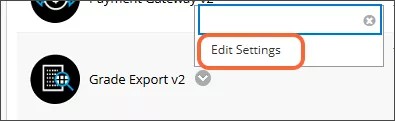
Choisissez Modifier les paramètres dans le menu contextuel de Note Export v2.
Assurez-vous que le bouton bascule de la Disponibilité de l'exportation des notes est activé. Un bouton « Caractéristiques de Notes Journey » apparaîtra, que vous ne pouvez pas sélectionner ; le texte contient plus d'informations sur la prolongation Notes Journey, disponible avec une implication payante. Pour plus d'informations sur les fonctionnalités supplémentaires disponibles avec Notes Journey, veuillez contacter le responsable de votre compte.
Sélectionnez l'onglet Paramètres de notification.
Renseignez les champs pour chaque type de notification.

Note
/n n'est pas obligatoire pour créer une nouvelle ligne. Vous pouvez ajouter des retours ou de nouvelles lignes dans le modèle.
Colonnes relatives aux devoirs et aux notes
Ces notifications par e-mail sont envoyées lorsque la colonne de notes et le processus de provisionnement des devoirs sont terminés.
Entrez les adresses e-mail qui doivent recevoir l'e-mail dans le champ À l'adresse. Il s'agit souvent d'un e-mail d'administrateur ou d'une liste de distribution.
Entrez l'adresse e-mail dont l'e-mail semble provenir (par exemple, noreply @domain) dans le champ De l'adresse.
Entrez la ligne d'objet de l'e-mail dans le champ Objet.
Entrez le modèle du texte de l'e-mail dans le champ Modèle de corps.
Extraction des notes
Ces notifications par e-mail sont envoyées lorsque le processus d'extraction des notes est terminé.
Entrez les adresses e-mail qui doivent recevoir l'e-mail dans le champ À l'adresse. Il s'agit souvent d'un e-mail d'administrateur, d'une liste de distribution ou du jeton $INSTRUCTORS$. Les personnes travaillant dans ce champ recevront un e-mail pour chaque cours inclus dans un extrait. Les professeurs ne recevront que des e-mails pour leurs propres cours.
Entrez les adresses e-mail des administrateurs dans le champ Administrateur à l'adresse. Les administrateurs répertoriés dans ce champ recevront un e-mail une fois le processus d'extraction des notes terminé, avec un fichier texte joint contenant les identifiants de tous les cours inclus dans l'extrait.
Entrez l'adresse e-mail dont l'e-mail semble provenir (par exemple, noreply @domain) dans le champ De l'adresse.
Entrez la ligne d'objet de l'e-mail dans le champ Objet.
Entrez le modèle du texte de l'e-mail dans le champ Modèle de corps.
Notification d'événement de notation
Ces notifications sont envoyées lorsque des modifications sont apportées aux colonnes de notes ajoutées par l'intégration Grades Journey. Par exemple, si un professeur supprime accidentellement une colonne de notes provisionnée, une notification sera envoyée à l'adresse e-mail spécifiée pour informer l'administrateur de cette situation afin qu'elle puisse être corrigée.
Choisissez le Type de notification dans le menu.
Aucune : aucune notification n'est envoyée
E-mail : les notifications sont envoyées par e-mail
Entrez les adresses e-mail qui doivent recevoir l'e-mail dans le champ À l'adresse. Il s'agit souvent d'un e-mail d'administrateur ou d'une liste de distribution.
Entrez l'adresse e-mail dont l'e-mail semble provenir (par exemple, noreply @domain) dans le champ De l'adresse.
Entrez la ligne d'objet de l'e-mail dans le champ Objet.
Entrez le modèle du texte de l'e-mail dans le champ Modèle de corps.
Sélectionnez Soumettre pour enregistrer vos paramètres.