May 2026 Release Notes (4000.15)
Release Information
提示
For maintenance release build numbers and bug fixes, visit Maintenance Releases.
For release status and delays, visit Blackboard Status.
Instructional Design
White space improvements in Documents
We refined spacing and layout behavior in Documents to reduce unnecessary vertical white space and improve overall readability and visual balance.
These updates improve the presentation of content items—including images within content blocks—and apply consistently when editing existing content, creating new content, or using AI‑generated layouts.
Administrators
Availability: Available to all Ultra courses.
Activation: None needed.
Configuration: None needed.
Improved screen reader experience in Document view mode
Screen reader users now have a cleaner, more focused experience when navigating documents in view mode. Unnecessary row and column announcements have been removed to allow access to primary content in the correct order, left to right, across rows, columns, and blocks. Edit mode behavior is unchanged.
Administrators
Availability: Available to all Ultra courses.
Activation: None needed.
Configuration: None needed.
Communication and Collaboration
AVA: Explore with AI Playground
AVA AI Playground provides a dedicated, institutionally managed space within Blackboard. The feature offers access to selected AI models directly inside the LMS. The AI Playground encourages instructors and students to experiment and innovate with teaching and learning.
This feature is designed as an exploratory environment—separate from coursework and assessment workflows—where users can ask questions, generate ideas, and interact with AI directly from Blackboard. AVA AI Playground includes clear trust and safety messaging to support responsible use.
Instructors and Students
When enabled by the institution, AVA Playground appears in the Tools area of Base Navigation. Access is controlled through the Administrator Panel and can be turned on or off globally.
When users launch the AI Playground, they are presented with an entry message prompting a user to agree to:
Blackboard's AI end user terms (including important waivers)
AI safety guidelines
Third-party model providers terms
Users must agree to the terms to continue or can exit back to Base Navigation.
Image 1: The AI Playground allows instructors and students to explore and ideate new ideas and approaches to teaching and learning.
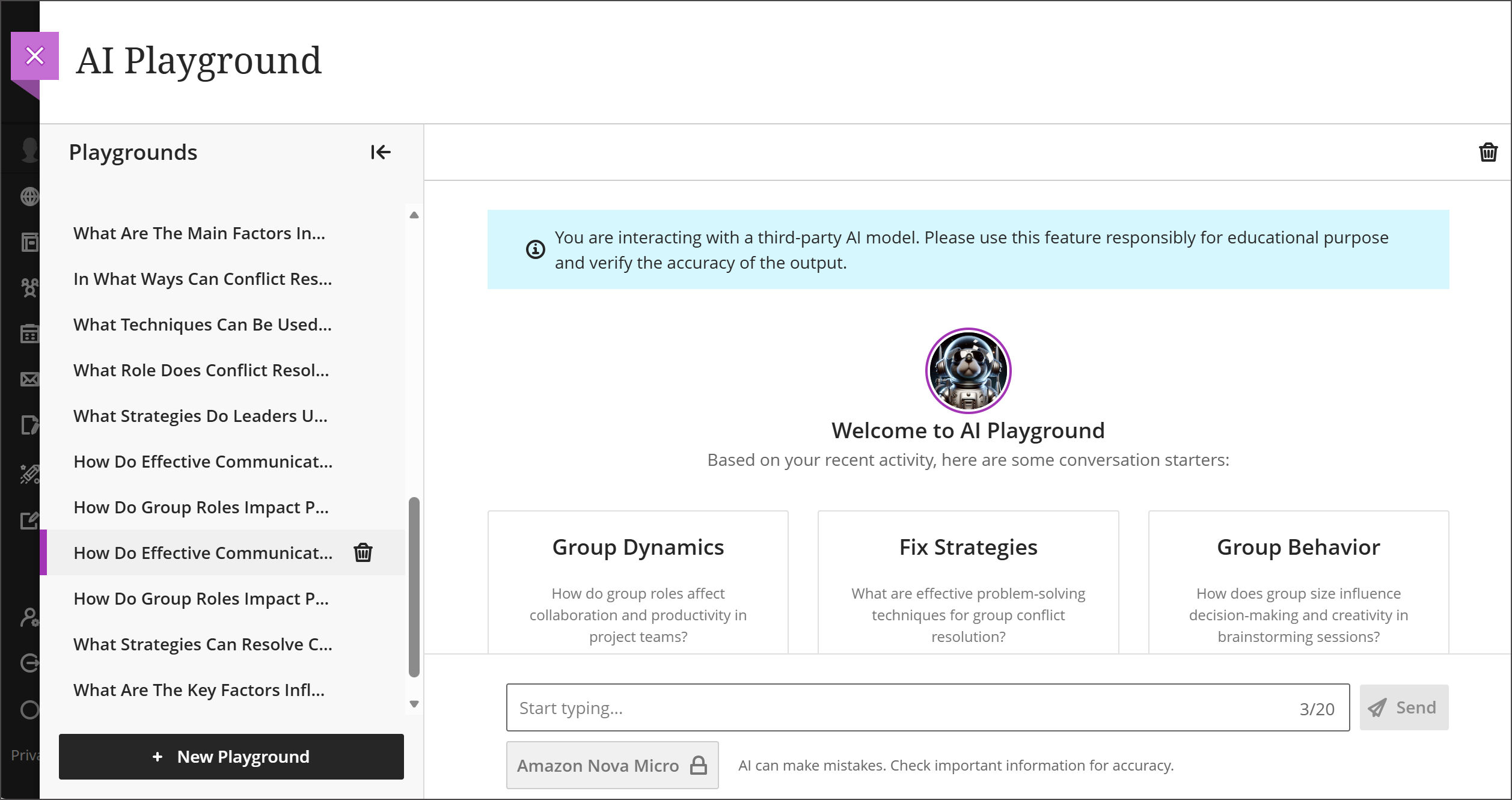
Inside the AI Playground, users interact with AI through a familiar chat‑style interface. The experience includes:
A text input area for questions or prompts
An AI response area that displays generated output
The ability to start a new chat and view recent chat history
Model selection, where available, to choose between supported AI models
AVA AI Playground offers users three suggested questions to ask in the chat, based on the course they are enrolled in.
Conversations persist across individual sessions, allowing users to refine responses through follow‑up prompts rather than starting over with each request.
The AI Playground should only be used for exploration and ideation. It does not automatically connect to course content, assessments, grades, or instructor workflows.
Administrators
Availability: AVA features are included in your Blackboard license until 30 June 2026. After that, an AVA license is required.
Activation: AI Playground is off by default. AVA AI Playground is managed entirely by administrators, ensuring institutional control over availability and use.
Configuration: To turn on this feature, go to the Administrator Panel. Select Building Blocks under Integrations, then Installed Tools. Find the AI Design Assistant and Unsplash building block and select Settings. Under the AVA section, select AVA Playground. Administrators can turn it on globally. The default setting is off.
Rebuilding the Groups management experience for instructors
We’ve redesigned Groups management to significantly improve usability, performance, and flexibility for instructors. This update addresses long‑standing challenges with creating, organizing, and managing groups—especially in large courses—and delivers a clearer, faster, and more consistent experience across group types.
The new Groups management experience focuses on reducing manual effort, improving visibility, and supporting common instructional workflows with fewer clicks and clearer controls.
Changes to the group management experience for instructors include:
A redesigned group management experience
Improved group creation and enrollment
Automatic enrollment with clearer controls
More flexible ways to assign students
Better visibility and organization
Sorting for students and groups
Clearer group membership and activity context
Performance and reliability improvements
Consistency across group types
Upcoming improvements
Instructors
A redesigned group management experience
Groups management has been reimagined from the ground up with a cleaner layout and more intuitive controls. The updated interface displays more information in less space, making it easier to manage groups and members without excessive scrolling.
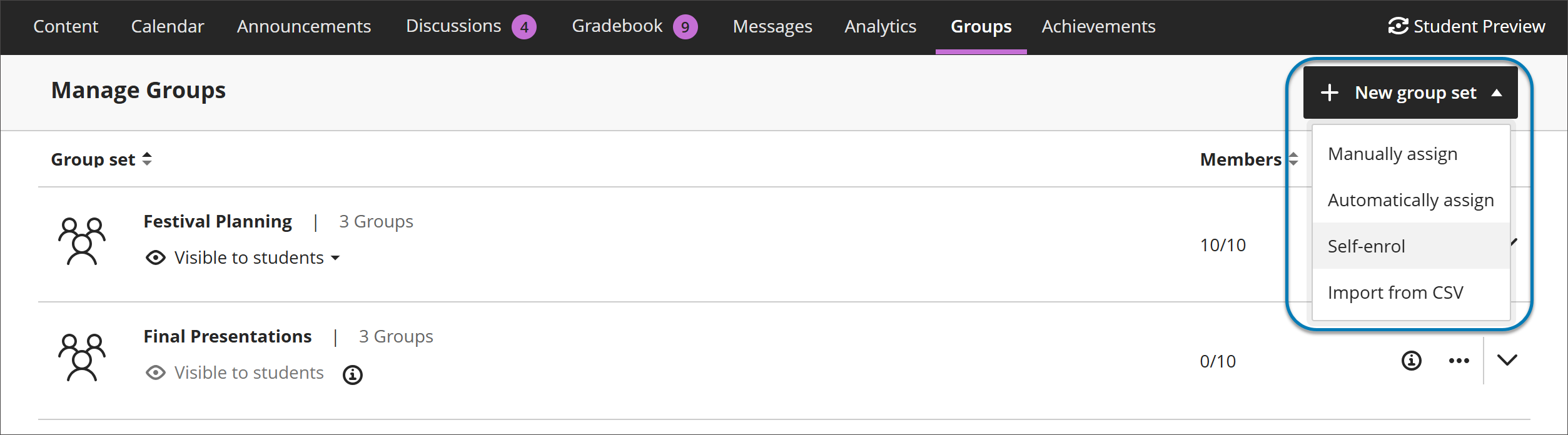
Instructors now start by choosing how they want to structure groups—before managing individual members. The options include:
manual assignment
automatic assignment
self‑enrollment
import
This approach removes guesswork and streamlines setup for common scenarios.
Image 1: Instructors now start by creating a group set by choosing how they want to structure groups—before managing individual members.
Improved group creation and enrollment
Automatic enrollment with clearer controls
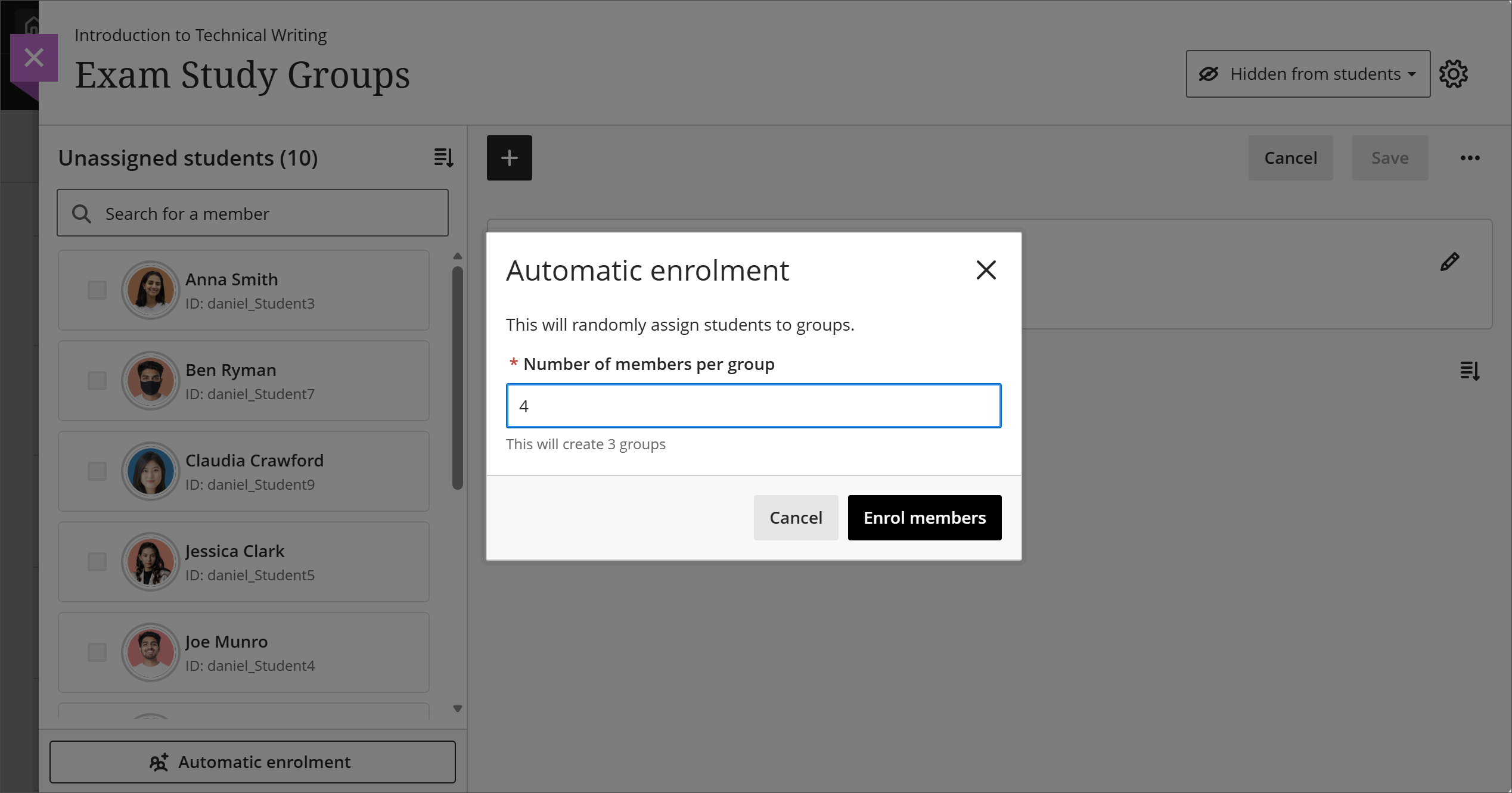
Instructors can automatically assign students to groups by specifying the number of members per group. Blackboard creates the required number of groups and assigns students randomly in a single step, reducing setup time for large courses.
Image 2: Instructors can now automatically assign students to groups by specifying the number of members per group.
More flexible ways to assign students
Instructors can assign and unassign students using multiple methods:
Assign students directly from the unassigned list
Assign selected students to a specific group
Add or remove members from within a group
This flexibility reduces repetitive actions and makes it easier to focus on populating one group at a time or balancing membership across groups.
Better visibility and organization
Sorting for group members and groups
Instructors can now sort:
Students by first name or last name (A–Z or Z–A)
Student ID
Groups by group name
Groups by number of members
Image 3. Instructors can now sort group members by first or last name, student ID and sort groups by group name or number of members.
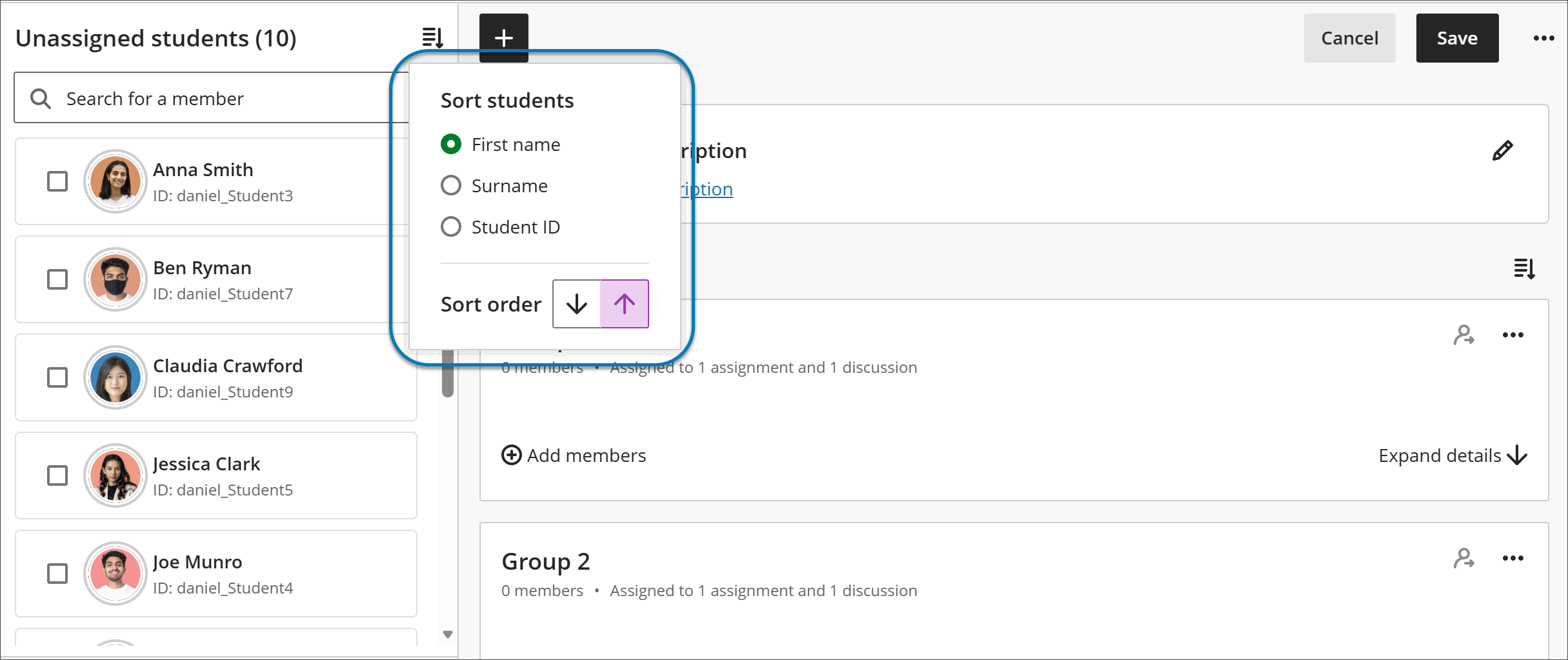
Sorting replaces inconsistent behaviors from the previous experience and provides predictable ordering when managing large enrollments.
Clearer group membership and activity context
Each group displays high‑level information about how it’s being used in the course, such as whether it’s assigned to tests, assignments, or discussions. Once group task types have been created and students begin submitting work, there is a gradual increase in action warnings or constraints. This helps instructors understand the impact of changes before modifying or deleting groups.
Group content, assignments, and membership are now more clearly connected, improving consistency across the course experience.
Performance and reliability improvements
Managing groups in large courses is now significantly faster. Save operations that previously took several minutes—especially in courses with thousands of students—now complete in seconds. When a group is being saved, an instructor can close out the page and be assured that it is continuing to save in the background, allowing instructors to continue working without interruption.
Additionally, the previous maximum limits of 5,000 students and 1,000 groups are removed.
These improvements reduce frustration and improve confidence when managing groups at scale.
Consistency across group types
Core actions and controls now behave the same way regardless of group type, reducing confusion and making it easier for instructors to switch between workflows. The rebuilt experience brings greater consistency across:
Manually assigned groups
Automatically assigned groups
Self‑enrollment groups
Upcoming improvements
Future improvements to the group management experience include:
Search within the group management screen
Drag‑and‑drop assignment of students to groups
Ability to create groups in bulk
Improved sorting order when numbers are used as part of group name
Improved handling of preview and unavailable students
Administrators
Availability: Available for Ultra courses.
Activation: Controlled by an administrator‑managed feature toggle. The feature off by default until August production release, where the new experience will be the default setting.
Configuration: No additional configuration is required once the feature is enabled. The new group management experience is introduced behind a feature toggle, allowing institutions to enable it in test and stage environments before turning it on in production. Both the new and existing group experiences may run in parallel for a limited time to support transition and documentation updates.
Make second due date for Discussions visible in Gradebook
The second due date for Discussions now appears in the Gradebook's Overview and Gradable Items pages, allowing instructors to be more aware of and responsive to student discussions needing grading. This improvement reduces instructor confusion around deadlines for student engagement.
Instructors
The second discussion due date now appears in the following pages in Gradebook:
Overview
Gradable Items
Under Due Date on the Discussion item on each Gradebook page, the item's second, final due date is displayed. Next to that date is a circle icon with a lower case i inside. Hover over or tab to this icon, and a pop-up bubble displays details of both due dates. For example: This discussion has 2 due dates: Due date 1: 5/1/26, 12:00 PM Due date 2: 5/8/26, 12:00 PM
Image 1: The second discussion due date now appears on the Overview and Gradable Items pages in Gradebook.
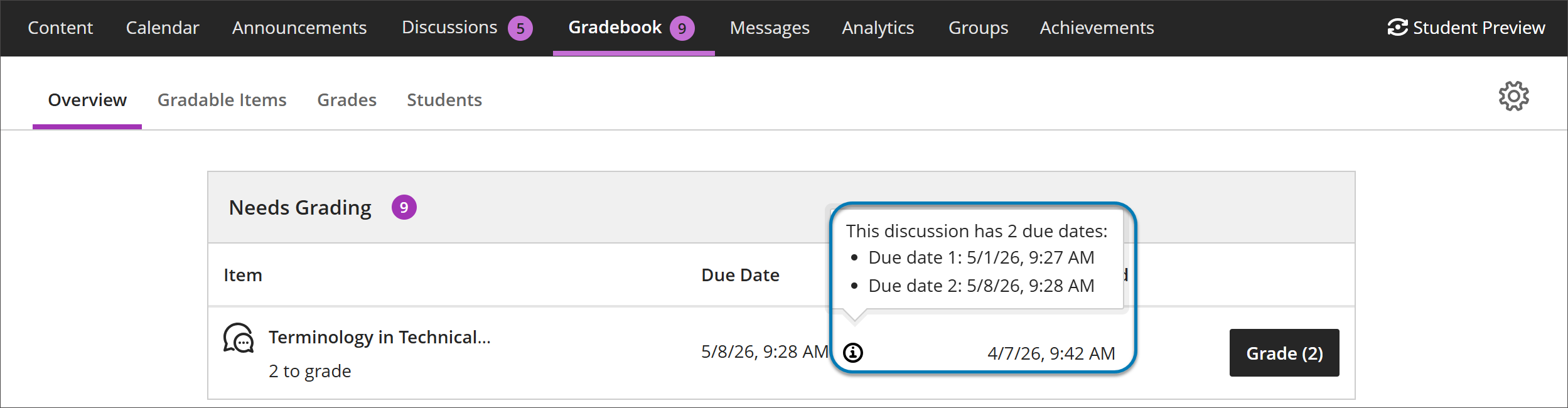
Instructors benefit from clearer communication of discussion expectations, reducing the need to clarify deadlines and helping ensure students understand how and when their contributions are graded.
Administrators
Availability: Available for all Ultra Courses.
Activation: None needed.
Configuration: None needed.
Mastery and Learning Pathways
Visualize release conditions inherited by items in learning modules and folders
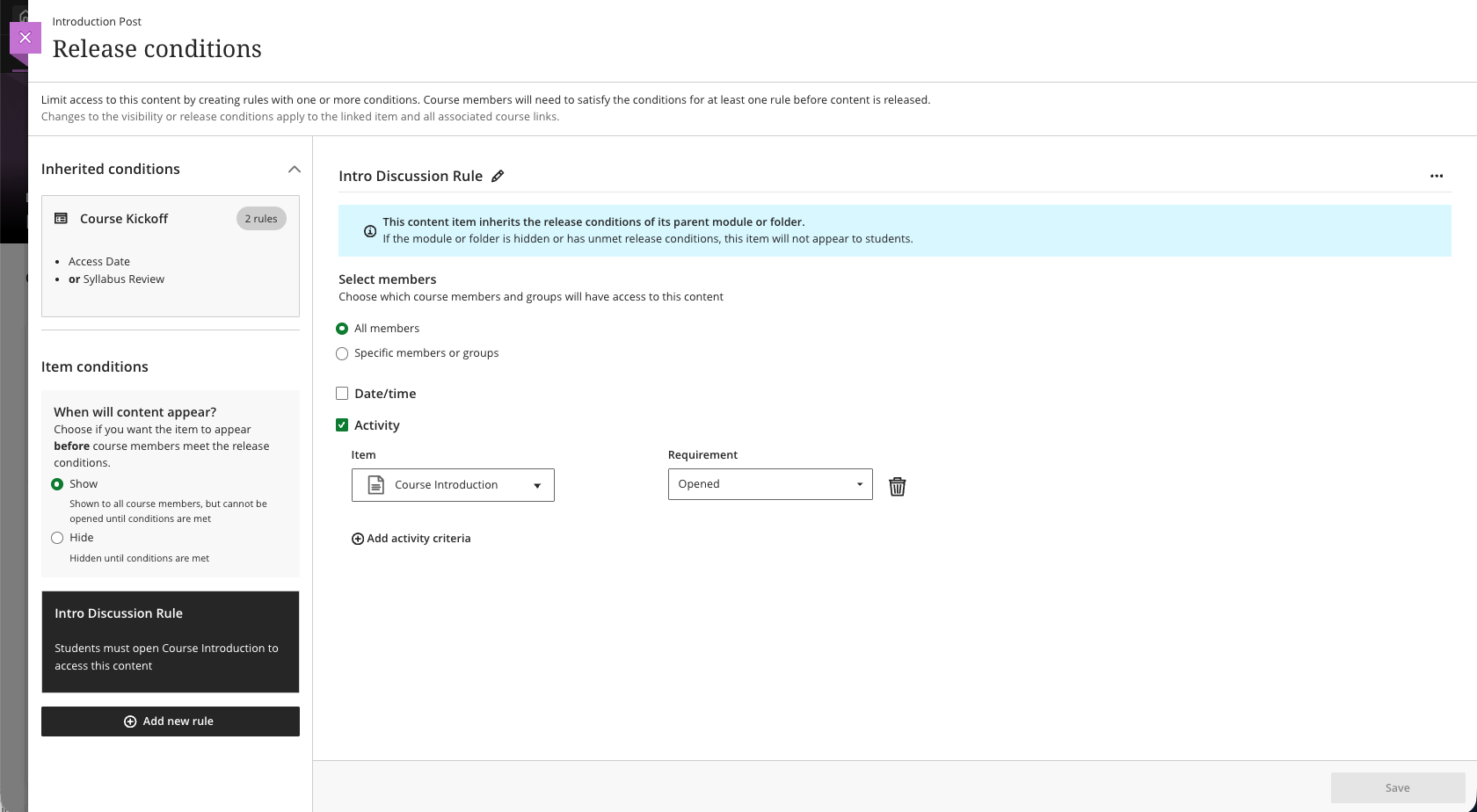
Instructors can now view release conditions inherited from a parent learning module or folder directly within the release conditions panel of individual items. Inherited conditions appear in a read-only format, giving instructors a clear picture of all conditions that apply to an item, including those set directly on the item and those cascading from a parent container.
Instructors
When instructors open the Release Conditions panel for an item inside a learning module or folder, a read-only summary of any conditions inherited from the parent container appears alongside any conditions applied directly to the item. This helps instructors understand the full set of access rules in place and determine whether additional conditions are needed.
Image 1: Read-only summary of conditions inherited from the parent container and conditions applied directly to the item appear in the Release Conditions panel.
Administrators
Availability: Available to all Ultra courses.
Activation: None needed.
Configuration: None needed.
Sync Program data from SIS
Administrators can now sync Program data directly from their Student Information System (SIS) into Blackboard LMS using flat file integration. This release supports importing Program definitions and associating Programs with Subjects through SIS feeds, reducing manual configuration and keeping program structures in Blackboard LMS aligned with institutional source-of-truth systems.
Automating Program data synchronization supports consistent program-level reporting, outcomes assessment, and accreditation workflows across Blackboard LMS functionality such as Outcomes.
Administrators
Availability: Available to all Ultra courses.
Activation: None needed.
Configuration: Program data is managed through SIS flat file integrations.
Sync Term Types from SIS
Administrators can now sync Term Type definitions directly from their Student Information System (SIS) into Blackboard LMS using flat file integration. Term Types classify academic terms such as semesters, quarters, sessions, or modules. Syncing this data from the SIS reduces manual setup and ensures that term classification in Blackboard LMS stays accurate and consistent over time.
Automating Term Type synchronization supports longitudinal and cross-term reporting and establishes a reliable time-based foundation for analytics and workflows across Blackboard LMS functionality such as Outcomes.
Administrators
Availability: Available to all Ultra courses.
Activation: None needed.
Configuration: Term Type data is managed through SIS flat file integrations.
Blackboard Core
Improved search and navigation in Course Switcher
We’ve enhanced the Course Switcher in Blackboard Ultra Course View to make it faster and easier to move between courses. Users can now search for a course directly from the Course Switcher and navigate to it without first returning to the Courses page.
This update builds on the existing quick access to recent courses and helps reduce navigation friction when working across multiple courses.
Instructors and Students
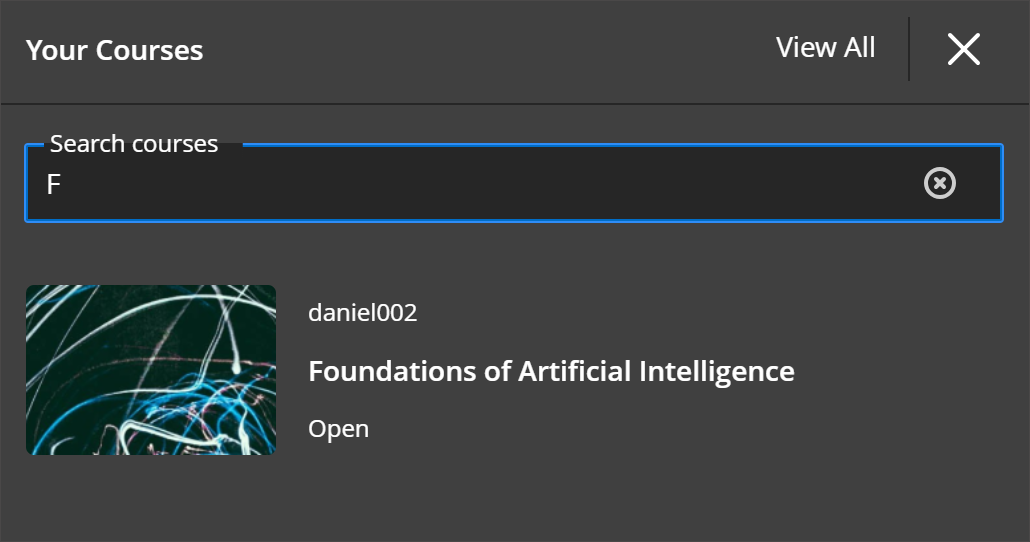
The Course Switcher now includes a search box that allows users to quickly find and open any course they have access to. Instead of browsing the full Courses page, users can open the Course Switcher, search by course name or course ID and navigate directly to the selected course.
This enhancement complements existing options in the Course Switcher:
Quick access to the four most recent courses
A View All link that opens the full Courses page
By combining search with recent‑course access, the Course Switcher provides a centralized and efficient way to move between courses—helping users stay focused on their tasks rather than managing navigation.
Image 1: Course Switcher now has a Search courses capability allowing users to search for courses by course name or course ID.
Administrators
Availability: Available to all Ultra courses.
Activation: None needed.
Configuration: None needed.
Remove feature flag for Learning Module Table of Contents
In earlier releases, Blackboard introduced a Table of Contents (TOC) for Learning Modules for both instructors and students. This feature improved navigation and orientation within modules and was initially released behind a feature flag to support phased rollout and validation.
With the May release, the feature flag for the Instructor and Student Table of Contents is being removed. The Table of Contents is now permanently enabled for all users in Ultra Course View.
This change ensures a consistent experience across institutions and removes the need for administrators to manage this feature through the Administrator Panel.
Administrators
Availability: Available for all Ultra courses.
Activation: None needed.
Configuration: None needed.
Gradebook
Carry group filter into Flexible Grading
The group filter selected in the Gradebook grid view now carries over into Flexible Grading. Instructors who filter by a group in the Gradebook will find only the students from that group when they enter Flexible Grading, and the active group filter is displayed within the Flexible Grading view. This feature does not apply to assessments that are graded anonymously. This update reduces the need to re-filter after switching views and keeps instructors focused on the most relevant students for their current grading task.
Administrators
Availability: Available to all Ultra courses.
Activation: None needed.
Configuration: None needed.
Resized Accommodations icon
The Accommodations icon has been updated to a smaller size across the product. The icon remains unchanged on the Student drill-down page. This update was made to make the icon consistent across the product and to support spacing in the new Gradebook Grid view and is being released in advance where applicable.
Administrators
Availability: Available to all Ultra courses.
Activation: None needed.
Configuration: None needed.
Integrations
Enhanced Institutional Hierarchy control for UEF integrations
Administrators can now control the availability of Ultra Extension Framework (UEF) integrations within course context using Institutional Hierarchy (IH). This release introduces availability control for tools configured in a course's Details & Actions menu.
Previously, UEF integrations behaved as globally enabled tools within courses, appearing regardless of institutional structure. With this enhancement, administrators can define where these tools should be available by using existing Institutional Hierarchy tool controls, specifying the nodes (such as schools or departments) where a UEF tool is allowed to function once a course context is established.
In this initial release, availability control is limited to course-context behavior within a course's Details & Actions menu.
This update enables institutions to:
Better alignment of tool availability with institutional structure and licensing
Reduce unnecessary tool exposure in courses where they are not relevant
For Tools using UEF integrations in the course Details & Actions menu, control of availability depends on adoption of this new capability. Third party providers must update their integrations to support course-level availability. Without updates, these tools will continue to appear globally in courses and can't be controlled within Institutional Hierarchy. For more information on UEF, please go to our Blackboard Developer Documentation.
Administrators
Availability: Available for all Ultra courses.
Activation: After the Third-Party Provider updates the integration, administrators can navigate to:
LTI Providers in the Administrator Panel
Select the LTI tool you want to activate
Select Manage Placements
Select Edit Ultra extension type
Enable the option Add as Course Tool in Course Management
Configuration: Configure UEF tool availability at the desired Institutional Hierarchy node using Manage Tools. Global UEF loading at login remains unchanged.
This enhancement does not apply to:
Other UEF locations (such as panels, modals, course banners, or global tools)
UEF integrations operating outside of course context
LTI placements or other integration types
Blackboard Admin
Cancel queued course copy and delete tasks
We’ve improved administrative control over queued system tasks by allowing certain high‑impact tasks to be removed while they are still in a Waiting status. Previously, administrators could not cancel queued tasks—such as course copies or deletes—once they were submitted, even if the action was accidental or duplicated. This improvement strengthens system safety and operational confidence by giving administrators the ability to correct mistakes before they result in irreversible changes.
Administrators can now delete specific queued system tasks that are still waiting to be processed. This applies to select task types, including course copy and course delete operations from System Task Status, the child page of Logs (in the Tools and Utilities module of the Administrator Panel). When a task appears in Waiting status in System Task Status, the queued system task can be deleted.
This update is especially useful in scenarios where:
A task was submitted multiple times due to uncertainty about system response
An administrator realizes a queued action is no longer needed
A duplicate or incorrect bulk action needs to be intercepted before execution
Administrators
Availability: Available to all Blackboard courses.
Activation: None needed.
Configuration: None needed.
Restrict attempt activity in completed Original courses
We’ve improved the behavior of completed Original Course View courses by preventing new attempt activity after a course has been marked complete. Previously, students could still start or submit attempts in some activities even after a course was completed, leading to confusion and data inconsistencies.
This update ensures that once an Original Course View course is complete, attempt activity is appropriately restricted.
Students
When an Original Course View course is marked complete, students can no longer:
Start new attempts for assessments
Save answers or submit existing attempts
These restrictions apply across attempt‑based activities and help ensure that completed courses remain read‑only for student participation. This change aligns system behavior with course completion expectations and helps preserve the integrity of course records.
This enhancement is the first phase of a broader, incremental effort to improve how completed Original courses are enforced. Additional restrictions will be introduced over time as part of this ongoing work.
This change requires no action from administrators and applies automatically to Original Course View courses once they are marked complete.
Administrators
Availability: Available to all Original Course View courses.
Activation: None needed.
Configuration: None needed.
Security
Strengthen logout behavior for supported SAML SSO configurations
重要
This update applies only to institutions with specific SAML configurations:
Concurrent sessions: any setting except Unlimited is affected
AND
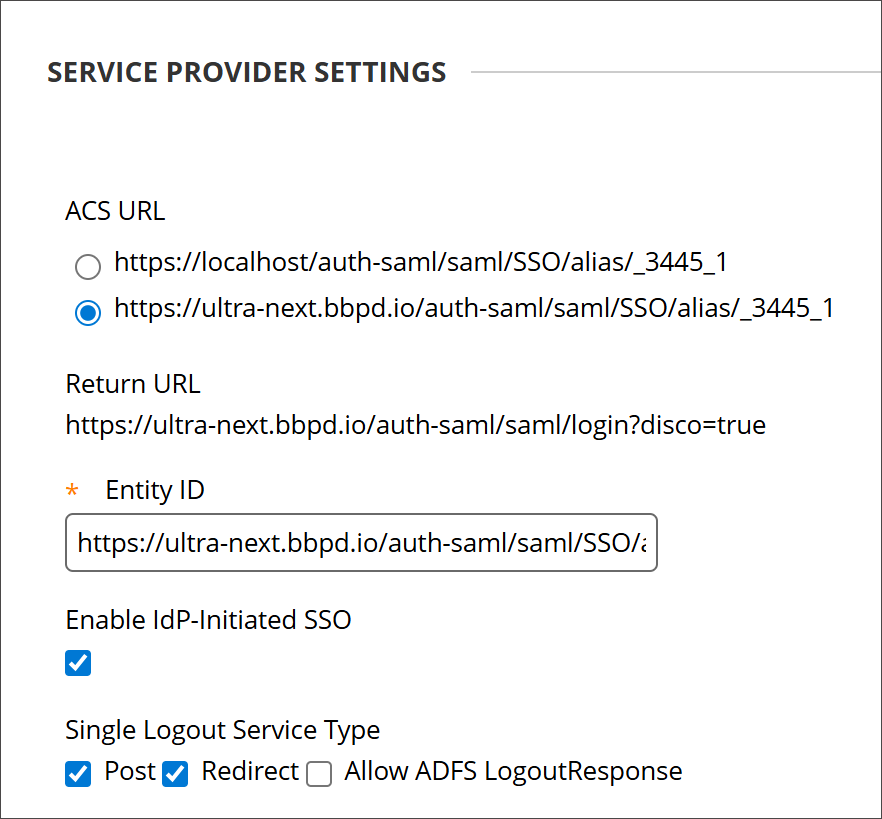
Single logout for SAML provider: In a SAML provider’s SAML settings, under Single Logout Service Type: Post and Redirect both need to be selected.
This update does not affect institutions that do not use SAML single sign‑on, direct username‑and‑password authentication, or SAML providers that do not support redirect‑based global logout.
We’ve improved the logout experience for institutions using SAML single sign‑on (SSO) by ensuring that when a user is logged out of Blackboard, their associated SSO session is also fully terminated. By ensuring that Blackboard and SSO sessions are terminated together, institutions reduce confusion, prevent unintended re‑authentication, and strengthen session management—especially in shared, multi‑device, or high‑security environments.
This improvement affects users with the following configurations set up in the Administrator Panel:
Concurrent session: Within Account Lock Settings, under Concurrent Session Control, any setting except Unlimited is affected
AND
Single logout: On a SAML provider’s SAML Authentication Settings page, selected, in the section Single Logout Service Type, the following setting is affected:
Post: selected
Redirect: selected
Image 1: The logout experience for institutions using SAML single sign‑on (SSO) is improved by ensuring that when a user is logged out of Blackboard, their associated SSO session is also fully terminated.
With this update, Blackboard now performs a global logout for supported SAML configurations:
When a session is invalidated, Blackboard also ends the associated SSO session
Users are redirected to the login page and must authenticate again to continue
Previously when users of these configurations logged out of Blackboard—for example by exceeding a concurrent session limit—the Blackboard session ended, but the underlying SSO session could remain active. In some cases, this allowed users to return to Blackboard without being prompted to re‑authenticate, creating confusion and undermining logout expectations.
The change is implemented using a websocket‑based notification to ensure that logout events are handled immediately and consistently, including when users have multiple active sessions across browsers or devices.
Administrator
Availability: This feature is available only to institutions with supported SAML configurations and global logout enabled.
Activation: None needed. The behavior applies automatically when the required SAML settings are in place.
Configuration: No additional configuration is required in Blackboard. Proper SAML logout endpoints and redirect settings must already be configured with the identity provider.
Premium
Video Studio: Add Audio Descriptions for Inclusive Videos
注意
Audio descriptions can only be supported in the English language at this time.
Video Studio now supports audio descriptions, making video content more accessible for students who are visually impaired or have low vision. Audio descriptions are spoken narrations that describe important visual elements—such as actions, settings, and on-screen text—that are not conveyed through audio alone. This feature strengthens Video Studio’s accessibility capabilities, supports compliance with accessibility standards such as WCAG, and helps institutions prepare for upcoming accessibility requirements while improving engagement for all learners.
Instructors
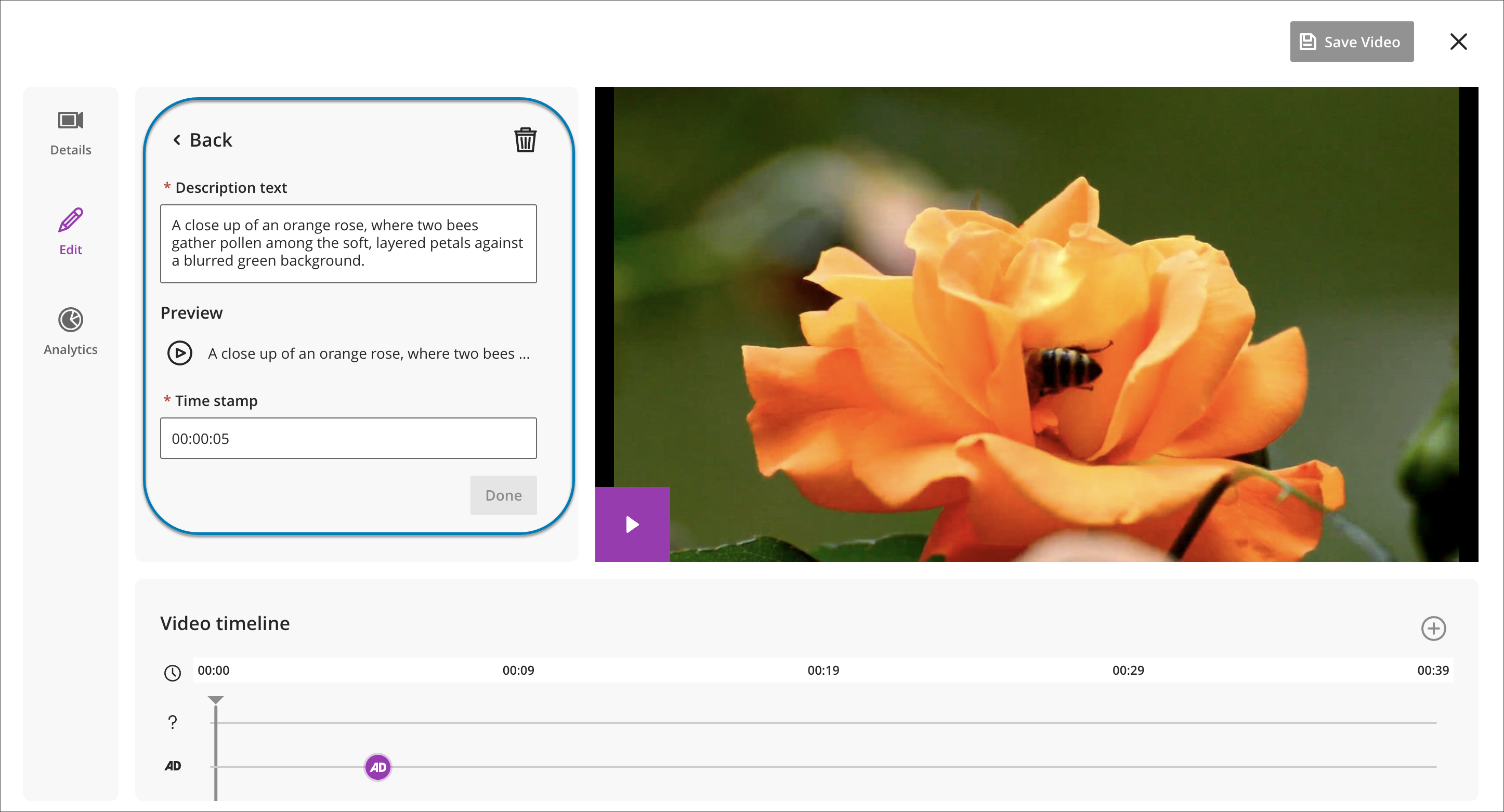
Instructors can add audio descriptions directly within Video Studio by typing descriptive text and assigning it to specific timestamps in a video. The system automatically converts the text into spoken audio using text-to-speech technology, eliminating the need to record or upload a separate audio track.
Instructors can preview, edit, or delete audio description entries before publishing to ensure accuracy, clarity, and quality. There is no character limit for audio description text, allowing instructors to provide meaningful context where needed.
Image 1: Audio description editor showing timestamped description entries in Video Studio.
Students
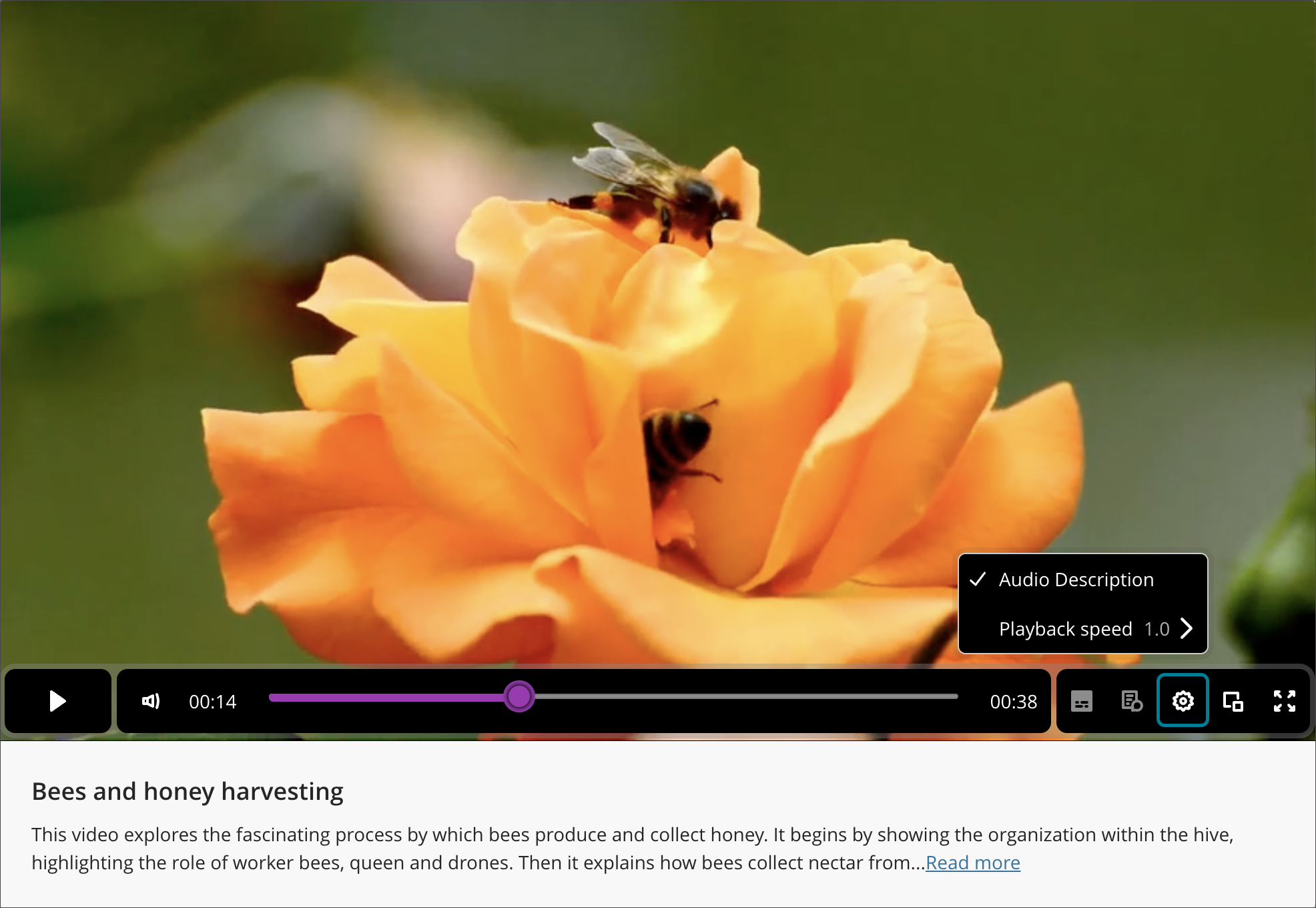
Students can turn audio descriptions on or off while watching a Video Studio recording. When enabled, the video pauses while the audio description plays and then resumes automatically, ensuring students do not miss any content.
Audio description text also appears in the video transcript and is synchronized with video timestamps, allowing students to read descriptions in addition to listening. When downloading a video with transcripts, the download reflects the selected audio track, including audio descriptions when enabled.
Image 2: If a video includes audio descriptions, the option to turn on the feature appears when you select the settings button in the bottom panel of a Video Studio recording.
Administrators
Availability: Feature included in Video Studio placements in Blackboard Core and premium Video Studio offering.
Activation: None needed.
Configuration: None needed.
Course Catalog: Only show students in Download Certificate search results
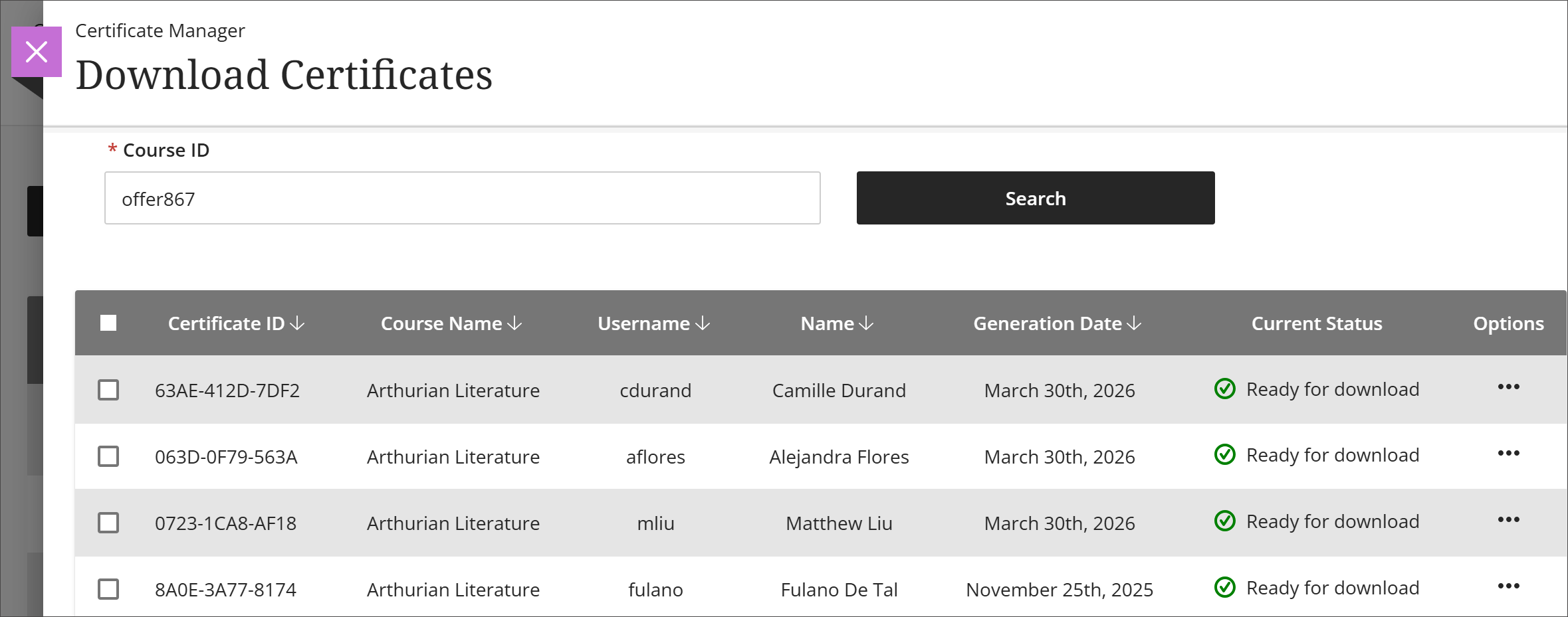
Results now include only students when Certificate Managers search by course on the Download Certificates page. This update removes non-student roles from results, reducing confusion and streamlining the search process for managers.
Image 1: Only students are returned in the search results.
Administrators
Availability: Available to all Course Catalog courses.
Activation: None needed.
Configuration: None needed.
Milestone: Receive expiration alerts for Open Badge 3.0 credentials
Learners now receive timely alerts at 90, 30, and 7 days before an Open Badge 3.0 badge expires and a notification on the expiration date. These alerts help learners stay informed and act before their badges lapse.
Students
Notifications arrive by email and include the badge name and expiration date for easy visibility.
Administrators
Availability: This feature requires a license for Blackboard Milestone.
Activation: None needed.
Configuration: None needed.