AVA - AI Virtual Assistant
AVA – AI Virtual Assistant is an AI-powered helper designed to support you as you move through your course in Blackboard LMS. AVA helps answer common course-related questions and allows you to experiment with learning through AI Playground. Feature settings for AVA are controlled by your institution and your instructor.
As Blackboard continues to expand AI-powered capabilities in Blackboard LMS, we prioritize lawful, ethical, and responsible use. Our approach is guided by our Trustworthy AI principles, which emphasize:
Humans in control
Fairness
Privacy
Security
Safety
AI‑generated responses are meant to help, but they may occasionally be incomplete or inaccurate.
Review AVA responses carefully and follow up with your instructor if something doesn’t look right
AVA message responses are based only on what is visible to you in the course
Avoid including personal, sensitive, or confidential information
Your instructor oversees how AVA is used in your course
Don't use AI Playground for personal use or for graded work
If you notice output that seems inaccurate, biased, or inappropriate, raise the issue with your instructor. For more information, review our Trust Center, where we outline how AI features are designed and governed across our products.
Depending on how your institution and instructor have configured AVA, it may support you in several different ways.
Use AI Playground
AVA AI Playground is a dedicated, institutionally managed space in Blackboard LMS where you can explore and experiment with AI in a low‑stakes, educational environment.
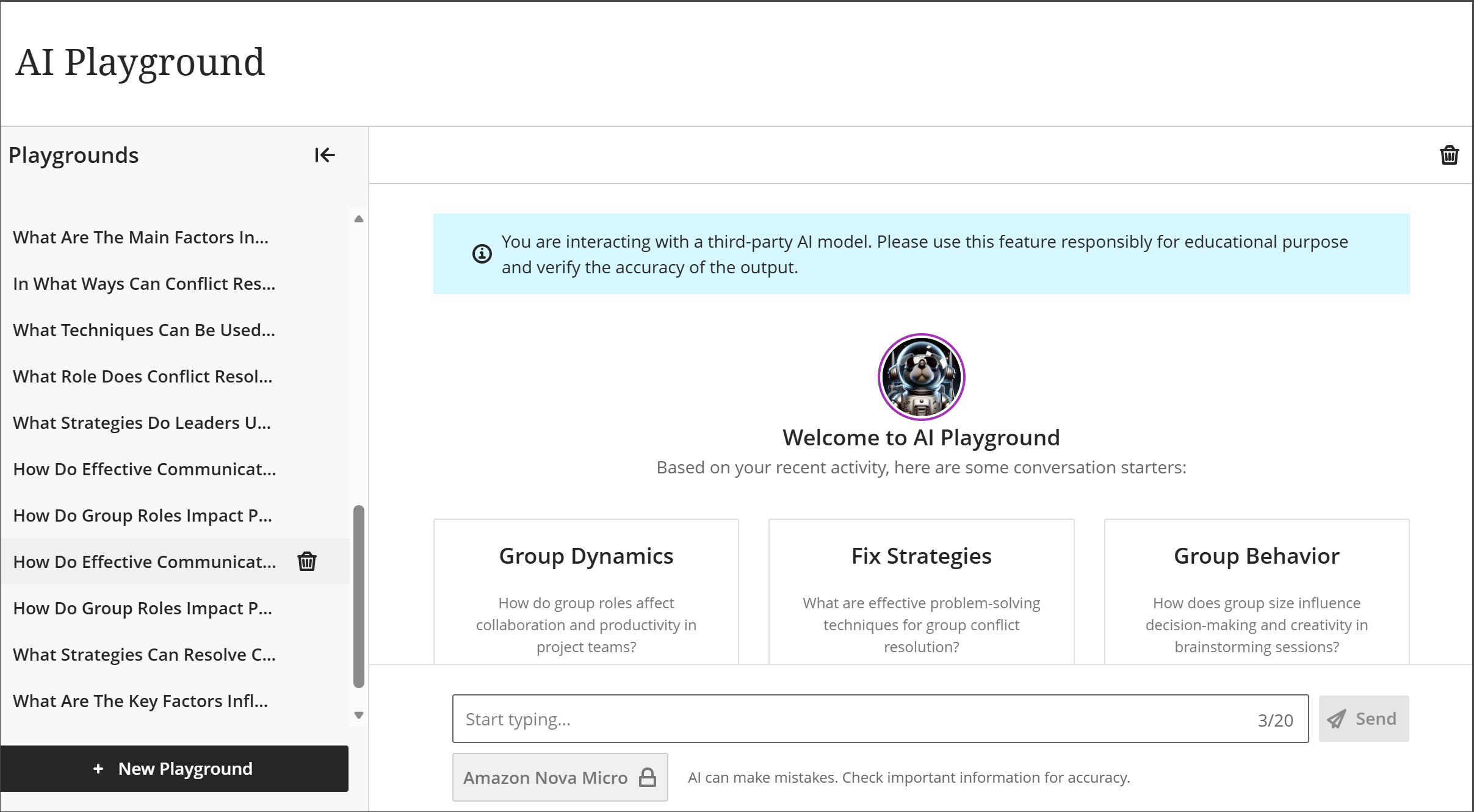
The AI Playground is designed for exploration and ideation, not for graded coursework or assessments. You can use it to ask questions, generate ideas, and think through topics related to your course — all without impacting your grades.
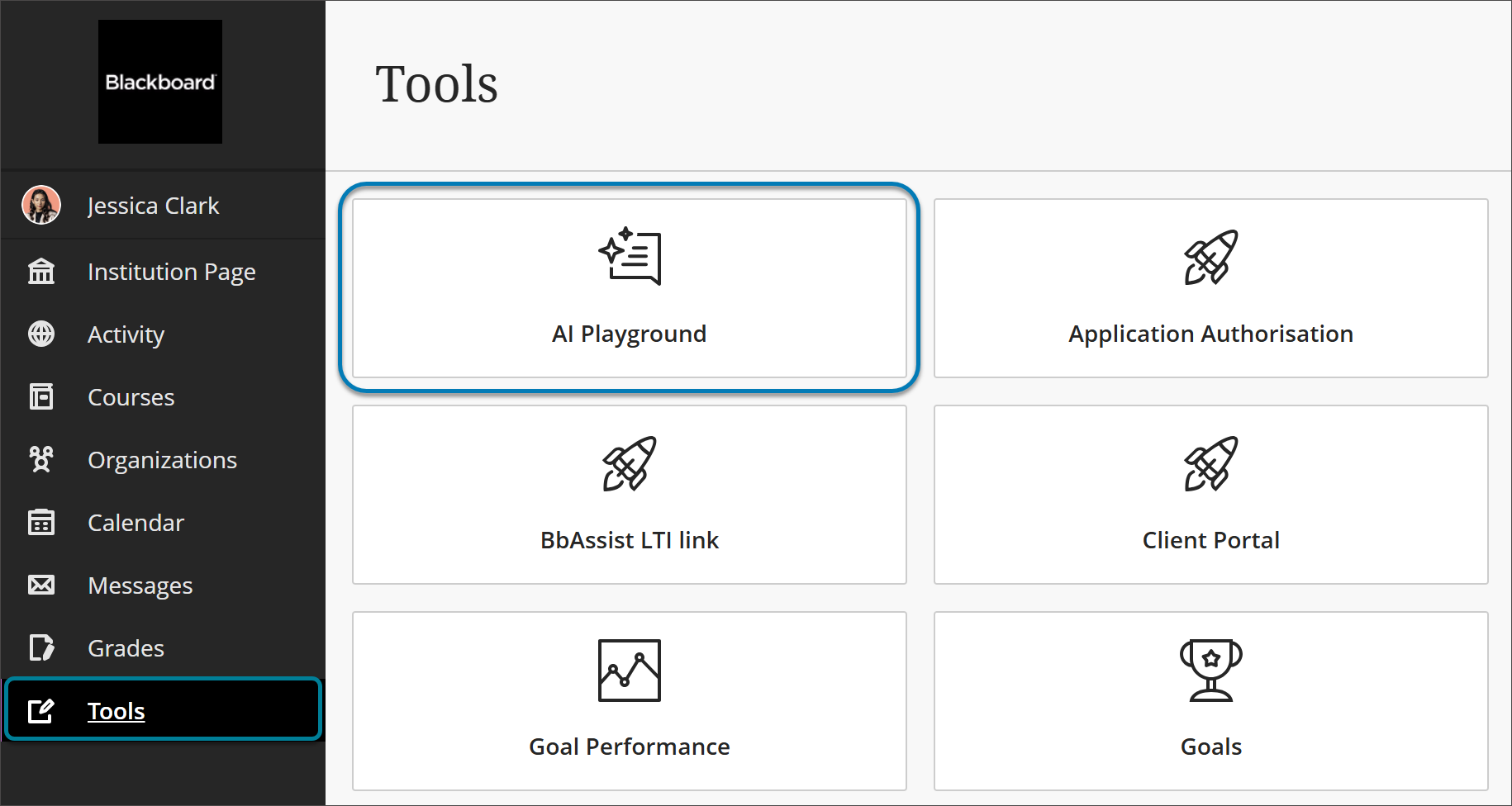
If your institution has enabled AI Playground, you’ll find it in the Tools area of Base Navigation. Access is managed by your institution and may be turned on or off at any time.
When you first launch AI Playground, you’ll be asked to review and agree to:
Blackboard’s AI end‑user terms (including important waivers)
AI safety guidelines
Third‑party AI model provider terms
You must agree to these terms to continue, or you can exit back to Base Navigation.
AI Playground
Inside AI Playground, you interact with AI through a familiar chat-style interface that includes:
A text input area where you enter questions or prompts
An AI response area that displays generated output
The ability to start new chats and return to recent conversations
Model selection, when available, to choose between supported AI models
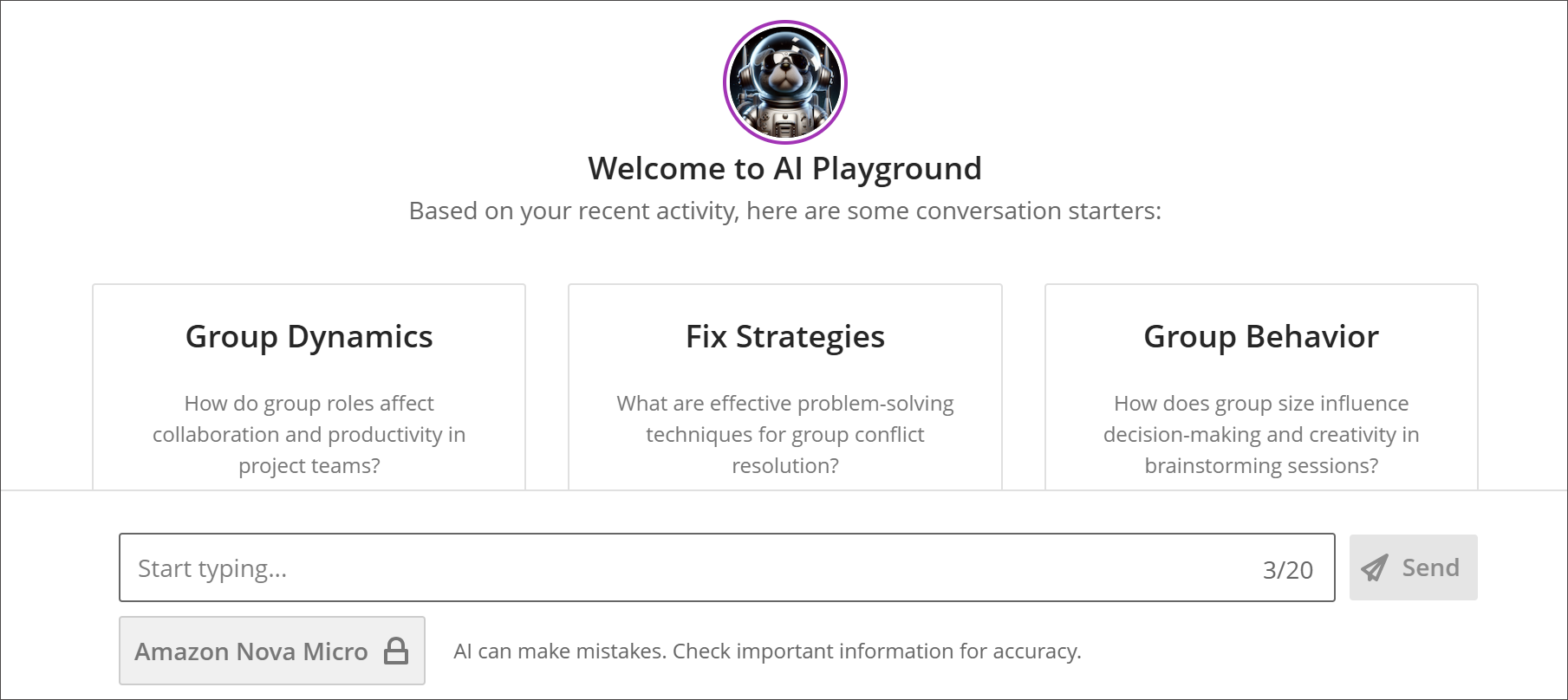
You may also see suggested prompts to help you get started, based on the course you’re enrolled in.
Your conversations persist across sessions, allowing you to refine ideas through follow‑up prompts instead of starting from scratch each time.

Usage limits apply in AI Playground. Each available AI model has a daily message limit, which may vary by model. The AI Playground interface displays a number countdown so you can see how many messages remain for the selected model. Message limits reset automatically overnight.
Warning
The AI Playground should only be used for exploration and ideation. It does not automatically connect to course content, assessments, grades, or instructor workflows. AI Playground is not meant for personal use or graded content.
Understand AVA responses to your messages
When you send a message to your instructor, AVA may respond on their behalf if it can confidently answer your question using course information that’s visible to you.
Students often ask about information that already exists in the course. AVA helps by reviewing the course from your perspective and drafting a response when possible.
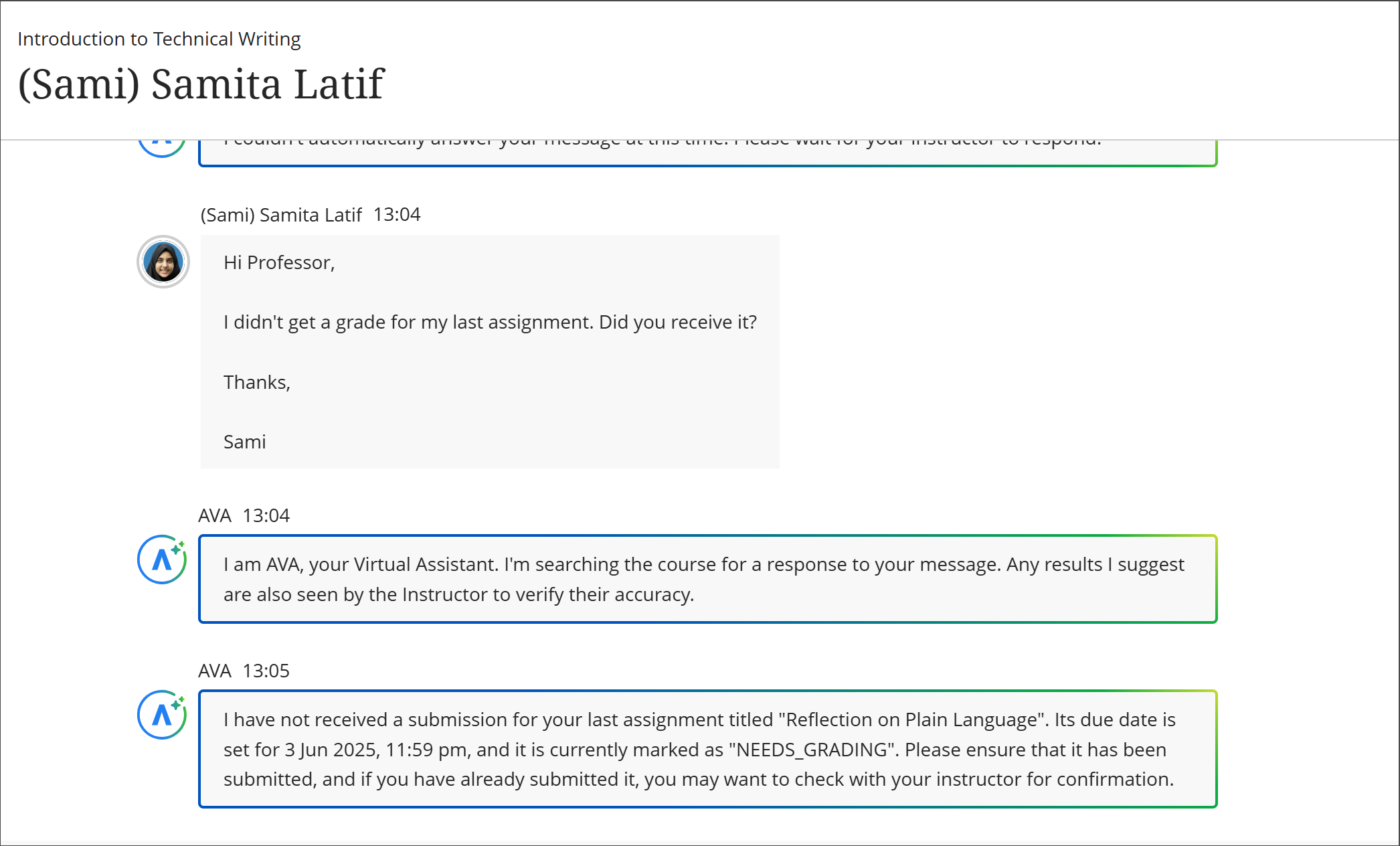
AVA may respond to questions about:
Assignment due dates, grades, and course content visible to you
Accommodations or instructor-defined exceptions that apply to you
Direct links to relevant areas of the course
Your progress through course modules, if progress tracking is enabled
If AVA can’t find a reliable answer, it will let you know and your instructor will follow up directly.
AVA only replies in specific situations to ensure accuracy:
AVA responds only to messages sent to the Instructor role
AVA does not respond to group messages that include multiple students or other roles
If AVA responses are not turned on in your course, your message goes directly to your instructor
AVA responses are based solely on course content available to students and use the course’s selected language pack.
Current limitations to AVA student responses
AVA features have intentional limits. At this time, AVA cannot:
Read or extract content from Blackboard LMS documents or uploaded documents
Answer questions about third‑party content such as SCORM, OneDrive files, or external websites
Search the internet or external storage locations
Provide details about institutional services or resources outside your course