对 Blackboard 的反馈和支持
Note
本文档采用 AI 辅助机器翻译。译文仅供参考,不保证准确性;此内容的英文版为官方权威版本。
你可以利用 Blackboard LMS 的自助资源寻找答案,或直接联系技术支持。Blackboard LMS 支持面板将你连接到 Blackboard LMS 支持中心和我们的文档网站 Blackboard Help。
选择“帮助”按钮打开 Blackboard LMS 支持面板。
注意
只有系统管理员角色可以访问支持面板。帮助按钮会打开所有其他职位的帮助网站。
如果您的机构使用自定义的外部文档网站,帮助按钮包含菜单。你可以选择支持面板或外部网站。
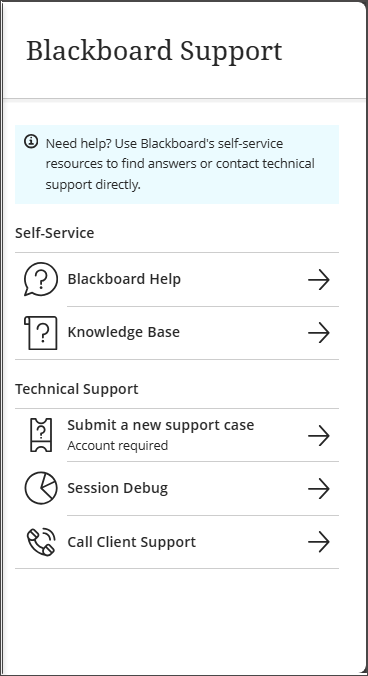
在自助服务下,您可以访问:
Blackboard帮助:访问产品内的上下文帮助。
知识库:访问 Blackboard 支持搜索页面。
在技术支持中,您可以访问:
提交新的支持案例:直接从产品中提交支持案例。提交需要 Blackboard 支持账户。
会话调试:检查会话日志表示会话中最近的30个操作。该代码帮助Blackboard支持或您机构的 IT 团队诊断问题,而无需完整的手动日志。
致电客户支持:查看每个国家的客户支持电话号码。无需登录。
支持面板权限
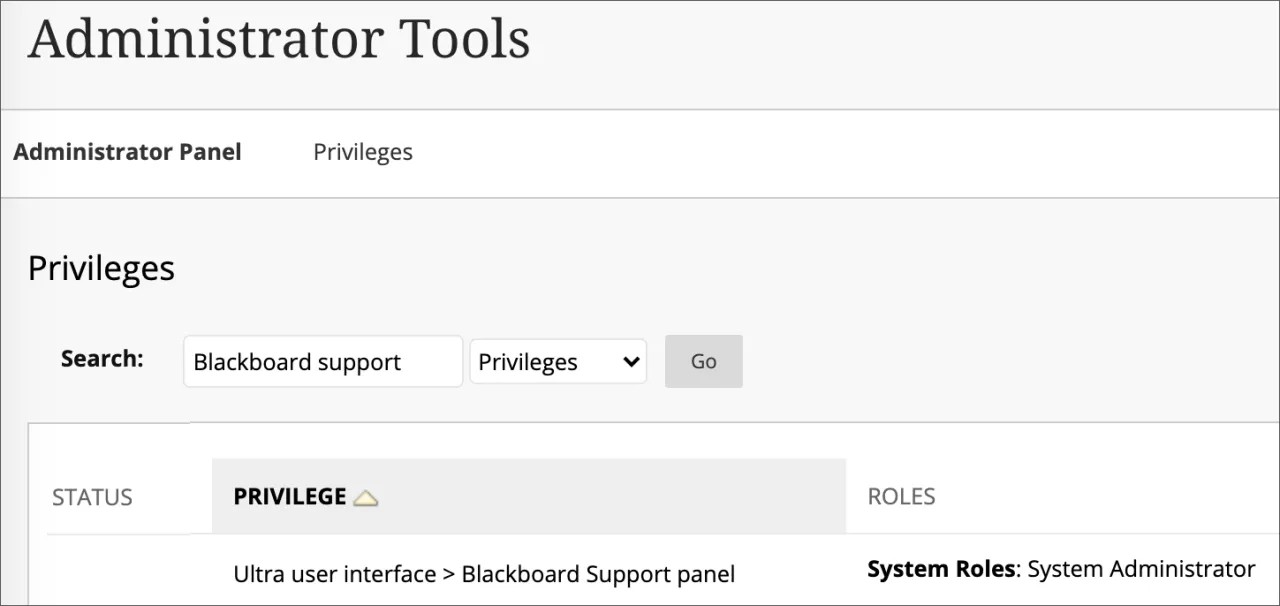
目前,只有完整的系统管理员才能访问 Blackboard LMS 支持面板。您可以为其他管理员角色添加 Blackboard LMS 支持面板权限。要了解更多信息,请访问 角色和权限。
访问Blackboard社区网站。
建立连接并进行协作!
登录以加入 Blackboard 社区网站的讨论。学习策略,帮助您的组织应对全球教育社区不断变化的学术和职业发展挑战。您可以提问和回答问题,分享经验和最佳实践,并提交产品反馈。
检查会话日志
如果教师或学生在使用 Blackboard LMS 时遇到问题,他们可以自行生成会话调试代码,与 Blackboard 支持或机构 IT 团队共享。
当代码复制到剪贴板时,按钮图标会变为绿色的勾选标记,会话代码可与帮助台共享以进行进一步的故障排除。
In the Blackboard Support panel, select the Request log code button and use the Copy button to copy the code provided.
When the code is copied to the clipboard, the button's icon changes to a green checkmark, and the session code can be shared with the help desk for further troubleshooting.
管理员可以使用学生或教师提供的代码检索会话日志。
在管理员面板中,工具和工具选择日志。
选择会话调试日志。
在日志代码字段中,粘贴用户提供的日志代码,选择检索日志。