AI Design Assistant 和 Unsplash 配置
Note
本文档采用 AI 辅助机器翻译。译文仅供参考,不保证准确性;此内容的英文版为官方权威版本。
AI Design Assistant 和 Unsplash 配置
AI 设计助手可帮助教师创建和设计新课程。它旨在激励教师并使课程创建更加高效。Anthology 已与 Microsoft 合作提供此功能。
AI 设计助手在 Ultra 中提供以下生成式 AI 辅助功能:
在由 Unsplash 提供支持的 Ultra 中为免版税图像服务生成关键字 – 向 Unsplash 搜索建议关键字以提高效率。
生成学习模块 – 通过建议课程结构来协助教师。
生成学习模块图像 – 为每个学习模块创建和建议图像。
生成测试问题和题库 – 通过在测试中提出一系列问题或从 Learn 文档构建题库来激励教师。
生成作业 – 协助生成鼓励高阶思维的作业。
生成评分量规 – 根据给定评估建议具有结构和标准的评分量规,从而提高教师效率并为学生提供评分透明度。
生成 AI 对话 - 在苏格拉底式提问练习或角色扮演场景中创建学生和 AI 角色之间的对话。
生成文档图像 – 生成要在文档中使用的图像,使文档在视觉上对学生更具吸引力。
建议文档布局 - 为文档创建有吸引力的布局,包括图像、知识检查和标题。
重要
这些功能受 Azure OpenAI Service 的限制和可用性的约束,并且可能会发生变化。有关详细信息,请查看相关发行说明。
启用 AI Design Assistant 和 Unsplash 功能
转到管理员面板。在构建基块类别下的集成部分中,选择已安装的工具。选择AI 设计助手和 Unsplash。现在,您可以访问“AI 配置”页上的所有选项。
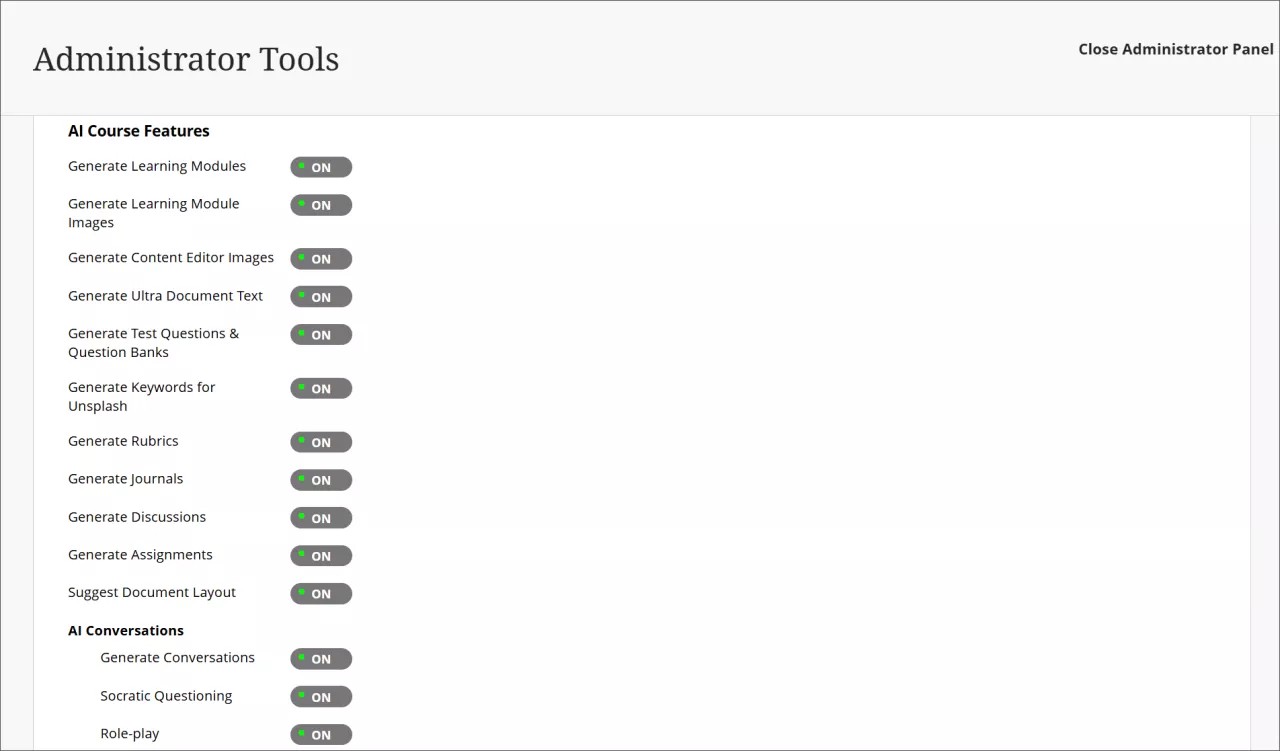
您可以控制 AI Design Assistant 的每个功能的可用性。您可以随时选择要打开的全部、部分功能,或选择全部不打开。
Unsplash 是一项单独的功能,也可以从 AI Design Assistant 页面访问。如果启用 Unsplash,教师将能够访问 Unsplash 的照片库,以用作学习模块和课程横幅的图像。
您还必须激活权限。为相应的课程角色(例如,教师)分配“使用 AI Design Assistant”权限。有关如何分配和管理权限的更多信息,请访问“课程和组织角色”主题。
AVA – AI Virtual Assistant Configuration
AVA – AI Virtual Assistant helps instructors and students by providing intelligent, AI-powered features within Blackboard LMS. Blackboardhas partnered with Microsoft and AWS to provide this functionality.
Visit our Blackboard AVA – AI Virtual Assistant page to learn more about AVA's AI-facilitated functionalities, key facts, and Trustworthy AI principles.
AVA provides the following generative AI-facilitated functionalities in Blackboard LMS:
AI Playground – AVA AI Playground provides a dedicated, institutionally managed space within Blackboard LMS, allowing instructors and students to experiment and innovate with teaching and learning.
Responses to Student Messages – AVA scans the course from the student's perspective to provide automated, relevant replies to common student questions sent to instructors.
Generate Attempt Feedback Summaries from Rubrics – Generates high-quality overall feedback for student submissions evaluated using a rubric, based on rubric criteria, performance levels, and any criterion-level feedback.
Revise Submission Feedback – Rewrites instructor-authored comments into more polished, student-friendly language to help instructors deliver clearer, more impactful feedback.
重要
These functionalities are subject to the limitations and availability of the Azure OpenAI Service and AWS Bedrock and subject to change. Please check the relevant release notes for details.
Availability and licensing
AVA features are included in your Blackboard LMSlicense until 30 June 2026. After that date, a specific AVA license will be required to continue using these features.
AVA and Existing AI Design Assistant Settings
AVA settings are managed within the same building block as the AI Design Assistant (AI Design Assistant and Unsplash). Turning on or off AVA features does not affect AI Design Assistant settings, and vice versa. Each feature can be controlled independently.
Turn on AVA features
To access AVA settings, go to the Administrator Panel. In the Integrations section, under the Building Blocks category, select Installed Tools. Find and select the AI Design Assistant and Unsplash building block, then select Settings. The AVA configuration options are located under the AVA section of this page.
You can control the availability of each AVA feature individually. You can select all, some, or none of the features to turn on at any time.
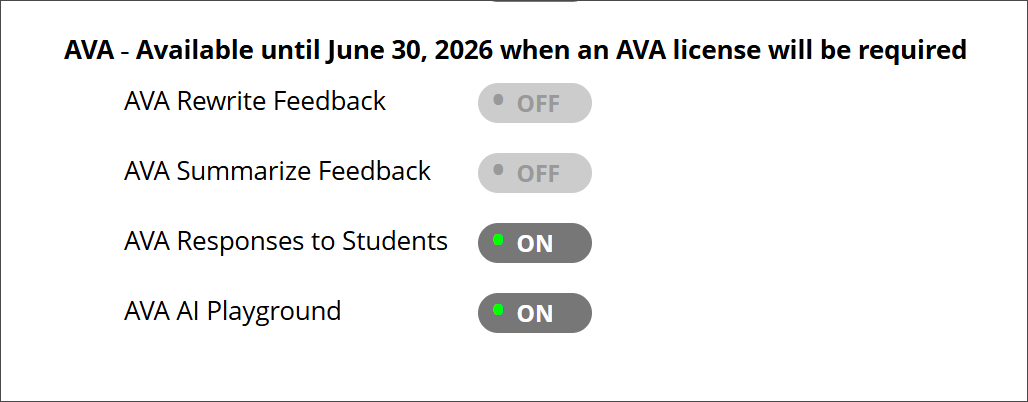
AI Playground
In the building block settings under AI Design Assistant and Unsplash, the option AVA AI Playground is available under the AVA heading. The default state is off.
Once AI Playground is enabled at system level, it is accessible through the Tools option in the Base Navigation menu for all Blackboard users.
Responses to Student Messages
To turn on this feature, navigate to the AVA section within the AI Design Assistant and Unsplash settings and select AVA Responses to Students. The default state is off.
Administrators can:
Turn the feature on globally for the entire institution, or
Enable it at the course level through Course Settings. Instructors can also turn it on or off with Course Settings.
When enabled at the administrator level, the feature is available to instructors but remains off by default. Instructors can turn on AVA autoreplies in their individual Course Settings at any time. For more information about the functionality, navigate to the Messages topic for instructors.
Generate Attempt Feedback Summaries from Rubrics
In the building block settings under AI Design Assistant and Unsplash, the option AI Summarization is available. The default state is off.
When this feature is turned on, the privilege must be assigned to course roles. The required privilege is:
Generate AI Feedback Changes in Course/Organization Control Panel
Assign this privilege to the appropriate course roles, such as Instructor, to allow access.
For more information about the functionality, navigate to the Grade Assignments with Flexible Grading topic for instructors.
Revise Submission Feedback
In the building block settings under AI Design Assistant and Unsplash, the option AI Summarization is available. The default state is off. The default state is off.
When this feature is turned on, the privilege must be assigned to course roles. The required privilege is:
Generate AI Feedback Changes in Course/Organization Control Panel
Assign this privilege to the appropriate course roles, such as Instructor, to allow access.
For more information about the functionality, navigate to the Grade Assignments with Flexible Grading topic for instructors.