配置通知设置
通知可以作为列配置和提取过程的一部分发送。
配置成绩导出的通知设置
使用具有系统管理员权限的用户帐户登录 Blackboard。
访问管理员面板。
在云管理下选择平台扩展。
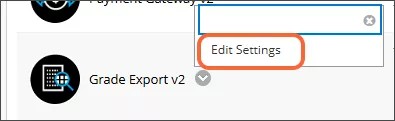
从成绩导出 v2 的上下文菜单中选择编辑设置。
确保已选择成绩导出可用性切换开关。将出现您无法选择的成绩旅程功能切换;文本包含有关付费参与提供的成绩旅程扩展的更多信息。如需了解有关 Grades Journey 附加功能的更多信息,请联系您的客户代表。
选择通知设置选项卡。
填写每种通知类型的字段。

注意
/n 不需要建立新行。您可以在模板中添加退货或新行。
Assignment & Grade Columns
These email notifications are sent when the grade column and assignment provisioning process has been completed.
Enter the email addresses that should receive the email in the To Address field. This is often an admin email or a distribution list.
Enter the email address that the email will appear to be coming from (for example, noreply@domain) in the From Address field.
Enter the subject line for the email in the Subject field.
Enter the template for the text of the email in the Body Template field.
Grade Extract
These email notifications are sent when the grade extract process has been completed.
Enter the email addresses that should receive the email in the To Address field. This is often an admin email, a distribution list, or the $INSTRUCTORS$ token. People in this field will receive an email for each course that is included in an extract. Instructors will only receive emails for their own courses.
Enter administrator email addresses in the Admin To Address field. Admins listed in this field will receive one email when the grade extract process is complete with a text file attached that includes the course IDs of all courses included in the extract.
Enter the email address that the email will appear to be coming from (for example, noreply@domain) in the From Address field.
Enter the subject line for the email in the Subject field.
Enter the template for the text of the email in the Body Template field.
Grade Event Notification
These notifications are sent when changes are made to the grades columns that were added by the Grades Journey integration. For example, if an instructor accidentally deleted a provisioned grade column, a notification would be sent to the specified email address informing the administrator of this situation so it could be corrected.
Choose the Type of notification from the menu.
None: no notifications are sent
Email: notifications are sent by email
Enter the email addresses that should receive the email in the To Address field. This is often an admin email or a distribution list.
Enter the email address that the email will appear to be coming from (for example, noreply@domain) in the From Address field.
Enter the subject line for the email in the Subject field.
Enter the template for the text of the email in the Body Template field.
Select Submit to save your settings.