June 2025 Release Notes (3900.118)
Release Information
提示
For more information on updates and bug fixes, please visit Blackboard Global Support.
Instructional Design
Add resizable dividers to Documents
Impact: Instructors
Updated Help Page: Create Documents
Idea Exchange ID: LEARNU-I-5102
Instructors
We added a divider block to Documents. Dividers can be used to help students easily identify related and unrelated sections. This new feature will greatly improve the readability and structure of educational materials.
Key Features:
Flexible: Dividers can be used in various ways to suit different instructional needs.
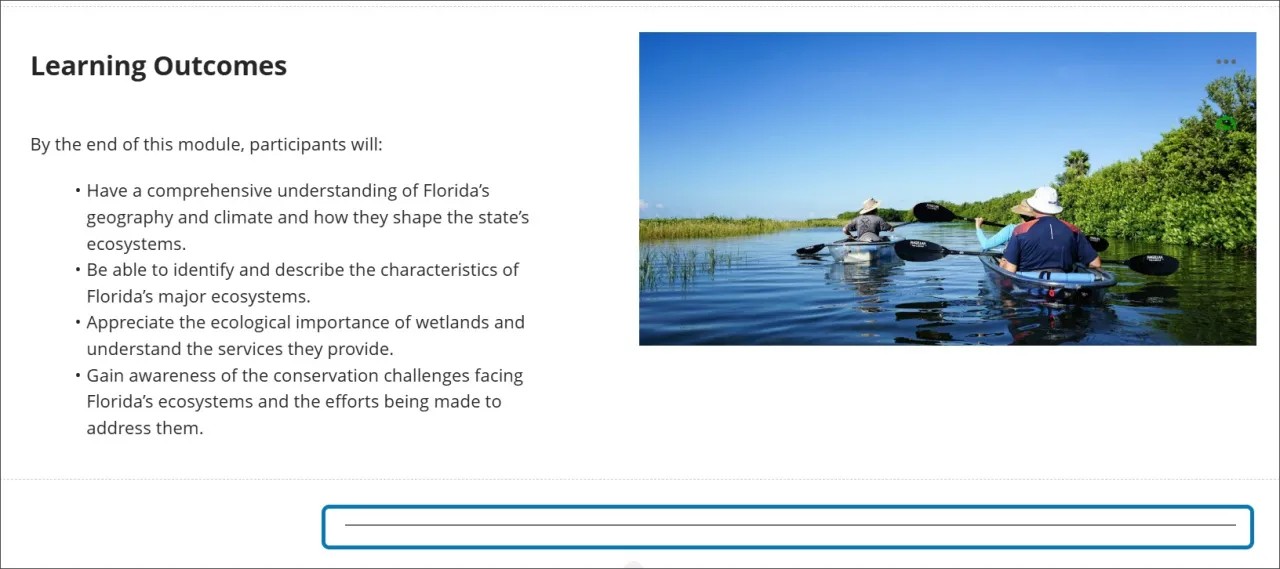
Resizable: Dividers can be resized across up to four columns, providing flexible options.
Image 1. The new option to add a divider is now included among the various block types.
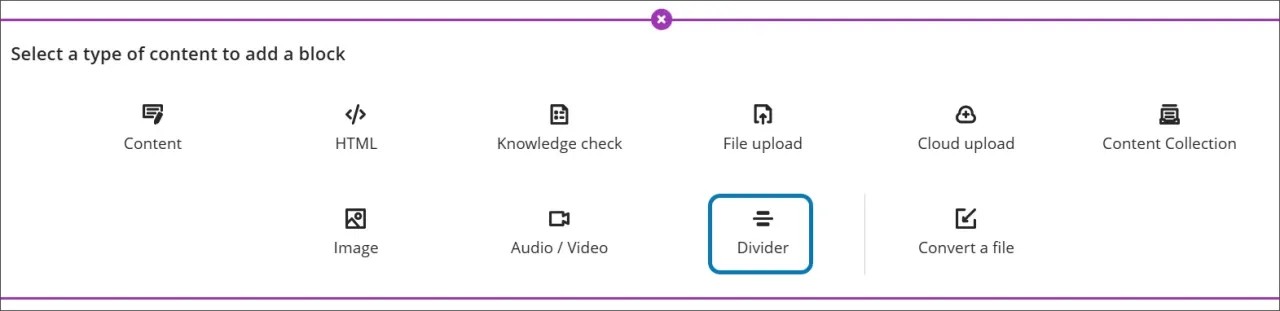
Image 2. The divider block spans three columns in the Document.
Administrators
Availability: Available for all Ultra courses.
Activation: None needed.
Configuration: None needed.
Enhanced overall appearance and usability of Knowledge Checks
Impact: Instructors and students
Updated Help Page: Create Documents
Idea Exchange ID: Not applicable
We made several adjustments to the appearance and responsive behavior of Knowledge Checks. These changes enhance the visual effects and usability for both instructors and students.
Instructors and students
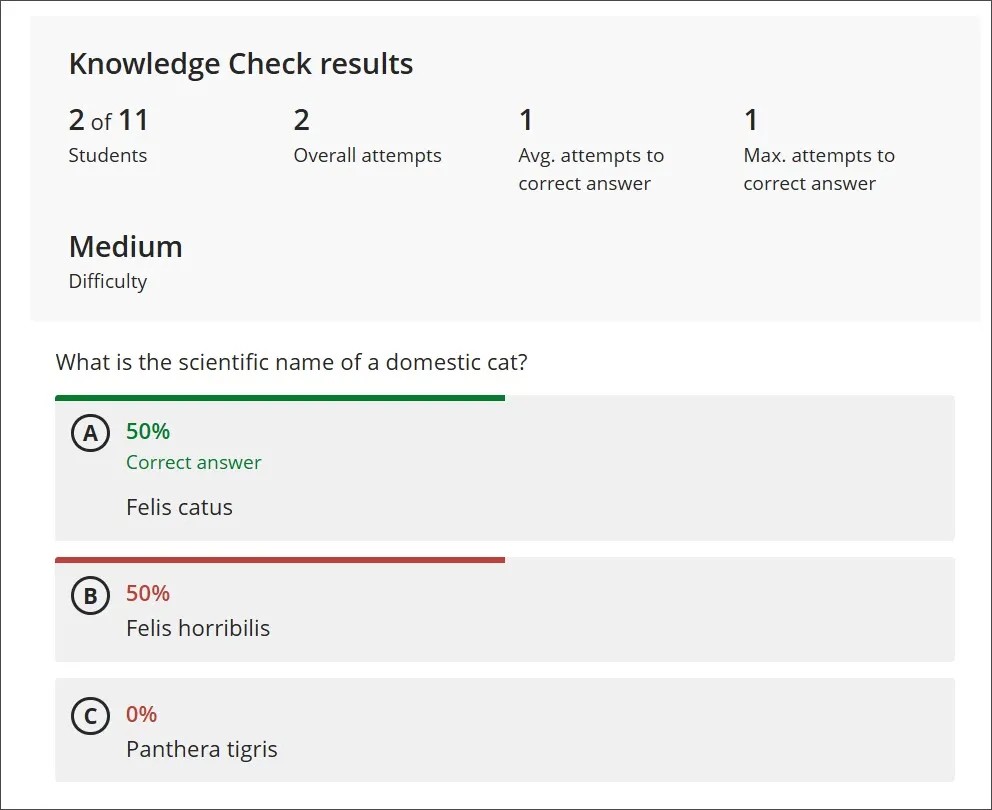
Answer Choices: The letters of answer choices now display at the top of each answer option, rather than in the middle.
Answer Labels: Correct and incorrect answer labels have been moved from the side of an answer option to the top.
Question Text Padding: Padding on the right side of question text that extended past the answer text has been removed.
Small Screen Adjustments: On very small screens, the “Correct answer” label is now shortened to “Correct.”
Instructors
Answer Metrics: Answer metrics now appear at the top of answer text alongside the correct and incorrect answer labels.
Visual Indicators: Instead of highlighting questions with red and green to indicate the correctness of the answer, a colored bar now appears at the top of a question.
Result Labels: Result labels are now displayed in lowercase instead of all capital letters.
Small Screen Padding: Padding to the left and right of the Knowledge Check results has been removed for smaller screens.
Participation Count: The number of students who participated is no longer shown as a fraction. Instead, students are described as part of a number. For example, "2 of 8 students participated."
Image 1. The instructor view of Knowledge Check results in 3900.116.
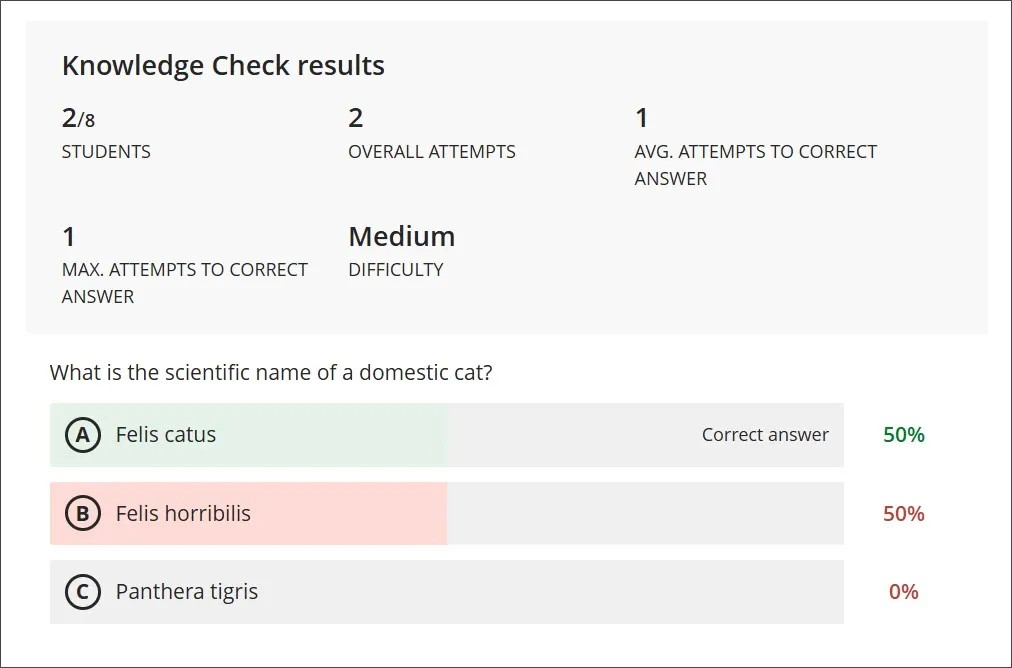
Image 2. The instructor view of Knowledge Check results in 3900.118.
Students
We made several changes to enhance the mobile and small screen experience for students.
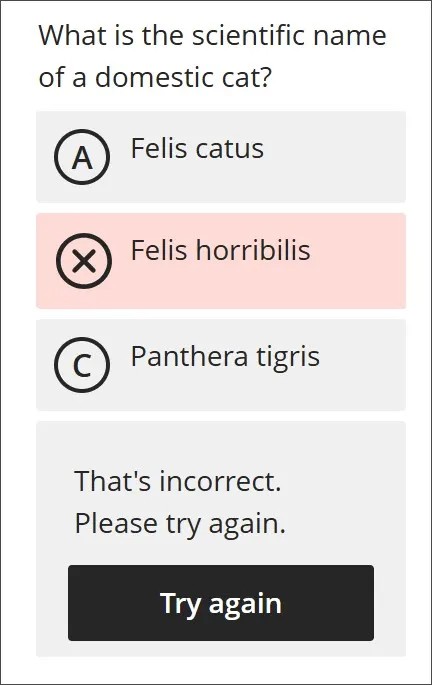
Submit Button: The Submit button now occupies the entire space at the bottom of a question, rather than just partial space on the right.
Feedback Layout: For correct answers, the checkmark indicator, correct answer feedback, and Reset button now stack vertically instead of being on a single row. This change also applies to incorrect answer feedback and the Try again button.
Answer Selection Indicator: On all screens, the answer a student selects now has a purple line to indicate it has been chosen.
Image 3. The student view of an incorrect answer in a Knowledge Check in 3900.116.
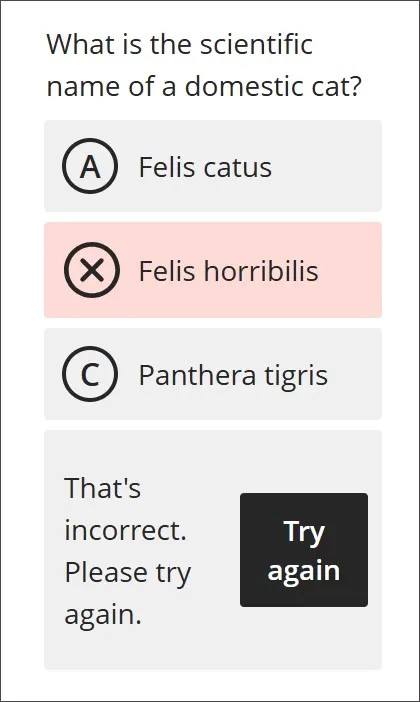
Image 4. The student view of an incorrect answer in a Knowledge Check in 3900.118.
Administrators
Availability: Available for all Ultra courses.
Activation: None needed.
Configuration: None needed.
Tests and Assignments
Create Jumbled Sentence Questions
Impact: Instructors
Updated Help Page: Jumbled Sentence Questions
Idea Exchange ID: LEARNU-I-1677
Instructors
Instructors can now create jumbled sentence questions for online exams. This feature lets instructors define one or more paragraphs with blanks for students to complete. Additionally, instructors can:
Define distractors to challenge students
Add automated feedback for correct and incorrect answers
Designate questions as extra credit
Use accessibility tools, such as keyboard-only workflows, to create this question type
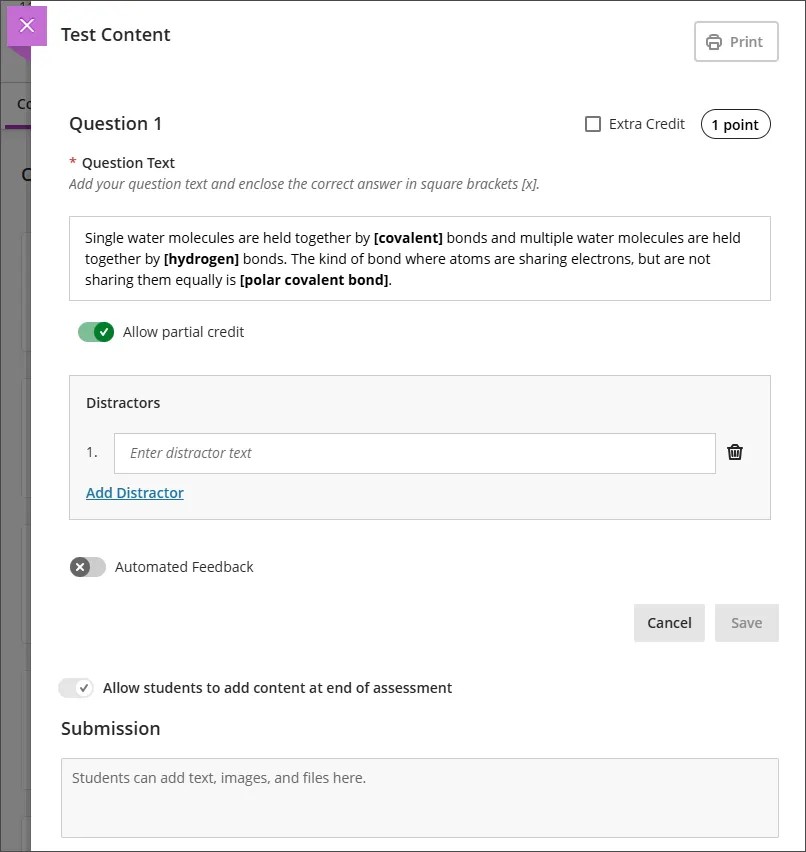
To create a variable, insert the variable in square brackets within the paragraph. Each variable is automatically recognized as the correct answer. Instructors can enable partial credit to award points for partially correct responses. For example, if half of the answers are correct, half of the max points are awarded.
Variables can include the following characters:
Letters
Digits (0-9)
Periods (.)
Underscores (_)
Hyphens (-)
The question text and variable input are validated for syntax correctness, notifying instructors of any errors, such as a missing bracket.
Example paragraph with variables:
Single water molecules are held together by [covalent] bonds and multiple water molecules are held together by [hydrogen] bonds. The kind of bond where atoms are sharing electrons but are not sharing them equally is [polar covalent bond].
Saved questions display variables in bold and underlined in purple for clarity. Instructors can also manually add feedback to student responses and use the Edit/Regrade workflow during grading.
Image 1: Instructor creates a jumbled sentence question type.
Students
Answer options are displayed in a random order, ensuring fairness in the assessment experience.
Students can:
Identify if a question is marked as extra credit
Answer questions using assistive technology
Auto-save their responses as they work
Reset the question to clear all selections
Administrators
Availability: Available for all Ultra courses.
Activation: None needed.
Configuration: None needed.
Generate AI Jumbled Sentence Questions
Impact: Instructors
Updated Help Page: Jumbled Sentence Questions
Idea Exchange ID: Not applicable
With the release of the new jumbled sentence question type, instructors can use AI to generate jumbled sentence questions.
Instructors
Jumbled Sentence is now an option in the Question Type dropdown. When creating the question in a test or a question bank, instructors can select Generate to produce the question content. Instructors can add the AI-generated jumbled sentence question to question pools or tests. Instructors can edit the AI-generated question, including points, distractors, automated feedback, extra credit, and partial credit settings.
Administrators
Availability: Available for all Ultra courses.
Activation: None needed.
Configuration: None needed.
Enhance stability and usability of commenting tools
Impact: Instructors
Updated Help Page: Bb Annotate
Idea Exchange ID: Not applicable
Instructors
We made several bug fixes in Bb Annotate.
We fixed an issue where selecting a comment made the document turn opaque and the Close button no longer worked.
We resolved several visual inconsistencies that occurred after the latest update.
The group dropdown in the toolbar is now showing in dark theme.
Colors are consistent when hovering and selecting tools.
Dropdown menus are now always in white.
Buttons on the toolbar are white.
Bookmarks now all have the same color background.
The Save and Cancel buttons in the comment box are correctly aligned.
Anonymous comments can be added. o Comments can be customized when the comment box is open while the screen is resized.
We fixed an issue in Firefox where using the Backspace key made the cursor go to the top of the comment box when released.
The Save button now correctly displays in comment boxes instead of an up arrow.
Comment formatting options are available in Annotate Fit Width view while editing a comment.
When a link is selected within a comment, editing options remain available.
These fixes will go to production on the following dates:
Asia Pacific: May 23, 2025
Europe, Africa, and the Middle East: May 26, 2025
North and South America: May 26, 2025
Administrator
Availability: Available for all Ultra courses.
Activation: None needed.
Configuration: None needed.
Enhance grading workflow with better navigation and layout
Impact: Instructors
Updated Help Page: Bb Annotate
Idea Exchange ID: Not applicable
Instructors
We added two new features to Bb Annotate.
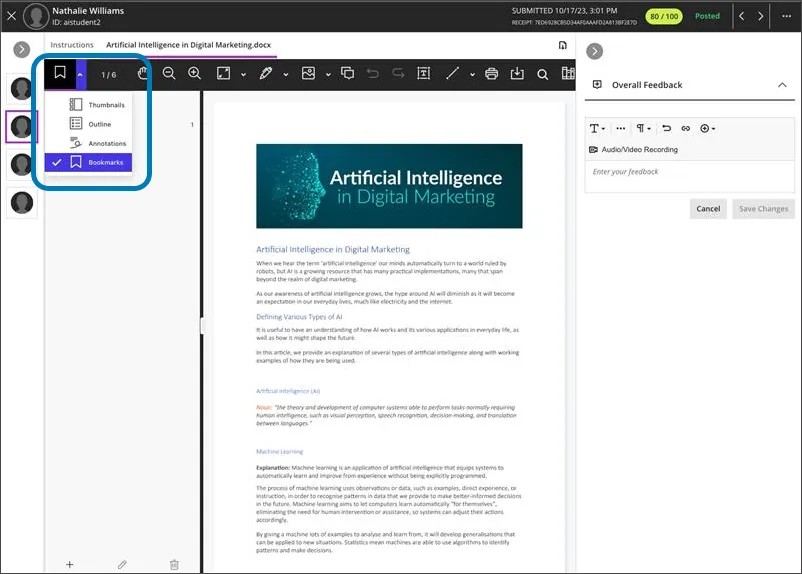
We added bookmarks to the navigation. Instructors can use bookmarks to quickly move between pages in a student submission while grading. This enhancement streamlines the grading workflow by allowing instructors to navigate student submissions more efficiently.
Image 1. Instructors can select bookmarks to navigate.
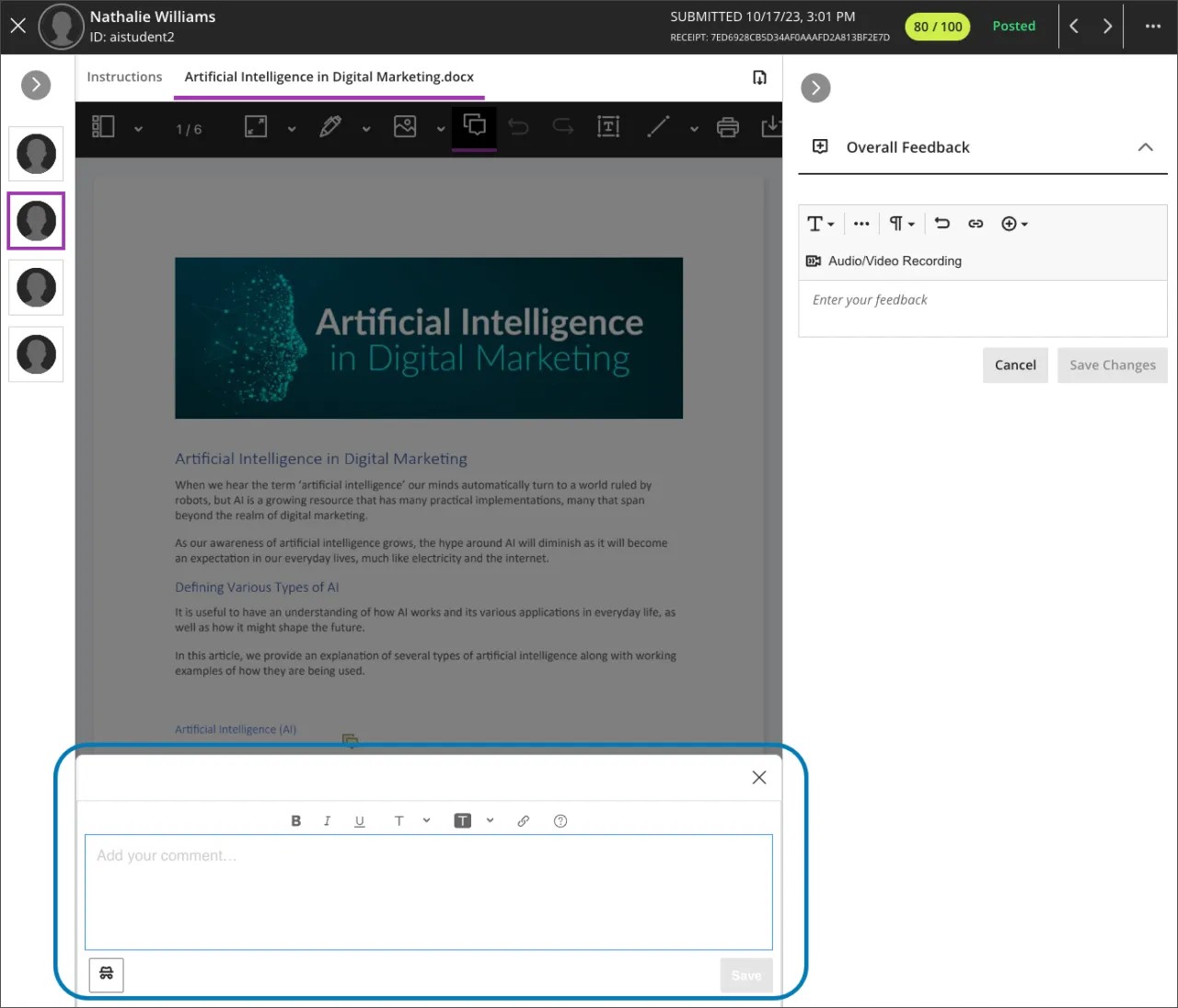
At low resolutions or zoomed in, the comment box spans the bottom of the screen instead of being a pop-up. This update improves accessibility and usability, enhancing the overall grading experience.
Image 2. The comment box now appears at the bottom instead of as a pop-up.
Administrator
Availability: Available for all Ultra courses.
Activation: None needed.
Configuration: None needed.
Communication & Collaboration
Enhance student engagement with discussion activity indicator
Impact: Instructors and students
Updated Help Page: Discussions (for instructors) , Discussions (for students)
Idea Exchange ID: Not applicable
Instructors and students
We improved the discussion experience by adding another indicator of activity. This addition encourages student engagement and makes it easier for instructors to track student activity.
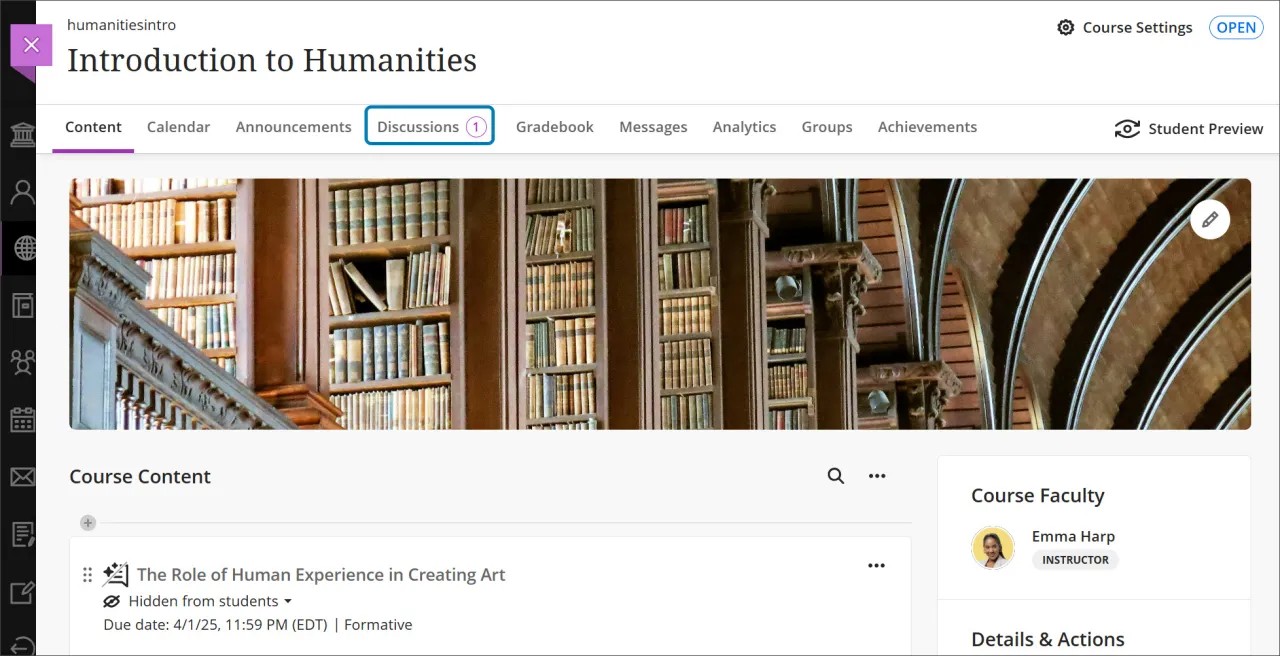
Unread Discussion Posts: The Discussions page now shows the number of unread discussion posts from anywhere in a course.
Image 1. From the Course Content page, the link to the Discussions page now has a number beside it that indicates the number of new discussion posts.
Administrators
Availability: Available for all Ultra courses.
Activation: None needed.
Configuration: None needed.
Convert activity-level groups to course-level groups during course restores
Impact: Administrators
Updated Help Page: Restore Courses
Idea Exchange ID: Not applicable
We simplified the process of converting groups when a course is restored. Previously, activity-level groups remained activity-level groups during a course restore. Now, activity-level groups are converted to course-level groups. This change is part of our ongoing transition to exclusively use course-level groups in Blackboard. The first stage of this process is course restoration and import.
This update provides more consistency for instructors and streamlines the course restoration process for administrators.
Key Features:
Content Associations: Groups keep their associations with content items.
Enrollment and Membership: Enrollment and membership details are retained.
Administrators
Availability: Available for all Ultra courses.
Activation: None needed.
Configuration: None needed.
Gradebook
Perform Bulk Category Changes in Item Management
Impact: Instructors
Updated Help Page: Not applicable
Idea Exchange ID: LEARNU-I-311
Building on the new Item Management Gradebook view, instructors can now perform bulk category changes for Gradebook items.
Instructors
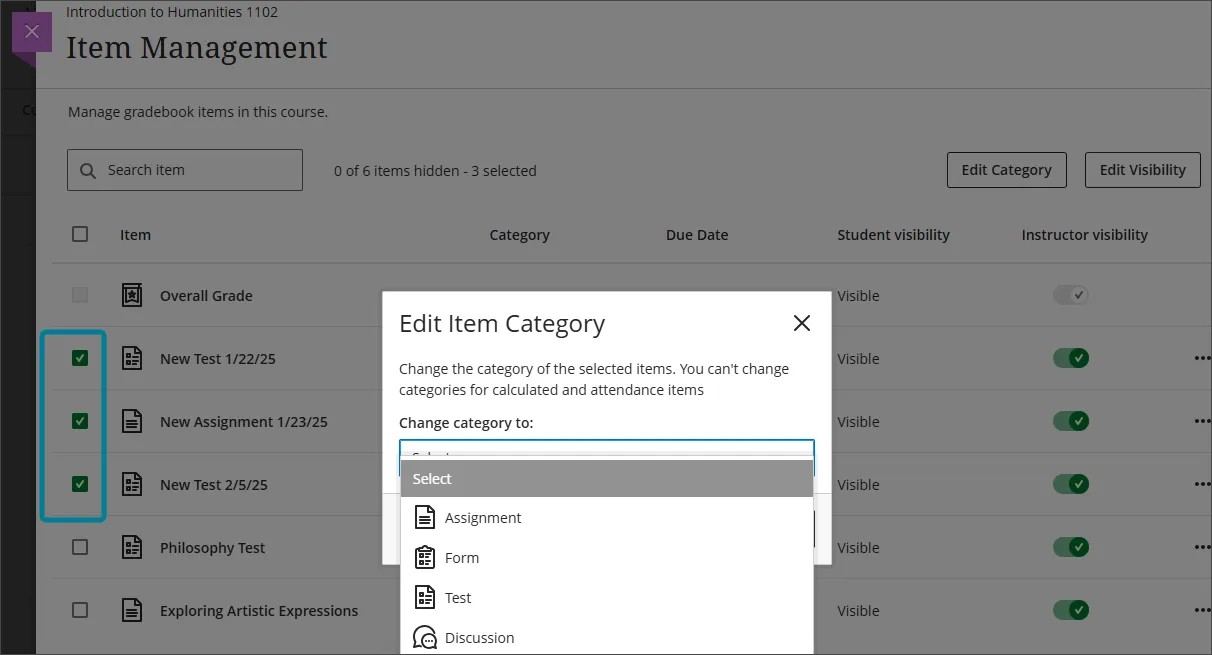
Instructors can select one or more gradebook columns on the Item Management page and assign them to an existing category.
This feature allows instructors to efficiently organize and manage gradebook items. Changing the category of a gradebook item updates the category label for display purposes without altering the item itself. The process follows the familiar Bulk Edit interface pattern, where instructors can select items, select Change Category, and use the modal to view and select available categories.
Image 1: Instructor is bulk changing the category for multiple selected gradebook items.
Administrators
Availability: Available for all Ultra courses.
Activation: None needed.
Configuration: None needed.
Navigate the Gradable Items tab in the Gradebook
Impact: Instructors
Updated Help Page: Accessibility Overview
Idea Exchange ID: Not applicable
Instructors
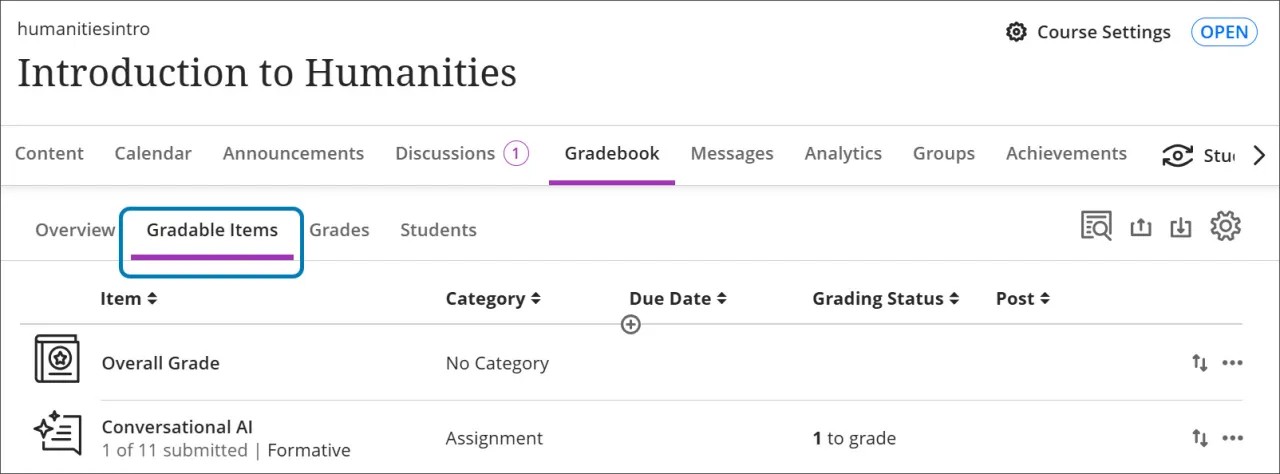
We have an ongoing commitment to the usability and accessibility of the Gradebook. The Gradable Items tab uses a table-based layout to improve navigation and interaction for instructors who use keyboards and screen readers. This makes the Gradebook more accessible for all instructors.
Image 1. The Gradable Items tab is accessible from the Gradebook page.
Navigate the Gradable Items tab by keyboard
Use the Tab key to go to the Gradable Items tab.
Tab to the Gradable Items table header to enter the table.
Use the arrow keys to navigate the table.
The Tab key will take you out of the table and to the Close button. Shift + Tab returns you to the Settings button.
Navigate the Gradable Items tab with screen readers
Screen reader users can navigate to the Gradable Items tab using the keyboard instructions. You can also use the specialized keyboard combination for your screen reader to go directly to the table.
JAWS: Use Insert + Control + T
NVDA: Use T, then Control + Down arrow to enter the table
VoiceOver: Use Control + Option + Command + Right arrow key to choose the table option
Once in the table, screen reader users can use table navigation (Control + Alt + arrow keys) to navigate the table.
If you want to add content, use the down arrow to go to the More options button at the end of the row. The next down arrow will be the Add content button.
Note for JAWS users
JAWS users can move left or right in any row by using table navigation keys.
To move up and down between assignment rows, navigate to the Item column first.
Administrators
Availability: Available for all Ultra courses.
Activation: None needed.
Configuration: None needed.
Student Activity Log: Simplify review of student content access
Impact: Instructors
Updated Help Page: Student Activity Log
Idea Exchange ID: LEARNU-I-6169
Instructors
We added a new filter to the Student Activity Log to enhance tracking and reviewing student engagement. This update streamlines the evaluation process and provides more comprehensive data for instructors.
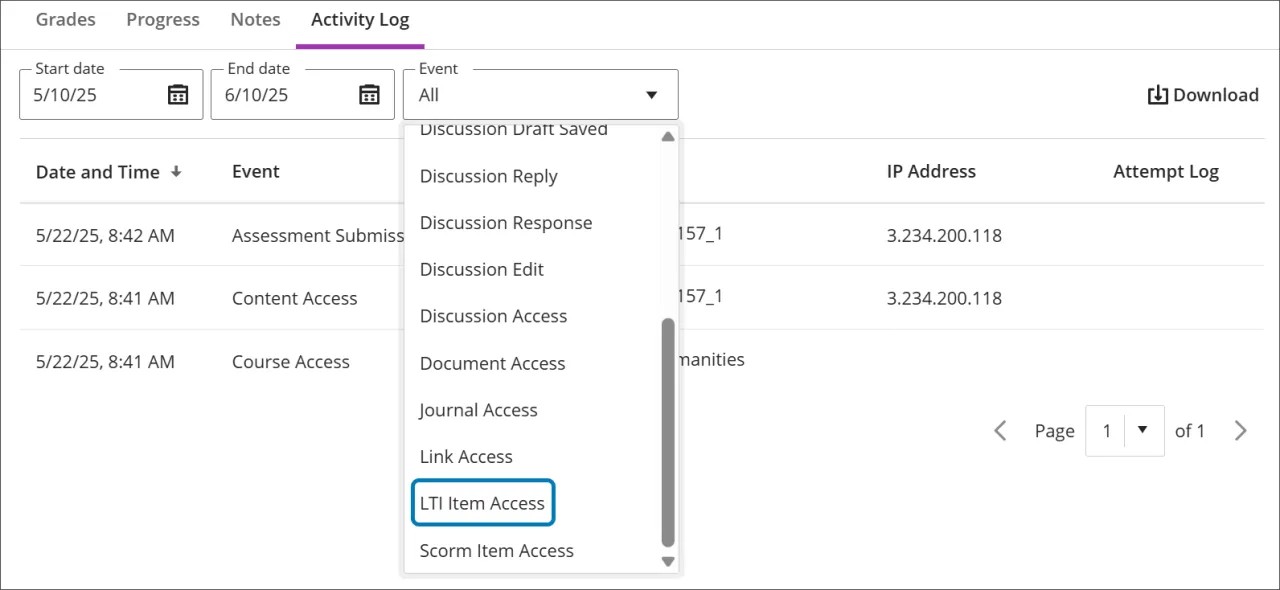
Enhanced LTI Access Filter: The LTI access filter includes all types of LTI items, including LTI placeholders. This provides instructors with more detailed insights into how students interact with LTI elements in their courses.
Image 1. The LTI Access filter is in the Event menu.
Administrators
Availability: Available for all Ultra courses.
Activation: None needed.
Configuration: None needed.
Blackboard Core
Assign new Viewer system role and entitlement to manage system access
Impact: Instructors, Administrators
Updated Help page: Roles and Privileges (Administrator) ; System Roles (Administrator)
Idea Exchange ID: Not applicable
Administrators can now assign an entitlement and role that provides access to all course materials, grades, and user information without editing capabilities by default. Administrators can also customize this role to give it specific capabilities as needed. This role is ideal for academic deans, department chairs, and external auditors who need comprehensive access to review academic content and performance within Blackboard.
More about the Viewer role:
System role. This is a system-level role that can be flexibly implemented based on institutional needs. By default, users with this role can enter the Administrator Panel to search for courses.
Comprehensive viewing access. Users with this role can view all course materials, grades, attempts, feedback, discussions, and unavailable content, as well as user information.
No editing capabilities. By default, this role is strictly read-only, ensuring users can’t make any changes to the content, grades, user information, or system configurations. Administrators can customize the role and add specific editing privileges as needed.
Customizable privileges. While the default settings provide broad viewing access, institutions can customize the privileges to restrict access to specific areas if needed. In addition, it can be customized to allow the role to edit specific information as needed.
Use cases:
Academic deans reviewing student coursework and academic standards;
Department chairs monitoring faculty adherence to course requirements and instructional design standards for both available and unavailable courses within their department; and
External auditors conducting reviews for accreditation purposes.
Administrators
Availability: Available for all Ultra courses.
Activation: None needed.
Configuration: None needed. Entitlements included in Viewer role:
user.only.VIEWcourse.gradebook-grades.execute.only.VIEWcourse.gradebook.only.VIEWcourse.groups.admin.only.VIEWcourse.pool.VIEWsystem.admin.only.VIEWcourse.announcements.VIEWcourse.adaptiverelease.VIEWcourse.assessment.results.VIEWcourse.calendar.VIEWcourse.content.VIEWcourse.content.designer.VIEWcourse.assessment.exceptions.VIEWcourse.gradebook-item.exceptions.VIEWcourse.gradebook-grades.VIEWcourse.gradebook-metadata.VIEWcourse.gradebook.attempts.VIEWcourse.groups.VIEWcourse.progress.information.VIEWcourse.rubrics.VIEWcourse.tools.VIEWsystem.administration.top.VIEWsystem.course.VIEWsystem.org.VIEWsystem.user.VIEWsystem.user.course.enrollment.VIEWsystem.user.org.enrollment.VIEWcourse.assessment.VIEWcourse.learningstandards.alignment.VIEWCourse.ultra.discussion.groups.VIEW
Security and Accreditation
Select IP Restriction Profiles with new search function
Impact: Instructors, Administrators
Updated Help Topic: Restrict Location (Instructor) , Assessment IP Address Filtering (Administrator)
Idea Exchange ID: Not applicable
Instructors and administrators can now use a search function to select IP restriction profiles for defining test-taking locations when creating tests. This search functionality enhances the user experience by simplifying the process of identifying and managing profiles.
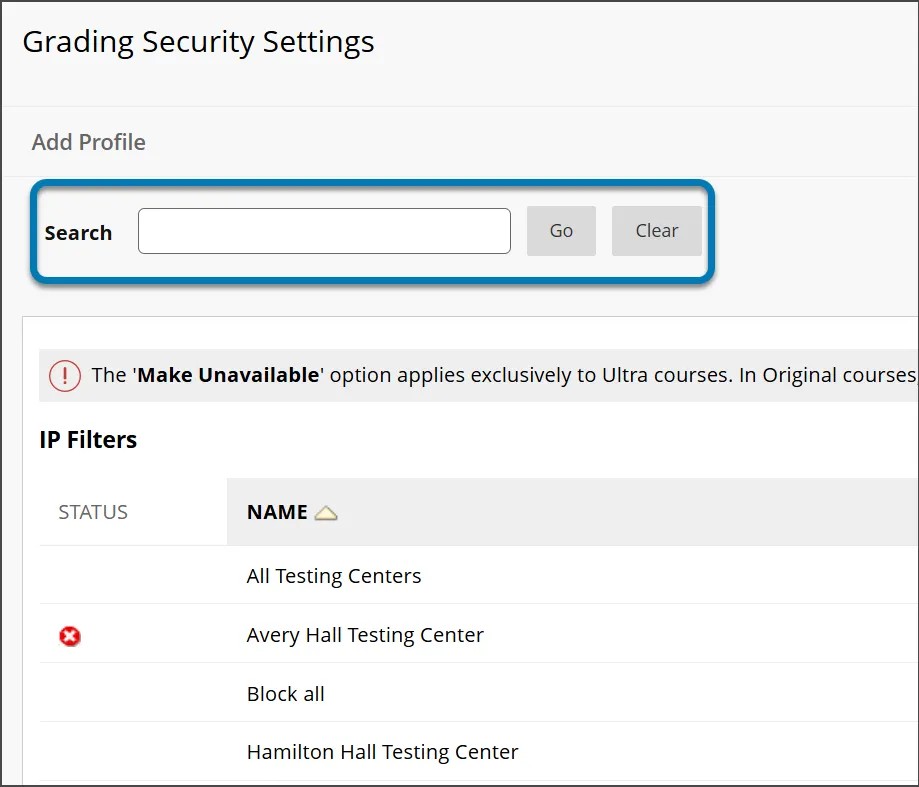
Administrators can access this search functionality in the Administrator Panel. Select Course Settings, then Grading Security Settings. After entering letters in the search bar and selecting Go, the list of profiles is filtered to display profiles that match the entered letters.
Image 1: The Grading Security Settings page now includes a search bar that filters profiles based on the letters entered.
Instructors
When creating or revising a test, instructors can restrict the test-taking location by selecting an available profile in the Location Restriction field of the Assessment Settings.
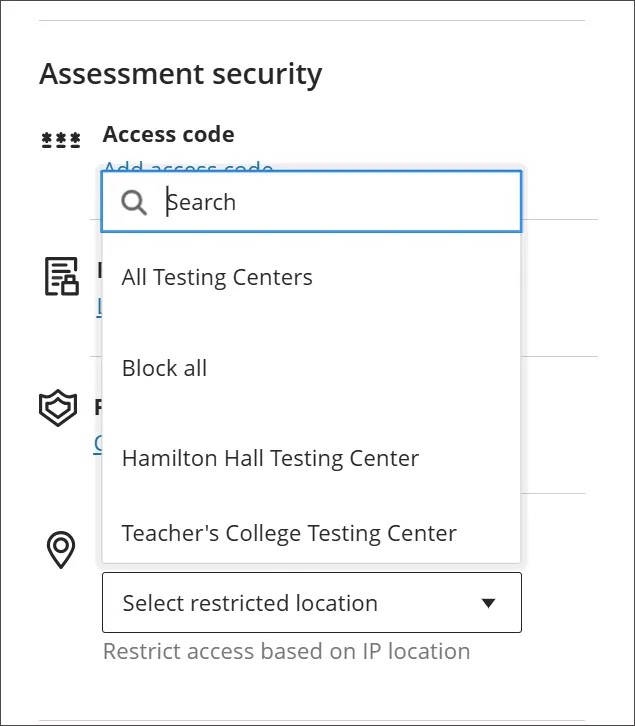
Instead of scrolling through a long dropdown menu containing many profiles, instructors can simply perform a search. This new search functionality allows instructors to enter letters in the search bar, filtering the available profiles to those that match the entered letters. This improves the user experience by reducing the need to scroll.
Image 2: Location Restriction field now includes a search bar for filtering available profiles.
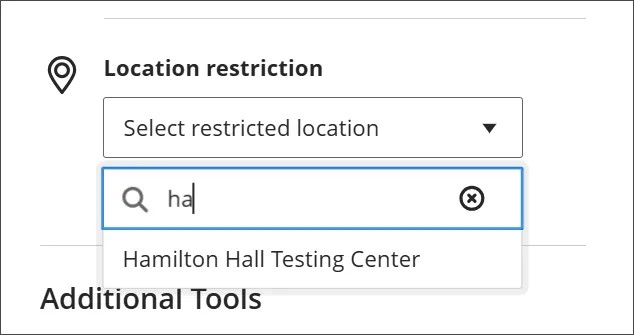
Image 3: When letters are entered in the Location Restriction search bar, the profiles are filtered to show those that match the letters entered.
Administrators
Availability: Available for all Ultra courses.
Activation: None needed.
Configuration: None needed.
Premium
Video Studio: Create and share recordings in Discussions
Impact: Instructors, Students
Updated Help Page: Video Studio (Instructors) , Video Studio (Students)
Idea Exchange ID: Not applicable
重要
Update title and edit transcript capabilities in Discussions will be available in July 3900.121 release.
Instructors and students can now record, upload, and view Video Studio recordings in Discussions. Previously, students could only view Video Studio content. Now, they can create Video Studio recordings in Discussions. These improvements enhance the course experience by allowing both instructors and students to create dynamic discussions with engaging video and audio recordings.
Instructors
When creating a discussion topic, instructors can access Video Studio by selecting the camera button on the Rich Text Editor (RTE) panel. They can upload or create a recording using the existing Video Studio workflow, which embeds the recording in the Rich Text Editor. Instructors can also add descriptive text along with the embedded recording.
Image 1: Instructors can now embed Video Studio recordings when they create Discussion topics in a course.
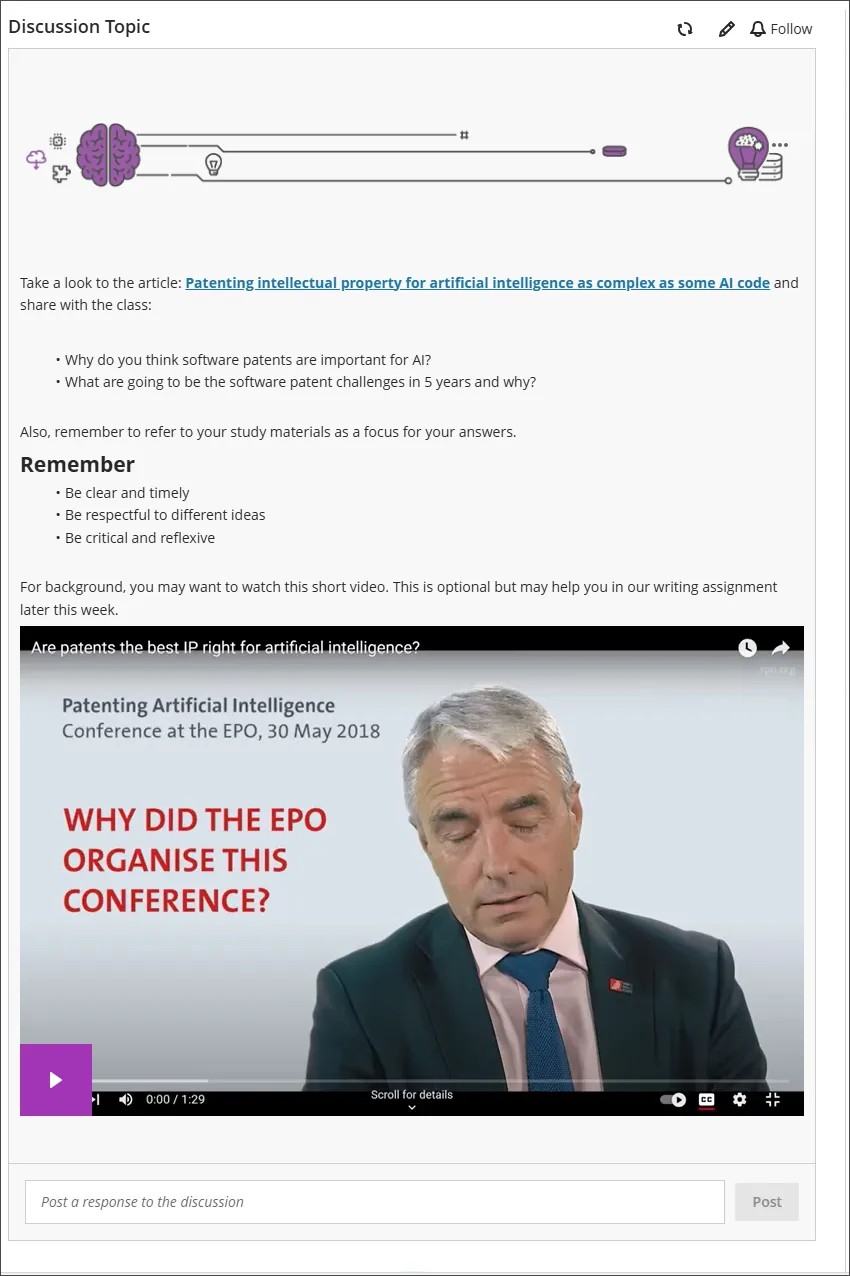
Instructors can also add Video Studio content in discussion responses by selecting the camera button in the RTE panel.
Instructors can also view Video Studio content within Discussions, both their own and that of their students.
Students
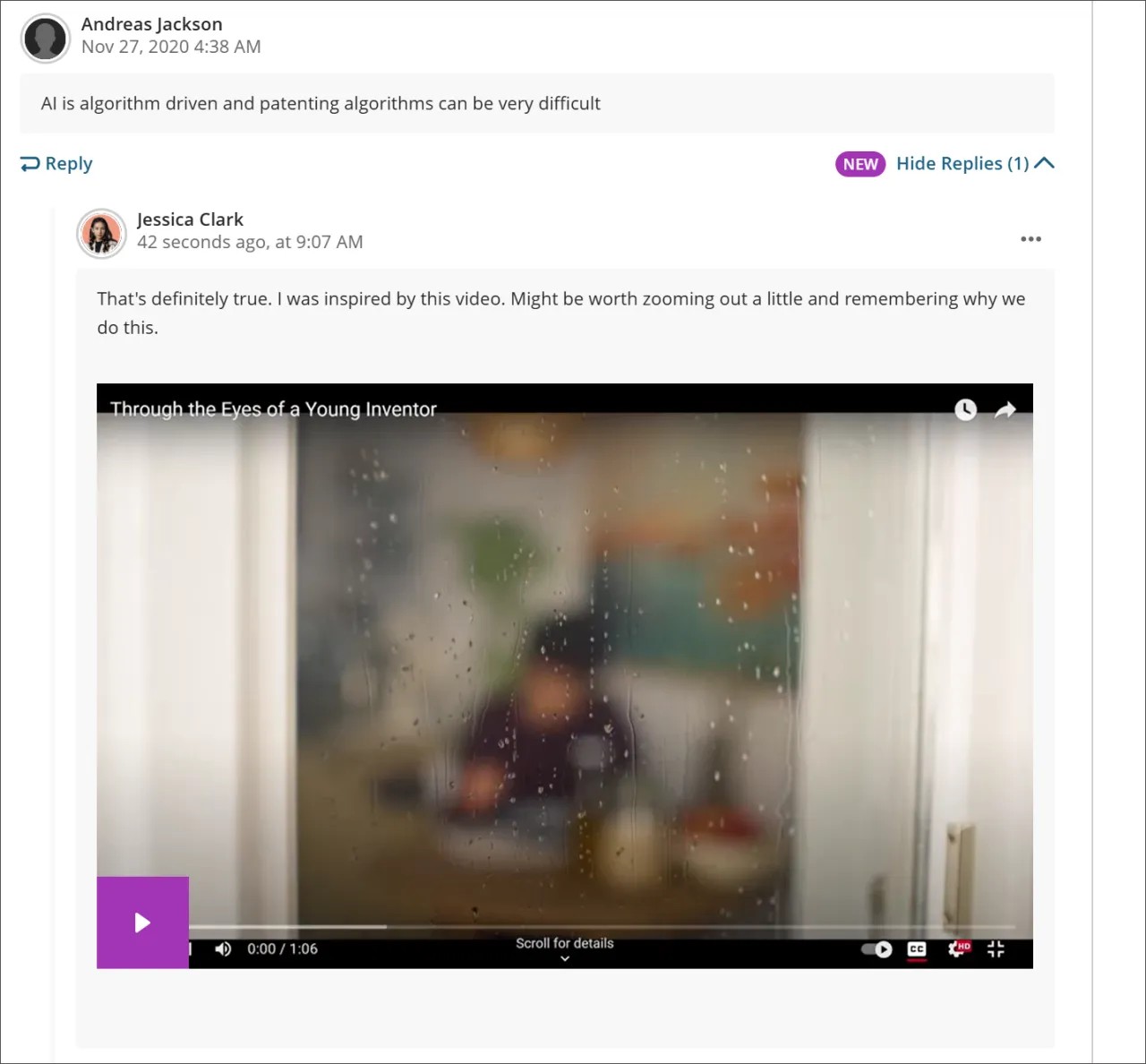
Students have the same ability as instructors to respond to discussion topics with responses with Video Studio recordings. When creating a response, students select the camera button in the RTE panel to create or upload a recording.
All video and audio content created or uploaded within a discussion thread can be viewed by students.
Image 2: Students can now create and upload Video Studio recordings in Discussion posts.
Administrator
Availability: Video Studio is a premium solution.
Activation: We are offering customers a free trial until June 30, 2025. This trial provides access to the full version of Video Studio. Video Studio is set to OFF as a default in test/stage and production environments. If you want to enable it in your institution’s environment, you can do that for free until the end of June 2025.
Configuration: To configure Video Studio: select Configure in The Ultra Experience is Here! module. Select Enable creating/uploading videos using Video Studio. Beyond June 30, 2025, your institution will have to purchase Video Studio to continue using it.
Blackboard Adopt: Create embedded user guides
Impact: Administrators
Updated pages: Blackboard Adopt Guides
Idea Exchange ID: Not applicable
Administrators can now create embedded guides, which provide guidance directly embedded into Blackboard. Unlike overlay guides, embedded guides are placed inline within Blackboard content areas, ensuring a seamless user experience.
Embedded Guide capability:
Embed guides. Surface guidance directly within Blackboard, without needing to launch a guide.
Enhance usability. Create a non-disruptive experience by having guidance embedded in the page.
Customizable appearance. Align an embedded guide to match the design and user experience of your Blackboard instance.
Image 1: Administrators can now create embedded guides inline with Blackboard content areas.
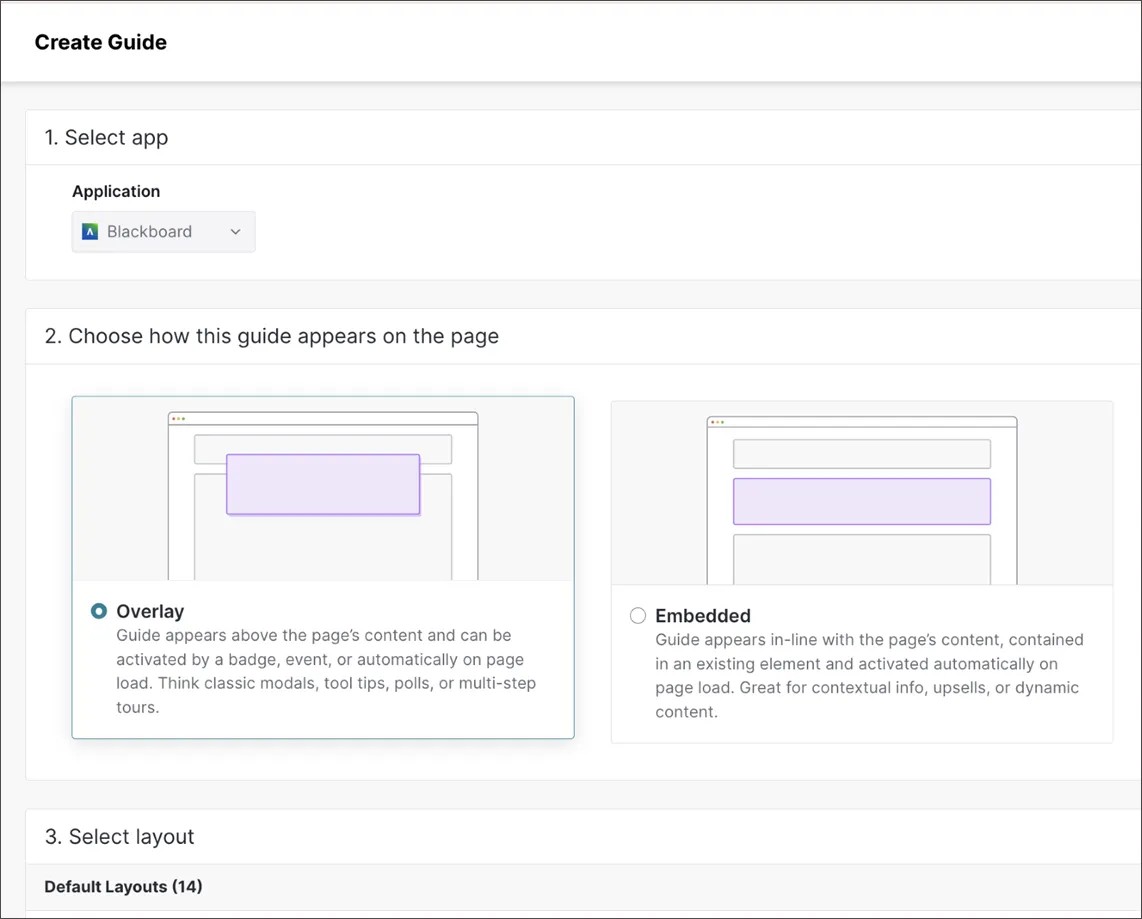
For more information, go to Blackboard Adopt Guides.
Administrator
Availability: Blackboard Adopt Powered by Pendo is a premium offering from Blackboard.
Activation: None needed.
Configuration: None needed.
Blackboard Adopt: Track user interaction with Guides in Path reports
Impact: Administrators
Updated pages: Not applicable
Idea Exchange ID: Not applicable
Administrators can now see how users interact with Guides in Path reports. This feature provides insights into how users reach and continue their journey after experiencing a guide. This update improves path analysis by offering visibility into guide views within user paths.
Guide Activity in Paths feature:
Improved visibility. Create a deeper understanding into user behavior based on interactions with guides within their journey.
Enhance guide optimization. Pinpoint where users drop off or continue after interacting with guides.
Image 1: Blackboard Adopt Path reports from Base Navigation-Activity Stream.
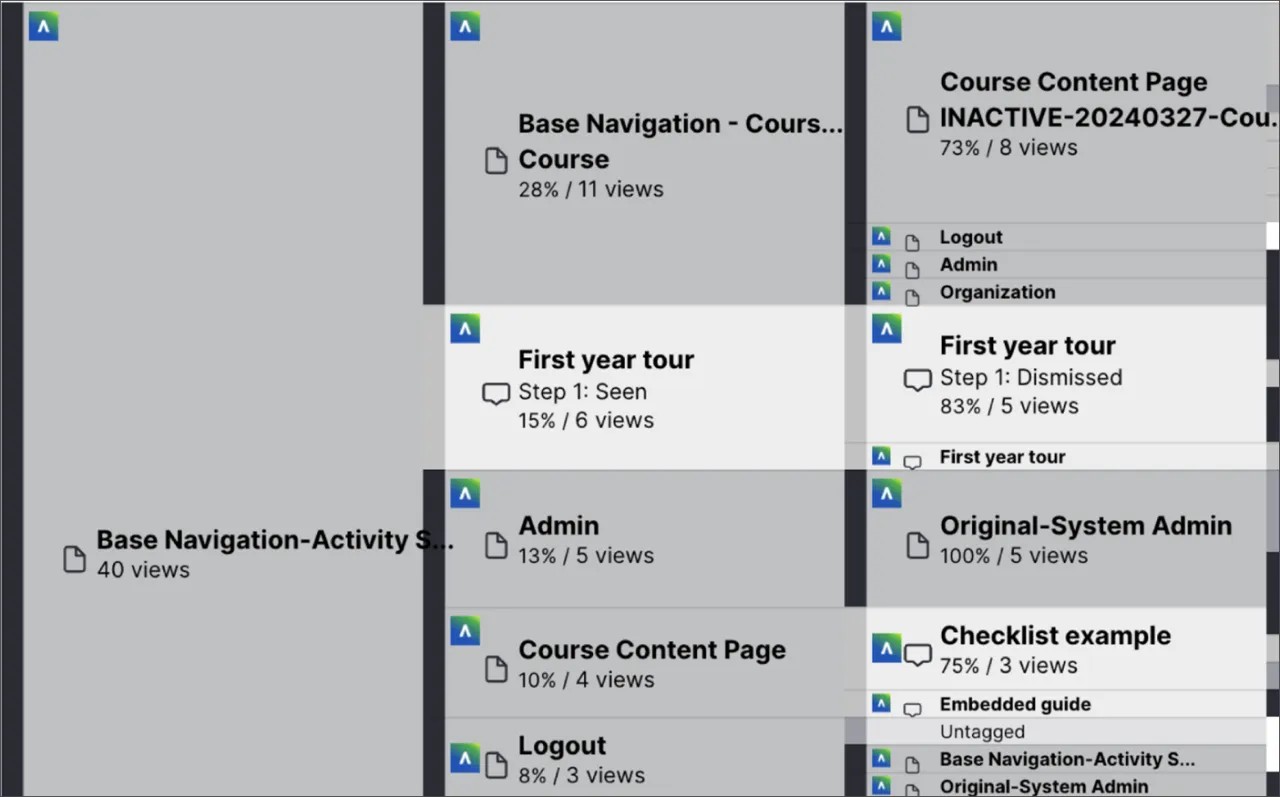
Administrator
Availability: Blackboard Adopt Powered by Pendo is a premium offering from Blackboard.
Activation: None needed.
Configuration: None needed.
Grade Export v2: Choose the number of items per page
Test/Stage: week of May 19th; Production: week of May 19th
Impact: Instructors
Updated Help Page: Not applicable
Idea Exchange ID: Not applicable
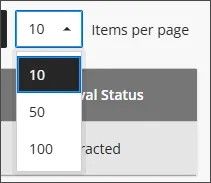
Instructors can now choose to display 10, 50, or 100 items per page in the approval workflow. Displaying more items on a single page reduces the need to switch pages, making the approval process more efficient. Instructors can adjust the number of items shown to match their preferences and workflow needs.
Image 1: Instructors can choose the number of items to display on each page in the approval workflow.
Administrators
Availability: Available for all Ultra and Original courses.
Activation: None needed.
Configuration: None needed.
Video Studio - Analytics for student engagement
Impact: Instructors
Updated Help Page: Video Studio (Instructors)
Idea Exchange ID: Not applicable
Instructors using Video Studio can now access analytics to gain valuable insights into student engagement with recordings. With user analytics, instructors can make data-informed decisions about their recording content and instructional strategies to promote engagement with a course.
Instructors
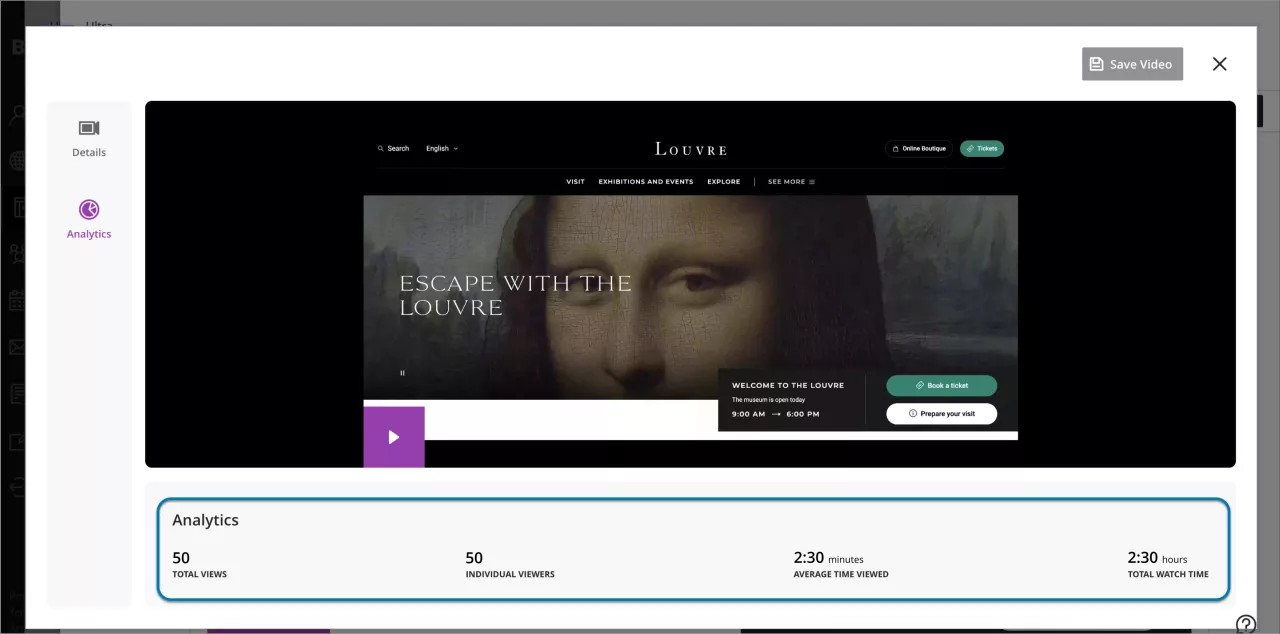
An instructor can access recording analytics from the editing workflow. Select Edit Content and then the pencil button that appears when you hover over or tab to the recording screen. On the panel that appears, select Analytics.
Total Views: Track the total number of times a recording has been accessed by students.
Individual Users: Identify the unique users who have opened a recording.
Average Time Viewed: Monitor the average duration students spend listening to or watching a recording.
Total Watch Time: Know the total duration of time students spend listening to or watching a recording.
These analytics can reveal which parts of a recording are most and least engaging by analyzing engagement patterns and timestamps. Once a user has accessed a recording, it may take up to 20 minutes for this data to be represented in the analytics.
重要
If analytics data is not yet available for a specific video, the Analytics tab is displayed, but each metric will show dashes as placeholders. For GovCloud clients, analytics are not available, and the Analytics tab is not displayed.
Image 1: Instructors can now view user analytics when they select the Analytics menu item in the Edit Contents page.
Administrator
Availability: Video Studio is a premium solution.
Activation: We are offering customers a free trial until June 30, 2025. This trial provides access to the full version of Video Studio. Video Studio is set to OFF as a default in test/stage and production environments. If you want to enable it in your institution’s environment, you can do that for free until the end of June 2025.
Configuration: In the Administrator Panel, select Configure in The Ultra Experience is Here! module. Select Enable creating/uploading videos using Video Studio. Beyond June 30, 2025, your institution will have to purchase Video Studio to continue using it.