用户帐户
Note
本文档采用 AI 辅助机器翻译。译文仅供参考,不保证准确性;此内容的英文版为官方权威版本。
你在Blackboard上能做什么取决于你的用户账户授予的安全权限。管理员通过创建角色并将这些角色指定给用户帐户对用户授予安全权限。你可以使用 Blackboard 中你所拥有角色允许的所有功能。
Blackboard 附带三个用户账户,并分配了管理员权限。其中一个帐户称为“系统管理员”。
管理员使用默认管理员帐户来创建其他用户帐户,包括其他管理员帐户。这允许管理员将某些管理任务委托给其他用户,如管理用户帐户、创建课程或处理注册请求。
关于默认管理员帐户
在实施 Blackboard 时,会创建三个具有管理员权限的用户账户。
管理员
超级管理员
集成
管理员
系统管理员帐户拥有完整的 Blackboard 管理员权限。此帐户被视为默认管理员帐户。
管理员和root_admin是唯一两个可以登录的账户,直到创建更多用户。
系统管理员帐户的密码是在安装 Blackboard 时设置的。
超级管理员
超级管理员帐户拥有完全管理权限,包括通过“管理员面板”管理虚拟安装。通过 root_admin 帐户查看“管理员面板”时,管理虚拟安装链接显示在面板顶部。超级管理员帐户可以登录任何虚拟安装,并且可以通过此链接访问“虚拟安装”管理功能。
该帐户的密码是在安装Blackboard时设置的。
注意
即使您的许可证不包括对任何虚拟安装的使用,系统也会创建 root_admin 帐户。可以通过“编辑超级管理员简历”页面修改超级管理员帐户。
集成
集成用户仅用于促进快照操作。使用此帐户时不能通过 GUI 登录。它不会出现在 GUI 上的任何用户列表中。要修改此帐户的密码,请使用“管理员面板”上的可用“集成密码”功能。
集成账户的默认密码在 Blackboard 实施过程中设置。
创建用户帐户
管理员可以一次创建一个或一批用户帐户。详细了解如何使用批处理文件创建多个用户帐户(稍后对此主题做出介绍)。
在管理员面板的用户区域中,选择用户。
选择创建用户。
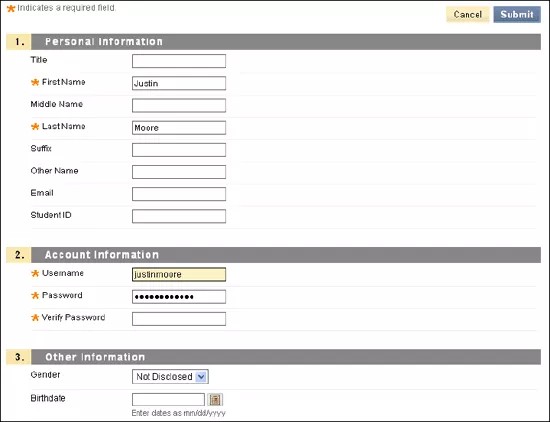
此表介绍了可用的字段。[r] 表示必填字段。
表 12. User Account Available FieldsField
Description
Personal Information
Title
Provide the user's title. For example, type Dr., Mr., or Ms.
First Name [r]
Provide the user's first name. This field is required.
Middle Name
Provide the user's middle name.
Last Name [r]
Provide the user's last name. This field is required.
Suffix
Provide the user's suffix. For example, type Jr., III, or Ph.D.
Other Name
Provide an alternate name for this user. For example, if the user has changed their name due to a marriage or divorce and the institution has records for this student under both names, provide the other name here.
Email
Provide the user's email address. This field is recommended.
Student ID
Provide the user's student ID name or number as defined by the institution.
Account Information
Username [r]
Provide a username for the new user. This field is required. Usernames may not contain ASCII characters 0-31, spaces, or any of these special characters: & # + < > % = / \
These special characters are explicitly permitted and supported in usernames: _ - . @
These special characters aren't currently disallowed in usernames, but Blackboard recommends against using them, as they may cause unforeseen problems: ( ) [ ] { } : ; , | ? ! ` ~ ' ^ " * $
For example, commas and quotes cause issues with JavaScript or with lists during form handling.
Enter a username in lowercase. Uppercase letters in usernames are converted to lowercase in the system database.
注意
A username isn't a confidential value and may appear in the user interface to unprivileged users. Never include sensitive or private information in a username, especially information restricted by law or reasonable expectation.
Password [r]
Provide a password for the user's account. The password must be at least one character in length and contain no spaces.
Verify Password [r]
Provide the user's password again to ensure accuracy.
Other Information
Gender
Provide the user's gender.
Birthdate
Select the user's birthday from the drop-down lists.
Education Level
Provide the user's education level.
Company
Provide the user's company name.
Job Title
Provide the user's job title.
Department
Provide the user's department.
Street 1
Provide the user's address.
Street 2
Provide any additional address information.
City
Provide the user's city.
State/ Province
Provide the user's state or province.
ZIP/Postal Code
Provide the user's ZIP code or postal code.
Country
Provide the user's country.
Web Site
Provide the URL of the user's personal website. This must be the full URL. For example:
http://www.blackboard.com, notwww.blackboard.comorblackboard.comHome Phone
Provide the user's home phone number. The phone number will display exactly as typed. If your institution has a preferred format for phone numbers, use that format here. For example, (530) 555-1234 or +1 530-555-1234.
Work Phone
Provide the user's work phone number. The phone number will display exactly as typed. If your institution has a preferred format for phone numbers, use that format here. For example, (530) 555-1234 or +1 530-555-1234.
Work Fax
Provide the user's fax number . The fax number will display exactly as typed. If your institution has a preferred format for phone numbers, use that format here. For example, (530) 555-1234 or +1 530-555-1234.
Mobile Phone
Provide the mobile phone of the user. The phone number will display exactly as typed. If your institution has a preferred format for phone numbers, use that format here. For example, (530) 555-1234 or +1 530-555-1234.
Institution Roles
Institution Roles
Select one or more institution roles from the list. Select the right-pointing arrow to move the role into the Primary Institution Role field or the Secondary Institution Roles list.
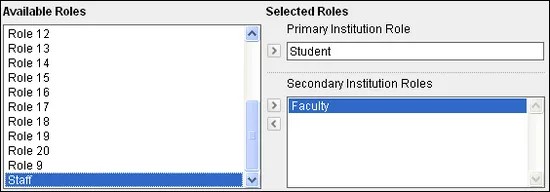
Institution roles control what the user sees on the portal. If your institution has access to community engagement features, you can configure tabs and modules to appear to different groups of users based on institution roles.
System Roles
System Roles
Select one or more system roles from the list. Select the right-pointing arrow to move the role into the Primary System Role field or the Secondary System Roles list.
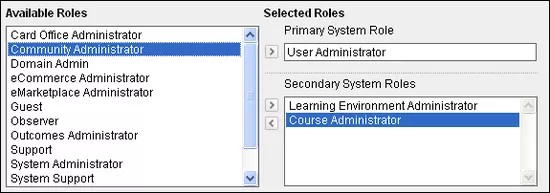
System roles control the user's access to administrative features.
选择提交。
批创建用户帐户
您可以使用批处理文件一次创建大量用户帐户。
创建批处理文件。如果你使用的是为之前版本的 Blackboard 创建的批处理文件,请确认该文件格式是否符合当前版本。
在管理员面板的用户区域中,选择用户。
指向批处理操作并选择创建用户。
在批创建用户页面上,选择文件位置字段或选择浏览。
在“文件上传”对话框中,导航至批处理文件,然后选择打开。
选择批处理文件中使用的分隔符类型。如果你选择自动,Blackboard 会分析批处理文件,并根据该字符在文件中的出现频率确定分隔符。
选择提交。
查看或编辑用户帐户
您可以查看并编辑用户简历数据,包括特定课程的密码和课程角色。您还可以选择“电子邮件”列中用户的电子邮件地址,向用户发送电子邮件。
在管理员面板的用户区域中,选择用户。
搜索用户。
打开用户的菜单,然后选择编辑。
查看或编辑用户帐户。
选择提交。
查看用户注册或成员
在管理员面板的用户区域中,选择用户。
搜索用户。
打开用户菜单,选择课程注册、组织注册或成果注册。
要查看课程、组织或结果,请选择打开。
要从课程或组织中删除用户,请选择管理。在注册页面上,选中用户的复选框,然后选择从课程中删除用户或从组织中删除用户。
更改用户帐户权限和访问权
您可以通过对用户帐户指定不同的角色来更改用户的权限。例如,如果学生将在课程期间协助教师,则可以添加“助教”角色授予用户访问课程“控制面板”的权限。如果该学生不再协助教师,则可以删除“助教”角色撤销访问权限。
在管理员面板的用户区域中,选择用户。
搜索用户。
打开用户的菜单,然后选择编辑。
对于机构角色,请添加或删除角色。
对于系统角色,请添加或删除角色。
选择提交。
创建拥有全部或部分管理权限的其他管理员帐户
默认管理员帐户包括创建其他所有管理员帐户的权限。您还可以通过为各种权限集创建角色并对用户帐户指定这些角色,将部分管理权利授予其他用户。这允许管理员将常规管理任务委托给其他用户,如管理用户帐户、创建课程或处理注册请求。
要创建新用户账户拥有管理员权限,需为该用户分配一个具有管理员权限的系统角色。
使用以下步骤授予现有用户管理权限:
在管理员面板的用户区域中,选择用户。
搜索用户。
在搜索结果中,打开用户的菜单并选择编辑。
在系统角色区域中,对用户指定管理角色。这可以是定制角色,也可以是系统默认角色之一。
选择提交。
更改用户密码
如果你更改了用户的密码,必须将新密码提供给他们,否则他们将无法登录 Blackboard。用户无法自动获得新密码。密码长度至少必须为一个字符,并且不得包含空格。
在管理员面板的用户区域中,选择用户。
搜索用户。
在搜索结果中,打开用户的菜单并选择更改密码。
键入并验证新密码。
选择提交。
将用户帐户设置为可用或不可用
要保留用户账户信息并防止用户登录 Blackboard,请将用户账户设置为不可用状态。这将保留用户的帐户数据、课程注册和其他数据,但防止用户参与任何课程。
例如,如果学生离开一学期,则可以将帐户设置为在缺席期间不可用。如果学生返回,则将帐户设置为可用。
如果用户帐户不可用,则当其显示在搜索结果或其他用户列表中时用户名旁边将显示一个红色 X。即使用户帐户不可用,但您仍可选择用户的电子邮件地址来发送邮件。
如果您的机构许可使用门户管理,您可以在数据库中禁用用户帐户和用户注册记录。在“管理员面板”上的用户列表中,禁用的用户帐户前带有红色 X。
在管理员面板的用户区域中,选择用户。
搜索用户。
在搜索结果中,打开用户的菜单。
要更改某一用户的可用性,请选择提供(可用)或不可用。若要更改对于多个客户的可用性,请选中每个用户的复选框。指向可用性,并选择设置为可用或设置为不可用。
注意
当任何类型的用户账户被删除或无法访问时,他们之前对日志或讨论的贡献会被匿名化,不会移除。
删除用户帐户
您可以通过用户界面或批处理文件删除用户帐户。若要了解关于使用批处理文件删除多个用户帐户的更多信息,请参阅如何批删除用户帐户。
警告
您无法恢复删除的用户记录。删除用户将同时删除与该用户关联的所有课程数据(包括成绩)。
在管理员面板的用户区域中,选择用户。
搜索要删除的用户。
要删除一个用户,请打开该用户的菜单,然后选择删除。若要删除多个用户,请选中这些用户的复选框。选择删除。
批删除用户帐户
您可以通过使用批处理文件一次删除大量用户。
警告
您无法恢复删除的用户记录。删除用户将同时删除与该用户关联的所有课程数据(包括成绩)。
如果使用为早期版本 Blackboard 创建的批处理文件,请确认格式是否符合当前版本。
在管理员面板的用户区域中,选择用户。
指向批处理操作并选择删除用户。
在批删除用户页面上,选择文件位置字段或选择浏览。
在文件上传对话框中,导航至批处理文件,然后选择打开。
选择批处理文件中使用的分隔符类型。如果你选择自动,Blackboard 会分析批处理文件,并根据该字符在文件中的出现频率确定分隔符。
选择提交。
运行用户活动概述报告
一些报告提供有关整体用户和系统活动的信息,但您也可以运行关于单个用户在其全部课程中的活动的报告。要了解有关其他报告的更多信息,请参阅运行统计报告。
在管理员面板的用户区域中,选择用户。
搜索用户。
在搜索结果中,打开用户的菜单并选择用户活动概述报告。
或者选择选择课程,然后更改选择起始日期和选择结束日期中的值。
选择提交。
成功运行报告后,可以选择将其保存到资源库、下载报告,或者使用不同的报告标准运行新报告。