AVA – AI Virtual Assistant
AVA – AI Virtual Assistant brings AI-powered assistance into Blackboard LMS to support instructors with common teaching and communication tasks. AVA helps streamline routine work, surface helpful suggestions, and reduce friction—so you can focus more of your time on teaching and learning.
AVA assists across multiple instructional scenarios, from drafting responses to students to refining feedback and exploring ideas. AI-generated content is always presented as a suggestion, giving you full control over what you use, edit, or discard. At every step, you remain in control. You can review, accept, reject, regenerate, or revise AVA’s suggestions before using them. AVA is designed to support your judgment and amplify your voice—not replace it.
As we look to explore the benefits AI has to offer, we are prioritizing lawful, ethical, and responsible use. We have established our Trustworthy AI principles, where we commit to:
humans in control
fairness
privacy
security
safety
We recommend reviewing Our Trustworthy AI Principles can be found in our Trust Center as you consider using AI within Blackboard LMS.
We partner with Microsoft and AWS because of their long-standing commitment to the ethical use of AI. You can review Microsoft's pages for Responsible AI, Transparency Note for Azure OpenAI Service, and Data, privacy, and security for Azure OpenAI Service and AWS's Data Protection statement.
Use AVA for common classroom tasks
AI Playground
AVA AI Playground provides a dedicated, institutionally managed space within Blackboard LMS. The feature offers access to selected AI models directly inside the LMS. The AI Playground encourages instructors and students to experiment and innovate with teaching and learning.
This feature is designed as an exploratory environment—separate from coursework and assessment workflows—where users can ask questions, generate ideas, and interact with AI directly from Blackboard LMS. AVA AI Playground includes clear trust and safety messaging to support responsible use.
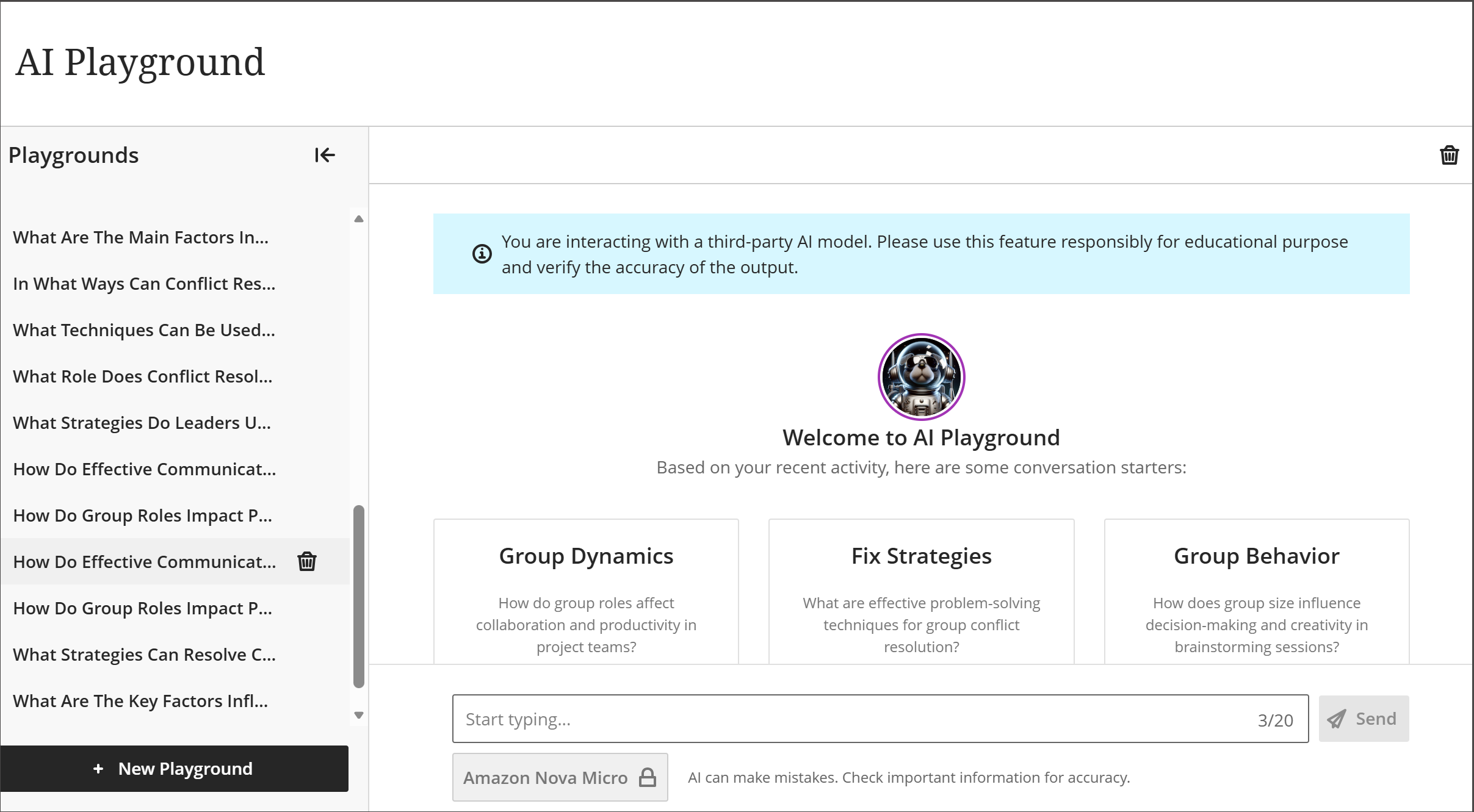
Inside the AI Playground, users interact with AI through a familiar chat‑style interface. The experience includes:
A text input area for questions or prompts
An AI response area that displays generated output
The ability to start a new chat and view recent chat history
Model selection, where available, to choose between supported AI models
AVA AI Playground offers users three suggested questions to ask in the chat, based on the course they are enrolled in.
Conversations persist across individual sessions, allowing users to refine responses through follow‑up prompts rather than starting over with each request.
Usage limits apply in AI Playground. Each available AI model has a daily message limit, which may vary by model. The AI Playground interface displays a countdown so you can see how many messages remain for the selected model. Message limits reset automatically overnight.

Warning
The AI Playground should only be used for exploration and ideation. It does not automatically connect to course content, assessments, grades, or instructor workflows. AI Playground is not meant for personal use or graded content.
Responses to Student Messages
Students often send messages asking about information already available in the course — due dates, grades, assignment details, and more. AVA helps reduce this workload by automatically scanning the course and responding to common student questions on your behalf.
When a student sends you a message, AVA reviews your course content from the student's perspective and drafts a relevant reply. You can review all AVA responses and add context or corrections at any time.
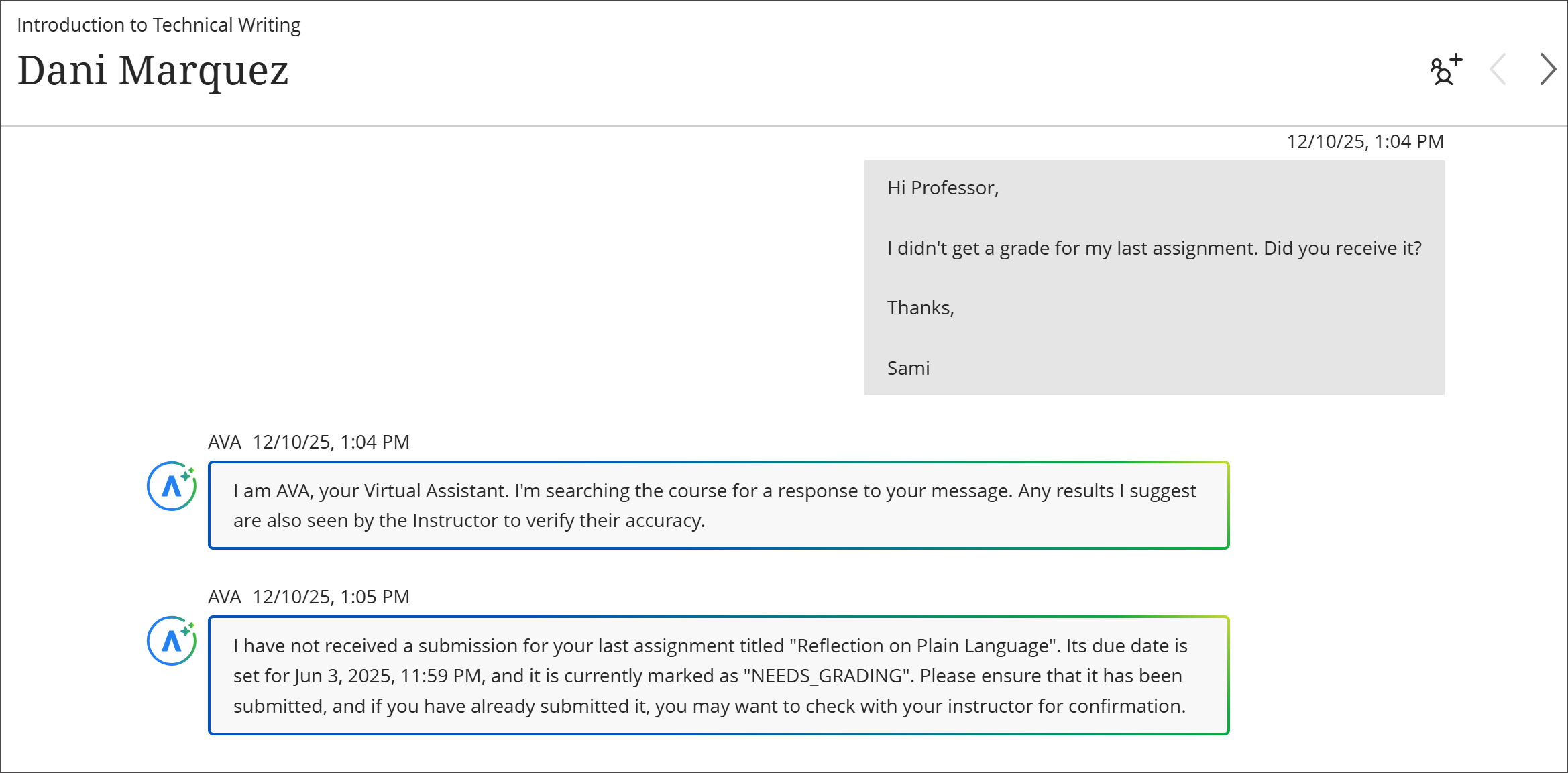
AVA can respond to questions about:
Due dates, grades, and course content visible to the student
Accommodations and exceptions
Direct links to relevant course information
Learner progress within modules, if progress tracking is turned on
AVA responds only when a message is sent to the Instructor role or a role marked as Treat Users with this Role as Instructor. AVA will not respond if the message includes more than one student or other roles.
If AVA can't find a relevant answer, it will let the student know and suggest they wait for your reply. AVA uses your course's Language Pack.
To turn on AVA autoreplies: Go to Course Settings and turn on AVA Responses to Students. This setting is off by default and can be changed at any time during the course. This option is only available if your institution administrator has enabled it.
Important
At this time, AVA can't read or extract content from uploaded documents; answer questions about third-party content such as SCORM, OneDrive, or external websites; search the internet or external storage; or provide details about institutional resources outside the course.
Generate Attempt Feedback Summaries from Rubrics
When grading assignments in Flexible Grading, the AI-powered Summarize option helps you generate high-quality overall feedback based on the rubric you've already completed.
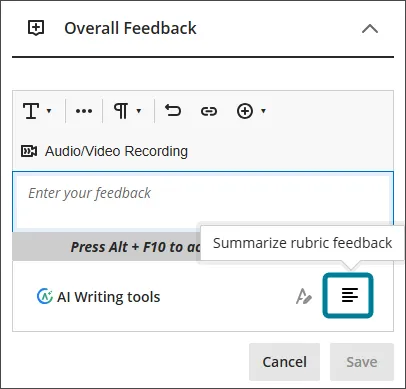
After completing a rubric, select Summarize in the overall feedback area. AVA analyzes:
The rubric criteria and selected performance levels
The performance level descriptions
Any criterion-level feedback you have provided
Any existing content in the Overall Feedback rich text editor
AVA then generates a suggested overall feedback summary. A banner clearly indicates that the suggestion is AI-generated.
You can:
Accept the summary to use it as the basis for your final feedback (you can continue editing after accepting)
Reject the summary to revert to your original content
Regenerate the summary to receive a newly written version
This feature is available in the Flexible Grading experience for assignments with a completed rubric
Revise Submission Feedback (AI Rewrite)
The AI-powered Rewrite option in Flexible Grading helps you improve the clarity and tone of your overall feedback. Whether you've jotted down rough notes, bullet points, or complete sentences, AVA can reword your comments into more polished, student-friendly language.
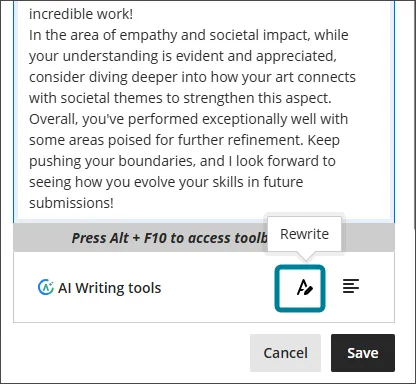
To use Rewrite:
Enter at least 30 characters of your own feedback in the overall feedback area.
Select Rewrite. AVA generates a suggested revision. A banner clearly indicates that the suggestion is AI-generated.
Accept the suggestion to continue editing the revised feedback in the rich text editor or Reject/Cancel to restore your original input.
You can use the Rewrite option multiple times on the same feedback to iteratively refine your message. Accepting a suggestion does not finalize the feedback — you can continue to edit and revise before saving.
Important considerations when using AVA
Always review AI-generated content before accepting or delivering it to students. AVA suggestions may occasionally be inaccurate or incomplete.
AVA's student message responses are based solely on course content visible to the student. Verify that AVA's replies are accurate before leaving them as-is.
Do not include personal information or other sensitive/confidential data in feedback prompts.
AI-generated feedback is designed to assist and enhance your voice as an instructor, not to replace your professional judgment.
If you encounter any output that seems inaccurate, biased, or inappropriate, you can report it to Blackboard by submitting a client support ticket.
AI Playground must not be used for personal or non-educational purposes