AI Design Assistant and Unsplash Configuration
AI Design Assistant and Unsplash Configuration
The AI Design Assistant aids instructors with the creation and design of new courses. It is intended to inspire instructors and make course creation more efficient. Blackboardhas partnered with Microsoft and AWS to provide this functionality.
The AI Design Assistant provides the following generative AI-facilitated functionalities in Ultra:
Generate keywords for the royalty-free image service in Ultra powered by Unsplash – Suggests keywords to the Unsplash search for efficiency.
Generate learning modules – Assists instructors by suggesting a course structure.
Generate learning module images – Creates and suggests images for each learning module.
Generate test questions and question banks – Inspires instructors by suggesting a range of questions in a test or building a question bank from a Learn document.
Generate assignments – Assists with generating assignments that encourage higher-order thinking.
Generate a rubric – Suggests a grading rubric with structure and criteria against a given assessment, which creates instructor efficiency and provides grading transparency to students.
Generate an AI Conversation - Creates a conversation between a student and an AI persona in a Socratic questioning exercise or role-play scenario.
Generate Document images – Generates images to use within a Document, making Documents more visually appealing to students.
Suggest Document Layout - Creates attractive layouts for Documents, including images, knowledge checks, and headings.
Important
These functionalities are subject to the limitations and availability of the Azure OpenAI Service and subject to change. Please check the relevant release notes for details.
Enable AI Design Assistant and Unsplash Features
Go to the Administrator Panel. In the Integrations section under the Building Blocks category, select Installed Tools. Select AI Design Assistant and Unsplash. You now have access to all the options on the AI Configuration page.
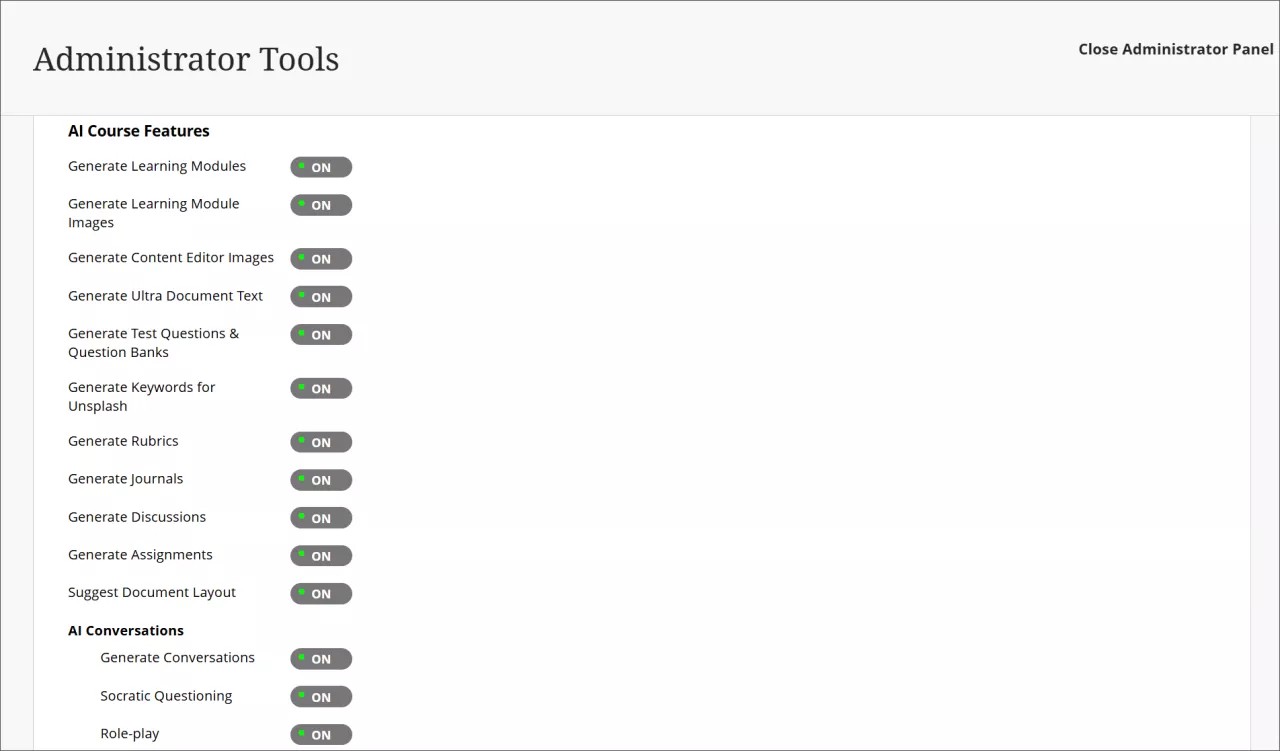
You can control the availability of every feature of the AI Design Assistant. You can select all, some, or none of the features to turn on at any time.
Unsplash is a separate feature that is also accessible from the AI Design Assistant page. If you enable Unsplash, instructors will be able to access Unsplash's gallery of stock photos to use as images for learning modules and course banners.
You must also activate privileges. Assign the Use AI Design Assistant privilege for the appropriate Course Roles (for example, Instructor). Visit the "Course and Organization Roles" topic for more information about how to assign and manage privileges.
AVA – AI Virtual Assistant Configuration
AVA – AI Virtual Assistant helps instructors and students by providing intelligent, AI-powered features within Blackboard LMS. Blackboardhas partnered with Microsoft and AWS to provide this functionality.
Visit our Blackboard AVA – AI Virtual Assistant page to learn more about AVA's AI-facilitated functionalities, key facts, and Trustworthy AI principles.
AVA provides the following generative AI-facilitated functionalities in Blackboard LMS:
AI Playground – AVA AI Playground provides a dedicated, institutionally managed space within Blackboard LMS, allowing instructors and students to experiment and innovate with teaching and learning.
Responses to Student Messages – AVA scans the course from the student's perspective to provide automated, relevant replies to common student questions sent to instructors.
Generate Attempt Feedback Summaries from Rubrics – Generates high-quality overall feedback for student submissions evaluated using a rubric, based on rubric criteria, performance levels, and any criterion-level feedback.
Revise Submission Feedback – Rewrites instructor-authored comments into more polished, student-friendly language to help instructors deliver clearer, more impactful feedback.
Important
These functionalities are subject to the limitations and availability of the Azure OpenAI Service and AWS Bedrock and subject to change. Please check the relevant release notes for details.
Availability and licensing
AVA features are included in your Blackboard LMSlicense until 30 June 2026. After that date, a specific AVA license will be required to continue using these features.
AVA and Existing AI Design Assistant Settings
AVA settings are managed within the same building block as the AI Design Assistant (AI Design Assistant and Unsplash). Turning on or off AVA features does not affect AI Design Assistant settings, and vice versa. Each feature can be controlled independently.
Turn on AVA features
To access AVA settings, go to the Administrator Panel. In the Integrations section, under the Building Blocks category, select Installed Tools. Find and select the AI Design Assistant and Unsplash building block, then select Settings. The AVA configuration options are located under the AVA section of this page.
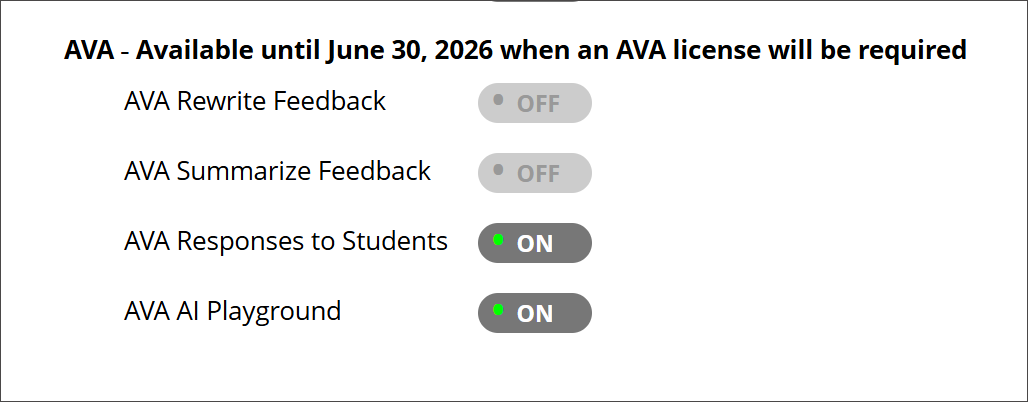
You can control the availability of each AVA feature individually. You can select all, some, or none of the features to turn on at any time.
AI Playground
In the building block settings under AI Design Assistant and Unsplash, the option AVA AI Playground is available under the AVA heading. The default state is off.
Once AI Playground is enabled at system level, it is accessible through the Tools option in the Base Navigation menu for all Blackboard users.
Responses to Student Messages
To turn on this feature, navigate to the AVA section within the AI Design Assistant and Unsplash settings and select AVA Responses to Students. The default state is off.
Administrators can:
Turn the feature on globally for the entire institution, or
Enable it at the course level through Course Settings. Instructors can also turn it on or off with Course Settings.
When enabled at the administrator level, the feature is available to instructors but remains off by default. Instructors can turn on AVA autoreplies in their individual Course Settings at any time. For more information about the functionality, navigate to the Messages topic for instructors.
Generate Attempt Feedback Summaries from Rubrics
In the building block settings under AI Design Assistant and Unsplash, the option AI Summarization is available. The default state is off.
When this feature is turned on, the privilege must be assigned to course roles. The required privilege is:
Generate AI Feedback Changes in Course/Organization Control Panel
Assign this privilege to the appropriate course roles, such as Instructor, to allow access.
For more information about the functionality, navigate to the Grade Assignments with Flexible Grading topic for instructors.
Revise Submission Feedback
In the building block settings under AI Design Assistant and Unsplash, the option AI Summarization is available. The default state is off. The default state is off.
When this feature is turned on, the privilege must be assigned to course roles. The required privilege is:
Generate AI Feedback Changes in Course/Organization Control Panel
Assign this privilege to the appropriate course roles, such as Instructor, to allow access.
For more information about the functionality, navigate to the Grade Assignments with Flexible Grading topic for instructors.