루브릭 관리
Note
본 문서는 AI 지원 기계 번역을 사용하여 번역되었습니다. 번역본은 '있는 그대로' 제공되며 정확성에 대해 어떠한 보증도 하지 않습니다. 본 콘텐츠의 영문 버전이 공식적이고 권위 있는 원본입니다.
Access the Course Rubrics page
The Course Rubrics page displays all rubrics in your course in a sortable, searchable table. From this page, you can create, generate, copy, edit, delete, import, and export rubrics.
You can access the Course Rubrics page in two ways:
From Gradebook Settings, select Manage Course Rubrics in the Course Rubrics section.
From Assignment Settings, select Add Rubric in the Grading & Submissions section.
루브릭 복사
On the Course Rubrics page, select the ellipsis, then select Duplicate.
Edit the rubric as needed, including the titles.
Select Save.
채점에 루브릭을 사용한 후에는 루브릭을 수정할 수 없지만 수정하고 이름을 변경할 수 있는 사본을 만들 수 있습니다.
참고
참고: 기존 백분율 기반 기준표를 복사하여 백분율 범위 기준표로 변경하면 모든 루브릭이 지워집니다.
이미 루브릭을 사용하여 항목을 채점한 경우 루브릭을 복사하고 중복 버전을 수정할 수도 있습니다. 항목의 설정 패널에서 루브릭을 엽니다. 화면 아래쪽에서 사본 생성을 선택합니다. 시험 또는 과제를 채점하는 데 사용한 루브릭의 사본을 생성하면 새 루브릭이 항목과 연결됩니다. 원래 루브릭으로 계산된 모든 성적은 유지되지만 이러한 성적은 재정의로 변환됩니다. 이러한 제출물은 새 루브릭으로 다시 채점할 수 있습니다.
When you create a copy of a rubric you used to grade a test or assignment, the new rubric is associated with the item. Any grades calculated with the original rubric are preserved, but these grades are converted to overrides. You can regrade these submissions with the new rubric.
중요
작은 기기에서는 Rubric을 복사할 수 없습니다.
코스 간 루브릭 복사
On the Course Content page, select the plus sign to open the menu and select Copy Content. Or, open the More options menu above the content list. Select Copy Items.
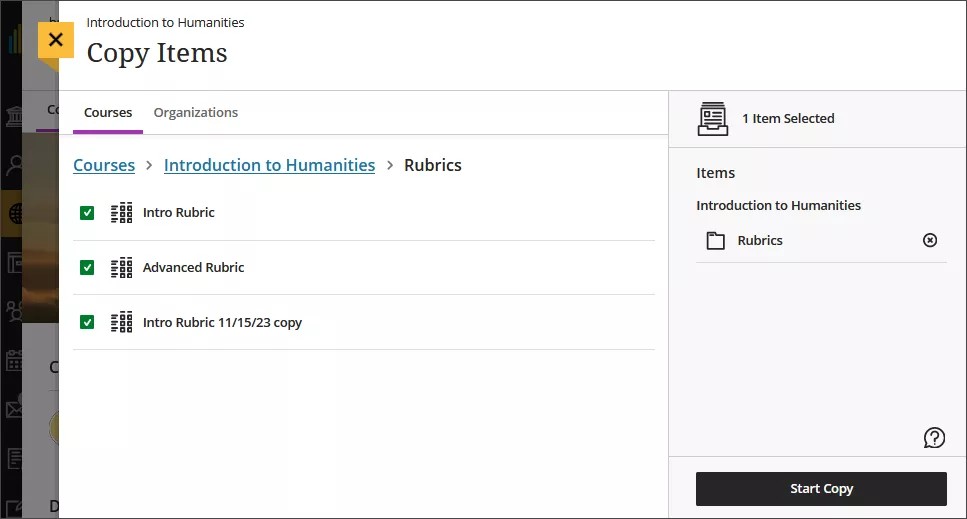
The Copy Items panel opens.
From the Copy Items panel, you can browse all the courses that you teach.
Select the Rubrics folder for the course you want to copy rubrics from and select the rubrics you’d like to copy.
When you’re done, select Start copy.
루브릭 삭제
채점 시 루브릭을 사용했더라도 코스에서 루브릭을 영구적으로 삭제할 수 있으며 성적은 그대로 유지됩니다. 성적은 더 이상 루브릭과 연결되지 않지만 이제 수동으로 추가한 성적으로 표시됩니다.
To permanently delete a rubric, go to the Course Rubrics page. Select the ellipsis menu on the rubric, then select Delete.
Export a rubric
You can export a rubric from your course to reuse it in another course. The exported file is a zip file intended for importing into another course and is not a viewable document.
To export a rubric, select the ellipsis then select Export.
The rubric downloads automatically as a zip file named with the rubric name and course title. You can find it in your downloads folder.
Import a rubric
You can import a rubric that was previously exported from Blackboard LMS.
On the Course Rubrics page, select the import icon.
Select the zip file from your local. Only rubrics exported from Blackboard LMS can be imported.
After import, review your imported rubric,
The rubric imports automatically. If the same rubric already exists in the course, an error message appears to prevent duplicate rubrics from being created.