수학 편집기
Note
본 문서는 AI 지원 기계 번역을 사용하여 번역되었습니다. 번역본은 '있는 그대로' 제공되며 정확성에 대해 어떠한 보증도 하지 않습니다. 본 콘텐츠의 영문 버전이 공식적이고 권위 있는 원본입니다.
수학 편집기를 사용하여 수학 방정식과 공식을 테스트, 과제, 토론 및 저널에 삽입할 수 있습니다. 또한 수학 편집기가 옵션인 텍스트 편집기에 LaTeX 수식을 입력할 수 있습니다. 수학 편집기는 스마트폰과 태블릿을 포함한 모든 브라우저와 운영 체제에서 실행됩니다. 활성화되면 MathJax는 콘텐츠 편집기에 입력된 LaTeX 코드를 내 Blackboard의 지원되는 영역에서 렌더링합니다. MathJax가 활성화되지 않은 경우 Wiris는 수식을 렌더링합니다.
The math editor and typing LaTeX code are two different ways to add math formulas in the rich text editor. The math editor is a visual, point-and-click tool that lets you build a formula without writing any code. When activated, MathJax renders LaTeX code that you type as plain text into the rich text editor across supported areas of Blackboard LMS. Both methods render using MathJax, so you can choose whichever fits your workflow, such as pasting LaTeX code copied directly from an exam bank, textbook, or other source material. If MathJax is not activated, Wiris will render formulas.
수학 공식은 텍스트보다 파일 크기가 큰 PNG 이미지 형식으로 렌더링됩니다. 수학 수식이 표시되는 데 몇 초 정도 걸릴 수 있습니다.
인터넷 연결 속도와 콘텐츠 크기는 로딩 시간에 영향을 줍니다. 일부 학생들은 수식 이미지가 많은 콘텐츠에 접근하는 데 어려움을 겪을 수 있습니다.
수식 이미지 크기와 로딩 시간을 줄이기 위한 몇 가지 권장 사항은 다음과 같습니다:
수학 편집기 또는 LaTeX를 사용하여 각 공식을 개별적으로 만듭니다.
수학 편집기 또는 LaTeX 코드 내부에 질문 설명이나 추가 텍스트를 포함하지 마십시오. 대신 서식 있는 텍스트 편집기를 사용하여 질문, 지침 또는 텍스트 설명을 작성하고 수학 편집기 또는 LaTeX만 사용하여 수학 공식을 만드십시오.
예를 들어, 교수자가 테스트에서 가속도 수학 문제를 씁니다. 콘텐츠 파일 크기를 줄이기 위해 교수자는 문제 및 변수 값에 대한 설명을 서식 있는 텍스트 편집기에서 일반 텍스트로 직접 작성합니다. 그런 다음 교수자는 수학 편집기를 사용하여 가속도 공식을 작성합니다.
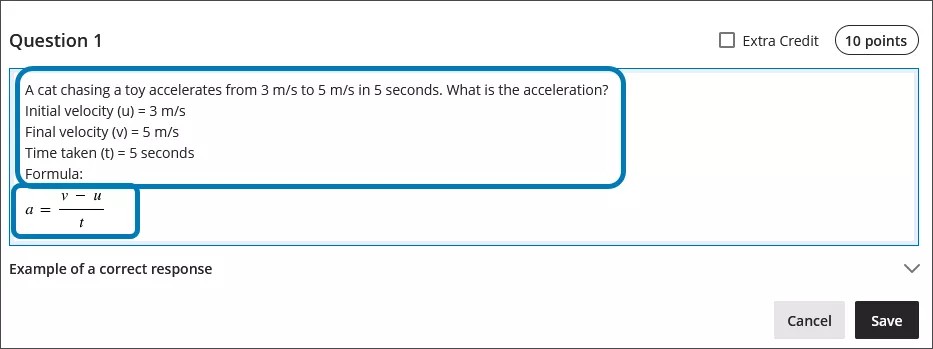
수학 편집기 사용
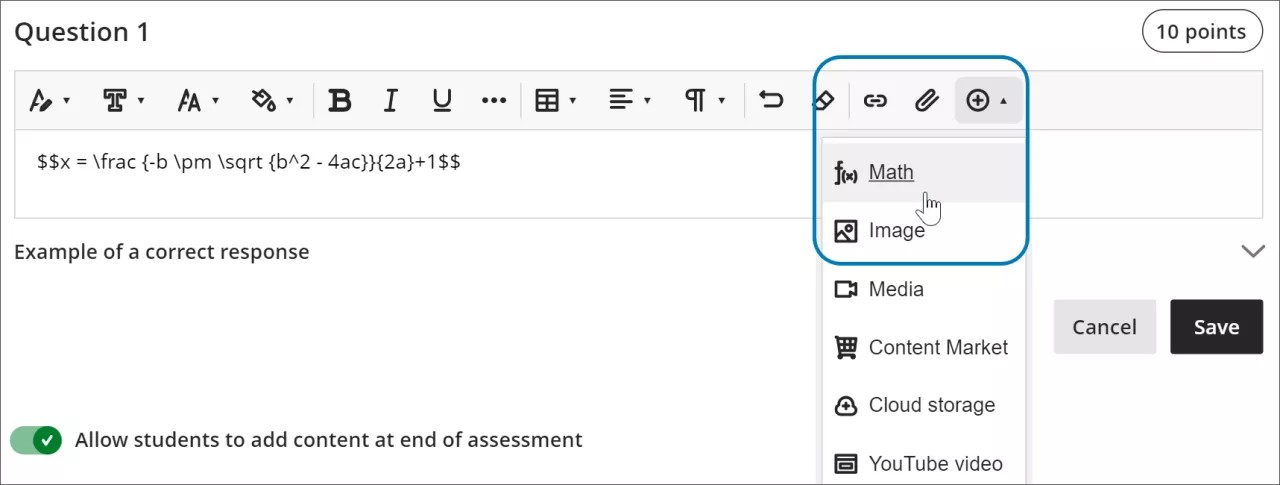
Access the math editor by selecting the + icon in the rich text editor. Select Math in the menu.
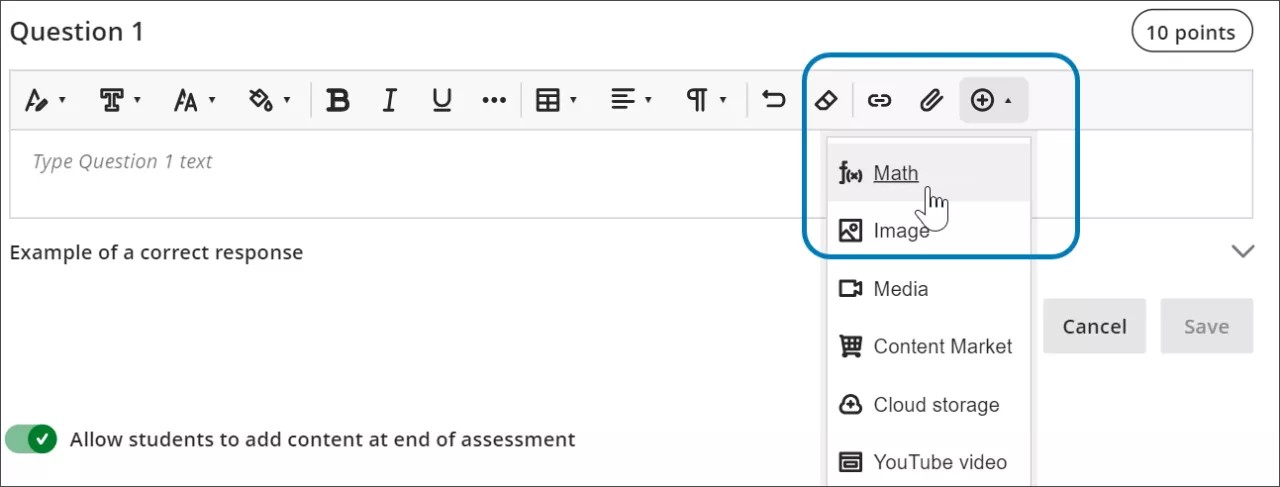
You can access many features in the math editor by selecting different tabs at the top.
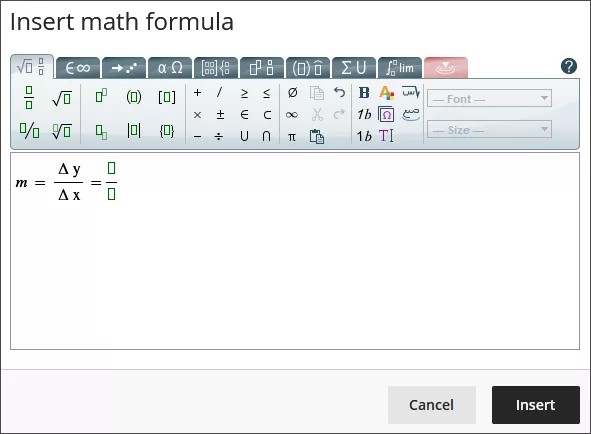
Use your keyboard to enter numbers, letters, and symbols. Select the appropriate icon in the math editor to create complex formulas, such as creating a square root.
If you are using an option that changes the level of the text for your formula, such as subscript or a fraction, use the arrow keys on your keyboard to return to the default level. We recommend using the keyboard to navigate within a formula.
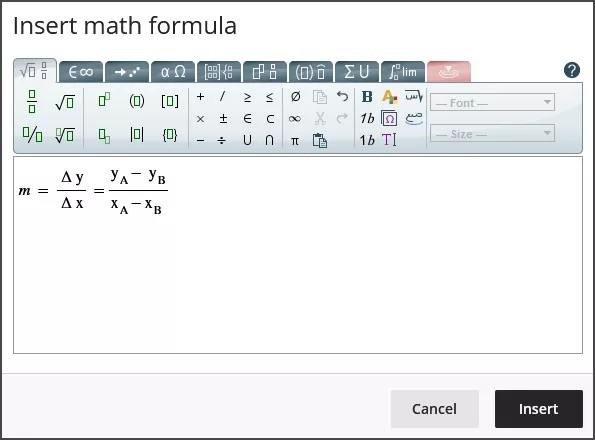
Some of the options for the building formulas in the math editor include:
기본 연산: 덧셈, 뺄셈, 곱셈, 나눗셈, 제곱근, 지수, 분수
그리스 알파벳: 알파, 베타, 감마 등 •
행렬 미적분학
적분, 파생 상품 및 한계
삼각 함수: 사인(sin), 코사인(cos), 탄젠트(tan)
글꼴 스타일 및 크기
WIRIS 웹 사이트는 수학 편집기의 모든 기능에 대한 자세한 정보를 제공합니다.
서식 있는 텍스트 편집기에서 LaTeX 사용
LaTeX는 일반 텍스트로 작성된 코딩 규칙을 기반으로 수식의 이미지를 만드는 데 사용할 수 있는 소프트웨어입니다. Learn의 서식 있는 텍스트 편집기는 LaTeX 코딩을 렌더링할 수 있습니다.
Enter a LaTeX formula by writing the specific code within delimiters in the rich text editor. MathJax supports the following delimiter options, depending on how you want the formula to display:
$$...$$or\[...\]for display equations, which appear centered on their own line, separated from the surrounding text. Display equations work well for complex expressions such as integrals, sums, and products.\(...\)for inline equations, which appear within a line of text alongside other content.
Using the delimiters that match your original source material makes it faster to copy LaTeX code from textbooks, exam banks, or other STEM materials into Blackboard LMS without needing to reformat the code.
Select Save to review how the formula displays as an image. You can go back into the rich text editor to edit the formula until it displays correctly. Some activities, such as tests and assignments, don’t allow students to save in the rich text editor and preview the rendered LaTeX formula. Students will have to check their submission afterwards to make sure that their formula rendered correctly.
굵게 표시하거나 글꼴 크기를 변경하는 등의 수식 모양 변경은 서식 있는 텍스트 편집기를 사용하여 수행할 수 없습니다. 수식의 글꼴 스타일이나 크기를 변경하려면 서식 있는 텍스트 편집기의 수식 내의 아무 곳이나 선택한 다음 수학 편집기를 선택할 수 있습니다. 수학 편집기에서 변경한 모든 사항은 저장하고 LaTeX 코드에 추가할 때 적용됩니다.
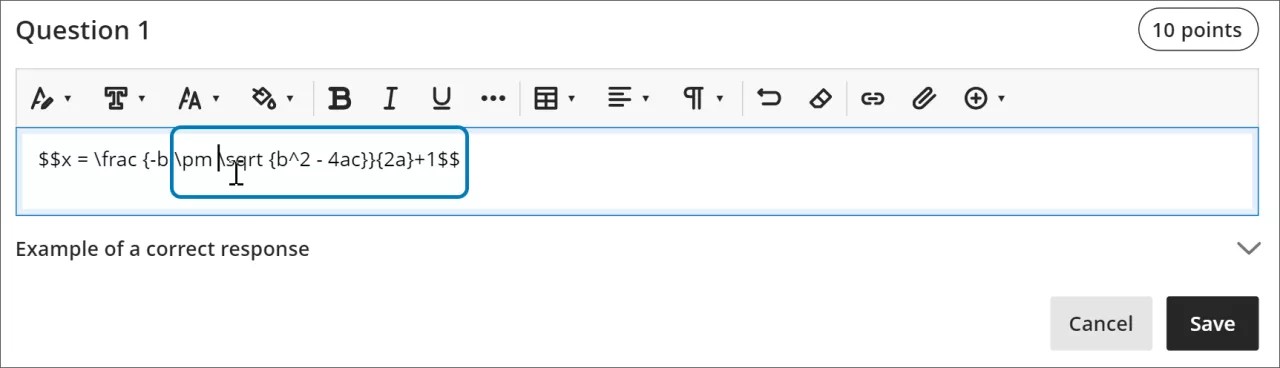
select anywhere within the formula in the rich text editor.
select the math editor
All changes made in the math editor are applied when you save and added to the LaTeX code.
Example of a formula formatted in LaTeX
참고
This example uses $$ delimiters for a display equation. You can also use \[...\] for a display equation or \(...\) for an inline equation instead, depending on how you want the formula to appear in your content.
2차 공식은 LaTeX로 형식을 지정할 수 있습니다.
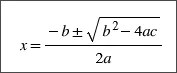
Enter $$ in the rich text editor.
$$
Next, enter the LaTeX code for the formula:
$$x = \frac {-b \pm \sqrt {b^2 - 4ac}}{2a}
Close your formula by entering $$ at the end.
$$x = \frac {-b \pm \sqrt {b^2 - 4ac}}{2a}$$
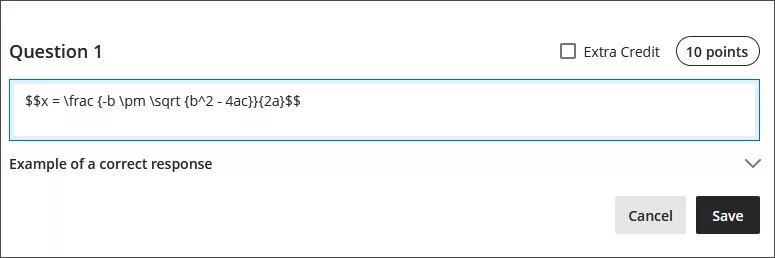
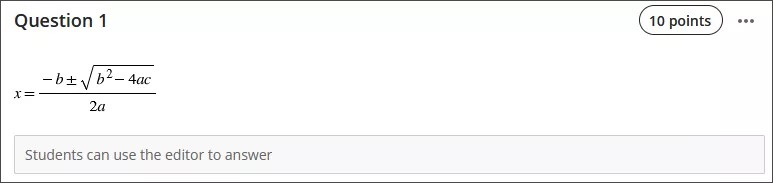
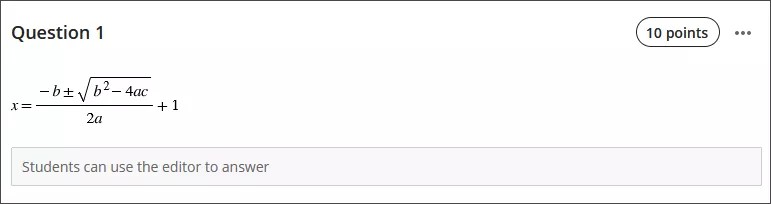
Select Save in the rich text editor. The math formula renders as a PNG image. Rendering the image may take a few seconds, depending on your internet connection and content size.
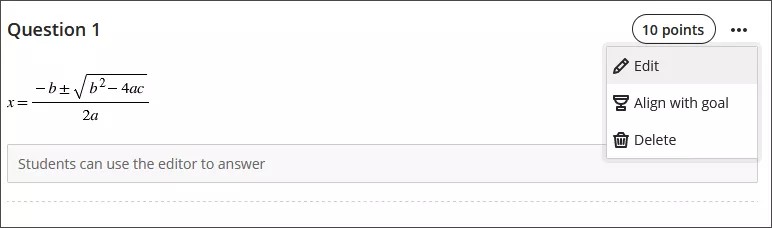
Select Edit in the rich text editor to go back to your LaTeX code.
Edit your formula to overwrite your LaTeX code as plain text inside the rich text editor. For example, add a +1 to the end of the quadratic formula.
$$x = \frac {-b \pm \sqrt {b^2 - 4ac}}{2a}+1$$
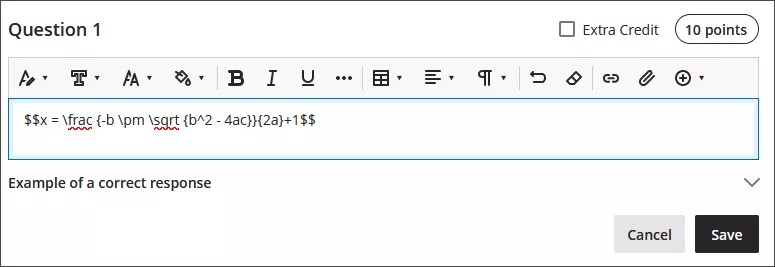
Select Save to render the formula as a new image.
You can make further adjustments to the style of the formula. In the rich text editor, select anything inside the LaTeX code.
Open the math editor.
Apply the styles you want to the formula. For example, you can bold part of the formula and change the font size.
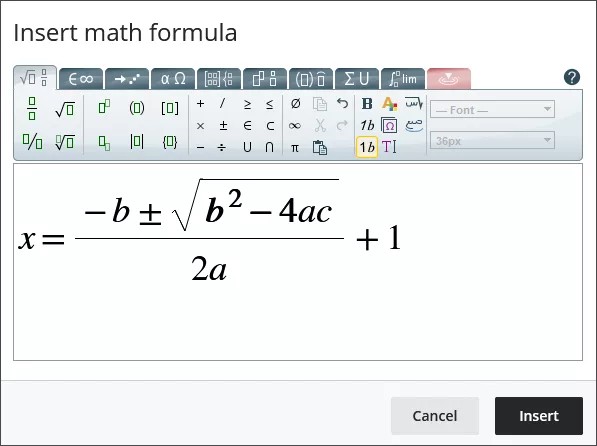
Select Save in the math editor. The LaTeX code for the quadratic formula with your style adjustments is now:
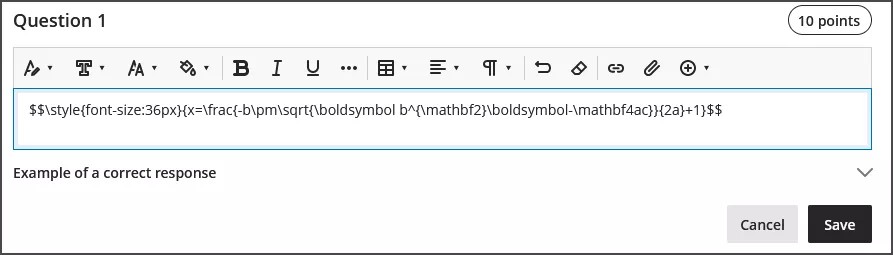
$$\style{font-size:36px}{x=\frac{-b\pm\sqrt{\boldsymbol b^{\mathbf_2_\boldsymbol-\mathbf4ac}}{2a}+1}$$
Select Save in the rich text editor to render your adjusted formula as an image.
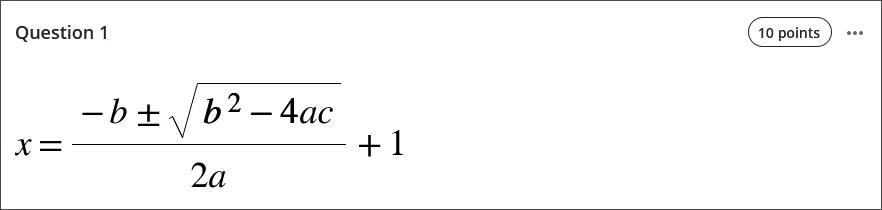
접근성 기능
수학 공식 이미지는 고품질이므로 사용자가 확대할 수 있으며 이미지가 여전히 선명합니다. 글꼴 크기를 변경하여 학생들을 돕는 것도 가능합니다. 글꼴 크기가 클수록 학생들이 작은 숫자와 기호가 있는 공식의 세부 정보를 보는 데 도움이 될 수 있습니다.
수식은 사용자가 수식을 만들 때와 이미지로 렌더링될 때 화면 판독기에서 액세스할 수 있습니다.
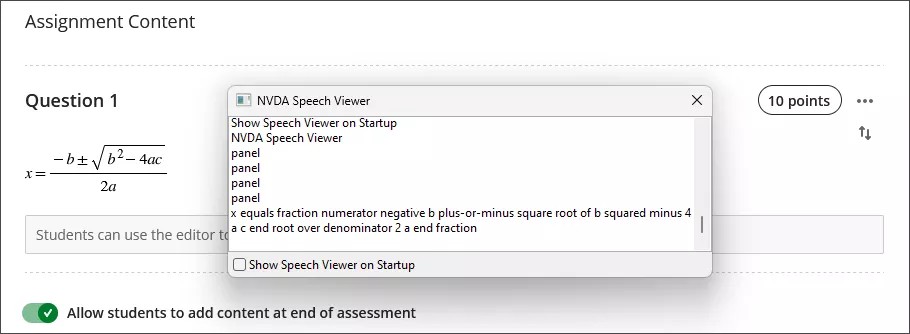
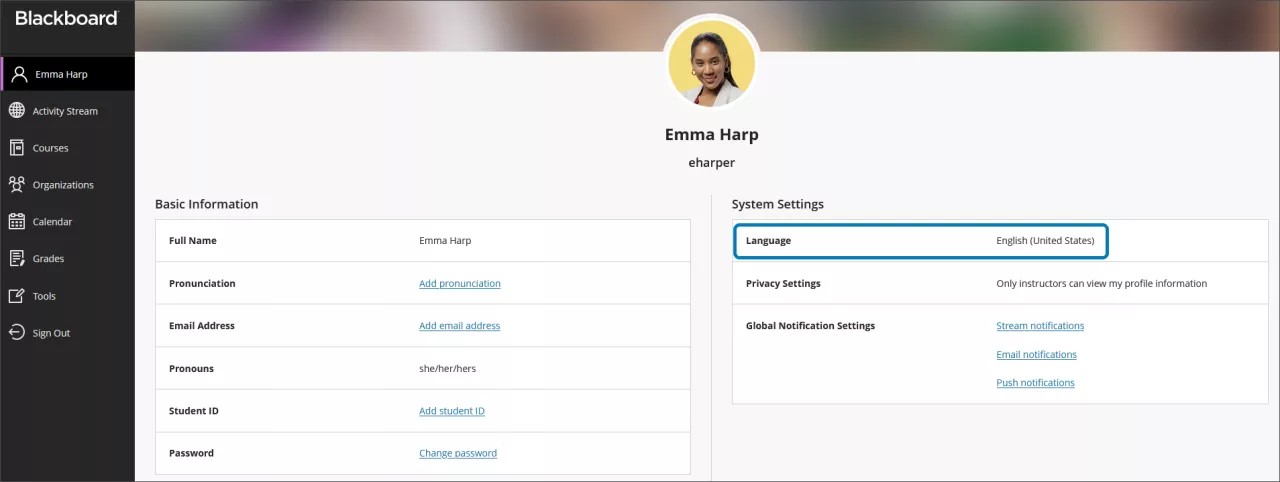
수학 공식에 대한 대체 텍스트는 Learn의 프로필에 있는 언어 설정에 따라 자동으로 생성됩니다. 스크린 리더는 언어, 속도, 음성을 포함한 로컬 기기 설정을 따릅니다. 화면 리더 및 대체 텍스트를 더 잘 사용하려면 Learn의 언어 설정이 로컬 장치의 설정과 일치해야 합니다.
참고
수학 편집기 또는 서식 있는 텍스트에서 지원되지 않는 언어인 경우 수식을 영어로 읽습니다.