내 채점 작업 항목
Note
본 문서는 AI 지원 기계 번역을 사용하여 번역되었습니다. 번역본은 '있는 그대로' 제공되며 정확성에 대해 어떠한 보증도 하지 않습니다. 본 콘텐츠의 영문 버전이 공식적이고 권위 있는 원본입니다.
관리할 채점 작업은 세 가지입니다:
채점 필요: 아직 채점되지 않은 제출물, 가장 오래된 순서대로.
게시 필요: 입력했지만 아직 학생들에게 공개하지 않은 성적.
조정 필요: 최종 결정을 내릴 준비가 된 위임 채점 또는 병행 채점의 성적. 이 내용은 강좌에서 이러한 채점 모드 중 하나를 사용하는 경우에만 표시됩니다.
제가 수강한 모든 과목에 걸쳐
모든 강좌에서 채점 관련 처리 항목을 보려면 기본 탐색 메뉴에서 성적 탭을 선택하세요.
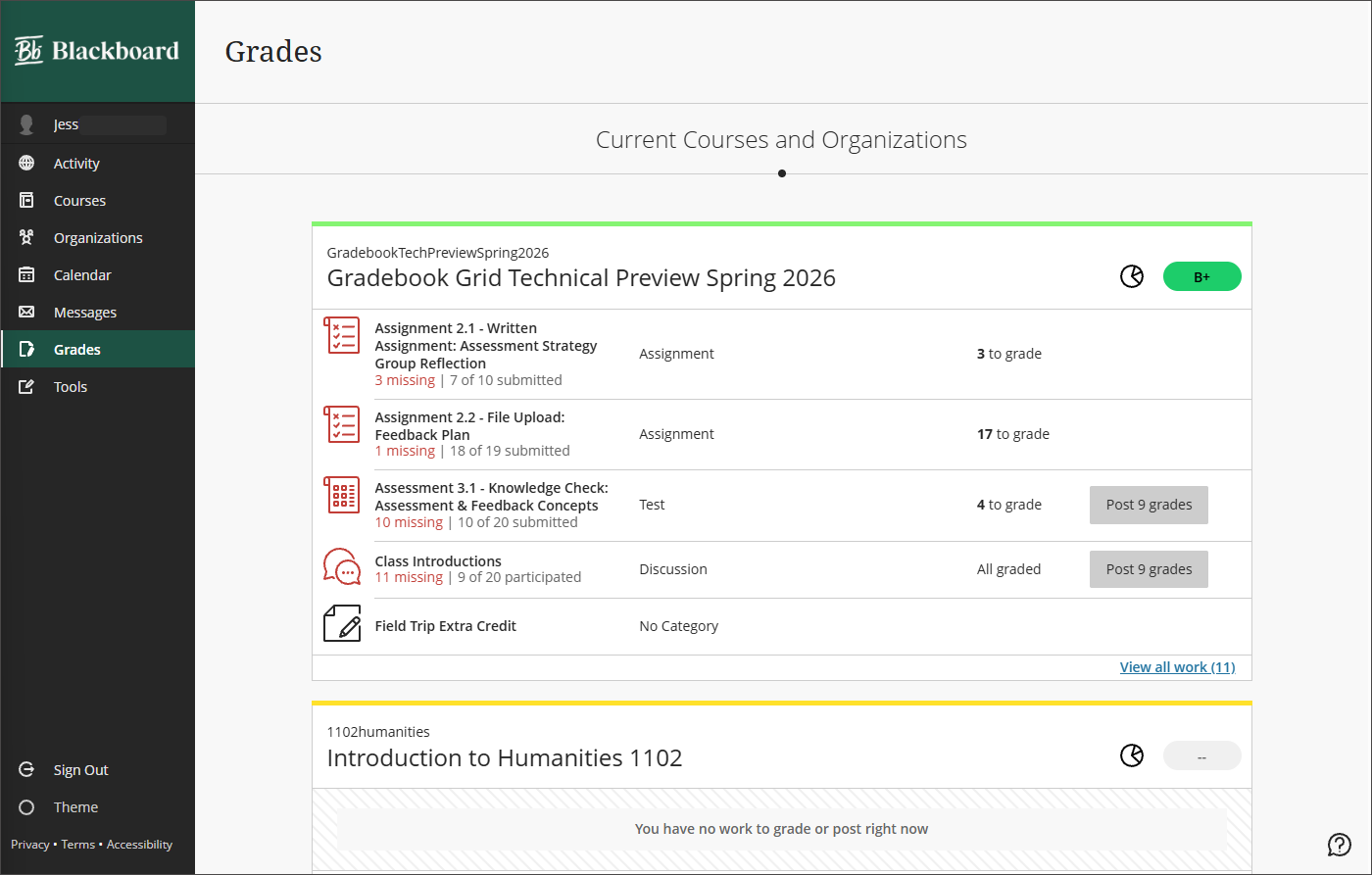
단일 강좌의 경우
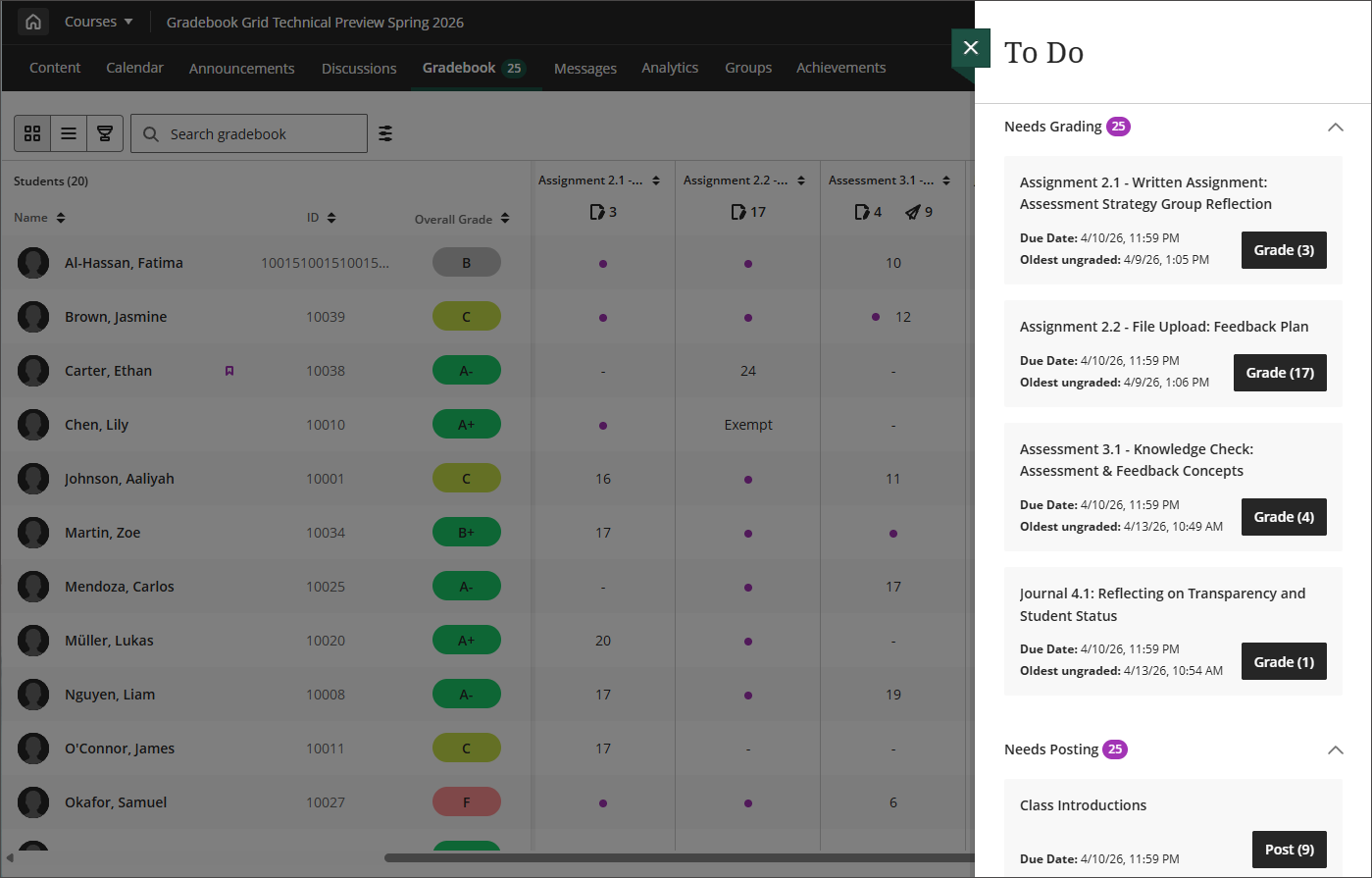
할 일 패널
성적표에서 할 일을 선택하면 성적표 위에 채점 작업 패널이 열립니다.
채점 필요:에는 채점할 준비가 된 제출물이 나열되며, 가장 오래된 미채점 제출물이 먼저 표시되므로 우선순위를 정할 수 있습니다. 항목을 선택하여 제출물을 열고 채점을 시작합니다. 동료 평가 과제는 여기에 나열되어 있지 않습니다.
게시 필요:에는 게시할 준비가 된 채점된 평가 항목이 나열되어 있습니다.
조정 필요:에는 조정이 필요한 성적이 나열되어 있습니다.
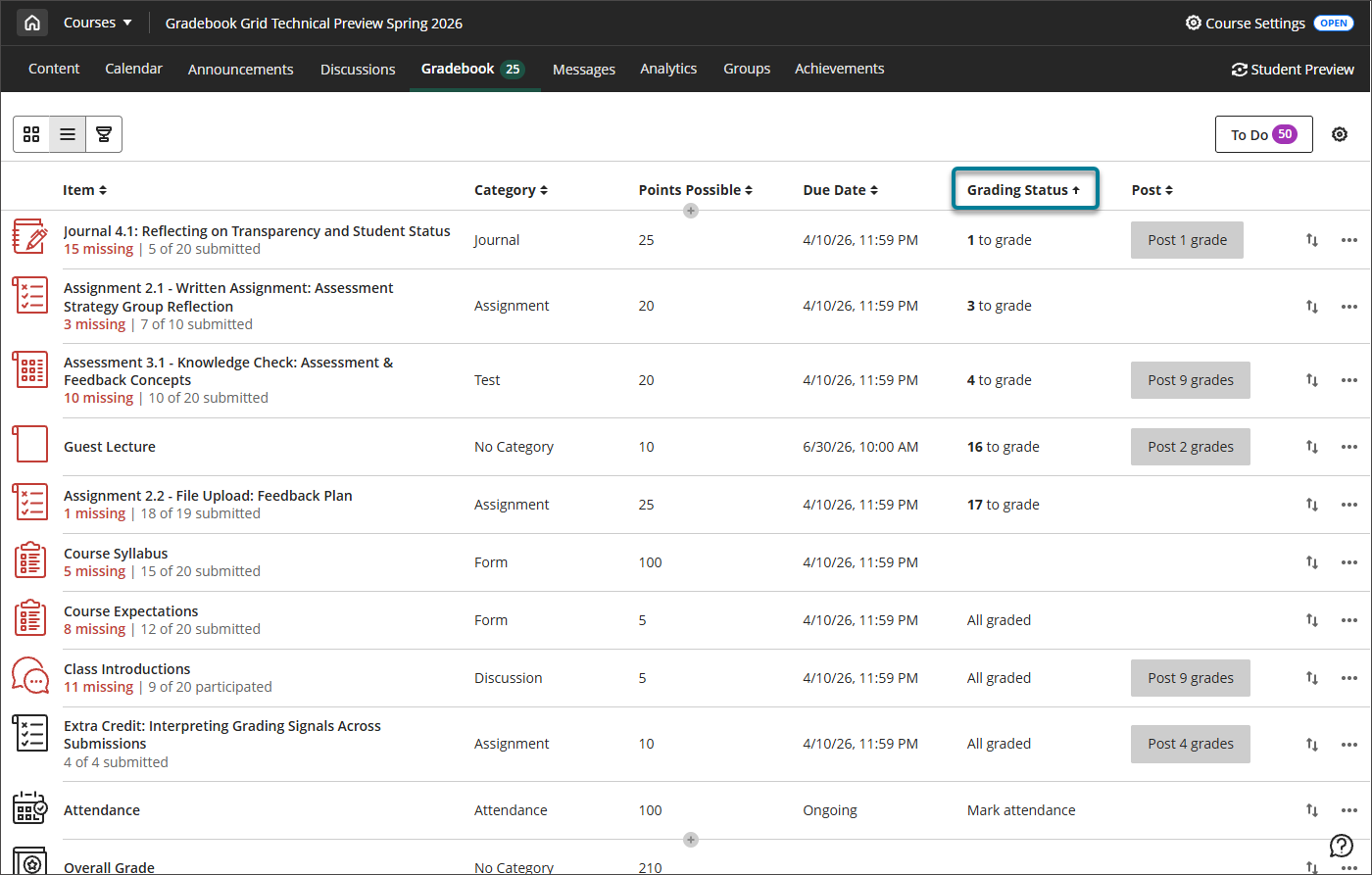
주의가 필요한 부분을 찾기 위한 정렬
성적부 목록 보기에서 채점 상태 열을 기준으로 정렬하면 아직 채점해야 할 모든 항목을 빠르게 확인할 수 있으며, 게시 열을 기준으로 정렬하면 게시해야 할 성적을 확인할 수 있습니다.
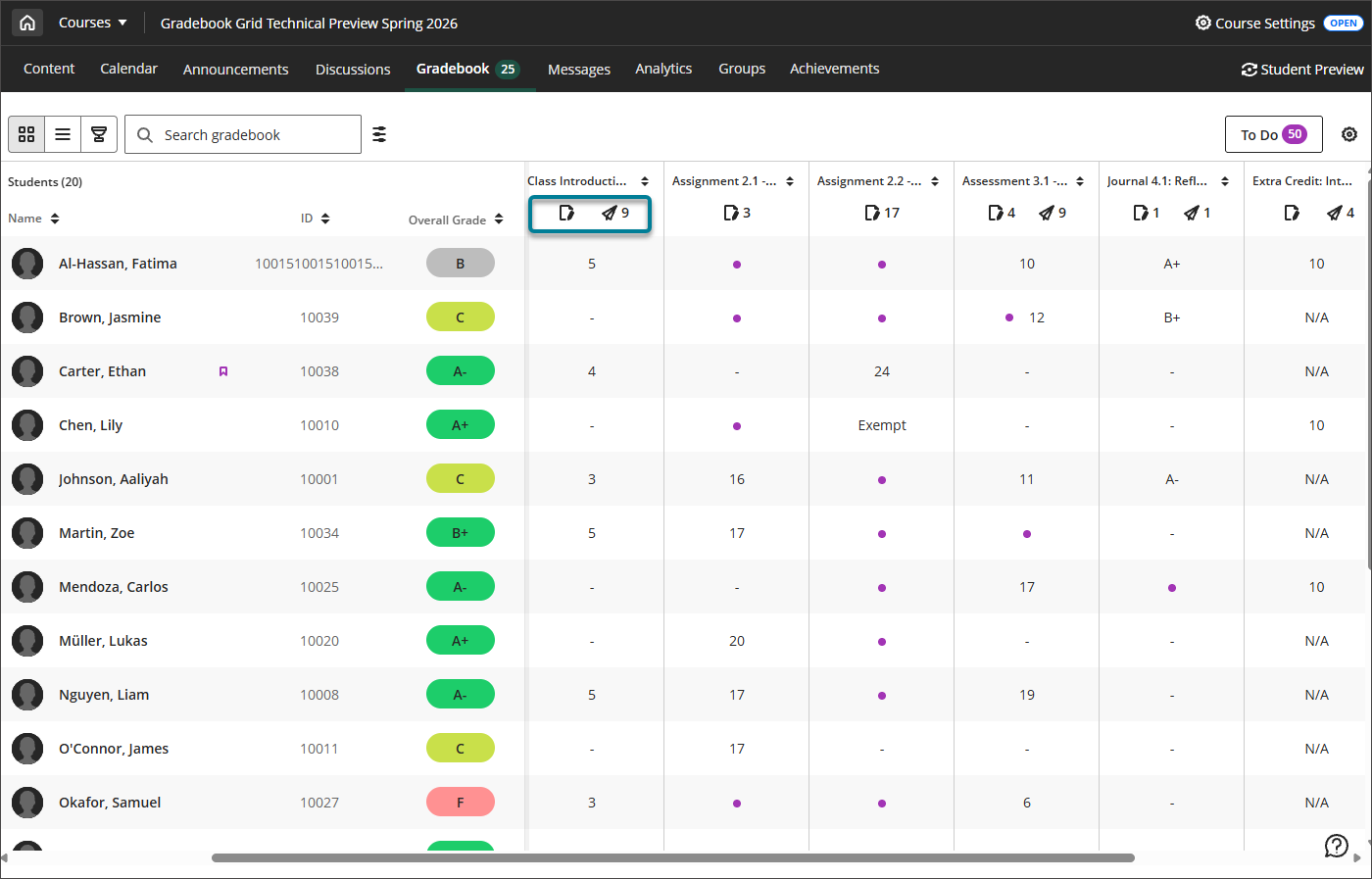
‘채점 필요’ 및 ‘게시 필요’ 아이콘
그리드 보기의 열 머리글 아래에서, 종이와 연필 아이콘은 채점이 필요함을 나타내고 종이비행기 아이콘은 게시가 필요함을 나타냅니다.