그룹 과제 생성 및 배정
Note
본 문서는 AI 지원 기계 번역을 사용하여 번역되었습니다. 번역본은 '있는 그대로' 제공되며 정확성에 대해 어떠한 보증도 하지 않습니다. 본 콘텐츠의 영문 버전이 공식적이고 권위 있는 원본입니다.
그룹 과제 생성 및 배정
새 과제 페이지에서 설정 아이콘을 선택하여 과제 설정 패널을 엽니다.
마감일을 제공하고 그룹 과제에 적용할 설정을 선택합니다.
그룹 과제에 대해 수업 대화를 허용할 수 있습니다. 학생들은 전체 클래스와의 대화 또는 자신이 속한 그룹 구성원끼리의 대화 중에서 선택할 수 있습니다.
그룹이 제출물을 업로드할 필요가 없는 오프라인 제출물도 수집하도록 선택할 수 있습니다. 그룹이 오프라인 작업을 준비할 수 있도록 지침, 파일, 루브릭, 목표를 추가합니다. 오프라인 작업에 대한 대화를 활성화할 수도 있습니다.
그룹 과제 제출 시점을 제어하기 위해 접근 코드를 발급할 수 있습니다. 이때 접근 코드는 시스템에 의해 무작위로 생성됩니다. 접속 코드는 사용자 지정할 수 없습니다.
중요
현재는 여러 번 시도, 시간 제한, 이름 숨기기 또는 병렬 채점이 포함된 그룹 과제를 생성할 수 없습니다.
그룹에 배정을 선택합니다.
How you assign groups is based on which version of Groups your institution has configured. Read more in next section.
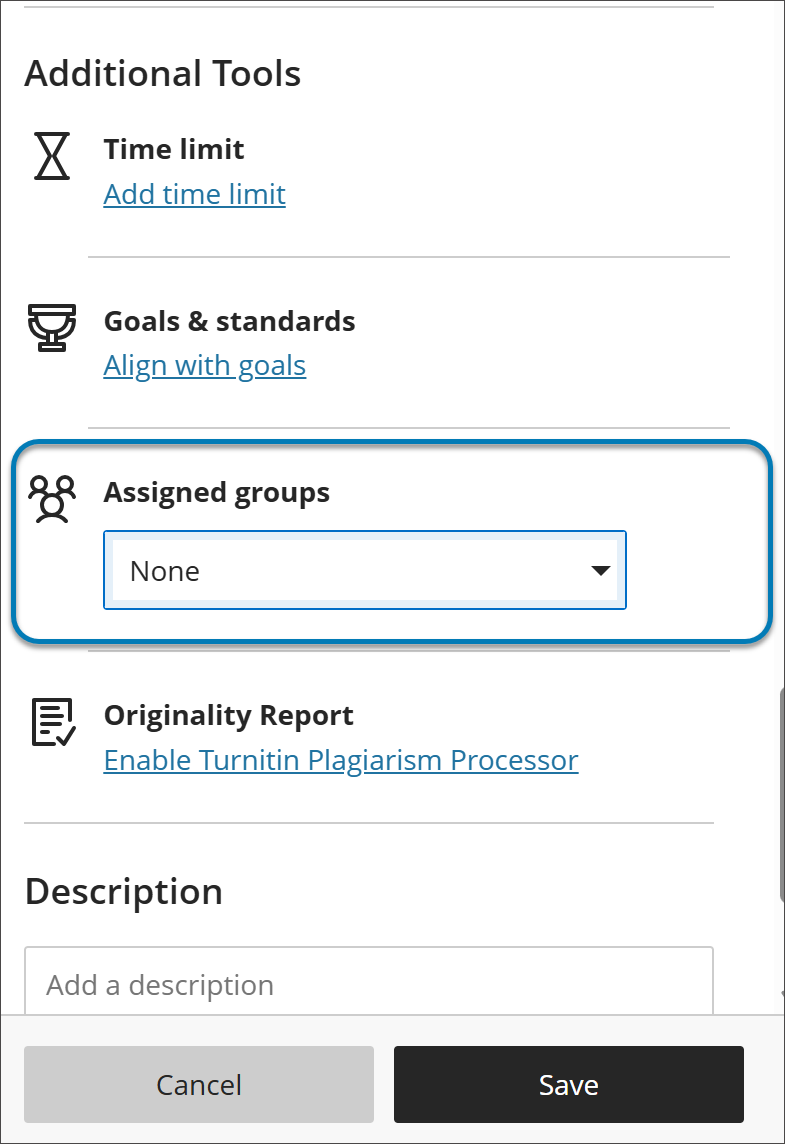
Assign groups to an assignment
중요
The reimagined Groups experience is available if your institution's Blackboard LMS administrators have turned it on. It becomes the default experience for all courses in January 2027. Until then, what you see after you select Assign to groups depends on which experience your course uses.
Assign groups in the new Groups experience
Select a group set that already exists in your course. You can't create groups from the assignment settings.
To use a new group set, create it first on the Groups tab of the Course Content page, then return to the assignment and select it.
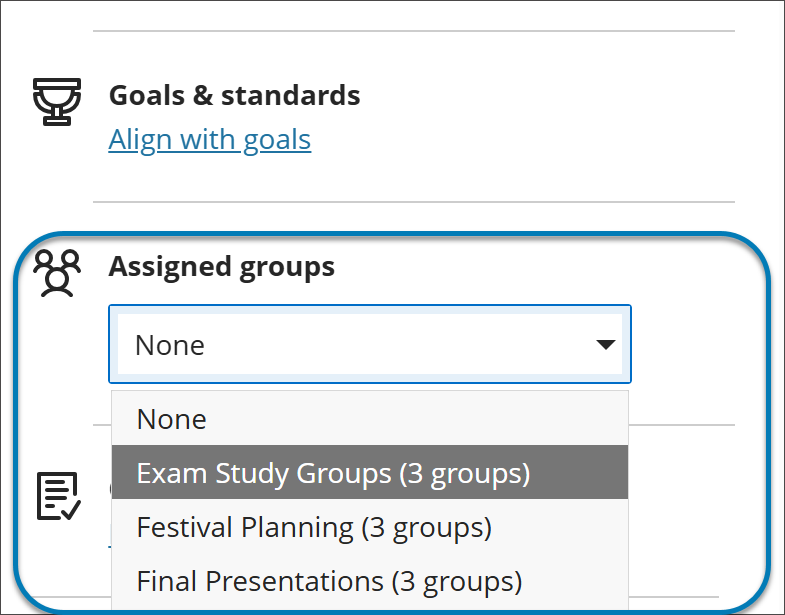
Assign groups in the previous Groups experience
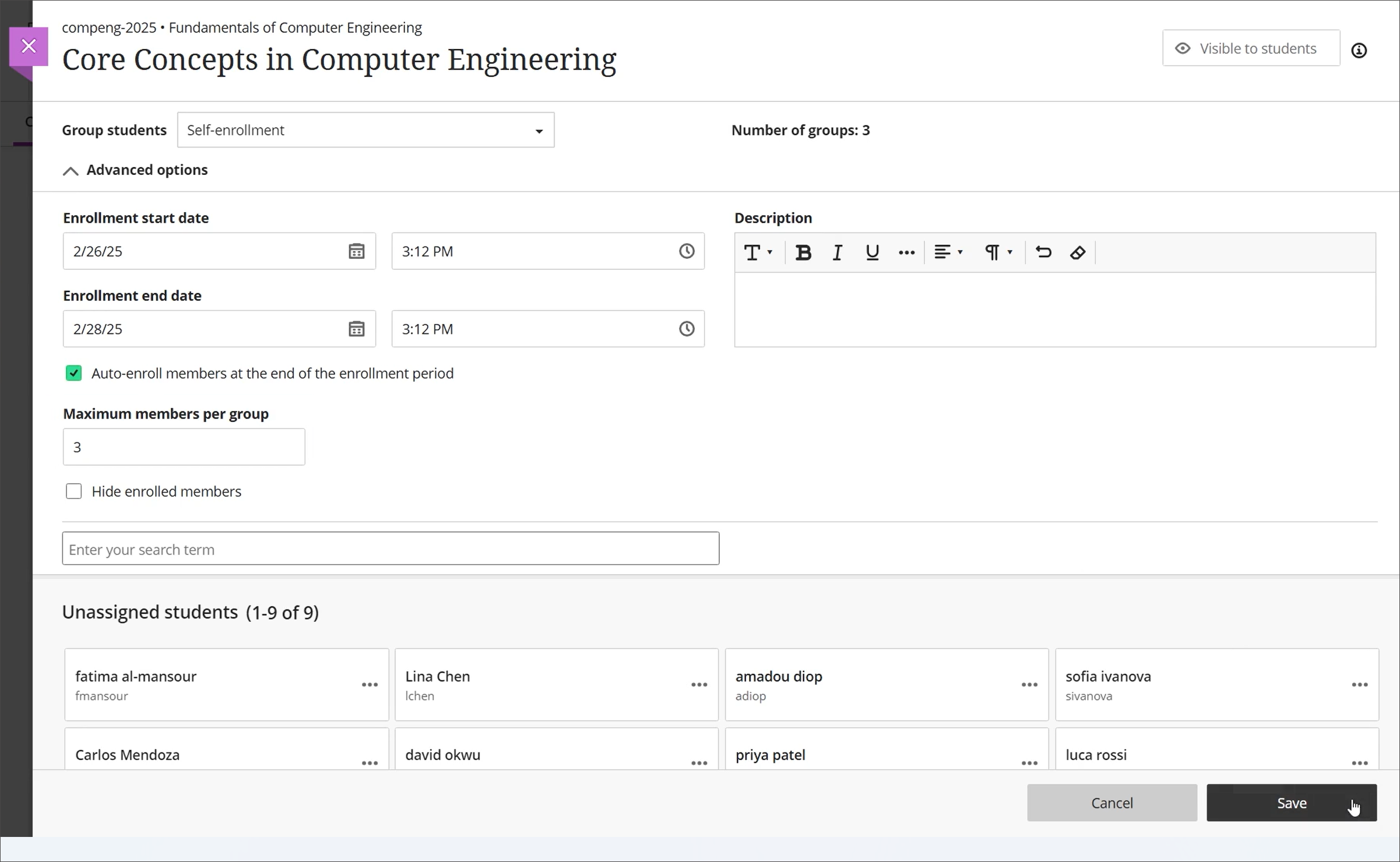
Select Assign groups, which sends you to a page to create a new group set or assign existing groups.
In the Group students menu, choose Custom, Randomly assign, Self-enrollment, or Reuse groups.