강좌 콘텐츠 페이지의 중복 항목
Note
본 문서는 AI 지원 기계 번역을 사용하여 번역되었습니다. 번역본은 '있는 그대로' 제공되며 정확성에 대해 어떠한 보증도 하지 않습니다. 본 콘텐츠의 영문 버전이 공식적이고 권위 있는 원본입니다.
강사는 강좌 콘텐츠 페이지에 있는 대부분의 항목을 복제할 수 있습니다. 복사본은 원본의 모든 콘텐츠와 설정을 그대로 유지하며, 원본 항목 바로 아래에 표시됩니다.
항목 복제하기
‘추가 옵션’ 메뉴를 사용하여 ‘강좌 콘텐츠’ 페이지에 있는 지원되는 항목의 복사본을 만들 수 있습니다.
강좌를 열고 ‘강좌 콘텐츠’ 페이지로 이동하세요.
복제하려는 항목의 추가 옵션(…) 메뉴를 엽니다.
복제를 선택하세요.
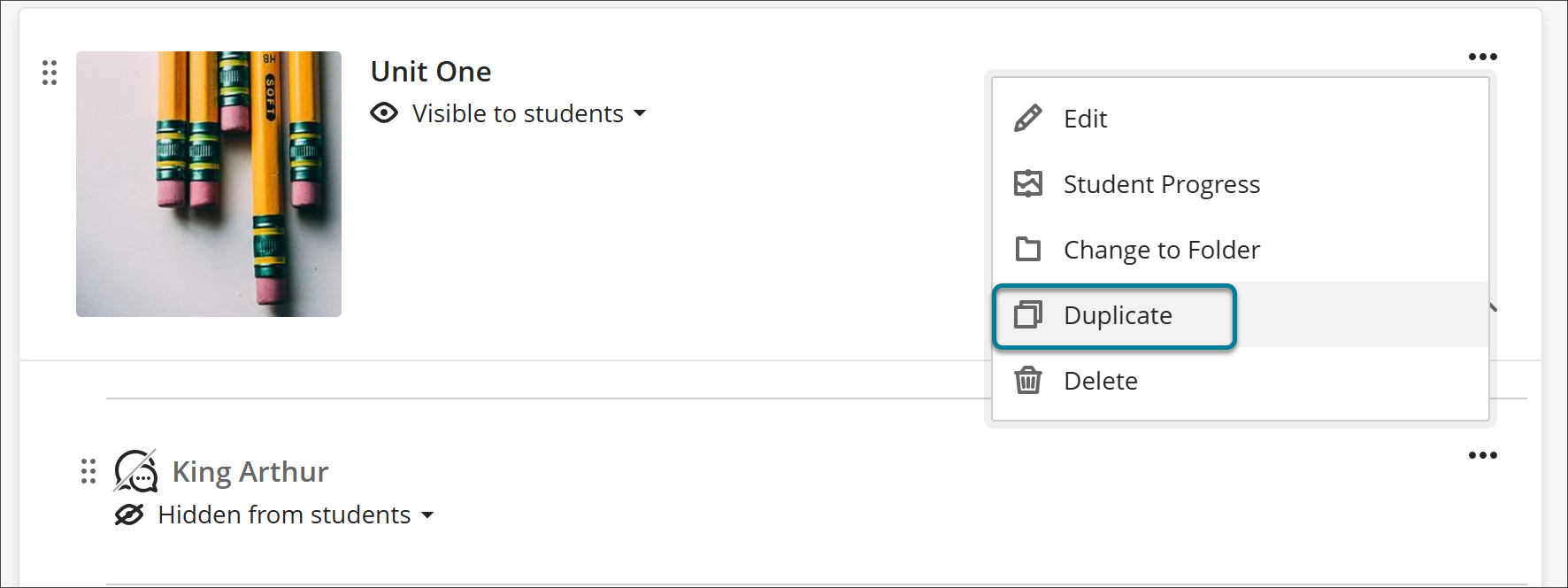
복사본은 원본 아래에 표시됩니다. 항목 이름 뒤에 "복사본"이 추가되며, 이 복사본은 기본적으로 학생들에게 숨겨집니다.
복제한 후, 복사본의 이름을 변경하고 필요한 수정을 마친 다음 학생들에게 표시하기 전에 공개하십시오.
참고
LTI 항목은 복제를 지원하지 않습니다. LTI 항목의 추가 옵션 메뉴에 복제 옵션이 표시되지 않습니다.