성적부의 채점 가능한 항목 탭
Note
본 문서는 AI 지원 기계 번역을 사용하여 번역되었습니다. 번역본은 '있는 그대로' 제공되며 정확성에 대해 어떠한 보증도 하지 않습니다. 본 콘텐츠의 영문 버전이 공식적이고 권위 있는 원본입니다.
채점 가능한 항목 탭에는 코스에서 채점 가능한 모든 항목이 표시됩니다. 마감일, 채점 상태 및 항목 카테고리를 볼 수 있습니다. 성적을 게시하고 코스의 전체 성적 계산을 조정할 수도 있습니다.
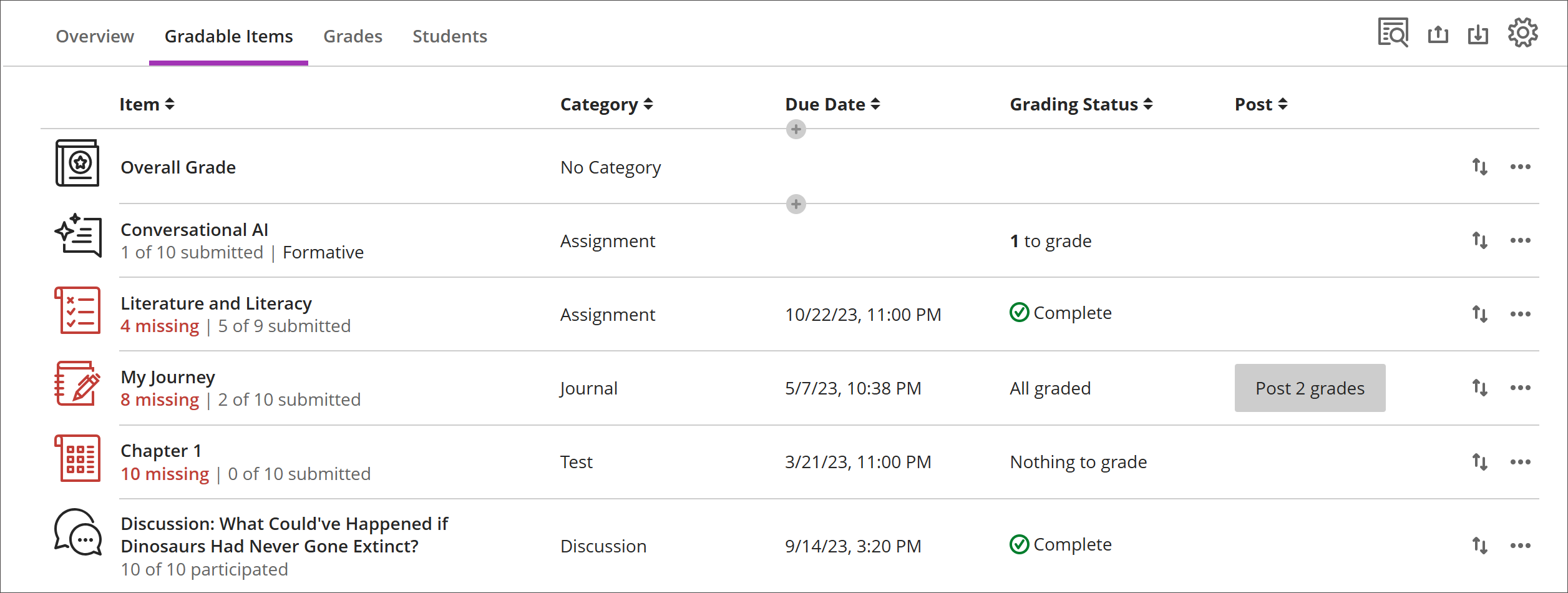
마감일이 지난 제출이 누락된 항목은 빨간색으로 표시됩니다.
이동 버튼을 사용하여 항목을 새 순서로 끌어다 놓습니다.
항목 이름을 선택하여 제출물 또는 성적 및 참여 페이지로 이동합니다.
X를 선택하여 채점으로 이동하면 평가 제출 페이지로 바로 이동하여 채점을 시작할 수 있습니다.
사용자 정의, 텍스트 기반 열
사용자 정의 텍스트 기반 열을 만들려면 (+) 추가를 선택한 다음, 텍스트 항목 추가를 선택합니다. 각 열에 대해 열 이름과 설명을 입력할 수 있으며, 열의 학생 표시 여부도 설정할 수 있습니다. 각 행에 대해 최대 32자까지 입력할 수 있습니다.
성적부에서 채점 가능한 항목 탭을 탐색합니다
'채점 가능 항목' 탭은 키보드 및 스크린 리더의 사용성을 향상시키기 위해 표 기반 레이아웃을 사용합니다.
키보드로 채점 가능한 항목 탐색
Tab 키를 사용하여 성적표로 이동하세요.
화살표 키를 사용하여 '채점 가능 항목' 탭으로 이동하세요.
'Tab'을 선택하여 채점 대상 항목 테이블로 들어갈 때까지 반복합니다.
화살표 키를 사용하여 테이블을 탐색합니다.
Tab 키를 누르면 표에서 벗어나 Blackboard 도움말 버튼으로 이동합니다. Shift + Tab을 누르면 설정 버튼으로 돌아갑니다.
화면 판독기로 채점 가능한 항목 탐색
스크린 리더 사용자는 키보드 안내에 따라 채점 가능 항목 탭으로 이동할 수 있습니다. 화면 읽기 프로그램에 특화된 키보드 조합을 사용하여 테이블로 바로 이동할 수도 있습니다.
JAWS: Insert + Ctrl + T를 사용하세요
NVDA: T 키를 사용한 다음 Ctrl + 아래쪽 화살표 키를 사용하여 표로 들어갑니다
VoiceOver: Ctrl + Option + 오른쪽 화살표 키를 사용하여 표 옵션을 선택하세요
테이블에 들어가면 스크린 리더는 테이블 탐색(Ctrl + Alt + 방향 키)을 사용하여 테이블을 탐색할 수 있습니다.
콘텐츠를 추가하려면 아래쪽 화살표를 사용하여 행 끝의 추가 옵션 (...) 버튼으로 이동하세요. 다음 아래쪽 화살표는 콘텐츠 추가 버튼입니다.
JAWS 사용자를 위한 참고 사항
JAWS 사용자는 테이블 탐색 키를 사용하여 행의 왼쪽 또는 오른쪽으로 이동할 수 있습니다.
과제 행 사이를 위아래로 이동하려면 먼저 항목 열로 이동하십시오.