学习对象存储库
Note
本文档采用 AI 辅助机器翻译。译文仅供参考,不保证准确性;此内容的英文版为官方权威版本。
使用学习对象库(LOR)管理视图来组织、编辑、移动和删除存储库对象。你还可以跟踪每个项目在各个课程和组织中的使用位置。
LOR 支持以下对象类型:
文献
学习模块
文件夹
文件
管理对象和支持对象类型
选择工具,然后选择学习对象存储库。
选择省略号(...)推荐信按钮。
打开菜单后,您可以选择以下选项:
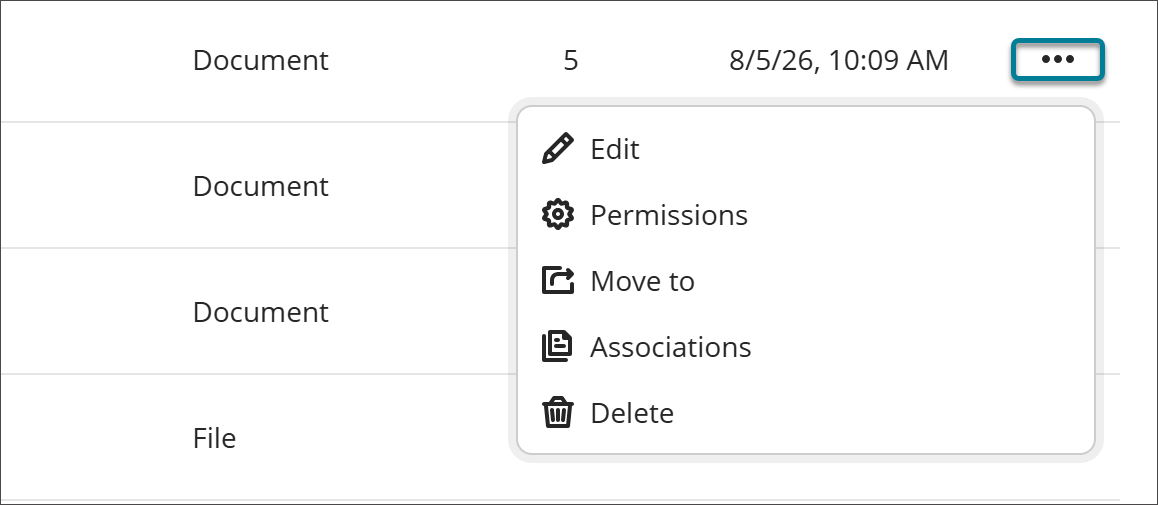
编辑
选择编辑以修改对象。对对象的编辑在 LOR 中会应用到课程和组织中所有相关的对象。
注意
如果课程已标记为已完成或结束日期已过,则不会进行更改。
Permissions
You can control which attribute of an object instructors can edit after it's added to a course or organization. When an attribute is open for editing, users with editing privileges can update it directly in the course or organization, and the change persists through future syncs.
Select Permissions.
Turn on the toggle for any attribute you want to allow editing for.
Select Save.
If you turn off the permission to edit an attribute after the object already has associations, any changes that users have made to individual objects will be reverted to the version that is in the LOR.
迁移至
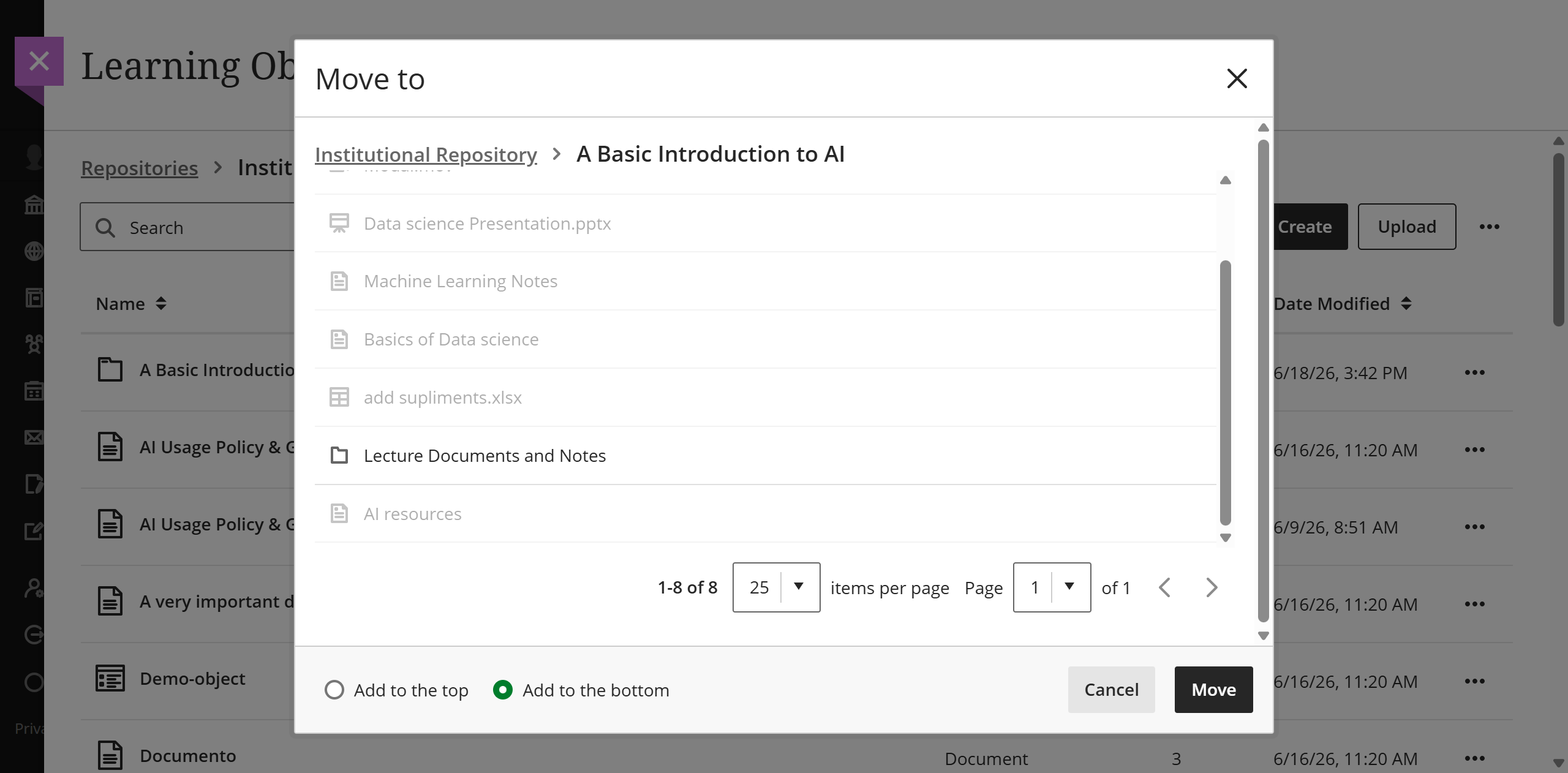
你可以在学习模块和文件夹之间移动内容。
选择 以移动至 。
导航到要放置对象的学习模块或文件夹。
选择单选按钮,将对象放置在目标学习模块或文件夹的顶部或底部。
选择 移动 按钮。
注意
If moving a folder with nested items into another folder would violate the depth restrictions for courses and organizations, the folder can't be moved. In this case, a banner displays stating this is not possible in the LOR and the Move feature is disabled.
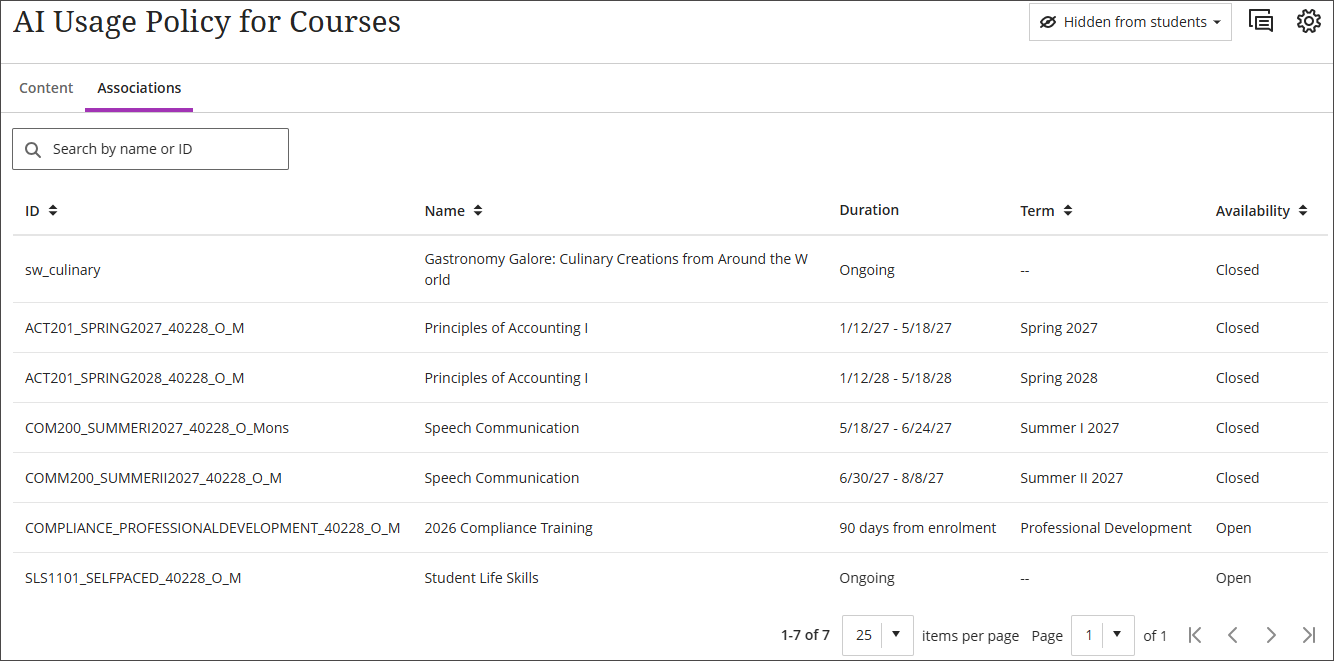
关联
您可以通过更多选项菜单访问对象的关联列表。关联页面有排序选项,可按课程名称、组织名称或 ID 搜索。
删除
当你选择删除时,你有两个选项。
删除此对象:选择此选项以删除该对象,但它仍会保留在所有关联的课程和组织中。课程或组织中剩余的对象将失去与 LOR 的关联,并变得完全可编辑。
删除此对象及所有关联对象:选择此选项以删除该对象,从推荐信及其关联的所有活跃课程和组织中删除。在已标记为完成或结束日期已过的课程中,不会删除对象。
View object source information
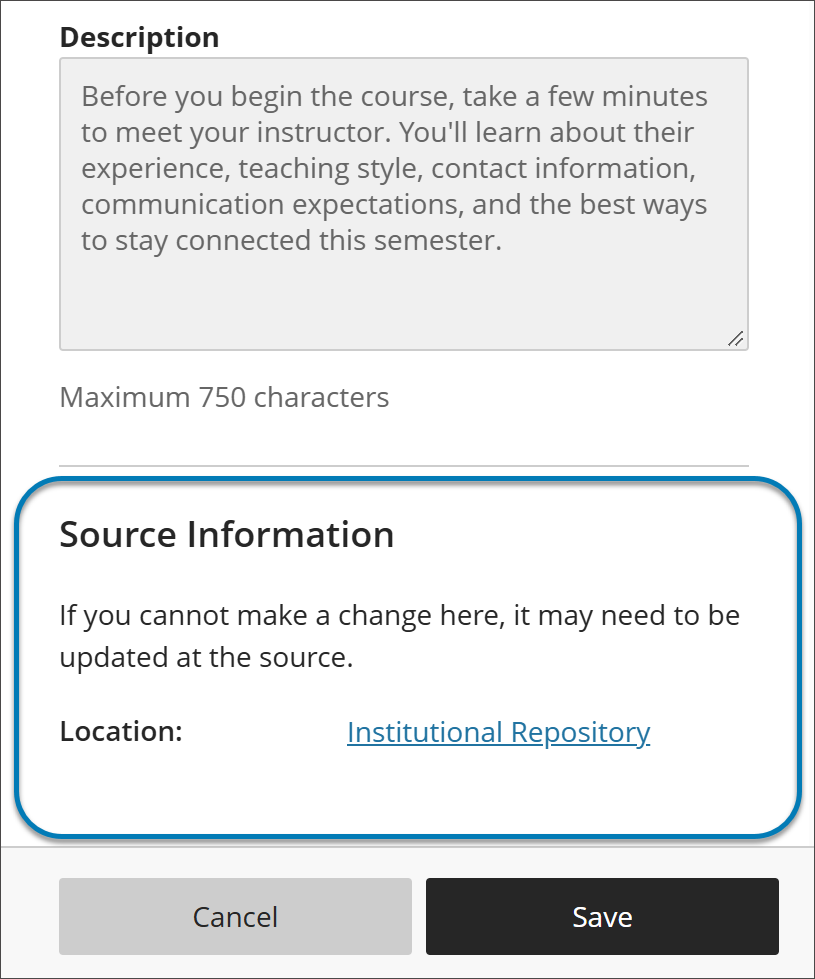
When an LOR object is used in a course or organization, its settings panel includes a Source Information section at the bottom. Use it to identify where the object is stored in the institutional hierarchy without leaving the course or organization.
Source Information lists the object’s location as a selectable link. It also notes that if you can’t change something about the object where you are, the change may need to be made at the source in the LOR.
查找项目
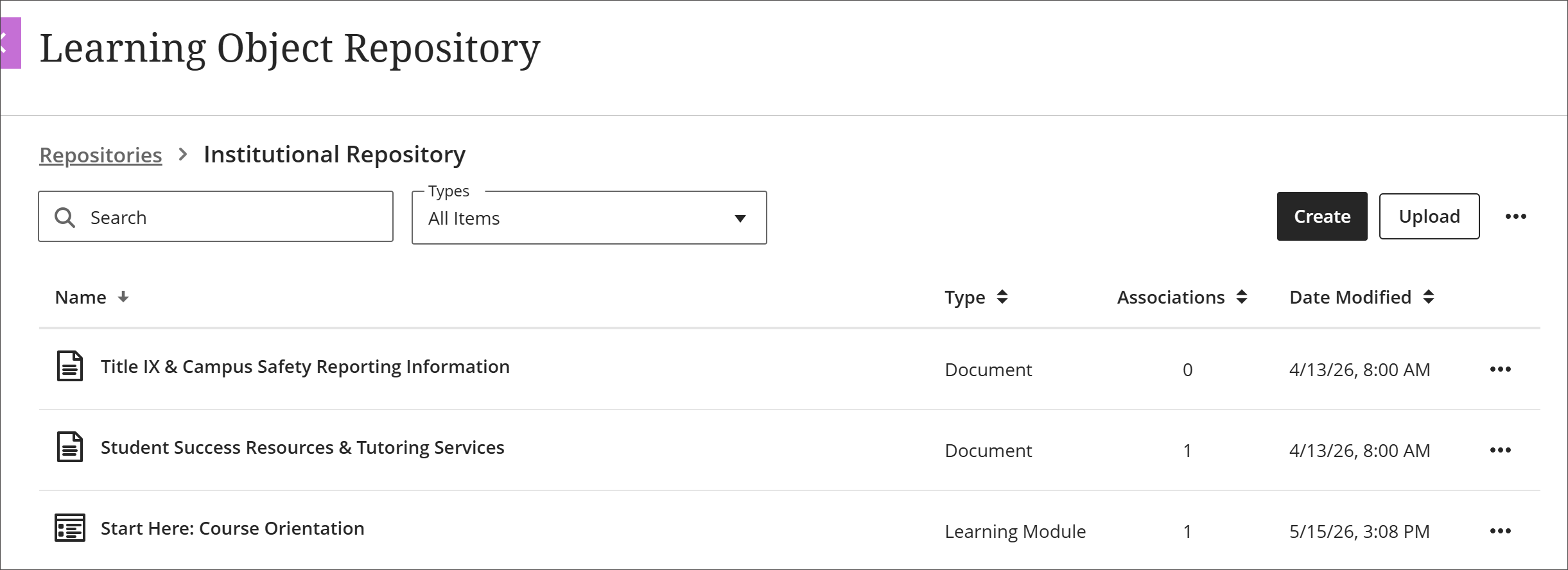
在 LOR 管理视图中,你可以按名称、类型、关联数量或修改日期对对象进行排序。你还可以按对象类型进行筛选,或者按名称搜索。
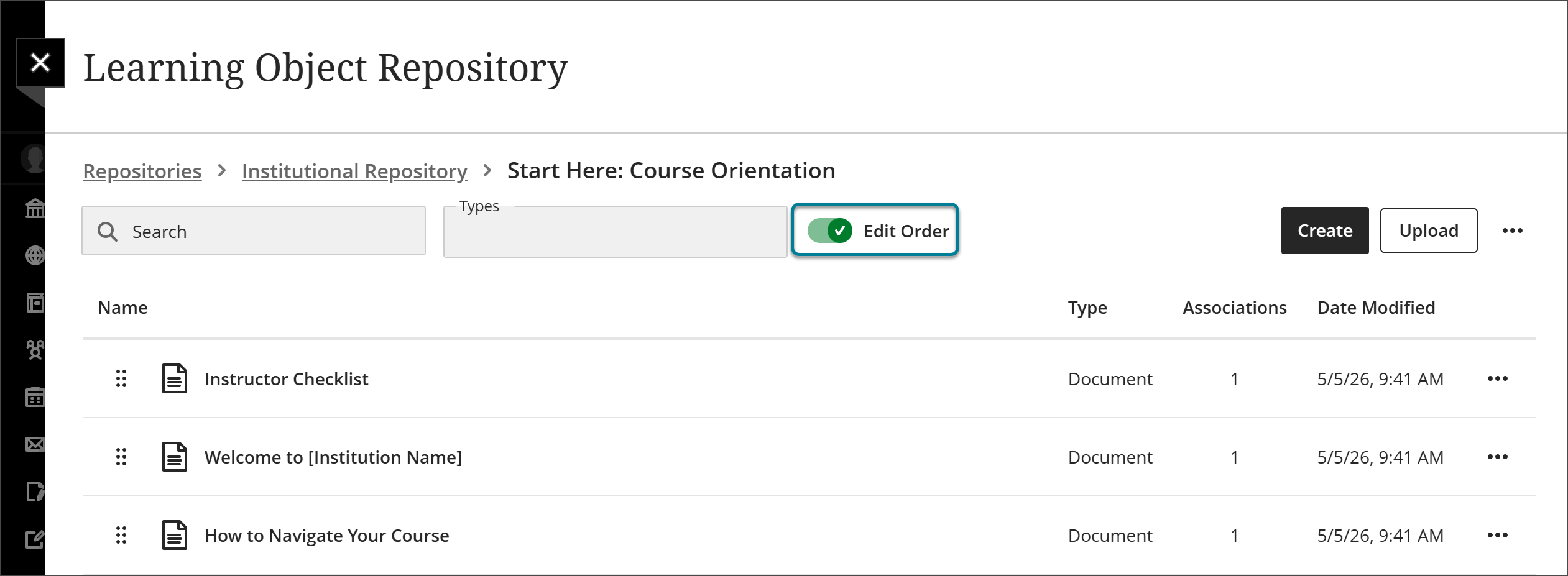
编辑学习模块和文件夹中的内容顺序
当你在 LOR 管理视图中访问对象时,可以对它们进行排序、搜索和筛选,以自定义视图。然而,当学习模块或文件夹添加到课程或组织时,你希望其中的项目按特定顺序排列。
选择工具,然后选择学习对象存储库。
输入学习模块或文件夹。
打开编辑顺序切换开关。
按所需顺序排列项目。
Use the reorder button to drag and drop objects.
Select the reorder button to open a menu with options to Move to top of page, Move up, Move down, or Move to bottom of page.
关闭编辑顺序切换开关。
这些对象现在按你设定的顺序锁定。当学习模块或文件夹加入课程或组织时,项目按该顺序显示。无论您如何对管理视图进行排序、搜索或筛选,这一点都成立。