ORIGINAL Calendar
Never miss a beat!
Juggling competing responsibilities isn't easy. The calendar displays a consolidated view of all your institution, course, organization, and personal calendar events. You can view events by day, week, or month. You can view and organize upcoming and past events into categories.
You can use the course calendar to provide students with dates for course-related events. Course calendar events appear to all members of the course. Common entries include upcoming tests, due dates for assignments, or special lectures. Course items with due dates appear automatically in the course calendar. Only instructors can create course calendar events.
Different global regions have different calendar conventions, including which day displays as the first day of the week. The calendar displays the most common convention for the first day of the week based on a user's selected language. You can change your language in the user profile. Administrators can customize the first day of the week for their language pack if they choose.
Note
Non-graded items with due dates, such as tasks, don't appear in the calendar automatically. You'll have to add these events directly to the course calendar to ensure students see them.
Watch a video about the calendar
The following narrated video provides a visual and auditory representation of some of the information included on this page. For a detailed description of what is portrayed in the video, open the video on YouTube, navigate to More actions, and select Open transcript.
Video: Use the calendar explains how to use the calendar to keep track of your events and due dates.
Find and navigate the calendar
You can access the calendar from your course, from the Tools panel on the My Institution tab, or from the My Blackboard menu.
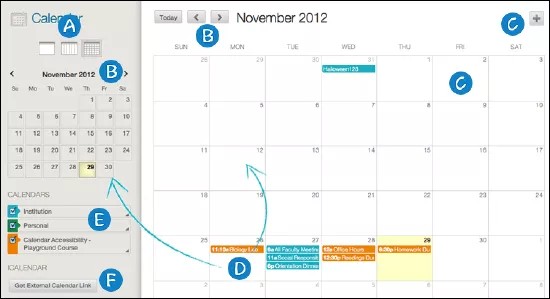
View events by day, week, or month.
Use the arrows to navigate to another month.
Select the plus (+) to create a new event. You can also select a date to create an event. Assign the event to the appropriate calendar, select the date and time, and add a description.
Note
Students can't create an event on a course and institution calendar.
Select an event to manage it. You can also select and drag an event to change the date.
Select the calendars you want to show, such as institution, personal, or course. By default, all calendars are visible. You can change the color of each calendar to suit your preference and to easily determine which events correspond with each calendar.
Note
All institution events appear in the institution calendar. All course events, such as assignments due, appear in the course calendar. Courses you hide in the My Courses module on the My Institution page will also be hidden in the Calendars list.
Get an iCal URL to import your Blackboard calendar into an external calendar application, such as Google Calendar. After the Learn iCal URL is set up in an external calendar, it is updated dynamically with new Blackboard calendar events.
Note
Events may take up to 24 hours to appear in your external calendar. External calendars can't be imported into the Blackboard calendar.
Choose your view
You can choose the first day of your week in your personal settings in My Blackboard. You can also choose from four calendar display modes:
Gregorian only
Gregorian-formatted with Hirji date conversion in parentheses
Hijri only
Hijri-formatted with Gregorian date conversion in parentheses
Create an event
Select the plus (+) button or select a specific date to create an event.
Type the New Event Name.
Choose a calendar to associate the event with, such as your personal calendar.
Note
Only instructors and administrators can add events to the course and institution calendars.
Select the Start and End times.
Type the Event Description. Event descriptions have a 4,000-character limit.
Select Save.
Make a repeating event
Select the Repeat check box to make a recurring event. These options describe when the event repeats.
Repeat Options | Description |
|---|---|
Daily | Event ends after a specified number of times -OR- on a particular date. |
Weekly Repeat | Repeats an event on a day of the week. Event ends after X number of times -OR- on a particular date. |
Monthly Repeat | Repeats an events on a day of the month (1-31) or day of week (first Sunday, second Monday, and so on) supported. Events ends after X number of times -OR- on a particular date. |
Bulk Add (Series) | Create a series with the repeat options. |
Bulk Delete (Series) | Delete the entire series created using the repeat options. |
Edit an Instance | Edit an instance of the series. If you change the date/time of the instance, that particular instance has a "broken" icon to indicate that it no longer conforms with the original series rules. NoteChanging the name or description of an instance doesn't break the instance from the series. |
Edit Series (Known Limitation) | At this time, you can't edit the series. After you create a series, you can bulk delete or make changes to an individual instance. |
Edit or delete an event
Change or delete an event:
Find the date of the event in the main calendar view.
Select the event to edit or delete it.
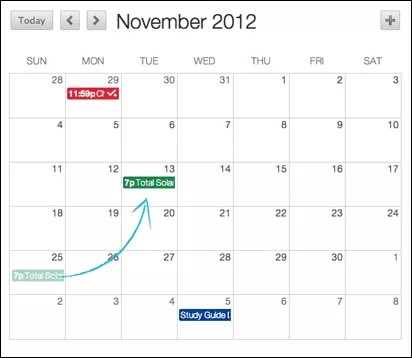
Select and drag an event to another date in the main view to change the date of the event. The time of the event and calendar it's associated with stays the same.
You can also select and drag an event from the main view to another date on the smaller monthly view to change the date.