ORIGINAL Create Containers for Content
Types of containers
You can create four types of containers to present content in an organized and engaging way.
Content areas are the top-level containers that provide your course structure. Typically, courses contain multiple content areas.
Folders can contain content items and other containers, such as a lesson plan or other folders.
Learning modules can contain content items and other containers. You can add a table of contents and require sequential viewing of its content.
Lesson plans can hold lesson profiles, instructional objectives, and the content items students need to complete a lesson.
Note
You create folders, learning modules, and lesson plans within an existing content area or another container.
Within the containers, add materials and links to tools with the Build Content, Assessments, and Tools menus.
Plan your content areas
The content areas you create appear on the course menu and provide the overall structure of your course.
Plan how you will organize your entire course and envision how your course menu will look and function. Three common organizational approaches are chronological, by content type, and by subject area.
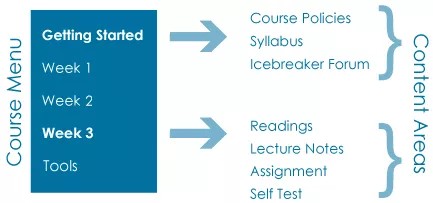
Chronological: Each content area contains a week's worth of readings, assignments, lecture notes, and discussions.
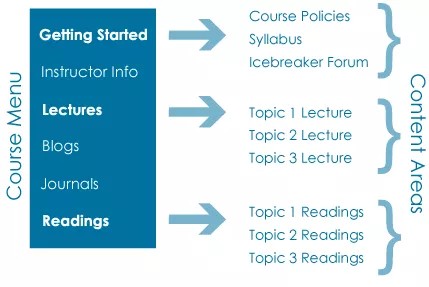
By content type: Each content area contains similar content types, such as all the lectures for the entire course.
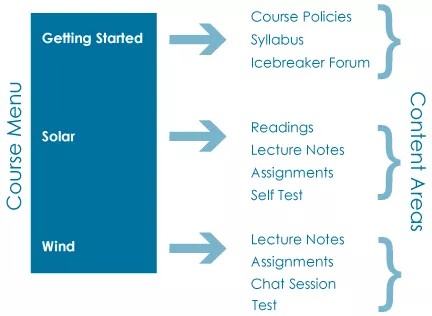
By subject area: Each content area contains lecture material and readings on a specific subject, along with assignments, discussions, and tests.
Create a content area
Content areas only appear on the course menu where you create, link, and manage them. In a content area, you can add content items, file attachments, links to websites, tests, assignments, and multimedia. You can also add other containers to organize your content.
Tip
Be sure Edit Mode is ON so you can access all of the instructor's functions.
Select the Add Menu Item above the course menu to open the menu. Select Content Area and type a name.
Select the Available to Users if you're ready for students to see it. You can create content areas ahead of time and make them unavailable to students. Then, make them available at the appropriate time.
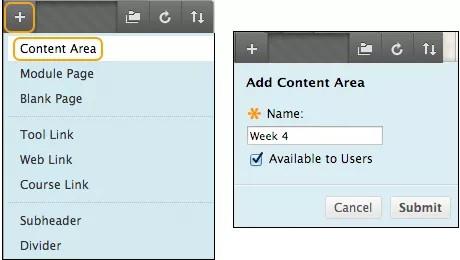
After you submit, a link to the new content area appears on the course menu. A newly created content area is an empty container. Select the link to the content area to add content.
Important
If you create a Content Area and leave it empty, it will not appear for students even if you make that Content Area available for students. Once you add content to it, will appear for students.
New courses contain several default content areas, such as "Information" or "Content." These default content areas are empty, and you can choose to add content to them, rename them, or delete them. Delete links you won't use so students see an uncluttered course menu.
For course menu items that allow guest or observer access, you must open the item's menu and permit their access.
Video: Add a Content Area
Watch a video about adding a content area
The following narrated video provides a visual and auditory representation of some of the information included on this page. For a detailed description of what is portrayed in the video, open the video on YouTube, navigate to More actions, and select Open transcript.
Video: Add a content area explains how to add a content area to the menu.
Create a content folder
Folders are a type of container that you can use to organize content. You create folders in existing content areas, learning modules, lesson plans, or other folders. After you create a folder, you can add content and additional sub-folders to it. For example, in a content area, you can create folders for each week of your course. Then, you can add content items, assignments, file attachments, links to websites, tests, assignments, multimedia, and additional folders. Students can select any of the items and don't have to follow a sequential order.
Use folders to reduce scrolling and help students find materials easily. You want to limit the number of nested folders used so that students can access content with as few steps as possible.
You can add a description that outlines the contents of the folder. You can also add images and bullets to the description to provide variety and visual cues.
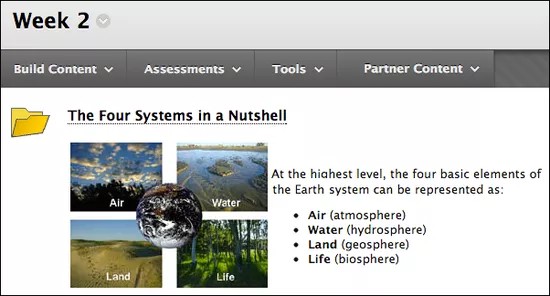
Tip
Be sure Edit Mode is ON so you can access all of the instructor's functions.
In your course, select Build Content to access the menu and select Content Folder. Type a name, optional description, and select the appropriate options for availability, tracking, and display dates. Display dates don't affect a folder's availability, only when it appears.
After you submit, a link to the new folder appears. A newly created folder is an empty container. Select the folder to add content.
Link to a container on the course menu
You can't create a folder, lesson plan, or learning module directly on the course menu. However, you can create a course link to a container on the course menu.
Tip
Be sure Edit Mode is ON so you can access all of the instructor's functions.
Select the Add Menu Item above the course menu to open the menu. Select Course Link and browse for the container you want to add to the course menu.
Type a title and select the Available to Users check box if you're ready for students to see it.
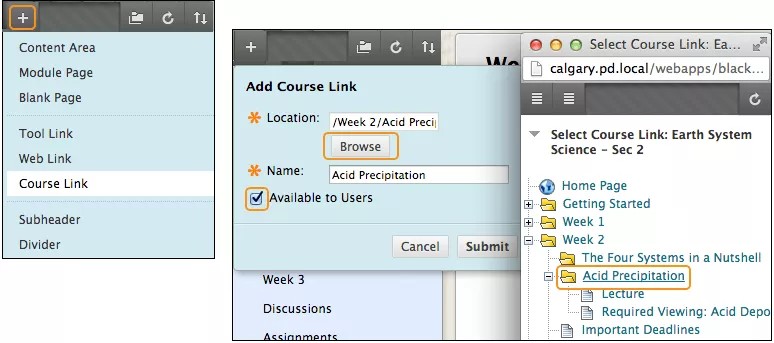
After you submit, a link to the container appears on the course menu. You can reorder the links and add subheaders and dividers. You can also show and hide links from students.
ORIGINAL Create Learning Modules
Use learning modules to integrate related content and activities.
A learning module is a container for content that holds an organized collection of material presented with a table of contents. Typically, you create learning modules in content areas. You add and manage content in a learning module just as you do in a content area. You can add content items, file attachments, links to websites, tests, assignments, folders, and multimedia.
Use a learning module to support a course objective, concept, or theme. For example, use a learning module to present the concept of magnets' fields before you describe how speakers and microphones work. Understanding the first concept is dependent on understanding the second concept.
Alternatively, you can allow students to explore the content in a learning module in any order and at their own pace. For example, use a learning module to present a series of images and descriptions of various animals in a genus. Students can view the images and descriptions in any order as no order is required for understanding the whole.
Watch a video about learning modules
The following narrated video provides a visual and auditory representation of some of the information included on this page. For a detailed description of what is portrayed in the video, open the video on YouTube, navigate to More actions, and select Open transcript.
Video: How to add content to a learning module shows how to add content to a learning module, set options, and organize the table of contents.
Create a learning module and add content
Tip
Be sure Edit Mode is ON so you can access all of the instructor's functions.
Typically, you create a learning module in a content area > Build Content > Learning Module. Type a name, optional description, and select the appropriate options for availability, tracking, and display dates. Display dates don't affect a learning module's availability, only when it appears.
You select whether students will view the learning module's content in sequence. If you enforce sequential viewing, students must view the content in the prescribed order. You also determine if students will see a table of contents. You can select which labels to use for items in the table of contents: numbers, letters, Roman numerals, or mixed. If you select None, the items aren't labeled.

A newly created learning module is an empty container. Select the learning module in the content area to access it and create content. You can change the order of items with the drag-and-drop function or the keyboard accessible reordering tool.
As well as adding content items, files, and tests, you can add activities and tools that promote interactive learning and collaboration.
For example, you can add assignments or group projects to give students an opportunity to apply what they have studied in a learning module. Or, you can add collaboration tools, such as chat sessions and discussion board forums where students can brainstorm and share their ideas about the topics presented.
Tip
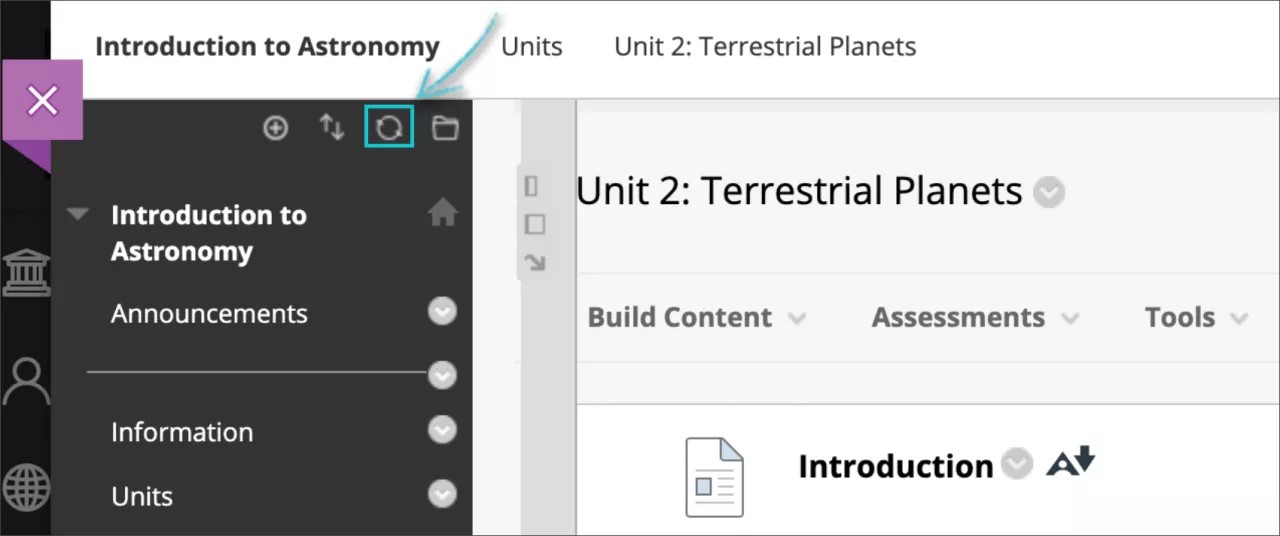
When you add new content in the learning module with a Display after date set within the next 20 minutes, select the 'Refresh' icon at the top right of the course menu. This way, your students will be able to access the new content at the scheduled time.
Learning module navigation
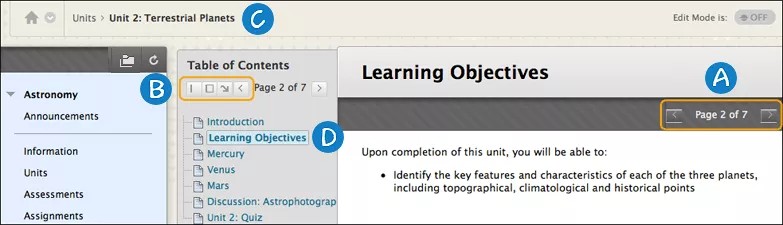
Use the arrows to page through content sequentially.
The table of contents displays the items you added to the learning module. Use the icons to move the table of contents to the bottom, expand, collapse, or remove it from view.
Use the breadcrumbs to navigate to areas in the course you previously visited.
The current content page appears highlighted in the table of contents and the available pages are links.
Add folders to learning modules
You can add folders to a learning module to organize content in the table of contents.
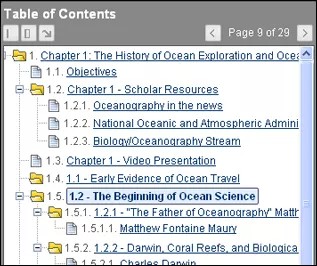
Each folder itself is a page in the learning module. You can provide a folder description so that the page doesn't appear blank to students who navigate through the learning module.
You can also nest folders to display many levels of content. Be aware that students have to navigate through the content in order if you set content to be viewed sequentially. Students must navigate through each folder, all nested folders, and the content within them before they can access the next item.
When you hide items in a table of contents, all nested items are also hidden. For example, if you hide a folder, then none of its content will be visible.
The image shows how nested folders appear to students in the table of contents.
ORIGINAL Create Lesson Plans
Provide students with the information they need to understand the intent of the lesson.
A lesson plan is a container for content that can hold lesson profiles, instructional objectives, and the content items students need to complete a lesson.
You can add information for students to view alongside the content to help them understand the objectives and intended result of their learning.
For example, you can include how their knowledge will be measured, the needed materials, and what they should have learned after the instruction. The more information students have at the start of the lesson, the more prepared they are for the content ahead.
How do lesson plans appear to students in a content area?
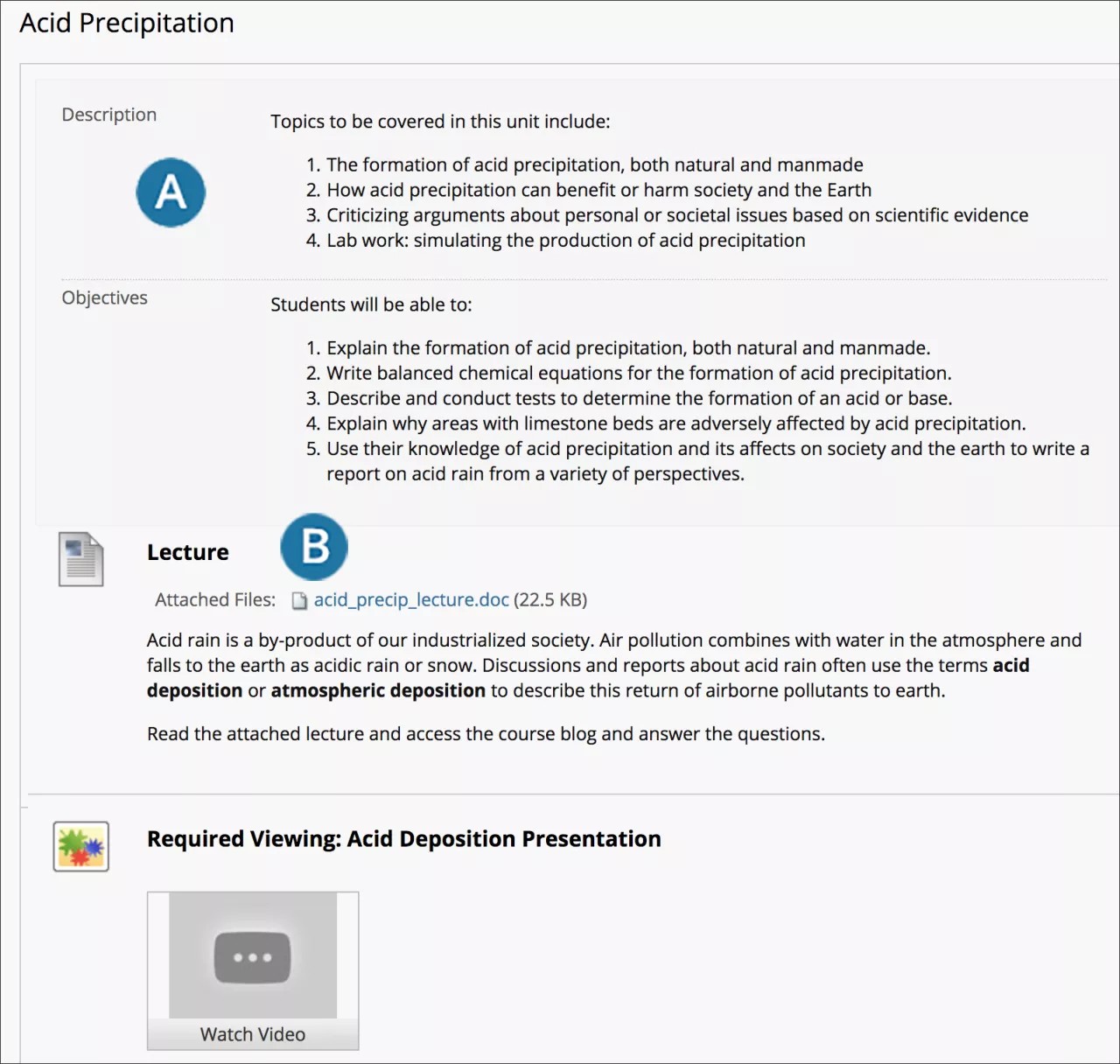
The lesson profile and instructional objectives appear in the top portion of the page.
Content appears in the lower portion of the page.
Create a lesson plan
You can make lesson plans available to students or use them solely as a planning tool. The lesson plan tool is on by default, but your institution controls its availability.
Tip
Be sure Edit Mode is ON so that you can access all of the instructor's functions.
Typically, you create lesson plans in a content area, but you can also create them in folders. Select Build Content to access the menu and select Lesson Plan. Type a name, optional description, and select the appropriate options for availability, tracking, and display dates. Display dates don't affect a lesson plan's availability, only when it appears.
You create lesson plans in two steps based on the two tabs that appear on the Create Lesson Plan page.

Content Information: Add general information about yourself and the objectives. This information appears at the top of the lesson plan in a gray box when students access the lesson plan.
Curriculum Resources: Add content items. You can create all content types in a lesson plan just as you can in a content area, learning module, or folder. You can add content items, file attachments, links to websites, tests, assignments, and multimedia.
Edit default elements
After you type a name and optional description, you can add information for the default elements: Instructional Level, Instructor, Objectives, and Subject Area.

Select an element's title to edit it. Select the X to delete an element. You can drag an element to a new location.
Select the check box for Share with students for each element that you want to appear in the lesson plan when students view it. If you don't add information to a default element, it doesn't appear in the lesson plan and doesn't require deletion. Clear the check box next to Share with students for any information that is only for you.
Add new elements
You can add new elements that describe your lesson. On the Content Information tab, select Add Lesson Plan Section to access the menu and select an element. The new element is added to the bottom of the list on the Create Lesson Plan page. You can drag the element to a new location.
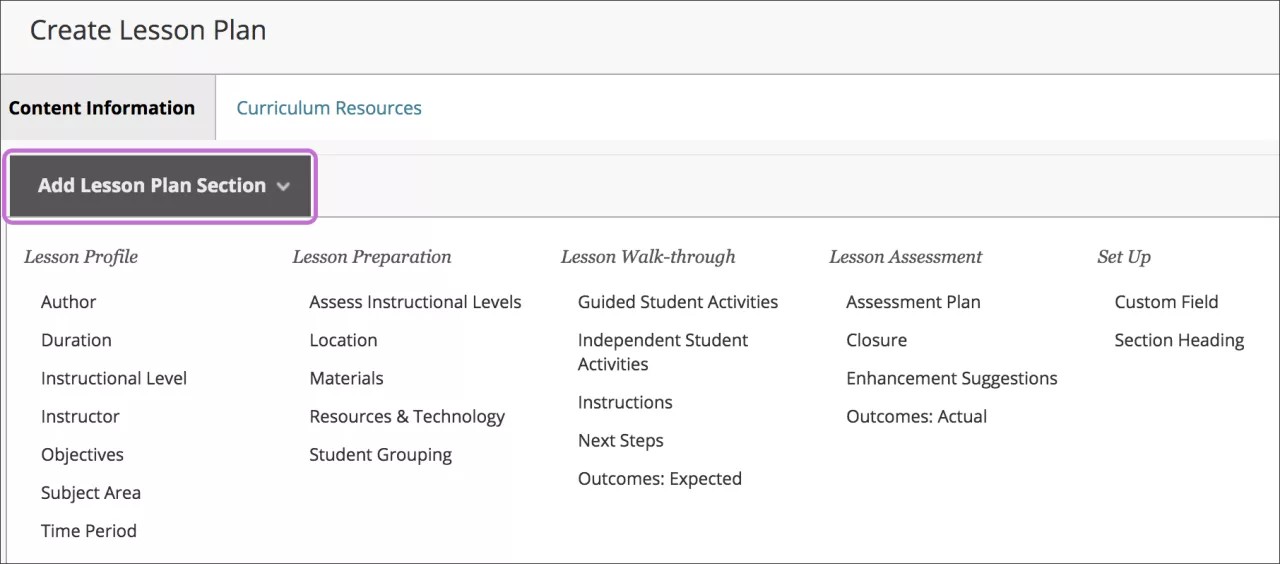
Select Save and Exit to leave the lesson plan. You can edit the lesson plan later to create content items.
-OR-
Select Save and Continue to display the Curriculum Resources tab and create content now.
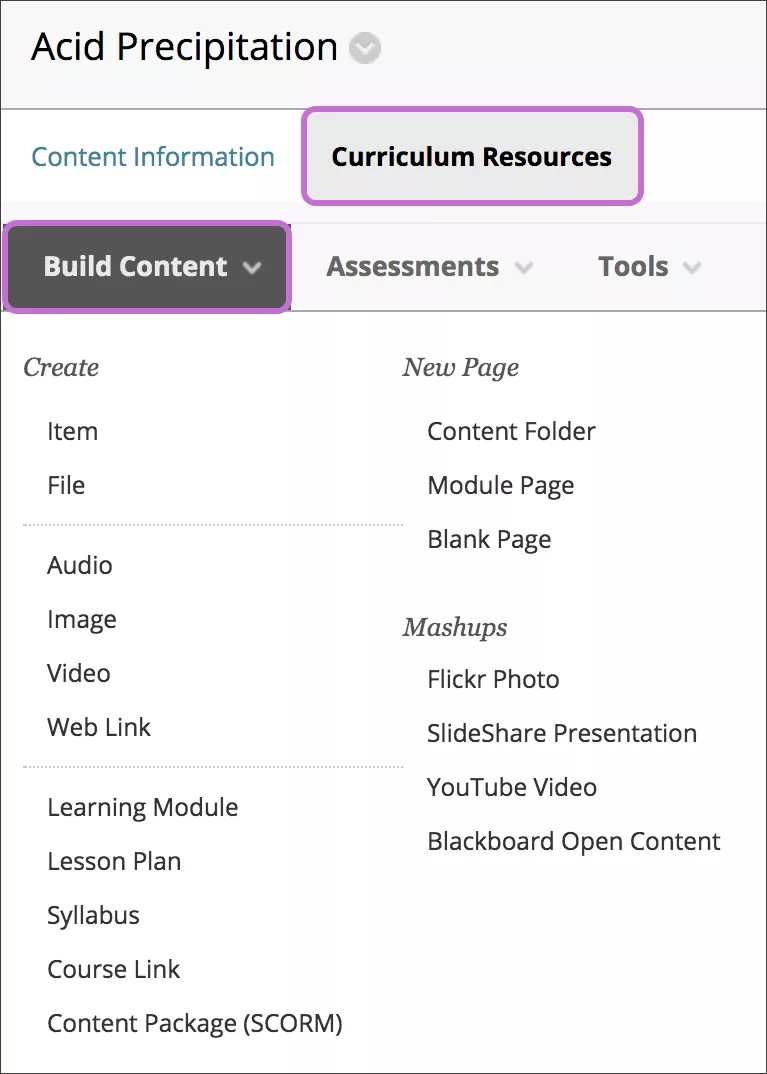
Instructor view of a lesson plan
Select the lesson plan's title to access the content.

You can change the order of items with the drag-and-drop function or the keyboard accessible reordering tool.