ORIGINAL Create Discussions
Open the line of communication and engage your students with online discussions.
Discussions are a good way to encourage students to think critically about their coursework and interact with each others' ideas. You can create discussions around individual course lessons or for your course in general. As the instructor, you own the discussions. After you start a discussion, you can post comments of your own to guide students.
The most common form of interaction in an online course is through discussions started by an instructor. Participation and interaction in discussions don't occur naturally. You need to intentionally design it into your courses. To encourage engaging, quality discussion, craft discussion questions carefully, and create inquiry.
Develop successful online discussions
Help your students feel comfortable and provide them with guidelines as they begin to participate in discussions.
Here are four general steps to developing successful online discussions to help build community and fulfill assignments.
Define participation requirements.
Share your expectations. Create a discussion where students can read about etiquette and access grading information.
Model proper online interaction and reinforce appropriate behavior with public recognition.
Craft an effective question.
Incorporate multimedia resources into your questions to reduce the monotony of purely text-based interactions. With the popularity of services like YouTube™, you can ask students to view a clip and ask for responses.
Encourage new ideas.
If discussion posts contain too much agreement and not enough questioning of ideas, assign students with the last names A-M to support one side and N-Z to support the other.
Moderate.
Establish your presence. Ask for clarification, resources, or input from silent participants.
Watch a video about discussions
The following narrated video provides a visual and auditory representation of some of the information included on this page. For a detailed description of what is portrayed in the video, open the video on YouTube, navigate to More actions, and select Open transcript.
Video: Use discussions explains how to use discussions.
Access discussions
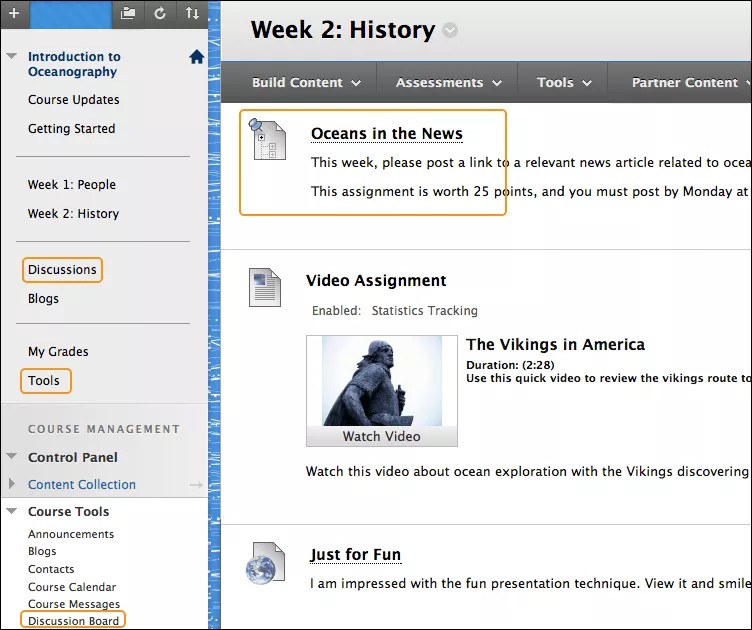
You can allow users to access discussions in several ways. You can add a customized link to the course menu and to a course area. When you provide a link to discussions in a course area, students can access the tool alongside other course content.
As an instructor, on the Control Panel, expand the Course Tools section and select Discussion Board. From this link, access the course discussion board and the group discussion boards for the groups in your course.
Discussion board structure
Just as it's critical to plan and structure your course content, you need to provide structure for online discussions.
The main discussion board page displays a list of forums. A forum is where participants discuss a topic or a group of related topics. Within each forum, users can create multiple threads. A thread includes the initial post and all replies to it. You can create forums and threads to organize discussions into units or topics relevant to your course.
Discussions appear sequentially so all course members can follow the conversation.
Discussion Board page
The discussion board is commonly accessed from the course menu, although you can provide a link to it in another course area, such as in a content area.
The Discussion Board page contains a list of all the forums you've created. You must first create one or more forums before users can start message threads. You can also search for discussion content. By default, the search field appears collapsed to save screen space.
To sort the list based on a column, select the column heading.
To view the posts in a forum, select the forum title. Forum titles in bold contain unread posts.
For each forum, view the total number of posts, the number of unread posts, the number of replies to you, and the number of participants. For quick access to the forum's unread messages, select the link in the Unread Posts column.
ORIGINAL Create Forums
A forum is an area of the discussion board where participants discuss a topic or a group of related topics. Within each forum, students can create multiple threads. A thread includes the initial post and all replies to it. You can create forums and threads to organize discussions into units or topics relevant to your course.
Create a forum
Control Panel > Course Tools > Discussion Board > Create Forum
Select the discussion board where you want to create a forum, and the Create Forum option appears.
Forum settings allow you to use discussions in different ways. For example, to fully control a forum, you create all threads, moderate, and grade the posts. For a student-led discussion, allow students to create new threads and posts anonymously.
Type a name and optional instructions or a description. On the main discussion board page, the description appears after the forum name.
Tip
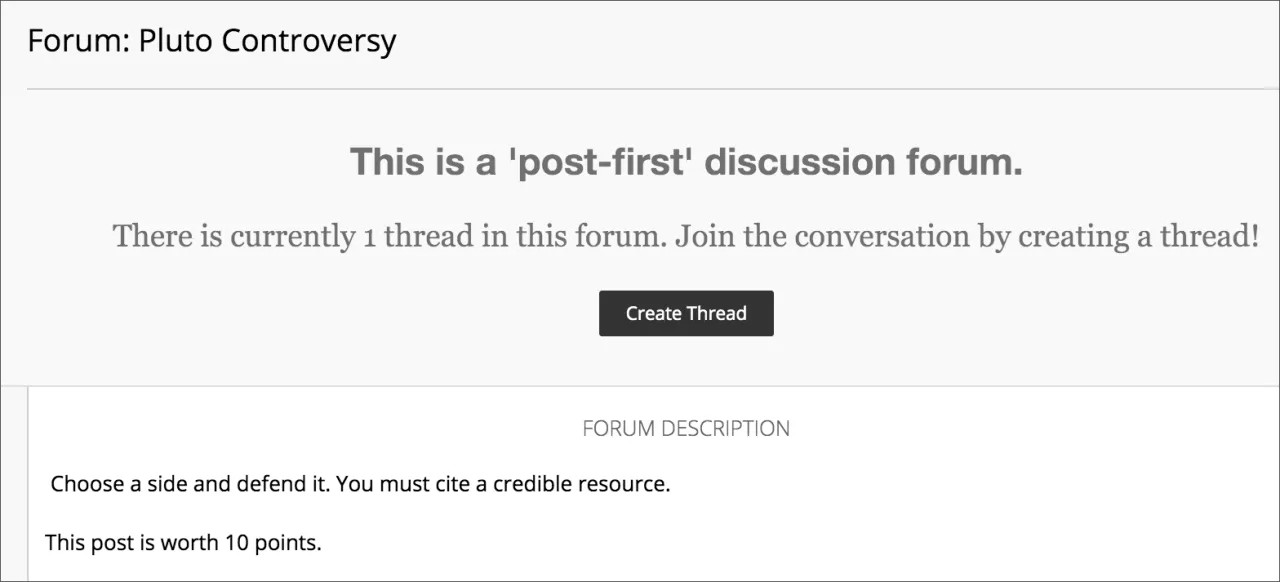
The forum description appears when students create a thread and when they encounter a thread with the post first setting. Forum descriptions are often used as prompts and are visible where students post.
In the Forum Availability section, select Yes.
Tip
You can create forums ahead of time and set the availability to No until you want the discussion to start.
Select the Display After and Display Until check boxes to enable the date and time selections. Display restrictions affect when the forum appears.
Select the Forum Settings based on your specific needs.
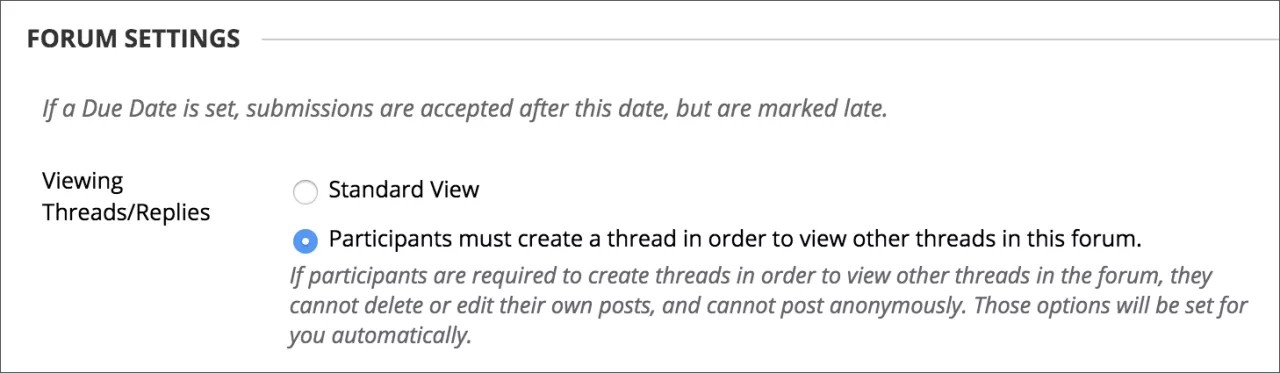
Viewing Threads/Replies: To promote originality, creativity, and a variety of responses, you can choose Participants must create a thread to view other threads in this forum, which is the post first setting. Students must respond before they can read their classmates' posts. In Standard View, everyone can see all previously created threads in the forum.
Grade: You can create a graded forum or thread and a column is created automatically in the Grade Center.

Select Grade Discussion Forum and type a point value to evaluate participants on performance throughout a forum.
Warning
If you set the points possible to a non-whole number, letter grades may not be assigned correctly.
Select Grade Threads to evaluate participants on performance in each thread.
If you're grading posts and want to retain the posts as they were at the time of grading, clear the check box for Allow Author to Edit Own Published Posts in the Create and Edit settings.
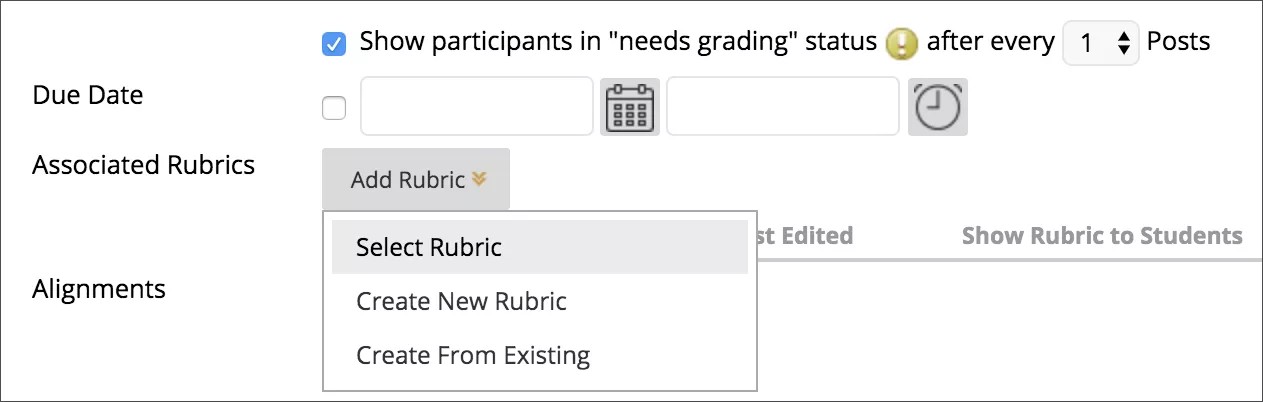
If you enable grading for the forum, select the check box for Show participants in needs grading status and select the number of posts from the menu. Applying this setting displays the Needs Grading icon in the Grade Center and places the posts in the queue on the Needs Grading page after students make the specified number of posts. If you select a grading option and do NOT select the check box, the Needs Grading icon doesn't appear in the Grade Center and posts don't appear on the Needs Grading page.
Note
If you choose three posts from the menu and a student submits two, the in progress icon appears in the Grade Center cell and the discussion board until the specified number of posts is met.
Due Date and Rubric: When you enable grading, you can provide a Due Date. Due dates are used to organize and assign gradable items to grading periods in the Grade Center. Graded posts made after the due date are marked LATE on the Grade Details page in the Grade Center and on the Needs Grading page.
Point to Add Rubric to open the menu and associate a rubric to use for grading.
Subscribe: You can allow students to subscribe to this forum or threads within the forum. Students who subscribe to a forum or thread receive notifications when activity occurs.
Create and Edit: Choose the student's ability to create and edit within the forum.
Additional Options: Enable students to tag or rate posts within the forum
Select Submit.
On the Discussion Board page, the new forum appears at the bottom of the list.
You can control the behavior of forums in a discussion board in these ways:
Create effective social forums. Allow students to post anonymously and not worry about a grade when they're still becoming comfortable with discussions.
Monitor quality and behavior. Assign a moderator to review each post before making it public.
Allow students to control the discussion. Allow students to edit, delete, and rate posts. You can also allow students to create new threads and direct the discussion.
Have a tightly controlled forum and use it to evaluate student performance. Select the grading and moderating options. To be sure students focus on the existing threads, don't allow the creation of new threads.
Allow authors to edit their published posts. You can lock the thread after grading so that authors can't change their posts.
Promote originality and a variety of ideas. You can create "post first" forums. Students must respond before they can read and reply to their classmates' posts.
Important
You can't select some settings in combination. For example, if you're grading forums or threads, anonymous posts aren't allowed. Also, if you enable thread grading, members can't create new threads.
Watch a video about creating forums
The following narrated video provides a visual and auditory representation of some of the information included on this page. For a detailed description of what is portrayed in the video, open the video on YouTube, navigate to More actions, and select Open transcript.
Video: Create discussion board forums explains how to create forums.
View a forum
When you open a forum, a list of threads appears. When possible, use the breadcrumbs to navigate to a previous page. If you use the back function on your browser, you may see page load errors.
Within a forum, you can create threads, grade forum contributions, collect threads, and search content.
Use the check boxes to select one or more thread and perform actions such as Collect or Delete.
Select a thread title to read the posts. Titles in bold contain unread posts.
View a forum's threads in a list view or in a tree view, with all posts listed after each thread title.
To view a forum and the threads within it, select the forum's name on the Discussion Board. You can view the forum contents in either list view or tree view. This choice remains in effect until you change it. You may change it at any time. Change the view on the forum page, in the upper-right corner.
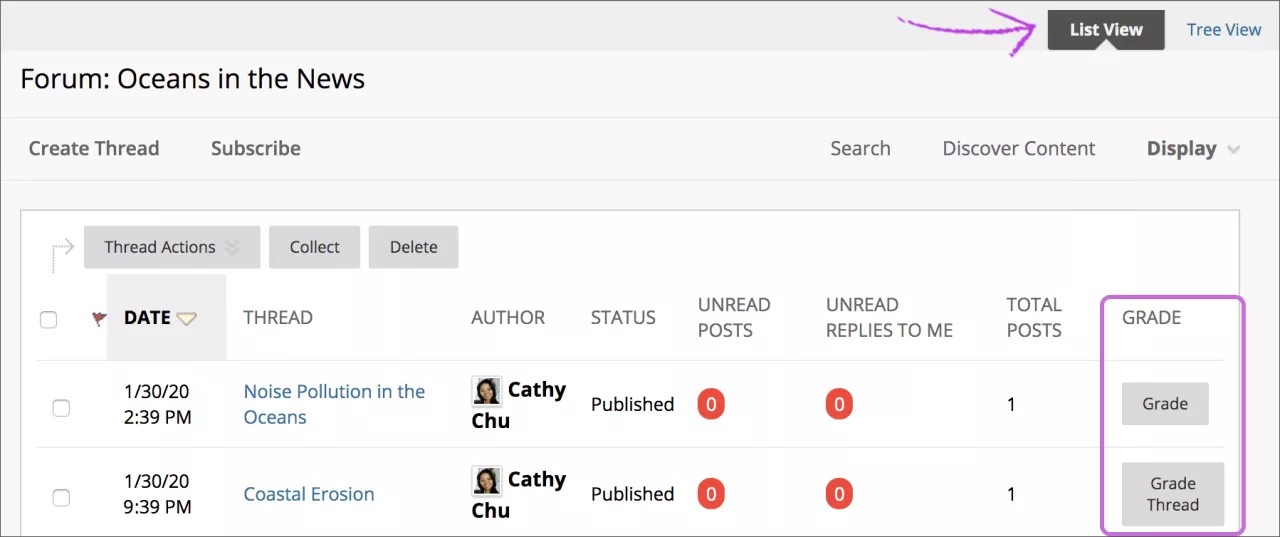
List View presents the threads in a table format. Threads that contain any unread posts appear in bold type. Based on the settings you made when you created the forum, different functions appear. For example, if you allowed tagging, a Tags function appears. If you enabled email subscription for the forum, a Subscribe function appears.
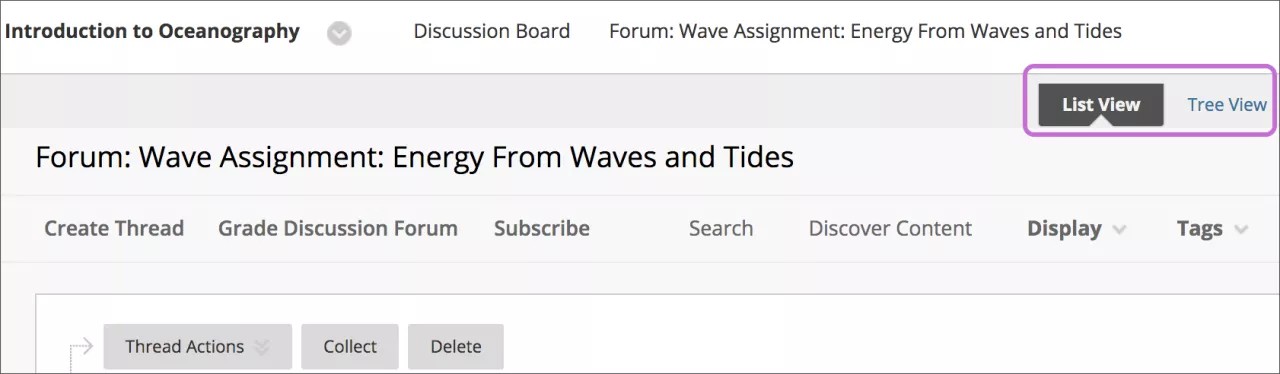
To sort a column, select the column heading.
Select the check box next to a thread and make a selection from the Thread Actions menu. You can select multiple threads or select the check box in the header to select all threads. Choose from these actions:
Mark threads read or unread.
Set or clear flags. Flags mark threads for later attention.
Edit the status of the selected threads.
Subscribe to or unsubscribe from email alerts for new posts made to selected threads, if enabled.
Tree View shows the thread starter messages and the replies to those messages. In Tree View, you can create threads, collect, or delete posts.
Expand and collapse threads with the plus and minus icons next to the titles. If a thread starter message contains unread posts, the thread starter title appears in bold type. Use the Collapse All and Expand All functions to hide or see all posts included in all threads.
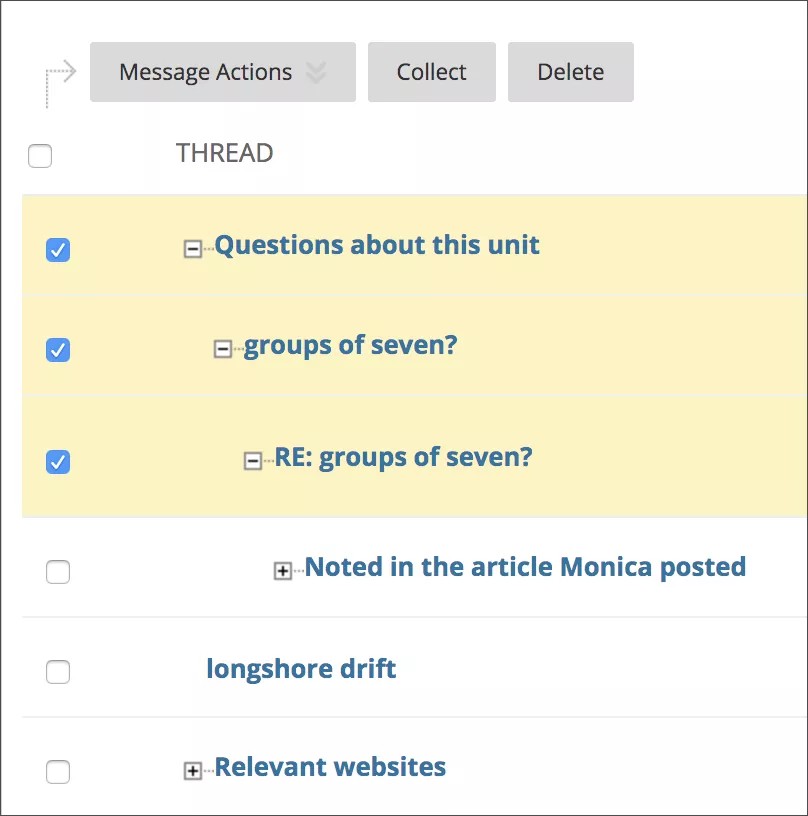
Select the check box next to a thread and make a selection from the Message Actions menu. You can select multiple threads or select the check box in the header to select all threads.
Allow email alerts for new discussion posts
If you enable subscriptions, students can choose to receive email alerts for new posts or replies. You can allow students to subscribe to an entire forum or to specific threads within a forum.
On the Discussion Board page, open the forum's menu and select Edit.
On the Edit Forum page, select the Subscribe options:
Allow members to subscribe to threads: Students can select specific threads within the forum.
Allow members to subscribe to forum: Students can subscribe to all threads within the forum.
Include body of post in the email: Displays the message text and a link to reply to the message in the email notification.
Include link to post: Displays a link to the message in the email notification.
Select Submit.
ORIGINAL Create Threads
A thread is a conversation within a forum that includes the initial post and all replies to it.
Example: You can create a forum that addresses a broad subject, such as "Addicted to Oil." Next, you create two threads containing the specific issues to be discussed, such as replacing oil usage with nuclear power, and the pros and cons of conservation. To ensure students post only to existing threads, consider disallowing thread creation in the forum settings.
Example: You create a forum and ask a question or provide the instructions or details in the description, such as "How can we reduce our reliance on oil?" Then, students create threads for each solution to the problem of oil addiction. All members post to existing threads to comment on given answers or create new threads to present new solutions. In the forum settings, be sure you select the Allow Members to Create New Threads option.
Note
If you enable thread grading, members can't create new threads.

Create a thread
On the Discussion Board page, open a forum and select Create Thread.
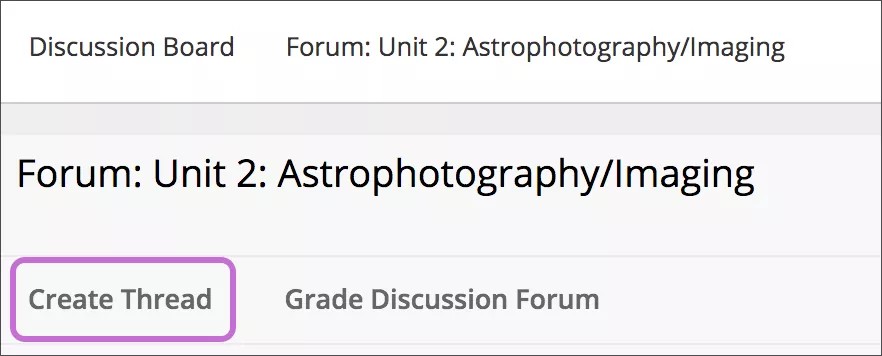
The Create Thread page opens and the forum description is shown. This description is also shown when a user encounters a thread with the post first setting. Forum descriptions are often used as prompts for discussion, so they are now visible where users are posting.
Type a subject, and instructions, a description, or a question.
You can attach a file in the Attachments section. Select Browse My Computer to upload a file from your computer. You can also upload a file from the course's storage repository. If your course uses Course Files, select Browse Course. If your institution has access to the content management features, select Browse Content Collection.
Note
Files uploaded by students aren't saved to Course Files or the Content Collection.
If you chose to grade threads when you created the forum, you decide on a thread-by-thread basis whether to grade a thread and you'll see additional settings. In the Grading section, select the check box for Grade Thread and type Points possible. Select the check box for Show participants in needs grading status and select the number of posts from the menu.
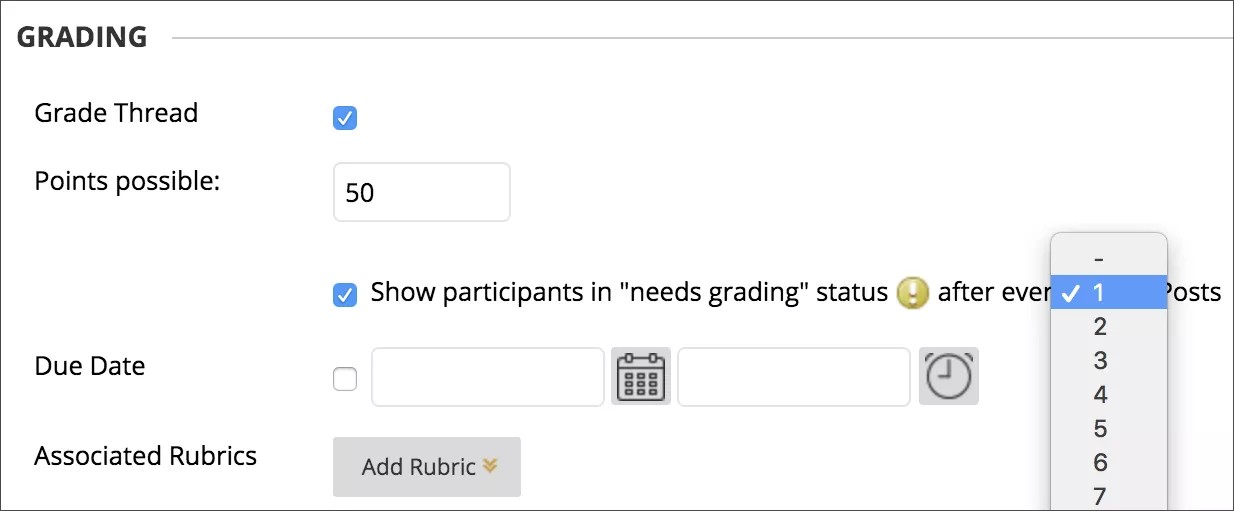
This setting displays the Needs Grading icon in the Grade Center and places the posts in the queue on the Needs Grading page after users make the specified number of posts. If you select a grading option and do NOT select the check box, the Needs Grading icon doesn't appear in the Grade Center and posts don't appear on the Needs Grading page.
Note
If you choose three posts from the menu and a user submits two, the In Progress icon appears in the Grade Center cell and the discussion board until the specified number of posts is met.
You can also associate a rubric to use for grading by pointing to Add Rubric.
Select Save Draft to store a draft of the post or Submit to create the thread.
The newly created thread appears in the forum. If you enabled thread grading, two functions appear in the Grade column:
Select Grade Thread to evaluate the posts.
Select Grade to enable grading for a thread and assign a value.
View a thread
When you view a thread, all posts and the thread description appear on one page. You can use thread descriptions to prompt users to participate in the discussion. Each author's profile picture accompanies their posts to help you easily identify authors. Use Expand All and Collapse All to manage the visibility of posts on the page. Point anywhere on the page and functions appear at the top, such as Search and Refresh.
The editor appears immediately after the message you're replying to. You can refer to any post on the page while you type your reply.
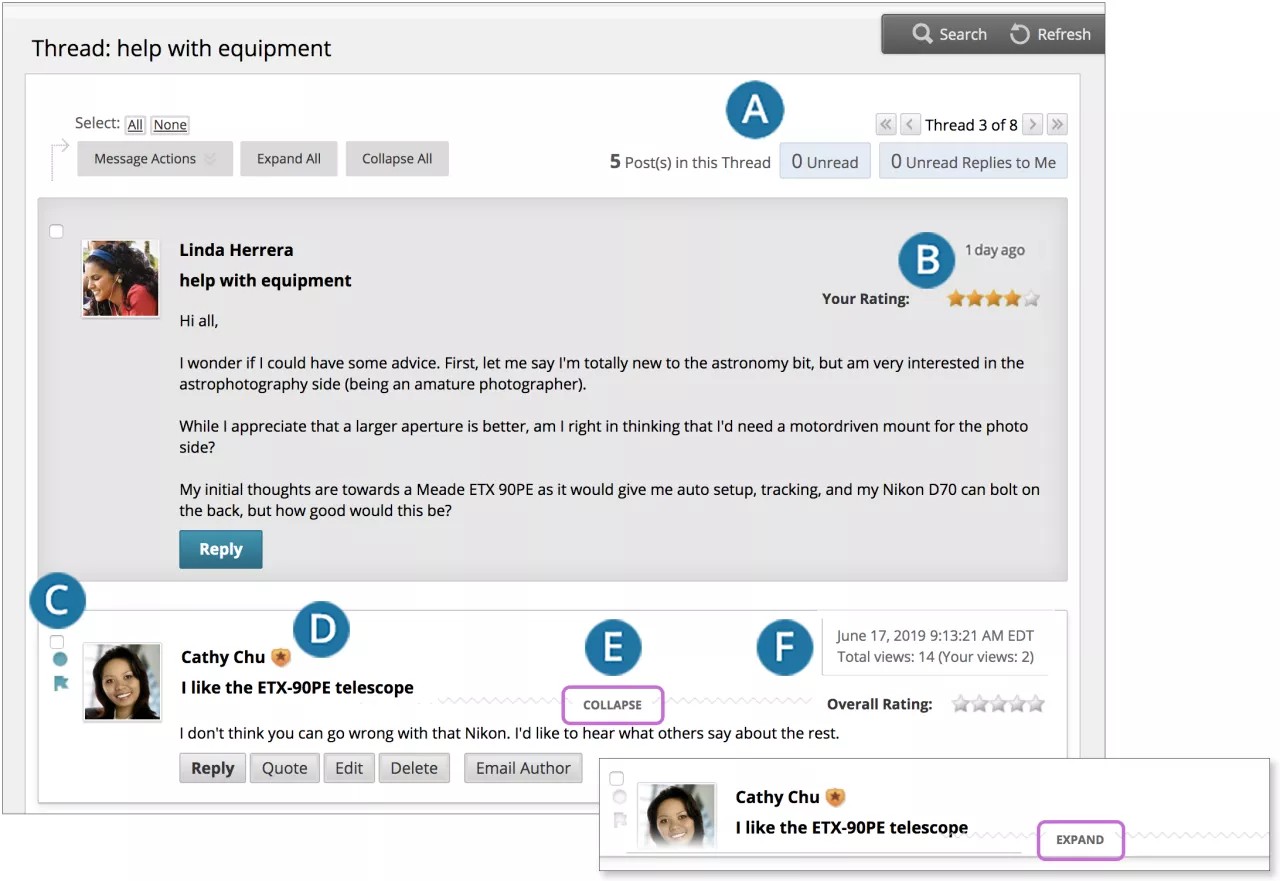
Select the number of unread posts to view only those posts in a thread. Use the arrow buttons to navigate to other threads in the forum.
If you enabled the rate posts feature in a forum's settings, Overall Rating displays the average rating for a post. When you point to the rating area, it changes to show Your Rating.
Mark posts as read or unread. Blue icon = unread. White icon = read. Only expanded posts that you view onscreen are marked as read. Posts are not automatically marked read by quickly scrolling down the page. Select the icon to manually change the status of a message. You can also flag posts you want to review again later or indicate as important.
When you view threads, a badge appears next to a forum manager or moderator's name. Point to the badge to see the user's course role and forum role. Custom roles are displayed if your institution uses them.
Point to a post to see Reply, Quote, Expand/Collapse, and other available functions. Select Collapse to minimize a post. This increases the vertical screen space available for viewing posts.
View relative dates for posts, such as "7 days ago." When you point to the relative date, you can view the absolute date of creation or editing, and the number of views.
When you create a forum, you can choose to allow members to start threads. Generally, the purpose of the forum dictates whether members can start threads. A moderated, graded forum used to evaluate student performance is usually tightly controlled and members can't create threads. Other forums are designed for members to share opinions and thoughts on topics. In this case, you might allow members to create threads and spark discussions.
To help organize your view, you can change the status of existing threads and determine which threads appear in a forum.
Note
Instructors and students create threads in the same way. If you enabled grading, you can also set the thread to be graded.
Change a thread's status
You can change the status of a thread to keep students focused on relevant discussions and to help organize a forum that contains many threads. When a user creates and submits a thread, it's assigned the Published status.
Publish: Make a thread available to all users.
Hidden: Hide a thread from immediate view, but still allow users the option of reading the thread. Unneeded content is hidden from view, which helps users find relevant content. Users can't reply to or edit hidden threads even if you enable editing for the thread. Users can view hidden threads using the Display list.
Make Unavailable: Hide a thread from all users' view except forum managers.
Lock: Allow users to read a thread, but not edit or add to it. A locked thread allows you to assign grades without users updating or changing posts.
Unlock: Unlock a locked thread to select another status.
You can change a thread's status in two ways. To change the status of one thread, you can select a status from the thread's menu, or:
Open a forum and change to List View, if needed.
Select the check box next to each thread you want to change. To select all threads, select the check box in the header.
From the Thread Actions menu, select a new status for the selected thread or threads.
The status for each thread appears in the Status column. If you save a draft of a thread to edit in the future, Draft appears in the Status column. To access your drafts, select Show All or Drafts Only from the Display menu.
Filter the list of threads
If you have many threads in a forum and assign different statuses to the threads, you can choose which threads appear in a forum. For example, if you start several threads and save them as drafts, you can choose to show only those drafts and select the threads to edit and publish.
Go to the forum and change to List View, if needed.
Point to Display and select the type of threads to view in the forum.
The forum page displays only those threads that you selected.
Draft posts
You can use the Save Draft option if you need to return to your post at a later time. This function saves your comments and files on the page.
To access your drafts, return to the forum page and set it to List View. Point to Display and select Drafts Only to view the saved post.
Select the draft's title to open the Thread page. While you view your post, point to it to view the functions for Edit and Delete. Select Edit to open the editor. After you make your updates, select Save Draft again to update the draft or Submit to publish the post.