CSS Customization Options on Forms, Events, Campaigns
If Flexible Forms are turned on for your site, a few design customization options are built into the Encompass forms system. You must have advanced knowledge of how to use CSS and HTML in order to take advantage of these options.
To get a different look for forms, use CSS to target specific classes on form steps, categories or fields, or element IDs on elements generated by Encompass.
If you like the look of these customizations, but aren't ready to tackle it yourself, contact your Account Manager for more information.
Keep in mind:
These changes use fairly advanced CSS techniques, but are available to those brave enough to try it out!
If you do put in custom CSS, it is up to you to test and maintain these new styles, so be sure to check your work on multiple browsers and devices!
CSS classes applied to profile fields are global, across all communities.
Don’t forget to check Page Verbiage in Verbiage Builder!
Some default text or inline styles can be managed there, so you can change many system pieces to fit your style (note: these changes are global in many cases, so be careful).
Setting the CSS Class
CSS Classes on Fields
This class (and any styling added to it) will target or change the styling of the element to which it is applied.
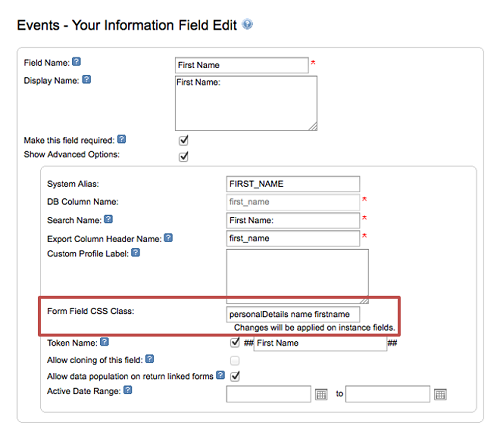
CSS Classes on Categories
This class (and any styling added to it) will help target or change the styling for elements in that category.
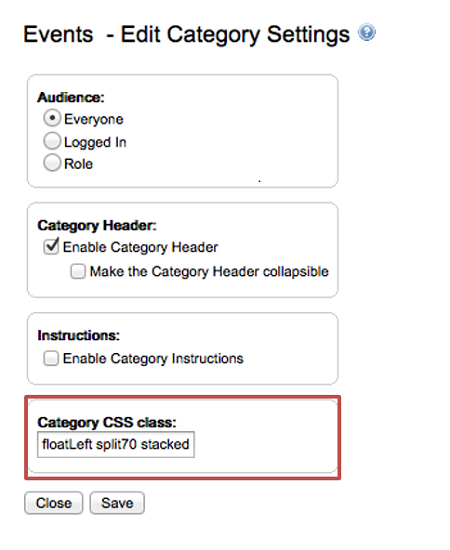
CSS Classes on Steps
This class (and any styling added to it) will help target or change the styling for the elements in that step ONLY (not the whole form). NOTE: Step customization in particular requires an expert level of CSS and HTML knowledge. Category and field customization are simpler and might be easier to attempt first.
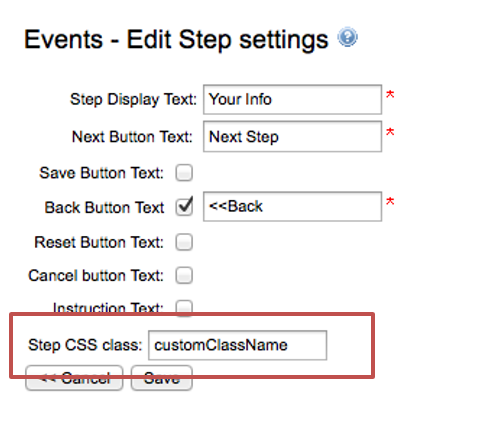
What can I do with these classes?
Change how the input boxes look
Change where the fields sit in relation to each other
Stack a field’s label on top of its input
Align a checkbox to the left of its label
Float 2 fields or categories side by side (or even three across!)
Highlight important information or fields
Examples
Custom Field Classes
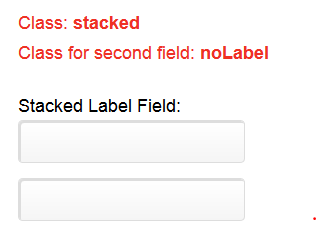
Stacked Label Field
Class: stacked
Class for second field: noLabel
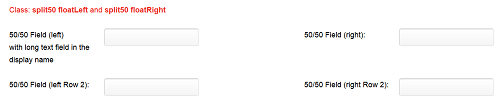
50/50 Field (left) with long text field in the display name; 50/50 Field (right); 50/50 Field (left Row 2); 50/50 Field (right Row 2)
Classes: split50 floatLeft and split50 floatRight
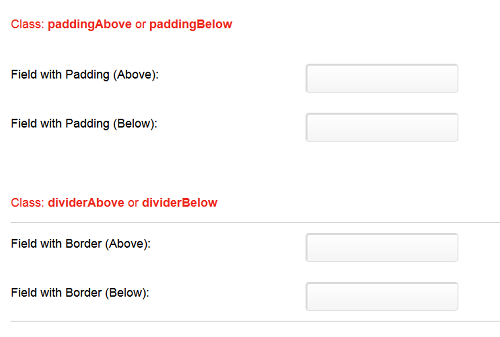
Field with Padding (Above): Class: paddingAbove
Field with Padding (Below): Class: paddingBelow
Field with Border (Above): Class: dividerAbove
Field with Border (Below): Class: dividerBelow
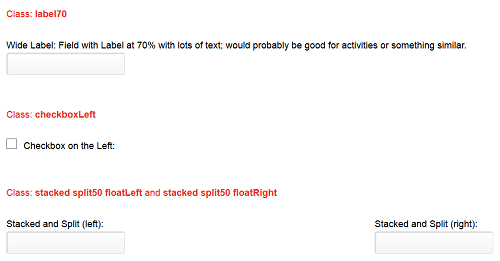
Wide Label: Field with Label at 70% with lots of text; would probably be good for activities or something similar: Class: label70
Checkbox on the Left: Class: checkboxLeft
Stacked and Split (left): Class: stacked split50 floatLeft
Stacked and Split (right): Class: stacked split50 floatRight
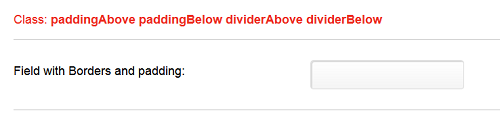
Field with Borders and padding: Classes: paddingAbove paddingBelow dividerAbove dividerBelow
Custom Category Classes
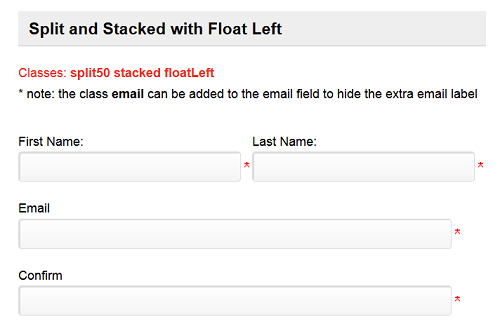
Split and Stacked with Float Left Classes: split50 stacked floatLeft
NOTE: The class email can be added to the email field to hide the extra email label
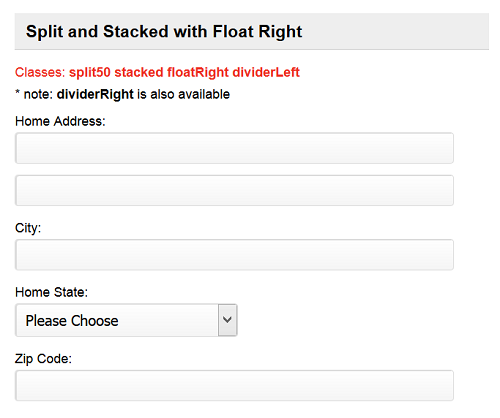
Split and Stacked with Float Right Classes: split50 stacked floatRight dividerLeft
NOTE: dividerRight is also available
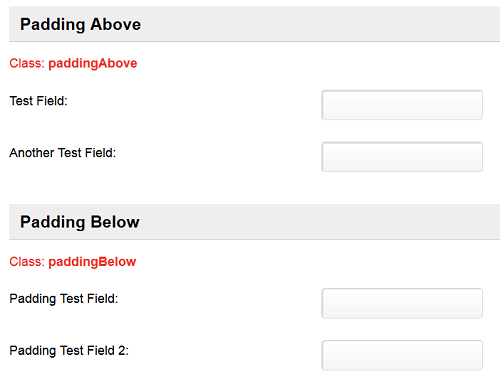
Padding Above Class: paddingAbove
Padding Below Class: paddingBelow
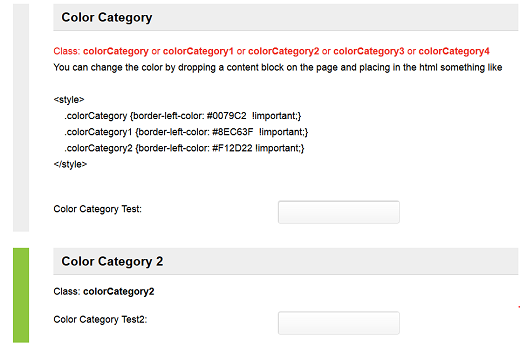
Color Category Classes: colorCategory or colorCategory1 or colorCategory2 or colorCategory3 or colorCategory4
NOTE: You can change the color by dropping a content block on the page and placing in the html something like:
<style>
.colorCategory {border-left-color: #0079C2 !important;}
.colorCategory1 {border-left-color: #8EC63F !important;}
.colorCategory2 {border-left-color: #F12D22 !important;}
</style>
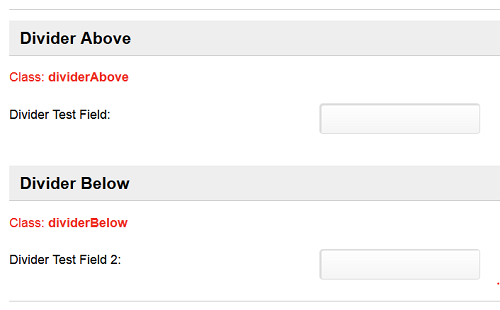
Divider Above Class: dividerAbove
Divider Below Class: dividerBelow
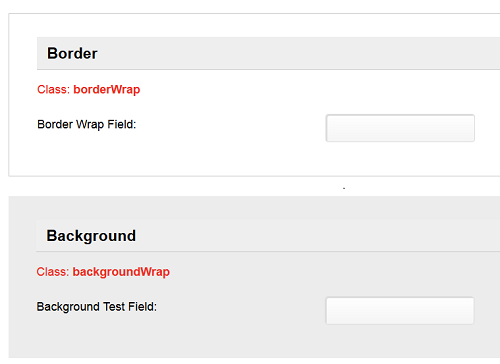
Border Class: borderWrap
Background Class: backgroundWrap
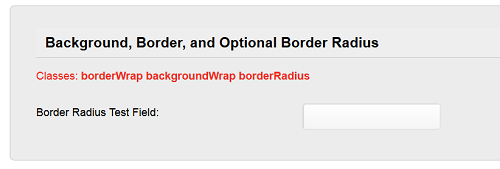
Background, Border, and Optional Border Radius
Classes: borderWrap backgroundWrap borderRadius
Examples of What Encompass Design Team Can Do
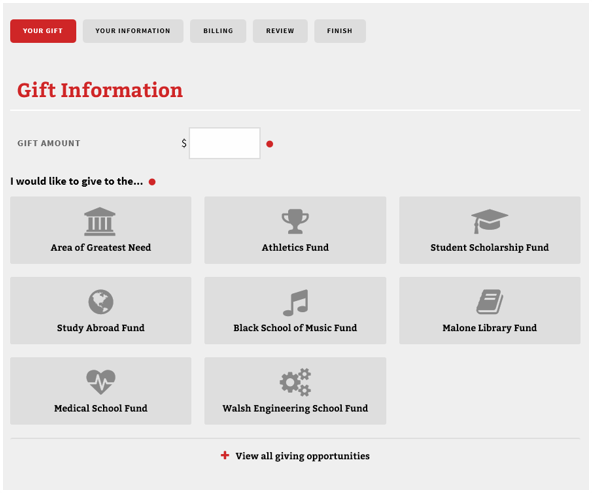
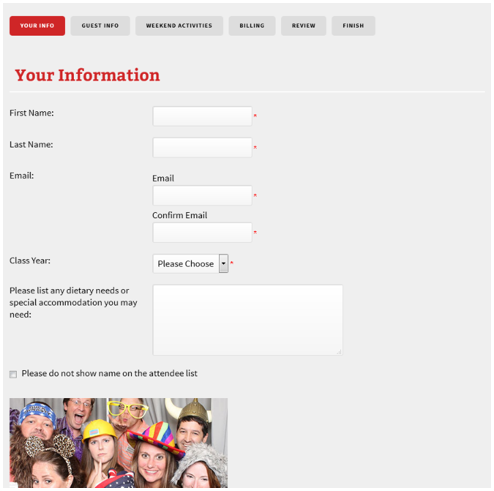
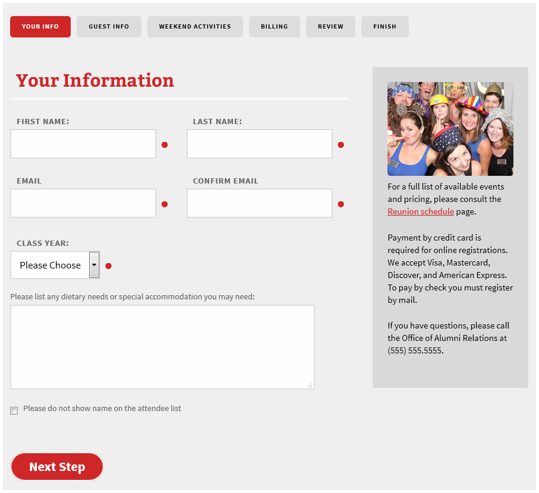
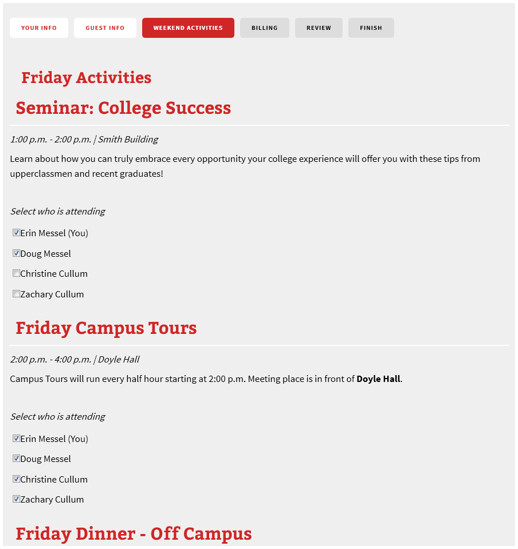
These customizations require more advanced techniques and demonstrate what our Design team can do for you. If you like the look of these customizations, but aren't ready to tackle it yourself, contact your Account Manager for more information.
Donation Check Boxes
Before Customization | After Customization |
|---|---|
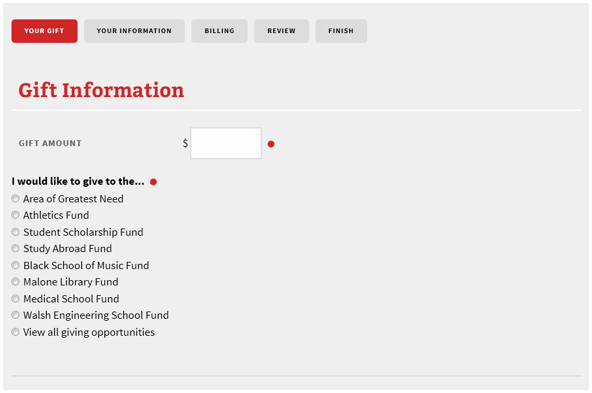 |  |
Input & Category Alignment
Before Customization | After Customization |
|---|---|
 |  |
Activity Step
Before Customization | After Customization |
|---|---|
 | 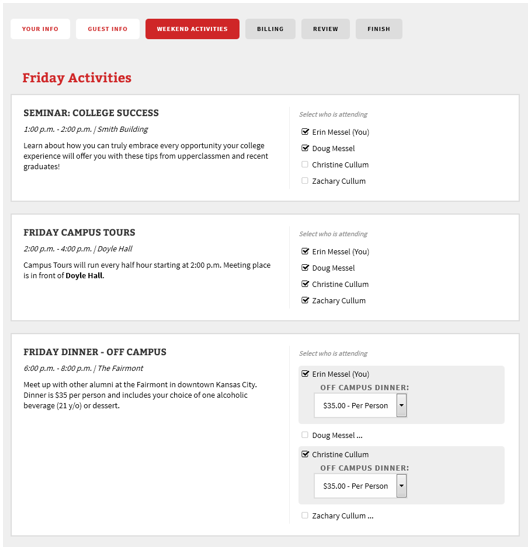 |