Photo Albums
Choose Photo Albums from the Community menu.
Related Documents:
Formatting Images for the Web Resizing and Cropping Images Using IrfanView
Create Photo Albums for your Community
1. Click Manage Admin Created Photo Albums.
2. At the bottom of the next screen, you will see an area labeled Create a New Photo Album.
3. Enter the name of the new photo album in the text box that is provided and click Add.
Manage Photo Albums
1. Click Manage Admin Created Photo Albums.
2. You will see the admin created photo albums displayed.
3. Click Manage Album.
Edit the Album Title
1. Click Edit Title.
2. Edit the title and click Update.
Delete an Album
1. Click Delete Album. 2. You will get a confirmation message. To delete the album, click Delete.
Add Photo(s) to an Album
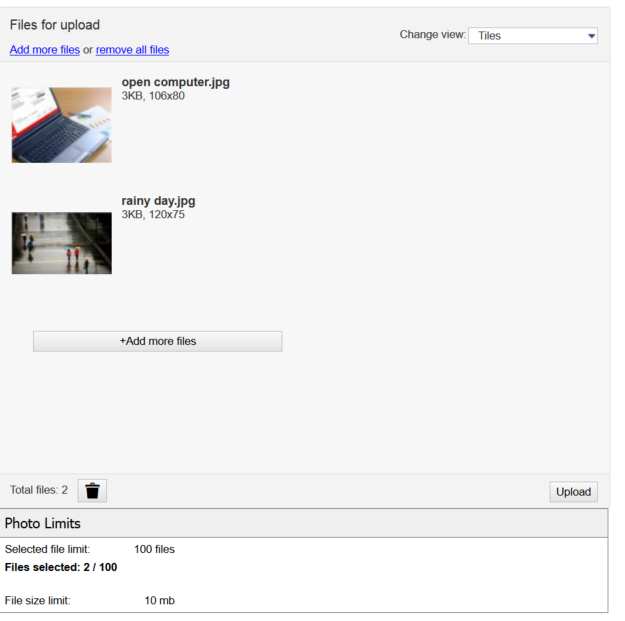
Locate the images you want to upload to the system. No more than 100 photos, with no individual photo exceeding 10MB in size may be uploaded in a single batch.
 |
Upload
Click Add more files. Select the images you want to add to the album. Click the Upload button to upload the images.
The images will appear in the album in the same order they appeared in the upload panel.
Tip
As a best practice, we recommend that you create image folders on your hard drive that match the albums you create in your Community.
Note
You must re-size or change the dimensions of your image before uploading it to the Image Uploader.
Image Caption
Click Edit under the image to add a caption. Enter the caption/description in the text box and click Save. The caption will appear when users hover over the image with their mouse.
Delete an Image
Click Delete under the image. (The photo will be deleted immediately.)
Member Photo Albums
Click Manage Member Photo Albums to view and manage Member Photo Albums.