Create Version - Segmented Campaign
Admins must click the Create Version button in order to start a version.
Note
The maximum number of versions admins can create is 15.
Once this button is clicked, information will need to be provided.
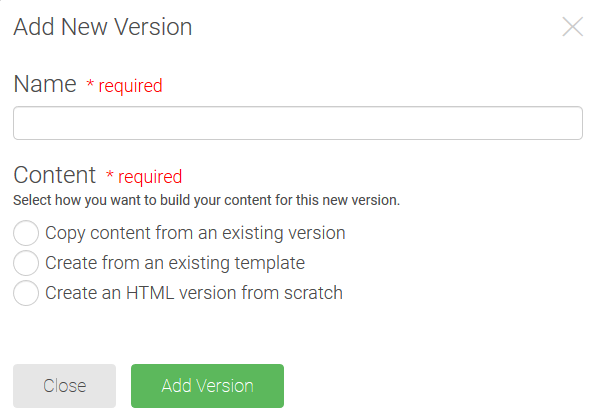
Name - enter the name that should be assigned to this email version.
Content - pick the radio button option for how the content should be built for this version.
Note
The "Create an HTML version from scratch" radio button will only display if the admin is an Advanced HTML Email Author.
Content - Copy content from an existing version
If an admin selects this option, a dropdown will be provided so the version can be selected. If no versions exist, this radio button can't be selected.
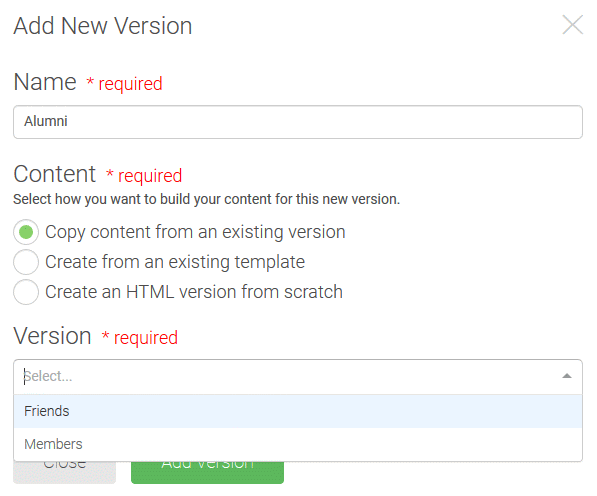
Select a Version.
Click Add Version.
Once Add Version is clicked, the new version will be added to the version grid.
Note
The content, email details, and schedule from the version selected will be applied to the new version.
Content - Create from an existing template
If an admin selects this option, a dropdown will be provided so the template can be selected.
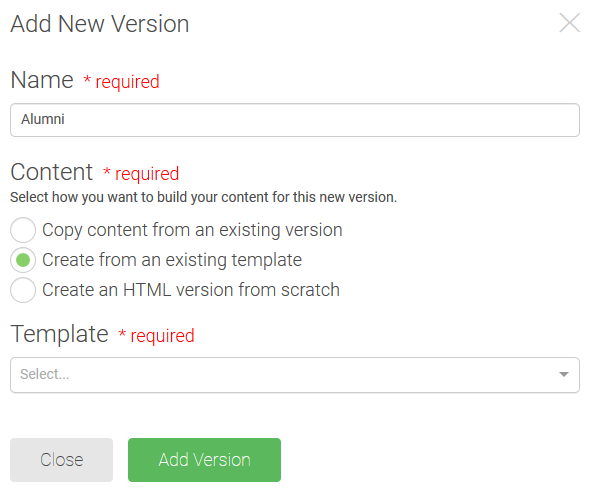
Select a Template.
Click Add Version.
Once Add Version is clicked, the new version will be added to the version grid.
Content - Create an HTML version from scratch
This radio button option will only display to admins who have been assigned the Advanced HTML Email Author right.
Once Add Version is clicked, the HTML version will be added to the version grid.