Giving Microsite
The Giving Microsite is a guided, step-by-step tool designed to help institutions quickly create and launch a Giving campaign. The campaign builder streamlines setup by guiding administrators through key configuration steps including campaign branding, donation setup, engagement elements, and supporter experience customization.
Giving Microsite is designed to support short-term fundraising campaigns that encourage participation, increase donor engagement, and provide real-time visibility into campaign progress.
This feature enables institutions to streamline the creation of a complete Giving Microsite through a guided, step-by-step workflow, minimize manual configuration and reduce overall setup time, deliver an intuitive, user-friendly experience that requires no technical or development expertise, easily apply and maintain organization-specific branding, and ensure all required elements are fully configured and validated prior to publishing.
Steps | Grid Columns |
|---|---|
1 | Navigate to CMS Menu |
2 | Complete the Prerequisites Requirements |
3 | Navigate to Giving Microsite (Access Method) |
4 | Create/Edit Giving Microsite Campaign
|
5 | Manage Giving Microsite Builder |
6 | Manage Giving Microsite Publication |
Prerequisites
Before using the Giving Microsite, ensure you have:
ESK Admin or Super Admin or Giving Microsite Admin permissions
A donation campaign or giving form configured - Create a Donations Campaign
Branding assets such as:
Logo
Campaign colors
Banner images
Access Method
To access the Giving Microsite:
Navigate to the administration area.
Select Donations tab.
Open Giving Microsite Builder.
Understand Giving Microsite Dashboard
The Giving Microsite dashboard is designed to give institutions a clear, data-driven view of their fundraising efforts. It brings together essential insights into campaign performance, donor engagement, and overall progress in one easy-to-navigate space.
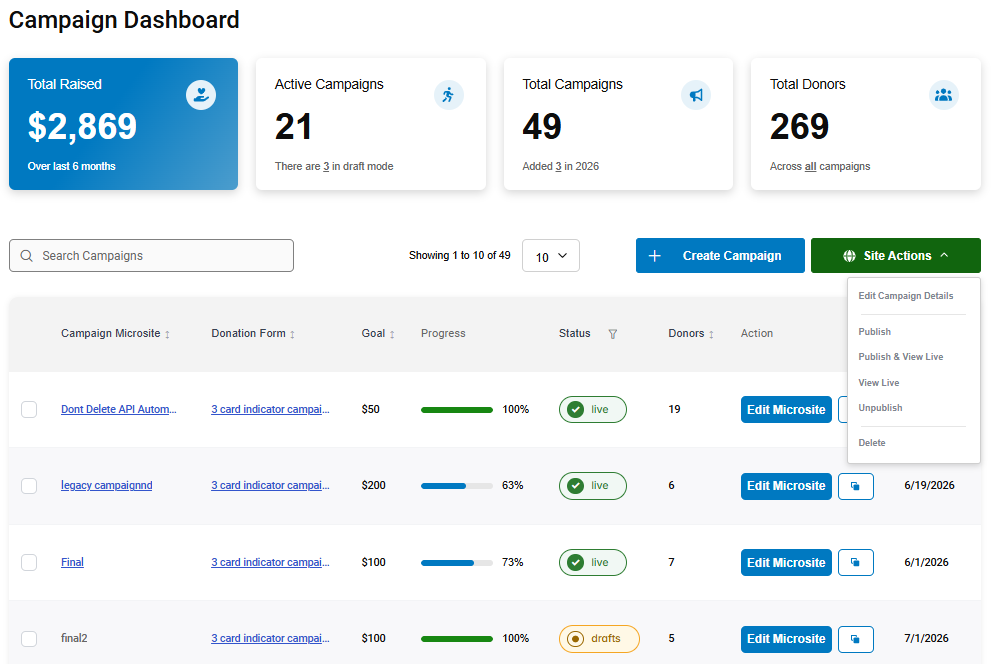
Total Raised: Track the cumulative funds collected across all campaigns, with time-based context to measure growth.
Active Campaigns: Review which campaigns are currently live, and which are still in draft mode, helping teams prioritize efforts.
Total Campaigns: Monitor the full history of campaigns created, including new additions each year.
Total Donors: Understand donor reach and participation across all initiatives.
The dashboard provides a detailed table of every campaign. Each row highlights:
Grid Columns | Function |
|---|---|
Campaign Microsite | The campaign page for each campaign where donors can learn more and contribute. |
Donation Form | The specific donation form linked to the campaign that collects donor payments. |
Goal | The fundraising target set for the campaign (e.g., $500). This helps measure success against expectations. |
Progress | The level of progress to display how much of the goal has been achieved, usually as a percentage. For example, 62% means more than half the target has been raised |
Status (live or draft) | The indication whether the campaign is currently live (accepting donations) or still in draft mode (not yet launched). |
Donors | The number of unique contributors who have donated to that campaign. |
Action | The option to “Edit Microsite,” allowing admins to update campaign details. |
Start Date | The date when the campaign officially began, useful for tracking timelines and performance over time. |
Site Actions |
|