HTML - A/B Testing Campaign
Customer Support and Encompass Design staff will not troubleshoot or recommend changes to improve emails deployed using the Advanced HTML workflow.
Getting Started
With Advanced HTML Email Author Admin Rights you can now create A/B Testing Campaigns using HTML within the workflow similar to General and Segmented campaign.
You need to have the below administrative rights to use the Advanced HTML Email feature:
Email Author or Communications
Advanced HTML Email Author
Email A/B Testing Author
If you do not have A/B Testing Email Author right, the system will not allow you to create the HTML campaign.
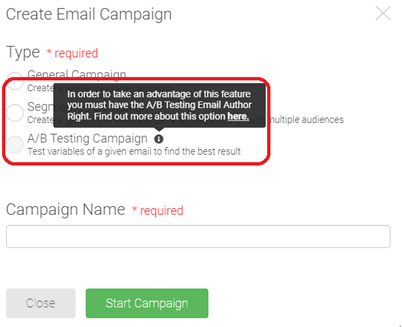
Any non-admin members will find the A/B Testing Campaign radio button disabled. An information icon will instruct you how to get the A/B Testing Email Author Right.
 |
Creating HTML – A/B Testing Campaign
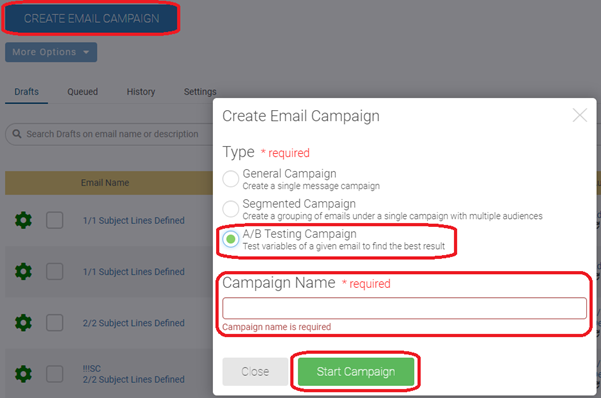
From the Email Home Drafts area, click Create Email Campaign and select A/B Testing Campaign from the list and provide the Campaign Name and click Start Campaign.
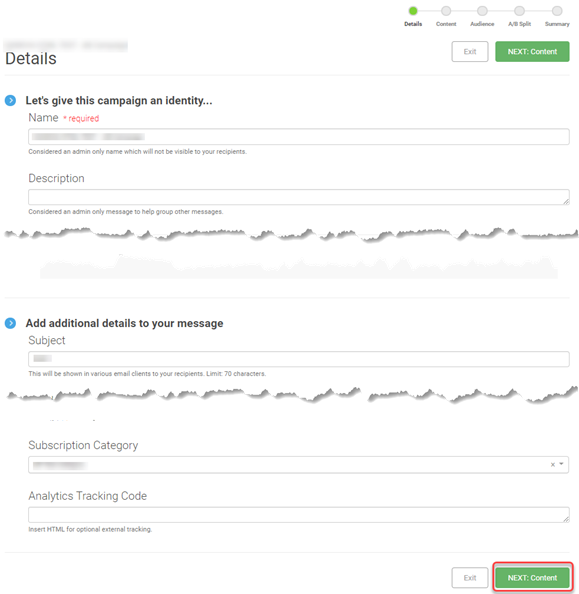
On the Details page, fill in all the required fields and click Next: Content to go to the Content page.
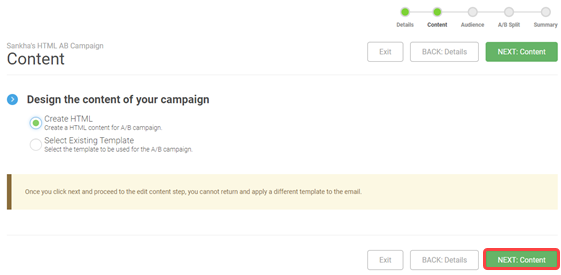
On the Content page select Create HTML and click Next: Content.
On the HTML Content page, you need to work with both HTML and Text. You can create your custom template with HTML. Use Text field to add plain text.
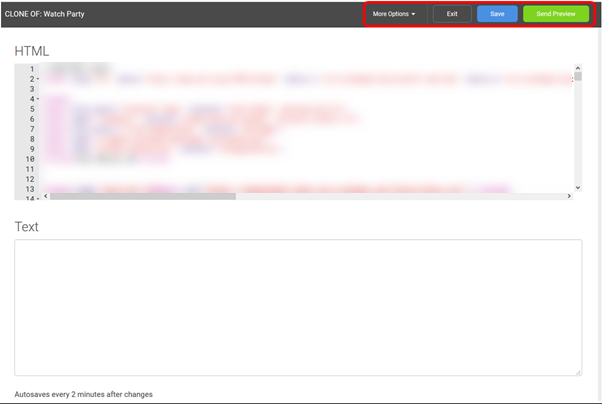
Preview (inside of More Options) - Let you preview the email.
Save - Save the work done in both the HTML and Text areas.
Send Preview - will save your work and move you to the preview step.
Exit will exit you from the editing area and any changes made from the last save will be lost.
Note
You must include the Sender Tokens in your HTML and Text section. Otherwise you cannot send the campaign.
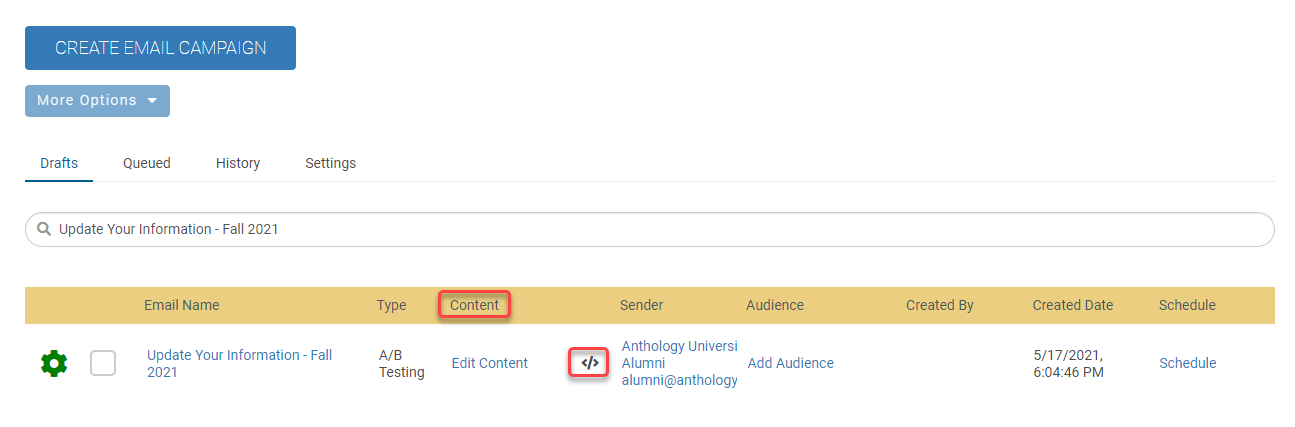
If the content is built using HTML, on the Email Home, next to Content column you will see HTML Indicator (</>).
Note
Customer Support and Encompass Design staff will not troubleshoot or recommend changes to improve emails deployed using the Advanced HTML workflow.