Reporting - A/B Testing Campaign
Email Reporting for A/B Testing Campaigns has a different look when you're drilled into a specific campaign; however, all of the same great information you're used to is still present!
Accessing
From Email Reporting home, click on the name of a test message or the winner.
From the History area of Email Home, click on the name of a test message or the winner.
From the Released for Queued screen, click on the View Live Results button (only applicable for Send Immediately).
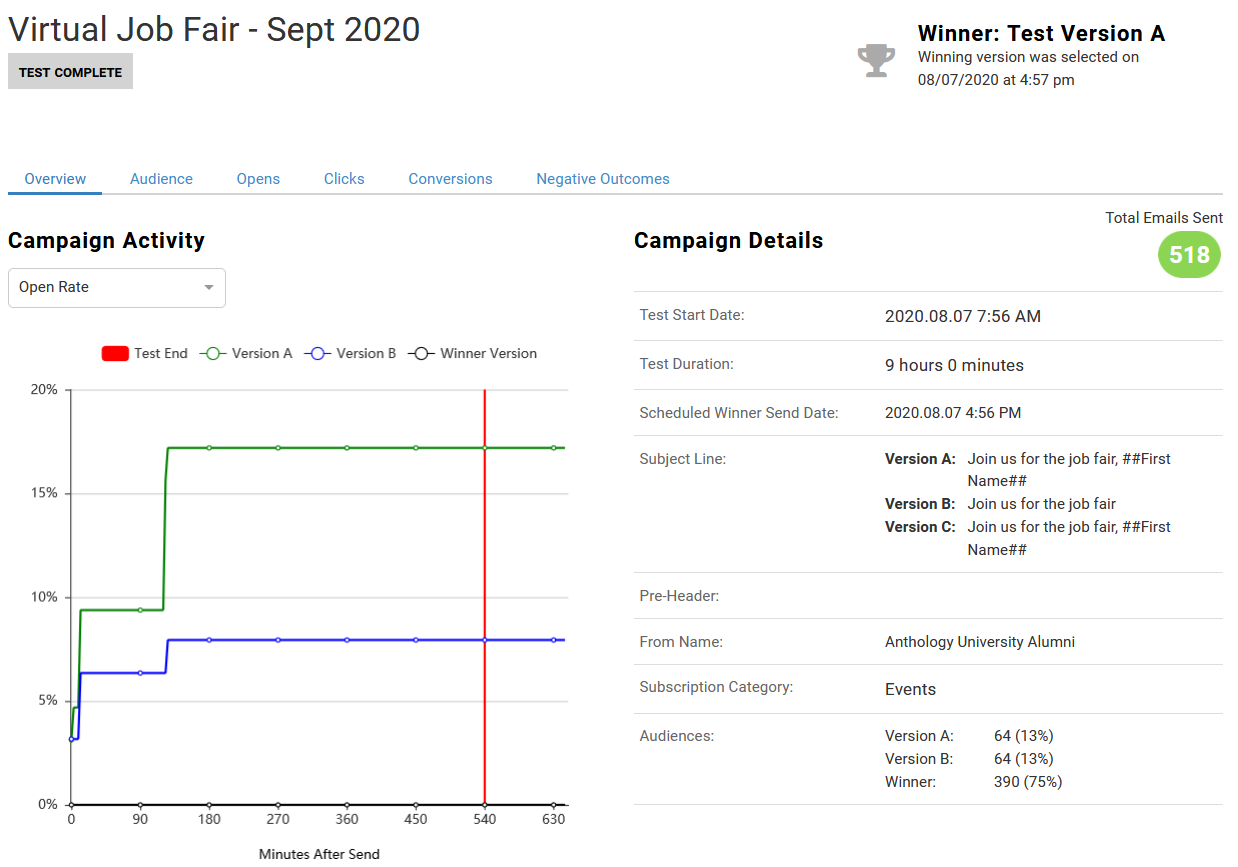
Test Complete
If the test is complete and a winner has been sent, the screen will indicate which test was the winner (A or B).
Test In Progress
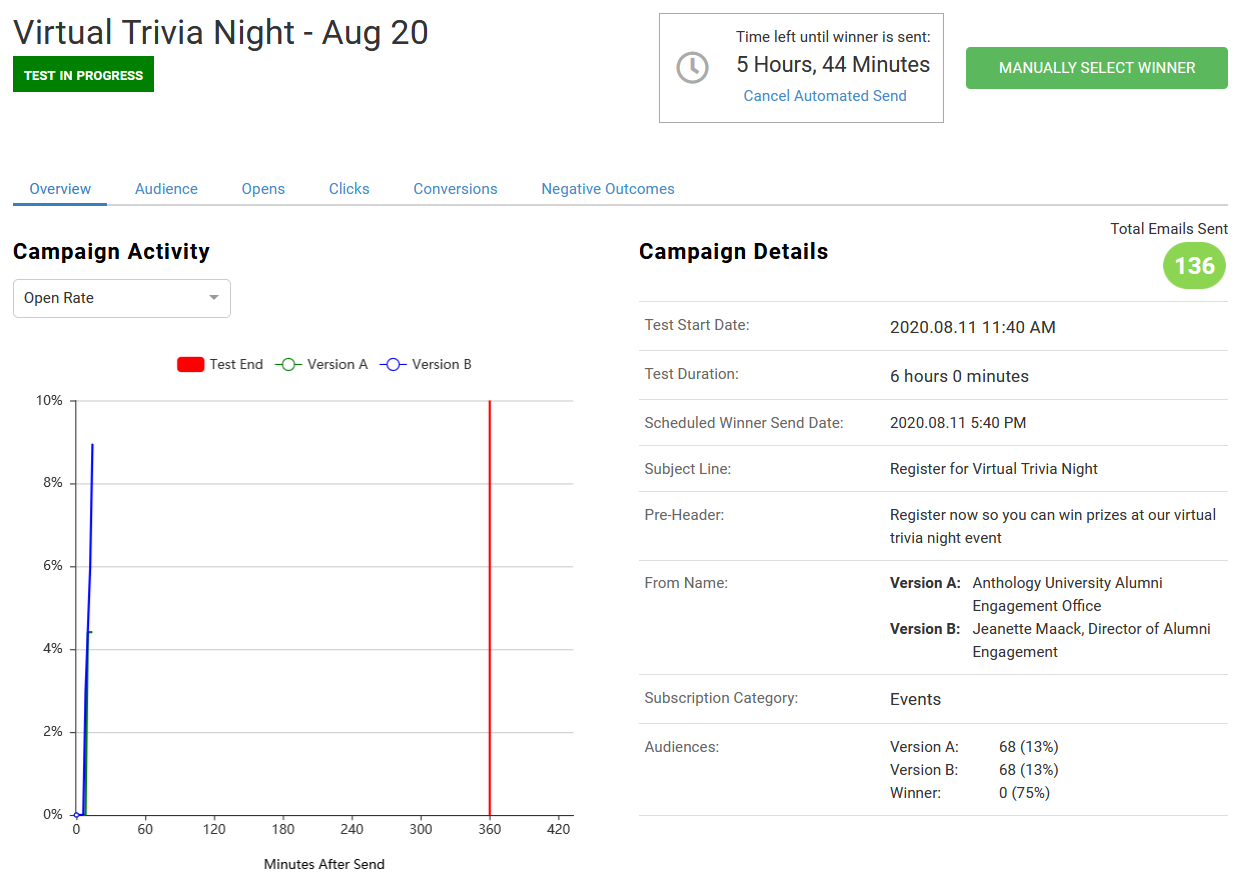
If the test is still taking place, the page will indicate the test is in progress. There is an option to Cancel Automated Send and Manually Select Winner.
Clicking the Cancel Automated Send button will cause a warning box to display so you can confirm that you want to cancel the automated send. If you confirm, then no winner will be sent.
Clicking the Manually Select Winner button will cause a box to display so you can pick Test A or Test B as the winner and immediately send that one to the remaining audience.
Layout
When you are looking at a specific A/B Testing Campaign, the landing page will start with Campaign Activity on the left and Campaign Details on the right (as shown above).
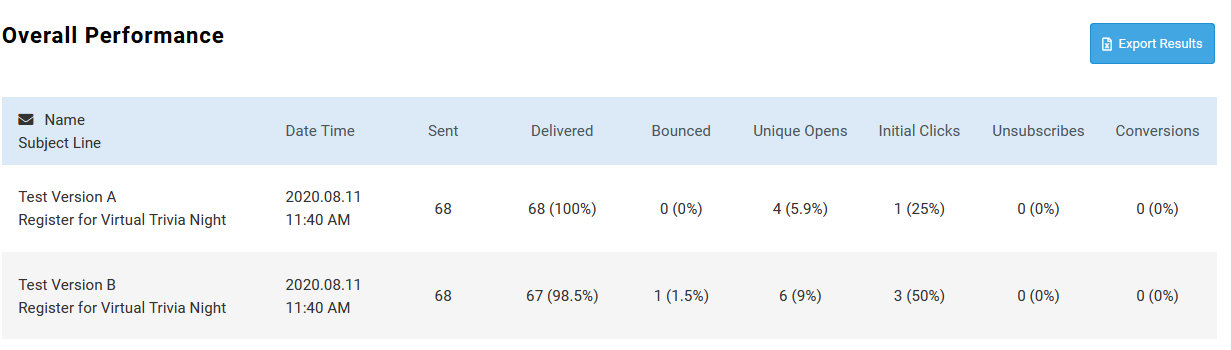
The lower portion of the screen will display Overall Performance. If the test is still taking place, only the tests will display (as shown below). If the winner has been sent, there will be a row for the winner.
The Export Results can be used to export the information.
Links at the top allow you to move to specific areas to get information.

Drilldown Reports
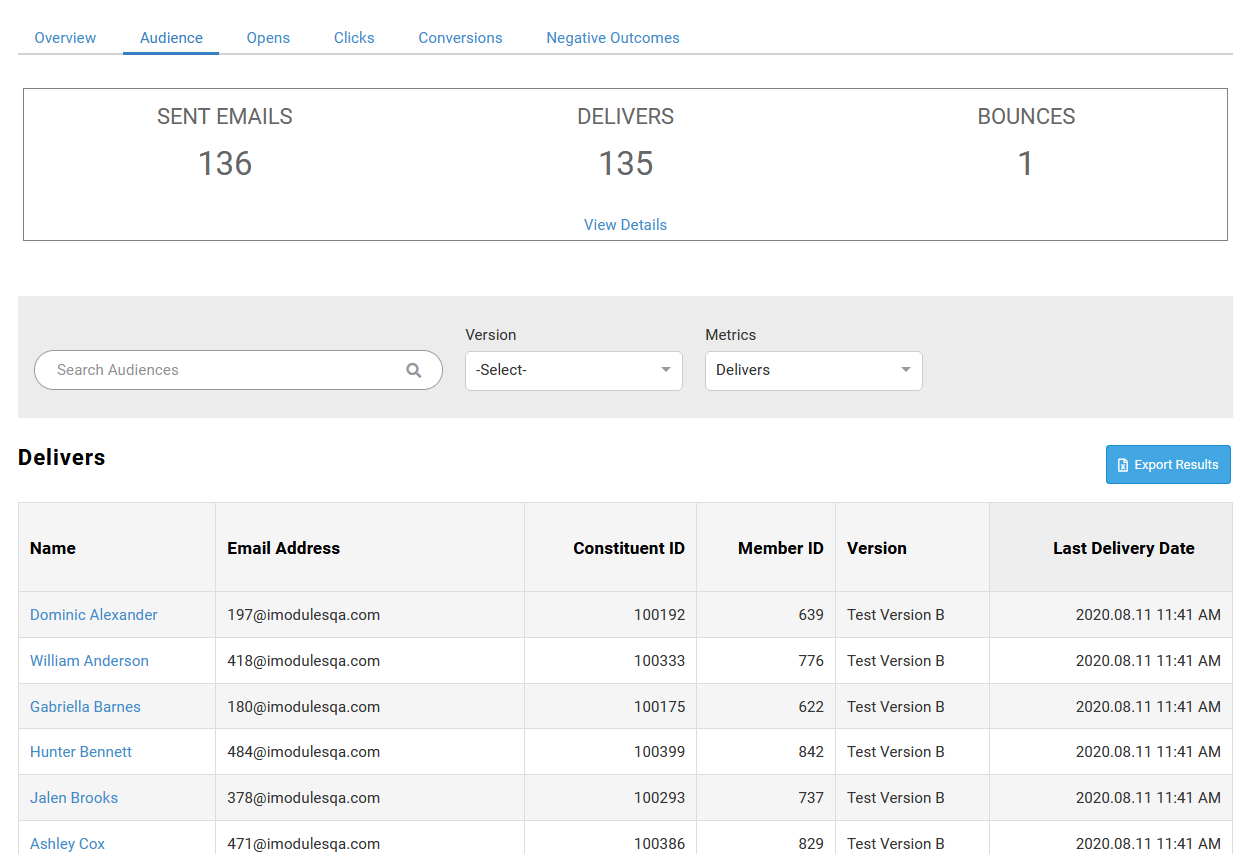
When looking at the drilldown reports, the top area will show metric information. The View Details link can be used to expand the area to see how each test did as well as the winner (if sent).
A search box is available as well as filtering options.
Based upon the filters being used, the results will be shown. In the image below, the Audience area is being looked at.
The Export Results button can be used to export the data.