Global Campaign Details - Segmented Campaign
You will be prompted for the Global Campaign Details once you start a Segmented Campaign. The information entered here will be used by default for all versions. Customization can happen per version.
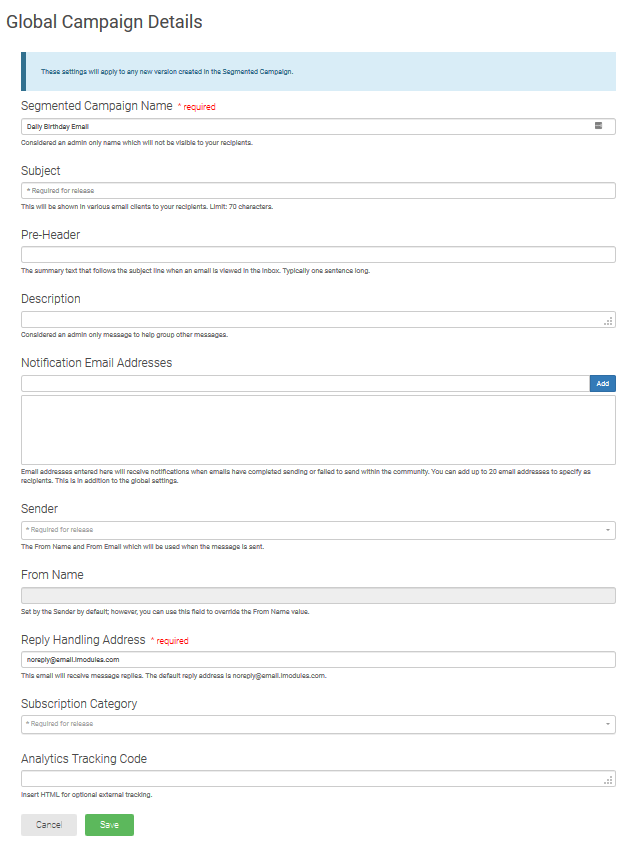
Segmented Campaign Name - will be used on the Email Calendar, Reporting, Bounce Reporting, drafts, queued, and history messages. It should be considered an admin only name since your recipients never see it.
Subject - will be shown to your recipients, so it should be user friendly.
Note
limited to 70 characters
cannot contain the Webview token or Unsubscribe token
Pre-Header - enter the Pre-Header that you want your recipients to see.
Note
cannot contain the Webview token or Unsubscribe token
Description - is for internal use only. It should be used to describe the message in case you have similar messages.
Notification Email Addresses - will be used to notify people when the message is successfully or unsuccessfully sent. These addresses will be in addition to the global setting.
Sender - the Sender Identities for the site/GID you are working in will be available. The From Name and From Email set in the Sender Identity you select will be used when the message is sent.
From Name - will default to what is set in the Sender Identity; however, it can be overwritten. This is helpful if you have a one off instance of needing a different From Name but the rest of the information is the same. This will be show in Email Reporting.
Note
Tokens cannot be used in the overwrite field.
Reply Handling Address - will use what is set in the Sender Identity; however, it can be overwritten. The email address will receive out of office replies.
Note
Outlook will send out of office replies to the from email address for the Sender Identity being used.
Subscription Category - select the Email Category that this message needs to be associated with.
Analytics Tracking Code - allows you to put in HTML for the tracking code. When the message is sent, the code is inserted right above the closing body tag of the email. You won't see any changes or information about the tracking code in the drag and drop editor. This is an optional item. We anticipate it should be compatible with Litmus, Google Analytics, and Email on Acid.
Click Save to save the information you provided.
Manage
To edit the Global Campaign Details, click Manage on the Global Campaign Details tile on the Segmented Campaign Home.

Re-apply
Change All Versions
If any version has customized Email Details, the Global Campaign Details tile will have a Re-apply option.

Clicking this option will provide a confirmation message since the customized details will be overwritten.
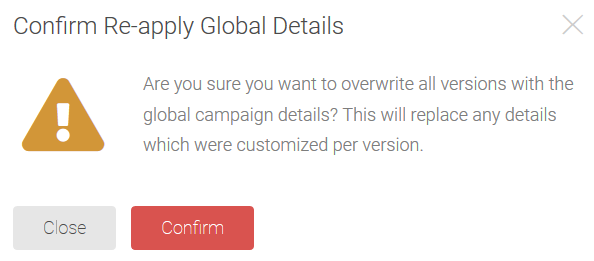
Once Confirm is clicked, the Global Campaign Details will be applied to all existing versions. The Re-apply option will no longer display.
Change Selected Versions
If there are only certain versions that you would like to re-apply the Global Campaign Details to, you've got two options.
Option 1 - update a single version:
On the Segmented Campaign Home, hover over the gear icon for the version you want to re-apply the Global Campaign Details to.
Select Re-apply Global Details.
The Global Campaign Details will be applied to this version.
Option 2 - update multiple versions:
On the Segmented Campaign Home, check the box for each version you would like the Global Campaign Details to be applied to.
From the More Options dropdown, select Re-apply Global Details.
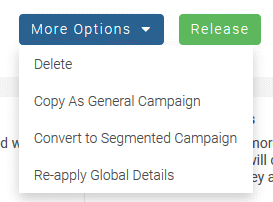
The Global Campaign Details will be applied to the versions you selected.