Email Calendar
Accessing
From the Email menu, choose Email Calendar from the far left column/panel.
Note
Super Admins, Communication Admins, and Email Authors will have this option available.
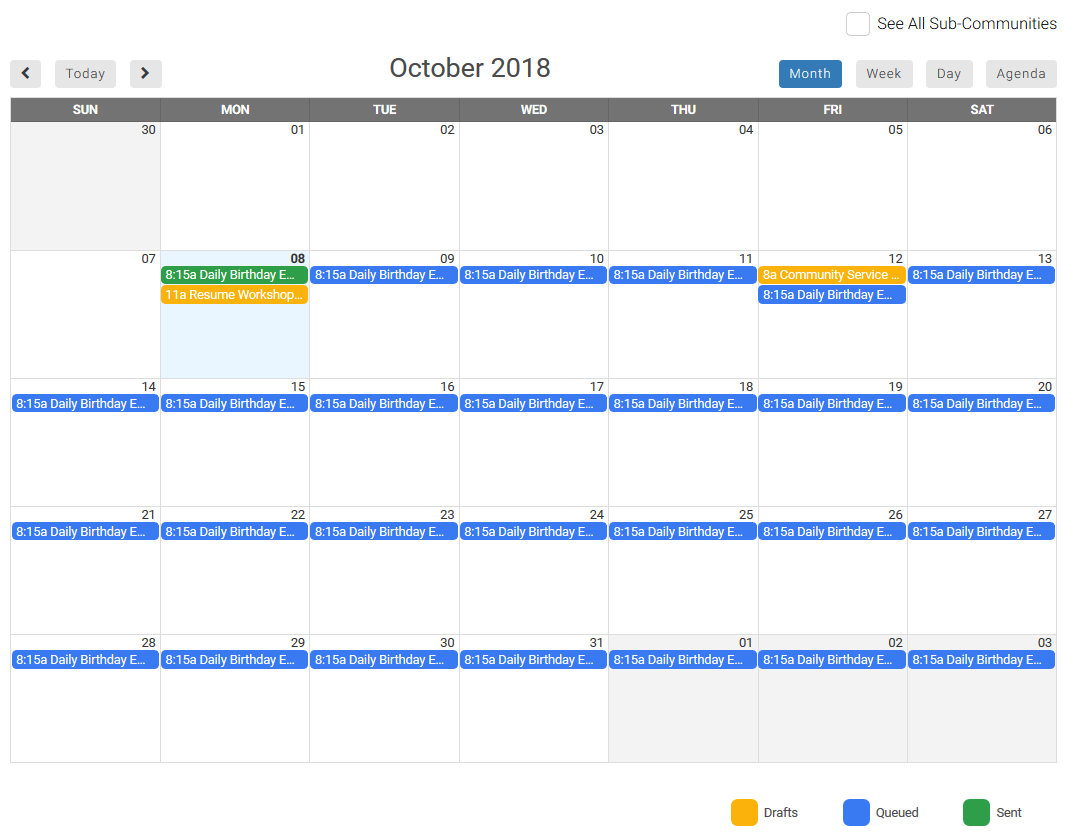
The key is in the lower right corner.

Views
The default view is Month. The other options are Week, Day, and Agenda. Click on one of the buttons to make a selection.
Note
Agenda will show the current day plus 7 days unless you navigate to Agenda from the Day view In that case, it will show that day plus 7 days. For example, if I am viewing October 20 and then click Agenda, I will see October 20 - 27.
Single Community View
By default, only the messages for the community or GID you are in will be shown.
You will see the date the message is scheduled for, the time it is scheduled for, and the email name.
Clicking a message will launch a box showing the Email Details.
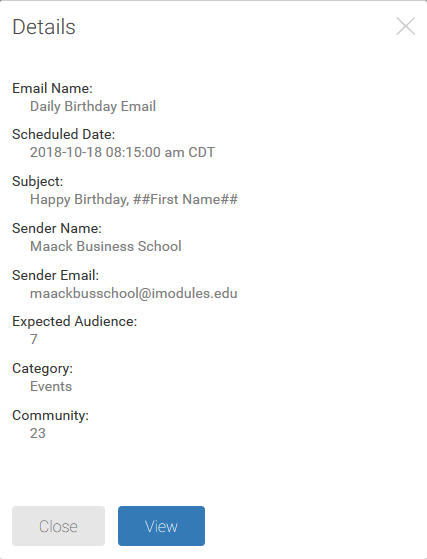
View will move you to the appropriate area for that message (Draft, Queued, or Sent).
See All Sub-Communities
If you would like to see the messages for all communities or GIDs, check the box for See All Sub-Communities.
If you click on a message for a community or GID that is not the one you are currently in, you will see the following message.
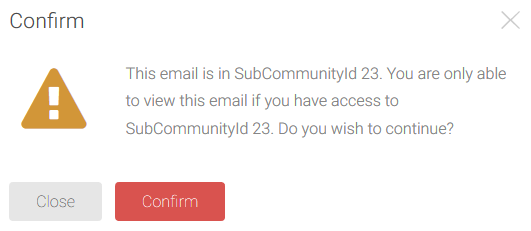
If you have do have administrative rights to the community or GID, clicking Confirm will move you to that message in the community or GID so you can take action on the message.
If you do not have administrative rights to the community or GID, you will be unable to access the community or GID and you will get a message stating that you do not have access.