Create a Giving Microsite Campaign
The Giving Microsite Builder walks you through the setup process step-by-step. Before using the Giving microsite, ensure you have the prerequisites.
Navigate to Donations > Giving Microsite. The Microsite Builder dashboard screen appears on the screen.
Select the Create Campaign button. The Giving Microsite Builder appears on the screen.
Specify the following campaign details. Refer to Table 1.
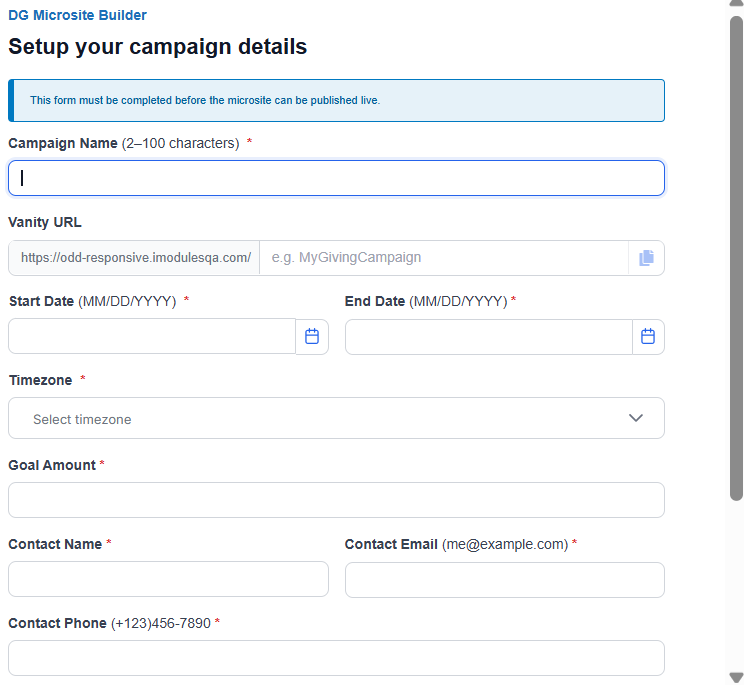
Select the Save & Continue button. Giving Microsite Quick Setup page appears on the screen.
Step | Details |
|---|---|
Campaign Name | Name of your campaign |
Vanity URL | Enter a unique URL suffix for your microsite. This value is appended to the site domain to create a custom, easy-to-share web address for your campaign (for example, /MyGivingCampaign). |
Start Date | Date when your campaign should go live |
End Date | Date when the campaign should end |
Timezone | Appropriate timezone for scheduling and running your campaign |
Goal Amount | Total amount your campaign is intended to collect or reach |
Contact Name | Name of the primary contact for this campaign |
Contact Email | Email of the primary contact for this campaign |
Contact Phone | Phone number of the primary contact for this campaign |
Donation Forms | List of donation forms |