Using Emojis
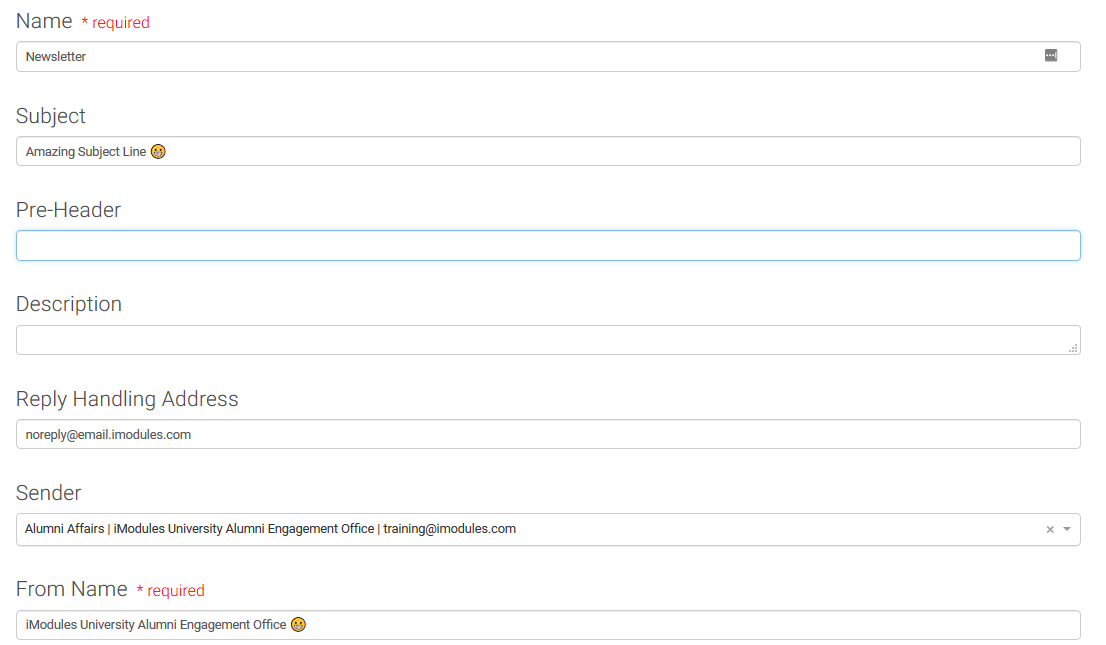
Unicode emojis are supported in the Subject line, the From Name, and the body of the email.
Adding Emojis
To add emojis, admins copy an emoji from http://getemoji.com/ (or your favorite emoji site that uses unicode characters) and paste it in the Subject line or From Name. (Typing an emoticon such as :) will not create an emoji.) Admins can also copy and paste unicode letters with special characters like those from non-English languages, for example.
Note
Please be aware that unicode characters are not the same thing as foreign language fonts. Foreign language fonts are not supported.
Test carefully
Customers are advised to test emojis carefully before sending an email. For example, emojis in subject lines are not supported in Outlook 2003 and Lotus Notes, and not all symbols are universally supported. And, not all email clients will render the emoji in the same way. For example, the same emojis will render one way in Gmail:
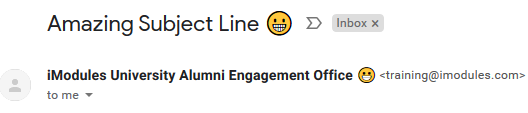
and another way in Outlook:

Note
In Yahoo mail, emojis do not display in a user's inbox preview, but will display when the user opens the email.
Best practices
Don't use emojis as word replacements as they won't display the same way in all email clients. Your subject line should be readable without the emojis.
Emojis are best used at the beginning or the end of the subject line, so if they don't render properly in a particular email system you won't have a gap in the subject line.
For more information on best practices download Subject Line Emojis (PDF).