Email Home
Email Home allows administrators to start, edit, and schedule campaigns. Email Home houses campaigns that are in a draft state, campaigns that have been released and are queued to send, and a history of sent emails.
Access
From the Email menu, choose Email Home from the far left column/panel.
Home
The gear icon provides options for: release, copy, preview, and delete.
For General Campaigns and A/B Testing Campaigns, there will be an option for Export Estimated Recipients if the Audience has been set and a Subscription Category selected. General Campaigns will also have an option to Convert to A/B Testing Campaign.
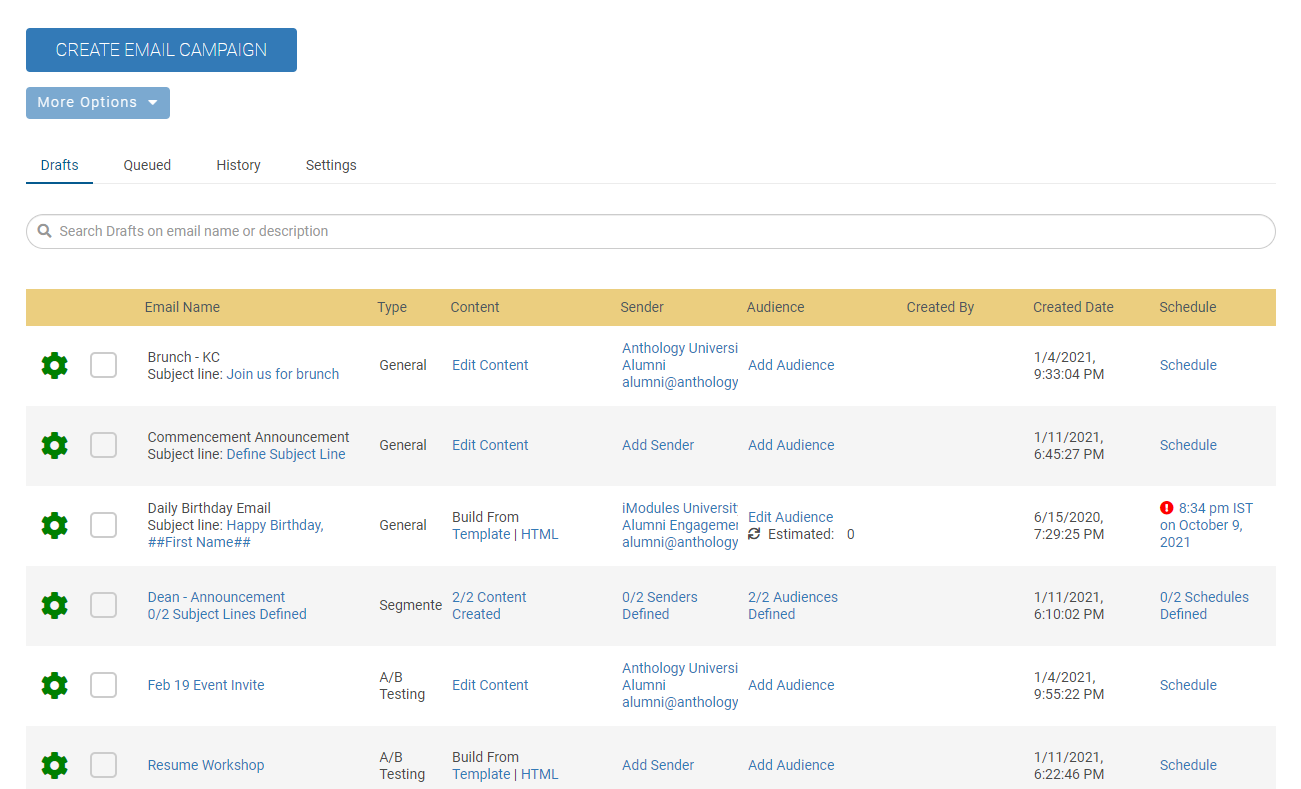
Search
Each area (Draft, Queued, History, Deleted Drafts) will have a Search box. The items you can use to search will be indicated in the Search box.

Create Email Campaign
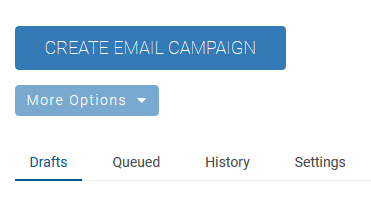
The Create Email Campaign button will be used to start a new campaign.
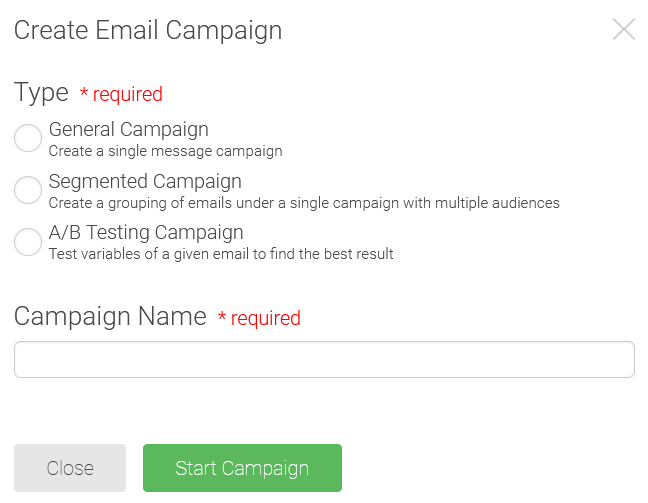
A small window will appear and you'll need to choose the type of Campaign you want to create.
Note
Only Super Admins and Email A/B Testing Authors will be able to create A/B Testing Campaigns.
Provide a Campaign Name and click Start Campaign.
If you chose a General Campaign, you will be moved to the Email Details after clicking Start Campaign.
-
-If you chose an A/B Testing Campaign, you will be moved to the Email Details.
Read details about Deleted Drafts