Éléments en double sur la page « Contenu du cours »
Note
Cette documentation a été traduite à l'aide d'un outil de traduction automatique assisté par l'IA. Les traductions sont fournies « telles quelles », sans aucune garantie quant à leur exactitude. La version anglaise de ce contenu fait office de source officielle et fait autorité.
Les enseignants peuvent dupliquer la plupart des éléments de la page « Contenu du cours ». La copie conserve l'intégralité du contenu et des paramètres de l'élément d'origine et s'affiche directement sous celui-ci.
Dupliquer un élément
Utilisez le menu Plus d'options pour créer une copie de n'importe quel élément pris en charge sur la page « Contenu du cours ».
Ouvrez votre cours et accédez à la page « Contenu du cours ».
Ouvrez le menu Plus d'options (…) correspondant à l'élément que vous souhaitez copier.
Sélectionnez Dupliquer.
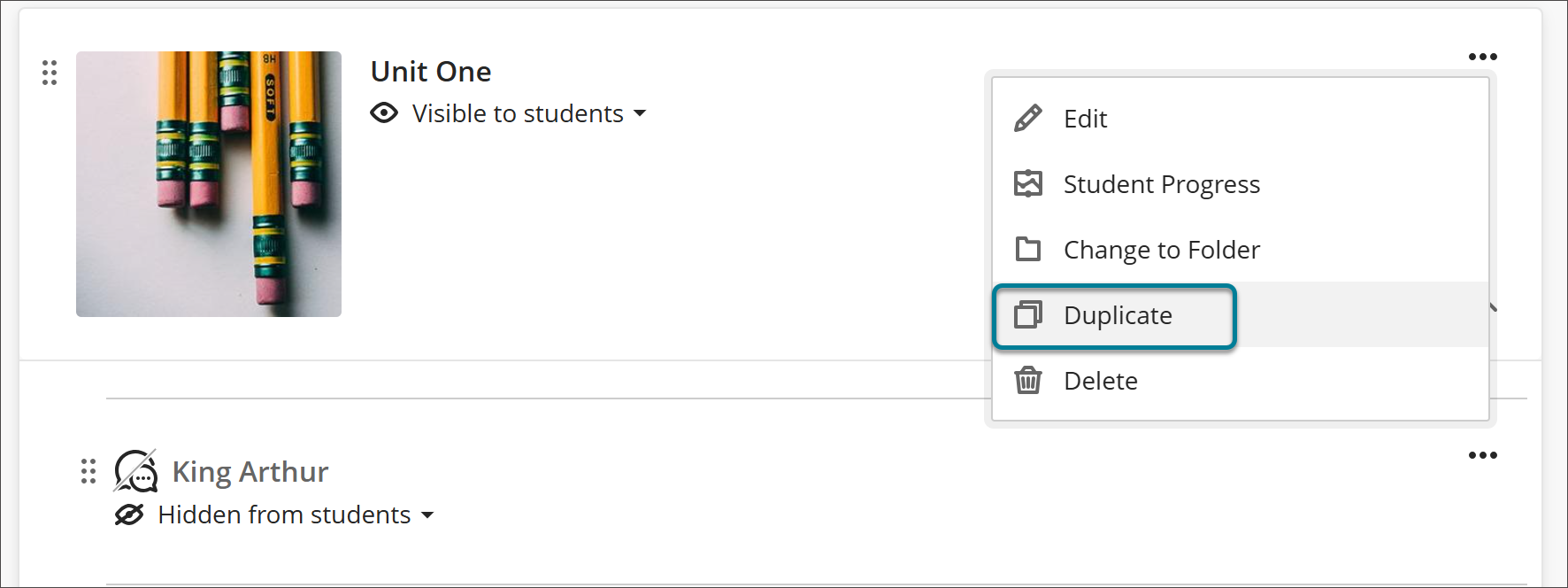
La copie apparaît sous l'original. La mention « Copie » est ajoutée au nom de l'élément, et cette copie est masquée par défaut aux étudiants.
Une fois la duplication terminée, renommez la copie et apportez les modifications souhaitées avant de la rendre accessible aux élèves.
Note
Les éléments LTI ne prennent pas en charge la duplication. L'option Dupliquer n'apparaît pas dans le menu Plus d'options des éléments LTI.