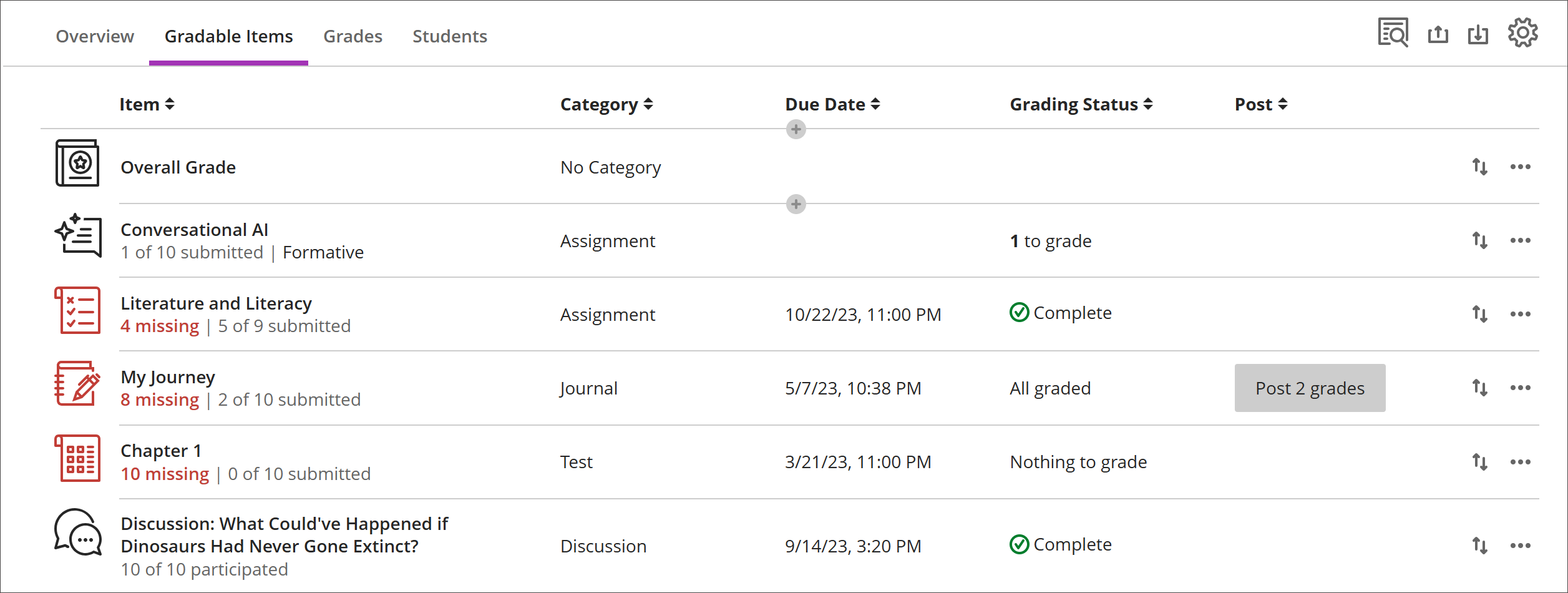
Onglet Éléments évaluables dans le carnet de notes
Note
Cette documentation a été traduite à l'aide d'un outil de traduction automatique assisté par l'IA. Les traductions sont fournies « telles quelles », sans aucune garantie quant à leur exactitude. La version anglaise de ce contenu fait office de source officielle et fait autorité.
La vue Éléments évaluables affiche tous les éléments évaluables de votre cours. Vous pouvez afficher les échéances, l'état de notation et les catégories d'éléments. Vous pouvez également publier les notes et ajuster le calcul de la note globale pour le cours.
Les éléments qui présentent des soumissions manquantes après l'échéance s'affichent en rouge.
Utilisez le bouton de déplacement pour faire glisser et déposer les éléments dans un nouvel ordre.
Sélectionnez le nom d'un article pour accéder à sa page Soumissions ou Notes et participation.
Sélectionnez X pour noter afin d'accéder directement à la page de soumission de l'évaluation et de commencer à noter.
Colonnes personnalisées basées sur du texte
Pour créer une colonne personnalisée basée sur du texte, sélectionnez (+) ajouter, puis Ajouter un élément de texte. Pour chaque colonne, vous pouvez saisir un nom et une description, et vous pouvez contrôler la visibilité de la colonne par les étudiants. Pour chaque ligne, vous pouvez saisir jusqu'à 32 caractères.
Navigation dans l'onglet Éléments évaluables du Carnet de notes
L'onglet Éléments évaluables utilise une mise en page sous forme de tableau afin d'améliorer la facilité d'utilisation sur les claviers et lecteurs d'écran.
Parcourir les éléments évaluables à l'aide du clavier
Utilisez la touche de tabulation pour accéder au Carnet de notes.
Utilisez les touches fléchées pour accéder à l'onglet Éléments évaluables.
Sélectionnez la touche de tabulation jusqu'à ce que vous entriez dans le tableau des Éléments évaluables.
Utilisez les touches fléchées pour naviguer dans le tableau.
La touche de tabulation vous permet de quitter le tableau et d'accéder au bouton Aide Blackboard. Maj + Tabulation vous ramène au bouton Paramètres.
Parcourez les éléments évaluables à l'aide des lecteurs d'écran
Les utilisateurs de lecteurs d'écran peuvent accéder à l'onglet Éléments notables en utilisant les instructions du clavier. Vous pouvez également utiliser la combinaison de touches spécialisée de votre lecteur d'écran pour accéder directement au tableau.
JAWS: utiliser les touches Insérer + Ctrl + T
NVDA: utiliser les touches T, puis Ctrl + flèche du bas pour accéder au tableau.
VoiceOver: utiliser les touches Ctrl + Option + flèche droite pour sélectionner l'option du tableau.
Une fois dans le tableau, les lecteurs d'écran peuvent se servir de la navigation dans le tableau (Ctrl + Alt + les touches fléchées) pour naviguer dans le tableau.
Si vous souhaitez ajouter du contenu, utilisez la flèche vers le bas pour accéder au bouton Plus d'Options (...) au bout de la ligne. La flèche vers le bas suivante correspond au bouton Ajouter du contenu.
Remarque pour les utilisateurs de JAWS
Les utilisateurs de JAWS peuvent se déplacer vers la gauche ou la droite dans n'importe quelle ligne à l'aide des touches de navigation du tableau.
Pour passer d'une ligne de devoir à l'autre, naviguez d'abord dans la colonne objet.