Modiwlau Dysgu
Note
Cafodd y ddogfennaeth hon ei chyfieithu gan ddefnyddio cyfieithu peirianyddol gyda chymorth AI. Darperir cyfieithiadau 'fel y maent' heb unrhyw warant o'u cywirdeb. Fersiwn Saesneg y cynnwys hwn yw'r ffynhonnell swyddogol a thrylwyr.
Cynhwysydd ar gyfer casgliadau trefnedig o gynnwys yw modiwl dysgu. Mae modiwlau yn caniatáu i fyfyrwyr lywio o un eitem o gynnwys i'r nesaf heb ymyriadau na chliciau ychwanegol. Mae modiwl dysgu yn cadw'ch ffocws ar y wers neu gysyniad rydych yn ei dysgu. Os yw'ch cwrs yn defnyddio gwerslyfr, mae'n bosibl y bydd eich hyfforddwr yn defnyddio modiwlau i rwpio cynnwys i gyd-fynd â rhediad y deunyddiau hyn.
Mae Modiwl Dysgu yn ymddangos yn debyg i ffolder ar y dudalen Cynnwys y Cwrs. Dewiswch y teitl neu'r saeth i agor y Modiwl Dysgu a gweld ei gynnwys.
Gall Modiwlau Dysgu gynnwys:
Darlleniadau a ffeiliau
Asesiadau (Aseiniadau a Phrofion)
Prosiectau grŵp
Offer trafod a chydweithio
Gallwch weld yr holl gynnwys gweladwy o fewn y Modiwl Dysgu, gan gynnwys dyddiadau cyflwyno.
Llywio Modiwl Dysgu
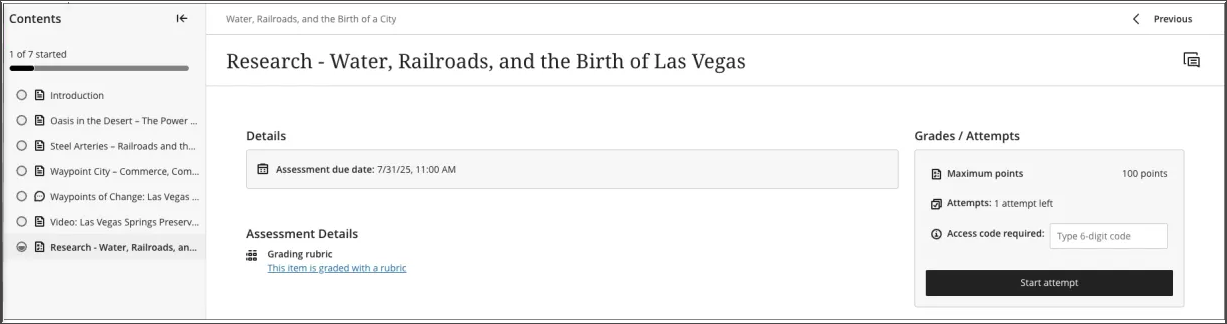
Pan fyddwch chi'n agor Modiwl Dysgu, mae tabl cynnwys crebachadwy yn cael ei arddangos ar banel ochr eich sgrin. Mae'r panel hwn yn dangos yr holl eitemau cynnwys yn y Modiwl Dysgu ac yn eich helpu i ddeall cwmpas a threfn y cynnwys yn gyflym.
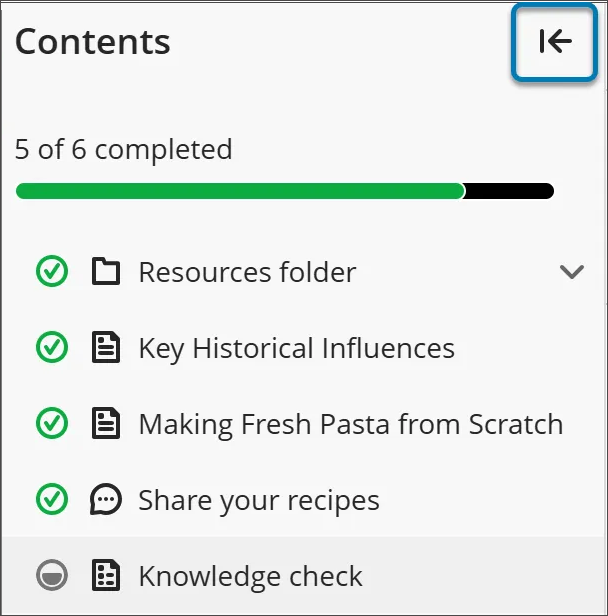
Dewiswch unrhyw eitem yn y panel tabl cynnwys i'w agor yn uniongyrchol (oni bai bod eich hyfforddwr wedi gorfodi dilyniant penodol).
Os hoffech guddio'r tabl cynnwys, dewiswch y botwm saeth yng nghornel uchaf y tabl cynnwys.
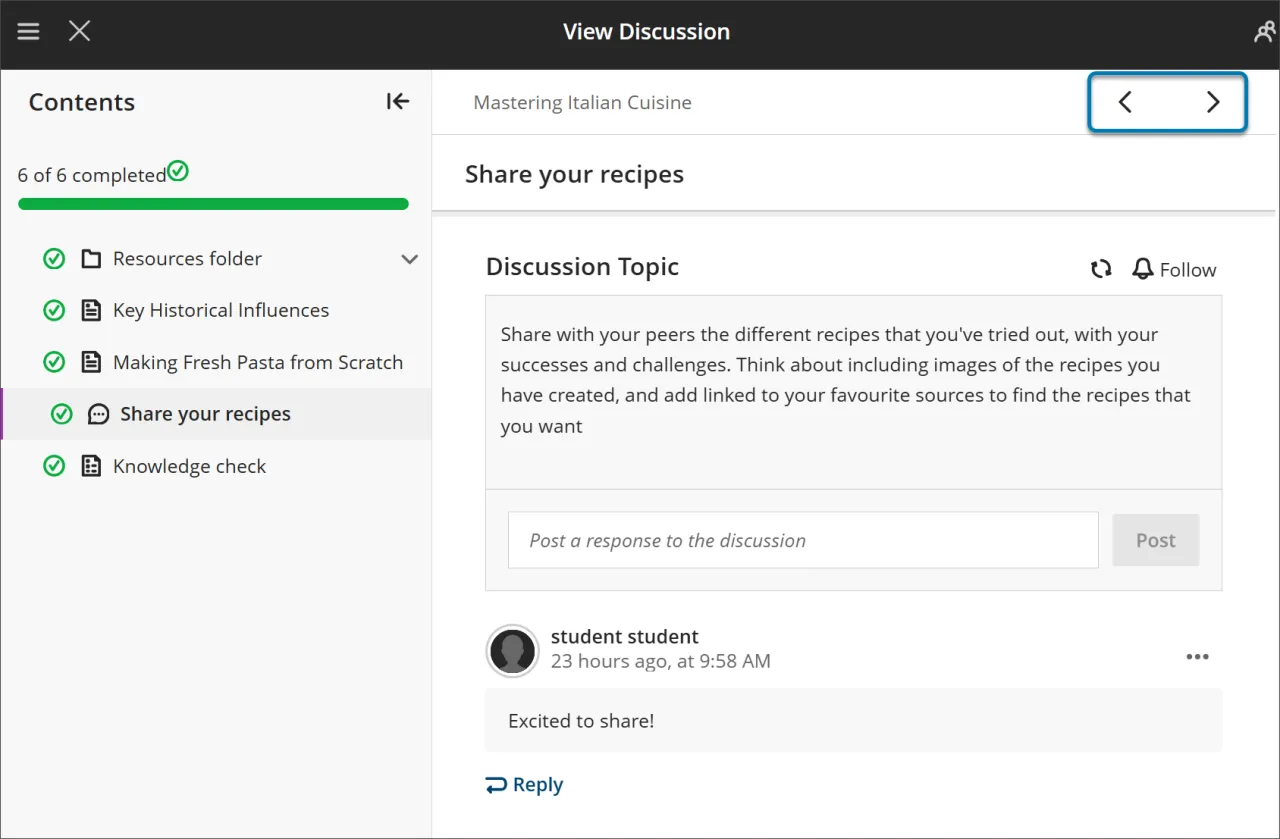
Defnyddiwch y botymau Nesaf a Blaenorol ar y dde uchaf i symud drwy'r cynnwys mewn trefn. Os yw'ch hyfforddwr wedi galluogi dilyniant gorfodol, efallai y byddwch yn sylwi bod yr eitem nesaf wedi'i chloi.
Bydd angen i chi fodloni amodau penodol cyn i Nesaf a'r eitem nesaf yn y ddewislen Tabl Cynnwys ddod ar gael. Gallwch ailymweld ag unrhyw eitemau sydd wedi'u datgloi o'r blaen.
Dilyniant gorfodol
Os yw'ch hyfforddwr yn gofyn i eitemau yn y Modiwl Dysgu gael eu cwblhau mewn trefn benodol, mae neges yn ymddangos. Gall amodau eraill, fel dyddiadau mynediad neu ragofynion, fod yn berthnasol hefyd.
Os yw'r Modiwl Dysgu yn cynnwys ffolderi, rydych chi'n llywio trwyddynt yn yr un ffordd â chynnwys arall. Efallai y bydd eich hyfforddwr yn gofyn i chi gwblhau cynnwys o fewn ffolder cyn symud ymlaen.
Olrhain Eich Cynnydd
Gallwch adael Modiwl Dysgu cyn i chi ei gwblhau. Pan fyddwch chi'n dychwelyd, mae eiconau'n ymddangos wrth ymyl y cynnwys i ddangos eich cynnydd, fel y gallwch chi barhau o'r man lle gwnaethoch chi stopio.
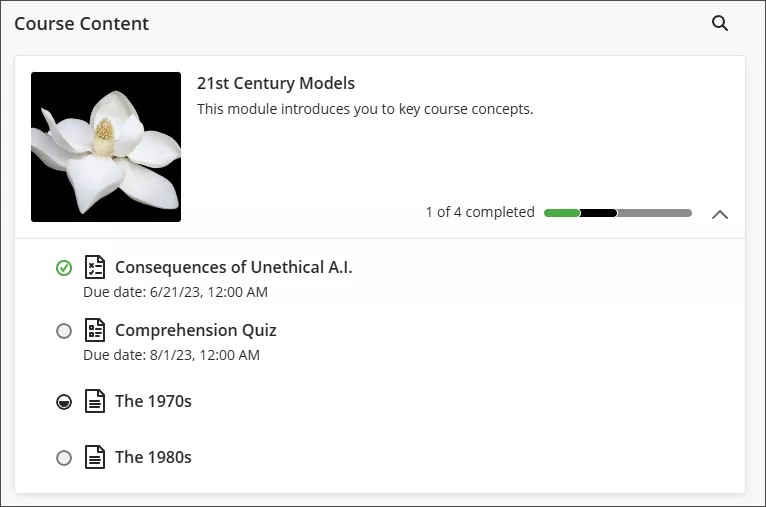
Mae pedwar math o eiconau cynnydd:
Mae cylch gwyrdd gyda marc ticio yn golygu bod y cynnwys yn gyflawn.
Mae cylch llwyd wedi'i lenwi'n rhannol yn golygu bod y cynnwys ar y gweill.
Mae cylch gwag yn golygu nad ydych wedi dechrau'r cynnwys.
Mae eicon clo yn golygu nad ydych yn bodloni'r amodau i gael mynediad at y cynnwys eto.
Asesiadau mewn Modiwlau Dysgu
Pan fyddwch chi'n agor asesiad o fewn Modiwl Dysgu, mae'n ymddangos mewn panel tudalen lawn. Mae'r cynllun hwn yn darparu profiad cyson a wedi'i ffocysu, gan eich helpu i barhau i ymgysylltu â'r deunydd.