Grabar audio y video
Note
Este documento se ha traducido mediante traducción automática asistida por IA. Las traducciones se proporcionan «tal cual», sin garantía alguna respecto a su exactitud. La versión en inglés de este contenido es la fuente oficial y con valor normativo.
Puede incluir una grabación de sus comentarios para que aparezca con el texto que haya agregado para un estudiante. Puede utilizar el flujo de trabajo completo de Video Studio cuando realice comentarios de evaluación o trabaje en Calificación flexible, incluso si su institución no tiene licencia de Video Studio. Esto le da acceso a grabar o cargar video y audio directamente en el editor de comentarios, utilizando funciones como los subtítulos, la transcripción y la edición para ofrecer una comunicación clara y personalizada.
Nota
Si su institución no tiene licencia de Video Studio, las grabaciones de sus comentarios tendrán una duración máxima de 5 minutos. Si tiene licencia de Video Studio, el límite es de 20 minutos.
El vídeo y el audio creados con la herramienta de comentarios de audio/vídeo o cargados en ella no cuentan para el derecho de almacenamiento de Blackboard de una institución.
Grabar comentarios
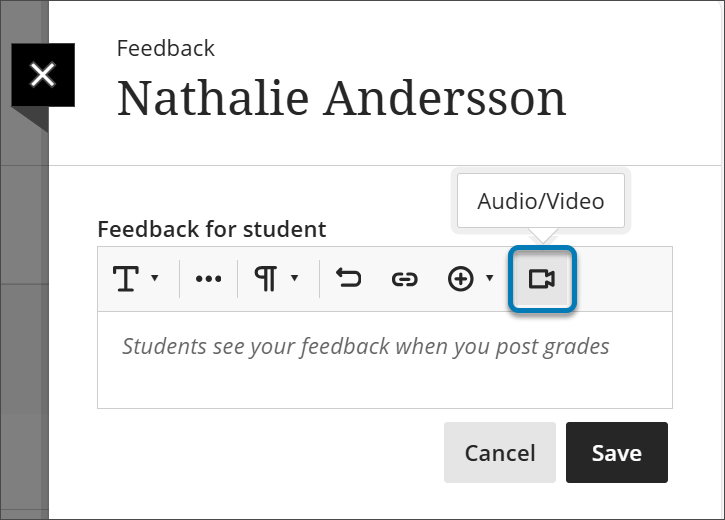
Seleccione Audio/Video en el panel de comentarios del instructor.
Selecciona si quieres grabar la cámara, el audio, la pantalla, el audio y la pantalla o la cámara y la pantalla.
Cuando haya terminado de grabar sus comentarios, seleccione el botón Detener grabación. Su video comenzará a procesarse.
Si está satisfecho, seleccione el botón Guardar video. Si desea descartar el video, seleccione X.
La grabación se insertará en el editor automáticamente.
Select an Access Option. View Only will allow students to just view the recording, and View and Download will allow them to also download it.
Select the Play button to preview your video.
If you are satisfied, select the Save Video button. If you want to discard the video, select the X.
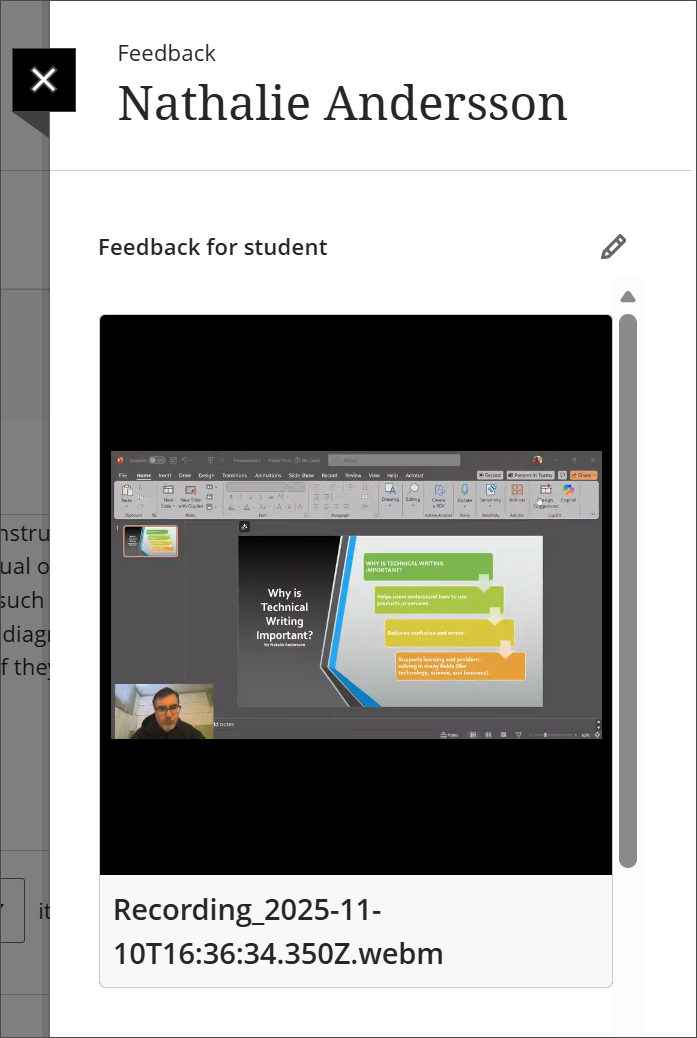
La grabación del estudio de vídeo ahora está incrustada en el panel de comentarios del instructor para que los estudiantes puedan verla.
Para obtener información detallada sobre lo que puede hacer con Video Studio, visite la página Video Studio.