Administrar rúbricas
Note
Este documento se ha traducido mediante traducción automática asistida por IA. Las traducciones se proporcionan «tal cual», sin garantía alguna respecto a su exactitud. La versión en inglés de este contenido es la fuente oficial y con valor normativo.
Access the Course Rubrics page
The Course Rubrics page displays all rubrics in your course in a sortable, searchable table. From this page, you can create, generate, copy, edit, delete, import, export, and print rubrics.
You can access the Course Rubrics page in two ways:
From Gradebook Settings, select Manage Course Rubrics in the Course Rubrics section.
From Assignment Settings, select Add Rubric in the Grading & Submissions section.
Copiar rúbricas
On the Course Rubrics page, select the ellipsis, then select Duplicate.
Edit the rubric as needed, including the titles.
Select Save.
Después de utilizar una rúbrica para la calificación, no podrá editarla, pero podrá realizar una copia que luego podrá editar y a la cual podrá cambiarle el nombre.
Nota
Nota: Si copia una rúbrica basada en porcentajes existente y la cambia por una de rango porcentual, se borrarán todas las descripciones.
Si ya ha usado una rúbrica para calificar un elemento, también puede copiar la rúbrica y editar la versión duplicada. Desde el panel de Configuraciones de un elemento, abra la rúbrica. Seleccione Crear una copia en la parte inferior de la pantalla. Cuando crea una copia de una rúbrica que utilizó para calificar un examen o actividad, la rúbrica nueva se asocia con el elemento. Cualquier calificación que se calcule con la rúbrica original se conservará, pero estas calificaciones se convertirán en anulaciones. Puede volver a calificar estas entregas con la rúbrica nueva.
When you create a copy of a rubric you used to grade a test or assignment, the new rubric is associated with the item. Any grades calculated with the original rubric are preserved, but these grades are converted to overrides. You can regrade these submissions with the new rubric.
Importante
No puede copiar rúbricas en dispositivos pequeños.
Copiar rúbricas entre cursos
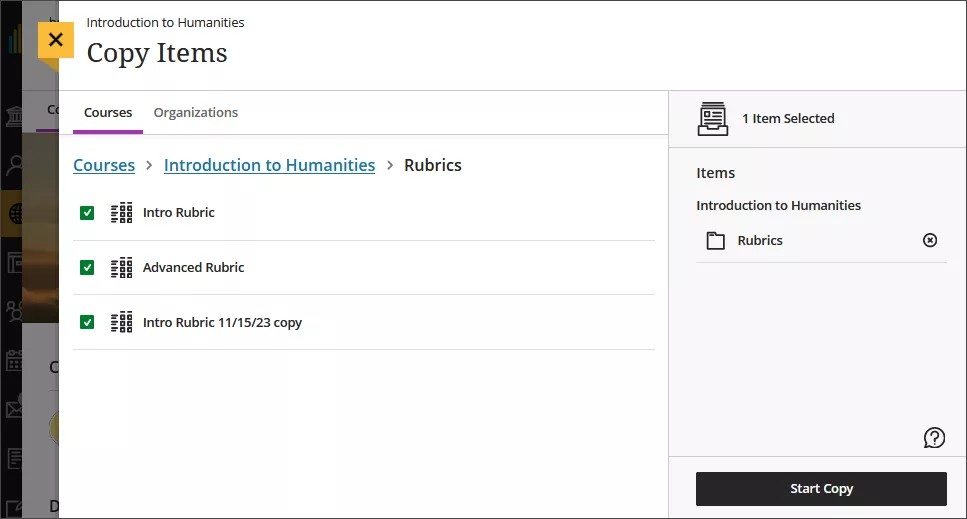
On the Course Content page, select the plus sign to open the menu and select Copy Content. Or, open the More options menu above the content list. Select Copy Items.
The Copy Items panel opens.
From the Copy Items panel, you can browse all the courses that you teach.
Select the Rubrics folder for the course you want to copy rubrics from and select the rubrics you’d like to copy.
When you’re done, select Start copy.
Borrar rúbricas
Puede eliminar de forma permanente una rúbrica del curso incluso si la ha utilizado en la calificación y las calificaciones se conservarán. Las calificaciones ya no estarán asociadas a la rúbrica, sino que aparecerán como calificaciones que añadió manualmente.
To permanently delete a rubric, go to the Course Rubrics page. Select the ellipsis menu on the rubric, then select Delete.
Export a rubric
You can export a rubric from your course to reuse it in another course. The exported file is a zip file intended for importing into another course and is not a viewable document.
To export a rubric, select the ellipsis then select Export.
The rubric downloads automatically as a zip file named with the rubric name and course title. You can find it in your downloads folder.
Import a rubric
You can import a rubric that was previously exported from Blackboard LMS.
On the Course Rubrics page, select the import icon.
Select the zip file from your local. Only rubrics exported from Blackboard LMS can be imported.
After import, review your imported rubric,
The rubric imports automatically. If the same rubric already exists in the course, an error message appears to prevent duplicate rubrics from being created.
Print rubrics
You can print blank and scored rubrics or save them as PDFs. Printed rubrics are useful for offline grading, sharing feedback with students, and including rubrics in accreditation or instructional review documentation.
Print a blank rubric
A blank rubric shows its criteria and performance levels without scores.
On the Course Rubrics page, select the ellipsis menu on a rubric, then select Print. You can also open a rubric and select the Print icon.
In your browser’s print dialog, print the rubric or save it as a PDF.
Print a scored rubric
You can print a scored rubric for any activity you grade with a rubric. The Print option is available once you make at least one selection in the rubric.
Open the rubric in the pop-out view.
Select at least one performance level in the rubric.
Select the Print icon.
In your browser’s print dialog, print the rubric or save it as a PDF.
While grading, select at least one performance level in the Rubric Details panel.
Select Print Graded Rubric at the bottom of the panel.
In your browser’s print dialog, print the rubric or save it as a PDF.