Preguntas de opción múltiple
Create a multiple choice question
Open a test. You can create a new test or open an existing test to edit it.
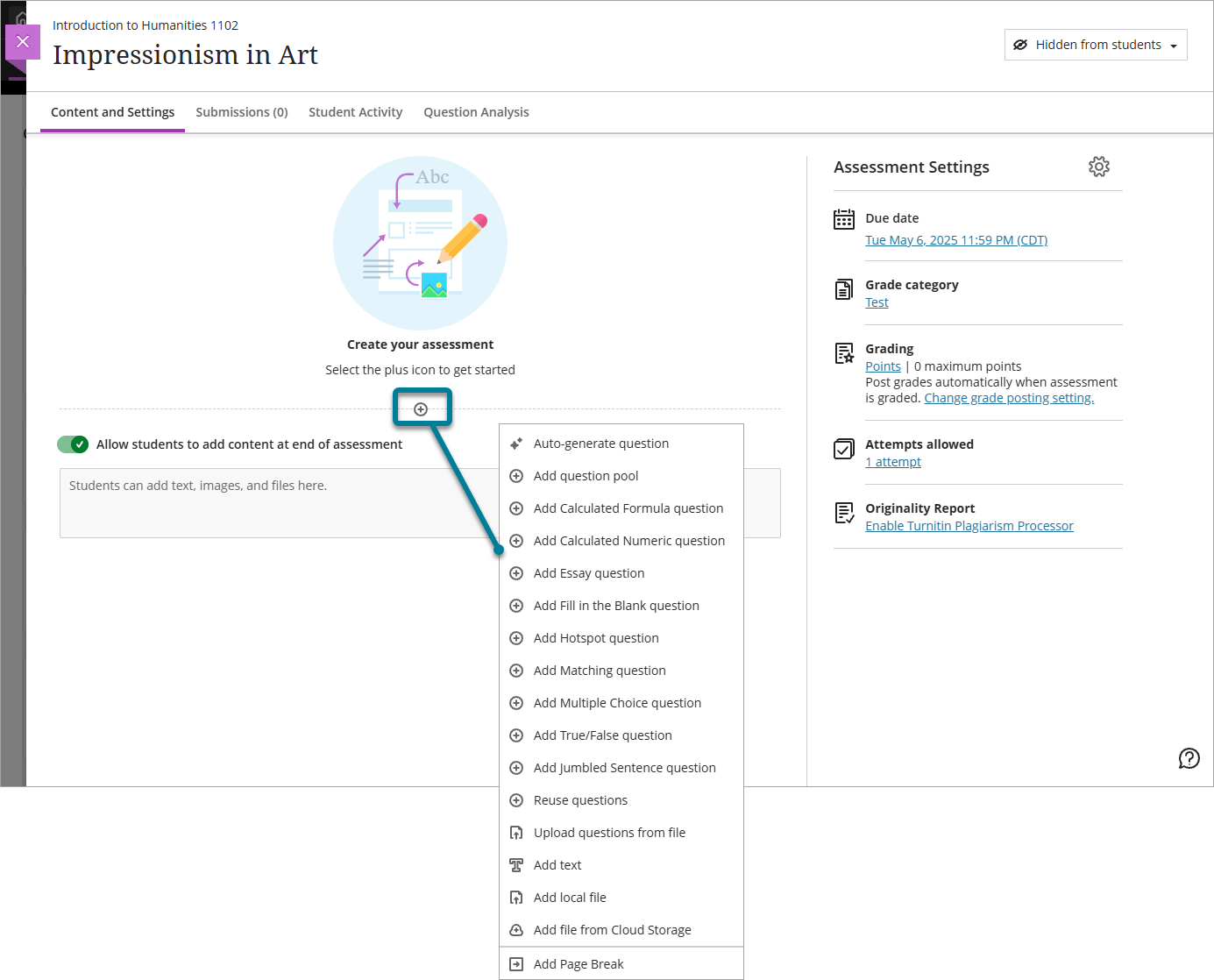
Hover over the dotted line where you want to add the question. A purple plus sign appears.
Select the plus sign, then select Add Multiple Choice question.
Enter the Question Text. This is the question that students see when they take the test.
Add and configure your answer options. New questions start with four answer option fields by default.
To remove an answer option, select the trash can icon next to it. You must also remove any empty answer option fields before you can save the question.
To add an answer option, select Add Option.
To reorder answer options, select and hold the reorder icon and drag the option to the position you want.
To format answer option text or insert media such as images or attachments, select inside an answer option field. A formatting toolbar appears along with a plus icon you can select to insert media.
To randomize the order that answer options appear to students, select the Randomize answers checkbox in Presentation Options in the Assessment Settings panel.
When randomization is turned on, a lock icon appears next to each answer option. Select the lock icon next to any option you want to keep in a fixed position. This is useful for options such as "All of the above" or "None of the above" that should always appear at the end of the list regardless of randomization.
Use the Students can select up to dropdown to set the maximum number of answer options a student can choose.
The default is one answer, which displays radio buttons next to answer options. If you increase the limit to more than one, students have checkboxes instead. This setting determines whether the question behaves as a single-answer or multiple answer question.
Select the checkbox next to each correct answer option.
You must select at least one correct answer before you can save the question.
Configure points and credit.
Questions are worth 10 points by default. Select the points field to enter a different value.
To make the question extra credit, select the Extra Credit checkbox and enter the number of points the question is worth.
To award partial or negative credit, turn on Allow partial and negative credit.
A percentage field appears next to each answer option. Enter a percentage value for each option. Values can range from –100% to +100%, and the percentages for correct answers do not need to add up to 100%. To allow the question to result in a negative overall score, select Allow overall negative score.
Optionally, add feedback for students. You can provide feedback at the question level or at the individual answer level. These two options are mutually exclusive.
To provide general feedback based on whether the student answered correctly or incorrectly overall, turn on the Automated Feedback toggle and enter text in the Correct Answer Feedback and Incorrect Answer Feedback fields.
Nota
Whether and when students receive feedback depends on the settings in the Assessment results section of the Assessment Settings panel, regardless of which feedback option you use.
Optionally, turn on the Question metadata toggle to enter a question title and tags. Metadata makes it easier to identify and find questions when reusing them across tests, pools, and question banks.
Select Save to add the question to the test.
You must save or cancel the current question before you can add another question or edit an existing question.
If the Save option is disabled, make sure you have entered text in the Question Text field, selected at least one correct answer option, and removed any empty answer option fields.
Calificar preguntas de opción múltiple o con varias respuestas correctas
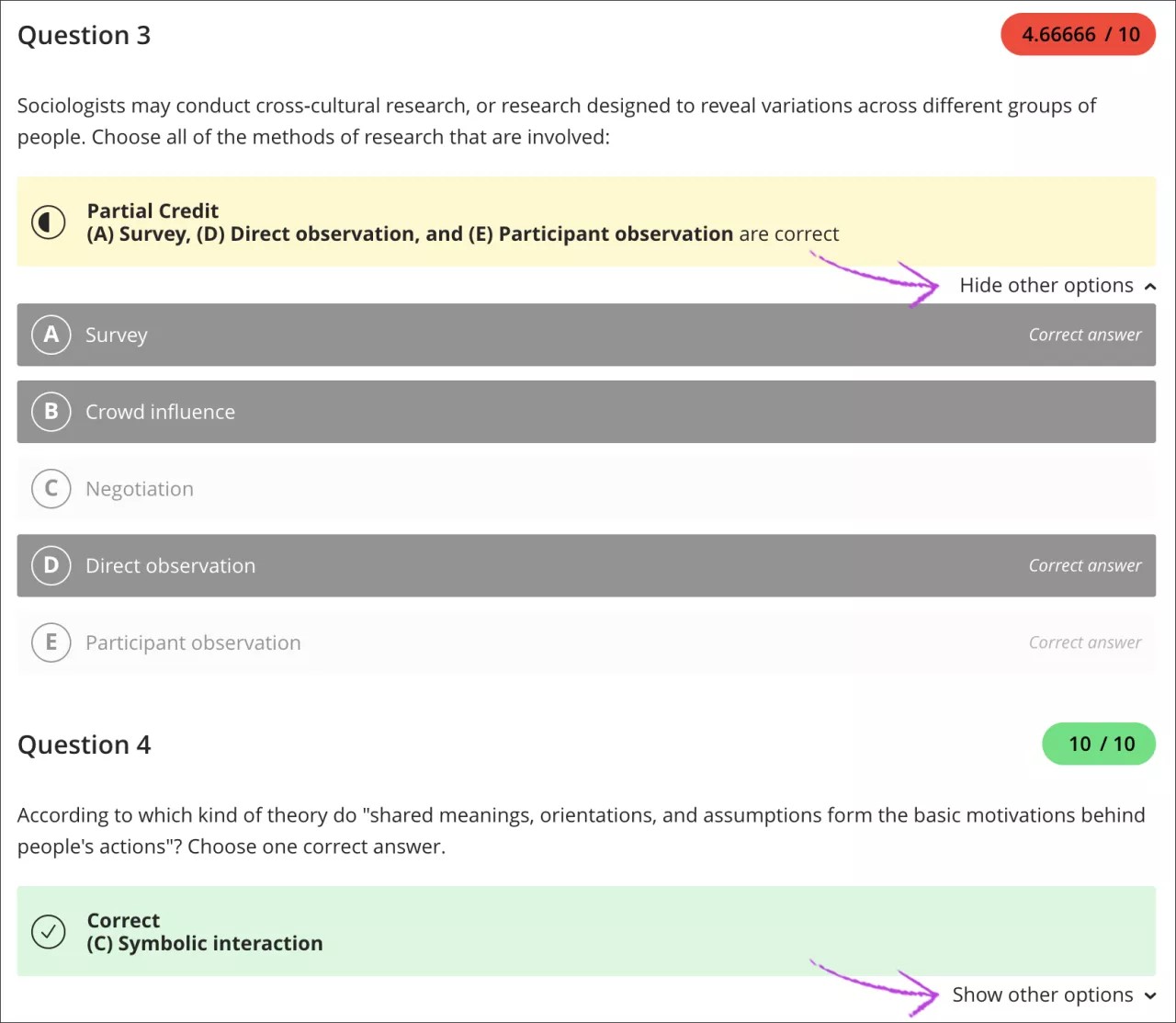
Las preguntas de opción múltiple y con varias respuestas correctas se califican automáticamente. Las respuestas se puntúan en función de la opción de puntuación que usted haya elegido para varias respuestas correctas y en función de si las respuestas del estudiante se corresponden con una o más de las respuestas correctas. Puede ocultar o mostrar las opciones de respuesta a medida que revisa los envíos.
Cuando agrega una pregunta de selección múltiple que permite crédito parcial y negativo, el crédito negativo se distribuye automáticamente entre las opciones de respuesta incorrectas. Puede eliminar o editar el crédito negativo según sea necesario.
No puede cambiar la puntuación de las preguntas individuales que se calificaron de forma automática.