Canvas Data Importer
The Canvas Data Importer (CDI) allows you to pull data into the Course Evaluations imports directly from Canvas. This can be a great resource for many institutions, however, we highly recommend that the Course Evaluations data comes from the Student Information System (SIS) as this is a more direct path of data.
The CDI is used to access your course, faculty, student and enrollment data in Canvas. CSV files can be automatically uploaded to Course Evaluations, or downloaded and saved, for manual import.
Enabling Canvas Importer
Submit a support case, requesting to have the Canvas Data Importer enabled for your institution, via this form.
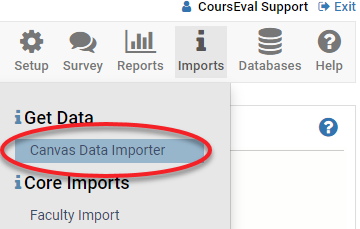
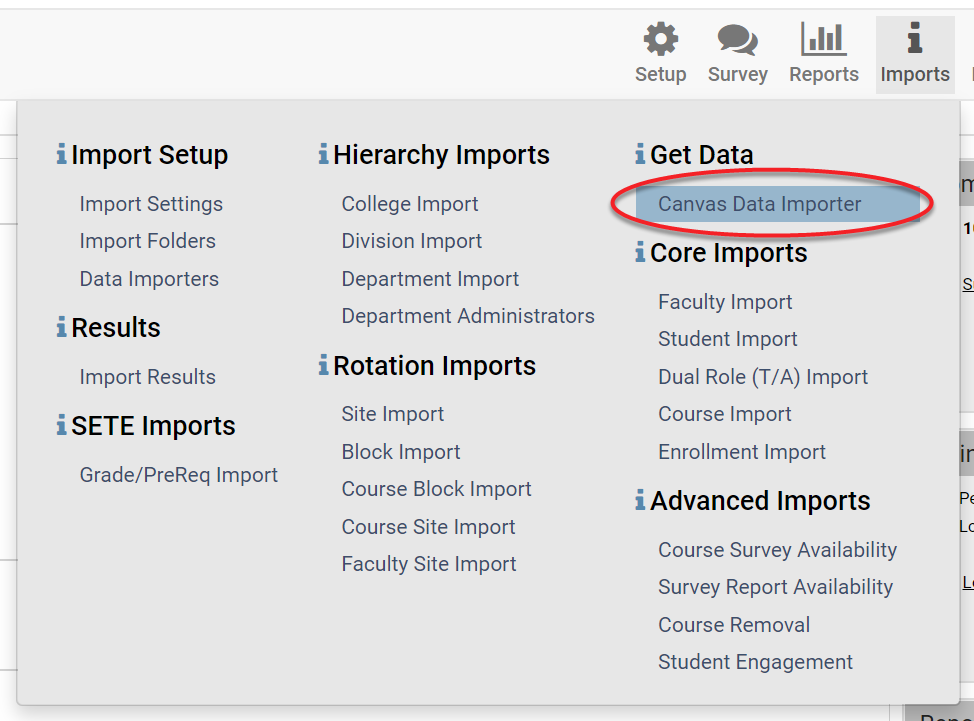
Once enabled, open the Canvas Data Importer from the Imports menu under Get Data
In another tab or window log into your Canvas instance.
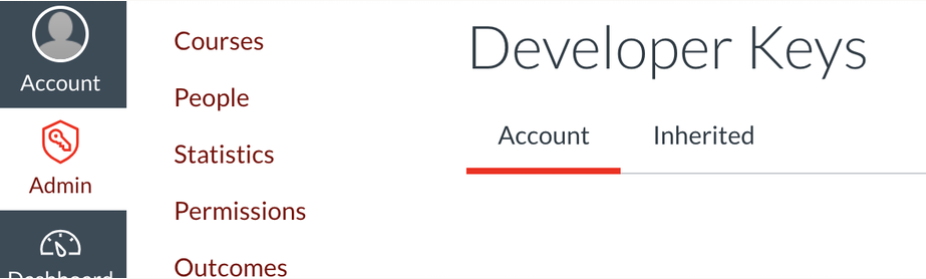
In Canvas, click the Admin link on left side navigation bar and then select the root account.
Click the Developer Keys link in the secondary left side menu
Note - Make sure the Account tab is selected
Click + Developer Key button
Select API key from the drop-down menu
Fill out following fields:
Key Name (A way to identify importer application)
Owner Email
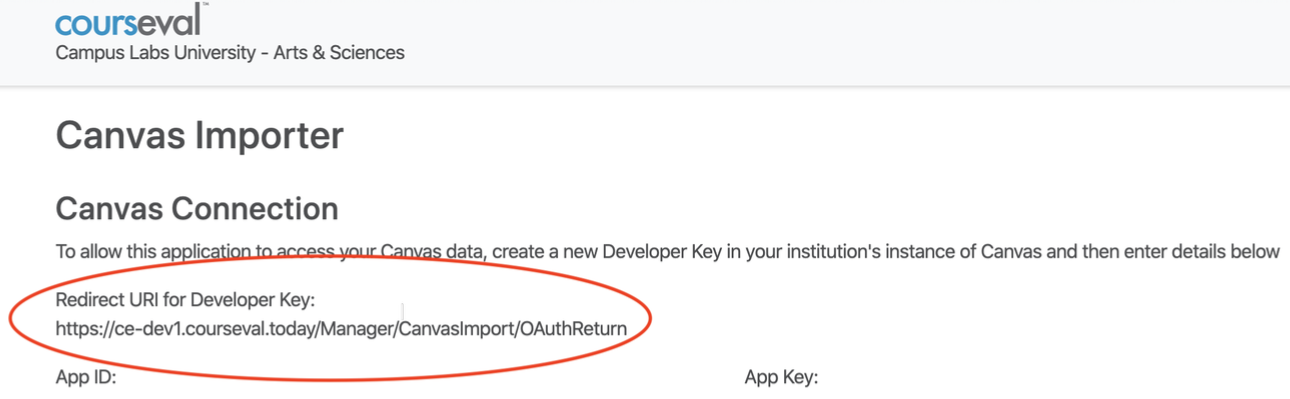
Redirect URI (this can be found on the Canvas Importer page in Course Evaluations)
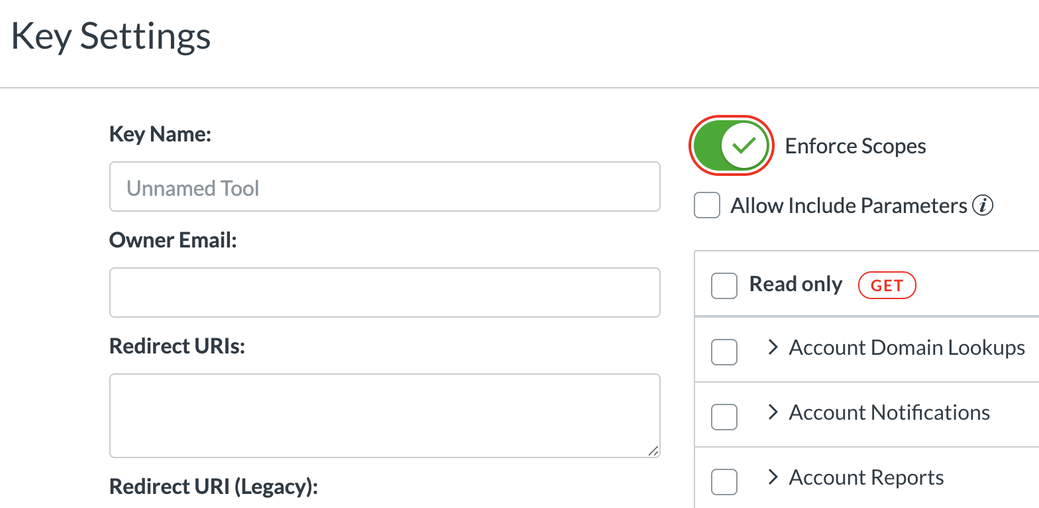
Optional - Click Enforce scopes (This will restrict access to only the data Course Evaluations requires)
Optional - Allow Include Parameters (enabling can improve performance)
Select the following developer key scopes then click Save
Accounts | url:GET|/api/v1/accounts url:GET|/api/v1/accounts/:id url:GET|/api/v1/accounts/:account_id/courses url:GET|/api/v1/accounts/:account_id/sub_accounts |
Courses | url:GET|/api/v1/courses url:GET|/api/v1/courses/:course_id/users |
Enrollment Terms | url:GET|/api/v1/accounts/:account_id/terms url:GET|/api/v1/accounts/:account_id/terms/:id |
Enrollments | url:GET|/api/v1/courses/:course_id/enrollments url:GET|/api/v1/sections/:section_id/enrollments |
Sections | url:GET|/api/v1/courses/:course_id/sections |
Be sure to set the Developer Key State ON once you are back in the list
Return to the window where the Canvas Data Importer is open.
Fill in the Canvas Connection Form
App Id – Number can be found under Details column of new developer key in Canvas, copy and paste to Course Evaluations
App Key - Click show Key, found under Details column of new developer key in Canvas, copy and paste to Course Evaluations
Enter campus’s Canvas URL (eg campuslabs.instructure.com)
Save and continue
The page will redirect you to Canvas to confirm access to this application.
Once you have confirmed access in Canvas, the Importer will be ready to use
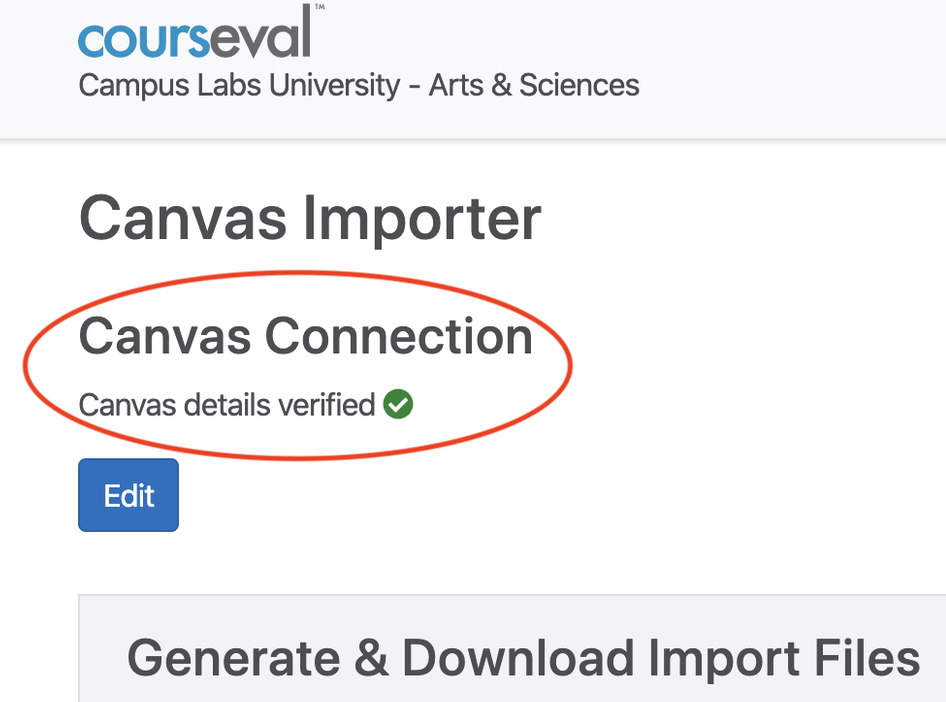
If you do not get a green checkmark, confirm you have entered the correct Canvas details
Course Evaluations
Check that the Canvas AppId is copied and pasted in its entirety
Check that the App Key is copied and pasted in its entirety
Canvas
Check the redirect URI – this can be found on the importer page in Course Evaluations
Check the Developer Key has been enabled
If an error persists, please contact Support via this form.
Editing the Developer Key
Developer key can be edited by clicking edit button on Canvas Importer page
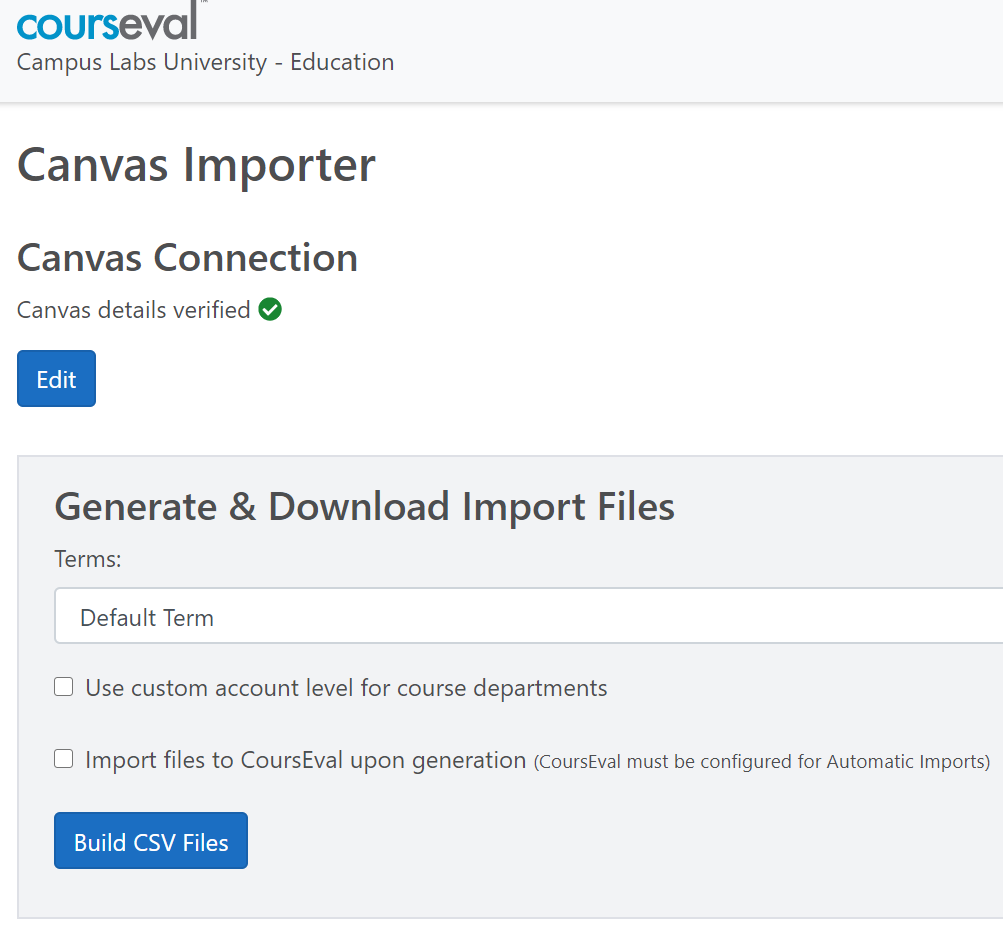
Using Canvas Importer
Open Canvas Data Importer
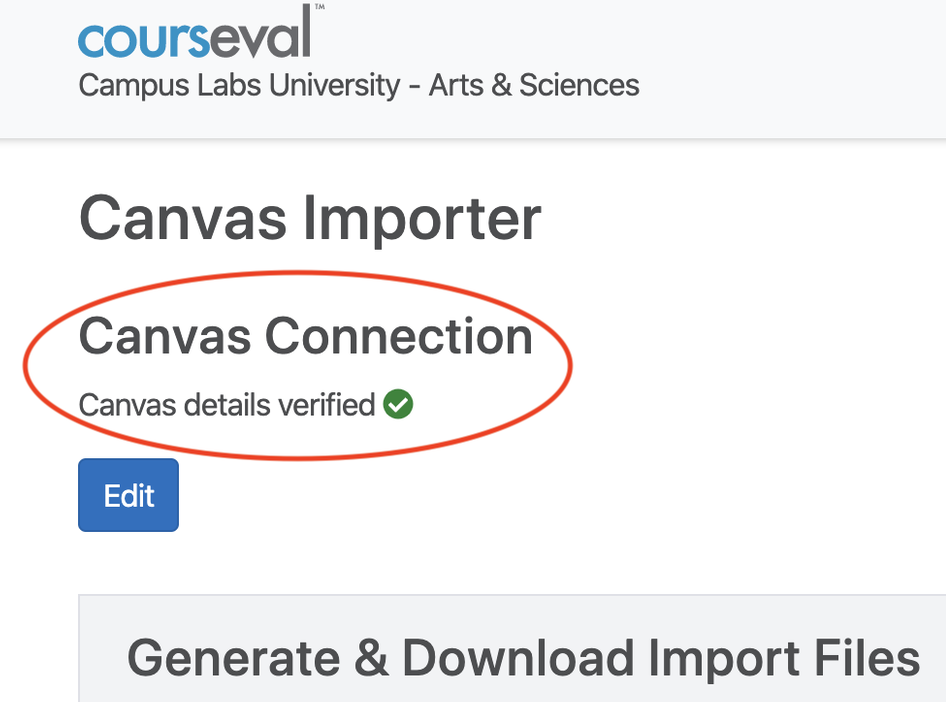
Note: Check Canvas Connection and Details have been verified. If they have not, please refer to Enabling Canvas Importer
Select term from drop-down menu
Optional – Select Use custom account level for course departments
Optional – Select import files to Course Evaluations upon generation
Click Build CSV files
Note:
If files will be sent to Course Evaluations for import upon generation, click refresh link to check status.
If files will be imported manually, once they are built they can be downloaded and imported to Course Evaluations.