Using Custom Roles and Custom Questions on Rotation Surveys
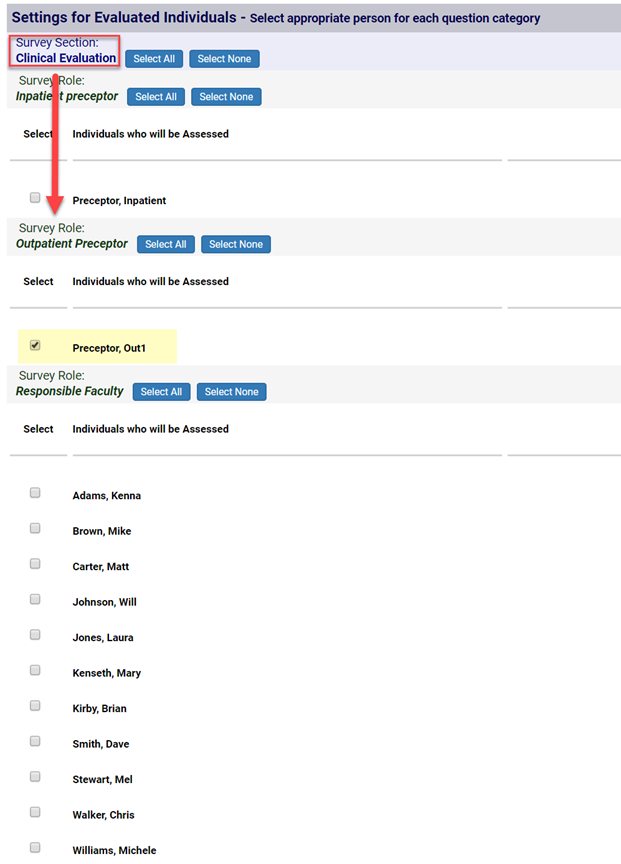
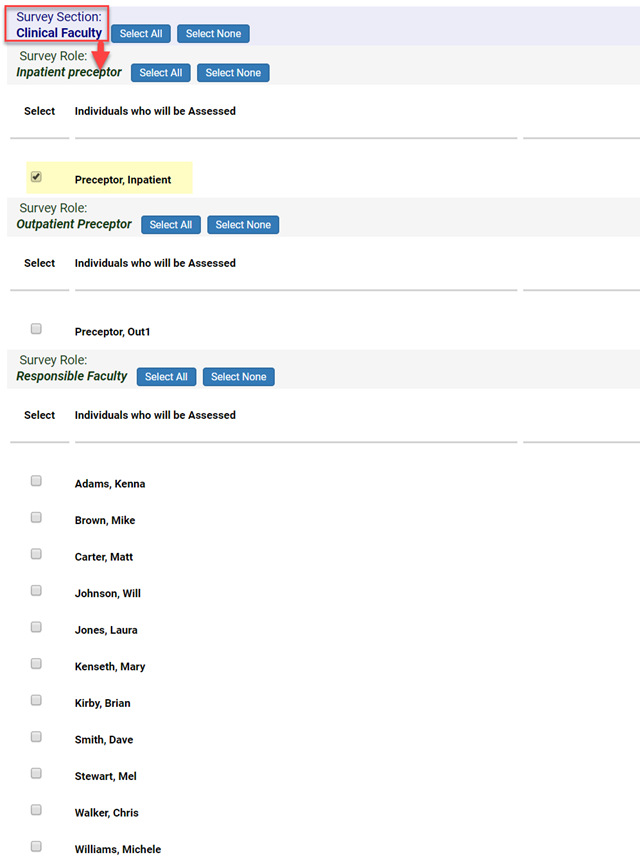
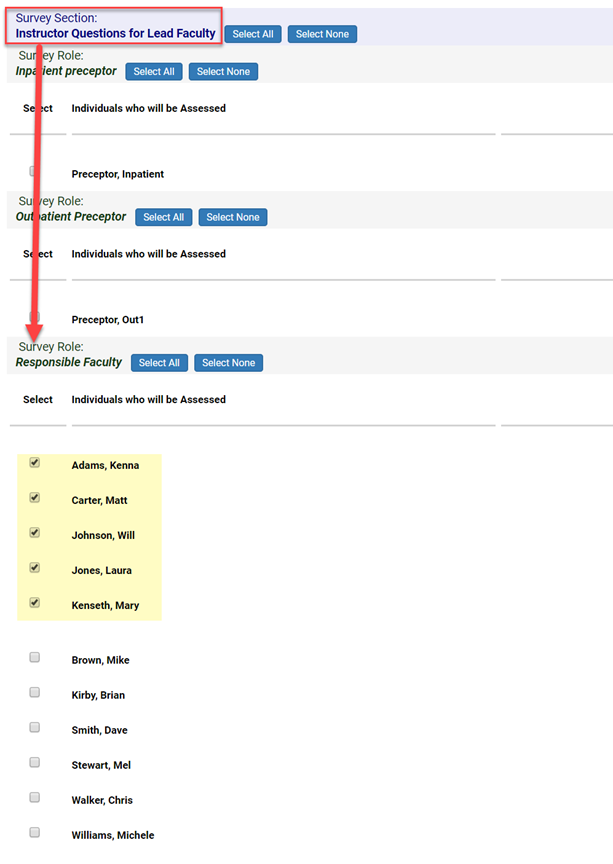
Using custom roles with filtering and site features will help to narrow down exactly who is selected on a survey and apply specialized questions to each role. These options will help reduce the size of faculty selection lists on the surveys, as well as, the length of the surveys.
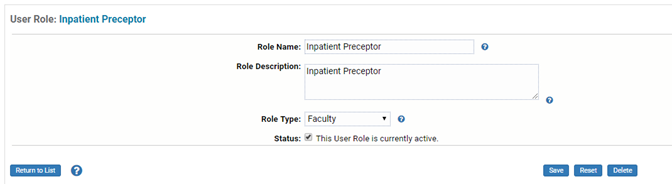
To Create Custom Roles
Go to the ‘Setup’ menu
Click ‘User Roles’
Click ‘Add New’
Type in a label
Pick the role type - faculty
Click ‘Save’
Information Needed to Import Faculty/Preceptors
Preceptor last name
Preceptor first name
Preceptor username
Preceptor email
Role (new custom role, e.g. inpatient, outpatient)
Site (spelling is important, must match the site name or abbreviation in CE)
Course period
Course Number
Section
ForceInternal – This column will always be Y if the preceptor is NOT a University Faculty.
This information should be saved as a CSV file type. You will need to de-duplicate the data in the files before importing.
Importing Faculty/Preceptors
Import this information using the Faculty Import in Course Evaluations
Preceptor last name
Preceptor first name
Preceptor username
Preceptor email
ForceInternal – This column will always be Y if the preceptor is NOT a University Faculty.
Attaching Faculty/Preceptors to Specific Sites
Import this information using the Faculty Site Import in Course Evaluations
Preceptor username
Site
Enrolling Faculty/Preceptors into Custom Roles
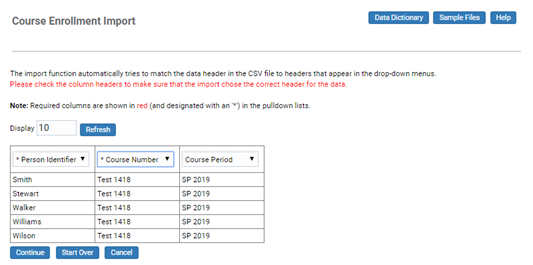
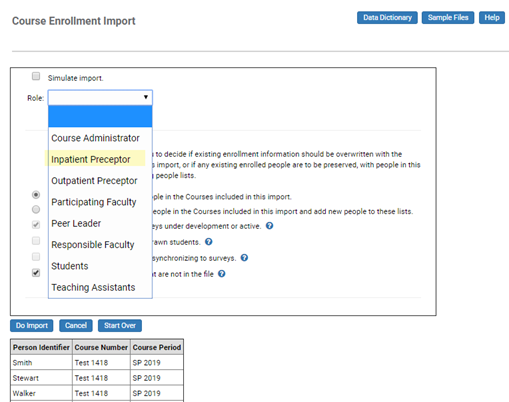
Create separate files each role. Import this information using the Enrollment Import in Course Evaluations. When you import you will need to select the role of the people in the file from the drop down. This is IMPORTANT as it assigns the people in that role to the courses and will assign them to the correct question sets.
Preceptor username
Course period
Course Number
Section
Adding Roles to Specific Question Sets
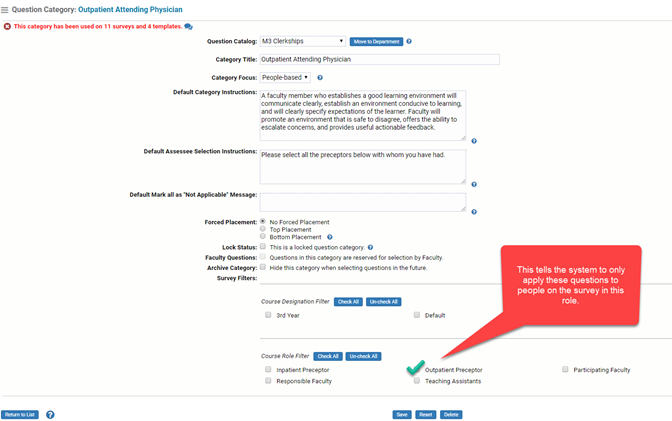
Find the question set in Question Manager
Click on the Category Name
Scroll to the bottom
Chose the Role Filter
Save
Setting Up the Survey
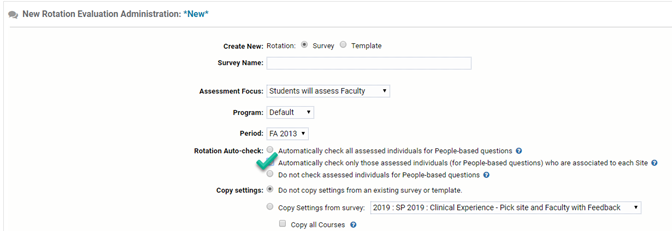
Click add new rotation survey
Add the name, select the assessment period
Click Automatically check only those assessed individuals (for People-based questions) who are associated to each Site
Build the survey
Check the display options on the survey to look for the specially applied questions

Set the block dates
Go to the detailed settings for a course/site/block that has specific roles assigned
Check the assignments in the Question Category Settings