Customizing the CE Response Portal
Institutions that are using Course Evaluations can customize the messages, the menu options, and the logo that users see in the Course Evaluations Response Portal. Here is a list of what can be customized and where/how to do it.
Customize
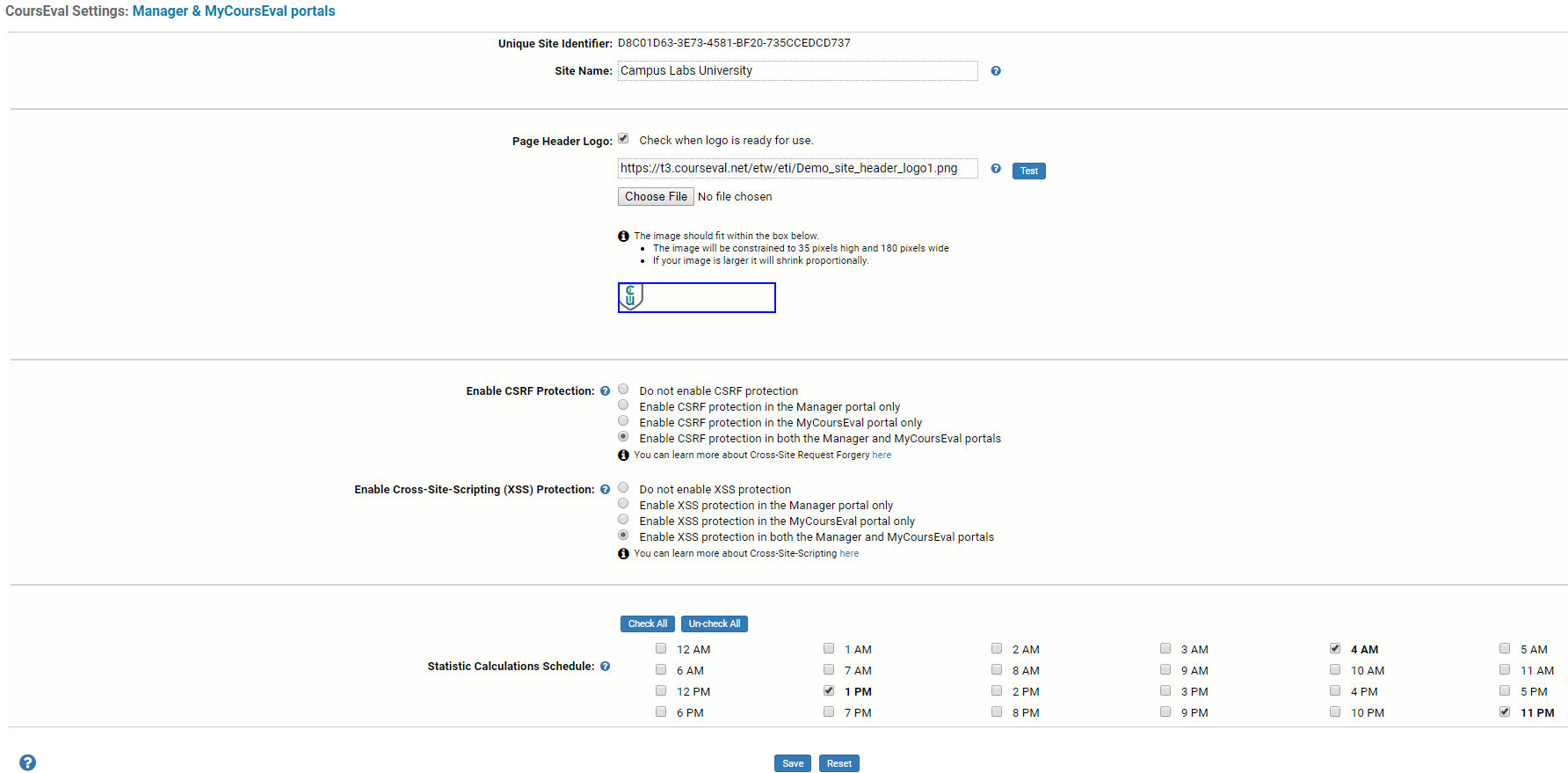
Go to the Set Up Menu - Customize.
Enter the institution name.
In the Page Header Logo section browse and find/select the file.
Click 'Test' to see how it looks.
Check when logo is ready for use.
NOTE: The image will shrink proportionally if it is too big.
Enable CSRF protection, if needed.
NOTE: Please go to the link that is on the option in Course Evaluations before enabling this feature to read more about it.
Set the Statistic Calculations Schedule. This sets the statistic calculation frequency and provides control over how often report statistics are calculated as responses are coming in to Course Evaluations.
NOTE: During heavy survey cycles, set the times to off-peak times to catch up on report statistics. It is recommended to set this calculation to 11 PM, to catch up for the day and 4 AM to pick up any submissions that occur overnight.
User Authentication
Go to the Set Up Menu - User Authentication .
Click on Response Portal in the list.
Customize the External Authentication login issues message, if external authentication is being used.
NOTE: If internal authentication is being used, enter the log in message in the Survey Site Set Up.
Save
MyCE Portal Menu
Go to the Set Up Menu - Response Portal Menu .
Select the menu items to show to faculty or students
Save