Download Grades from Gradebook
NOTE: You can't include items that allow anonymous grading, two graders per student, or peer review in the downloaded file.
From the gradebook, select the settings icon to open the Gradebook Settings panel.
Under Upload and download gradebook, select Download grades.
The Download Grades panel opens.
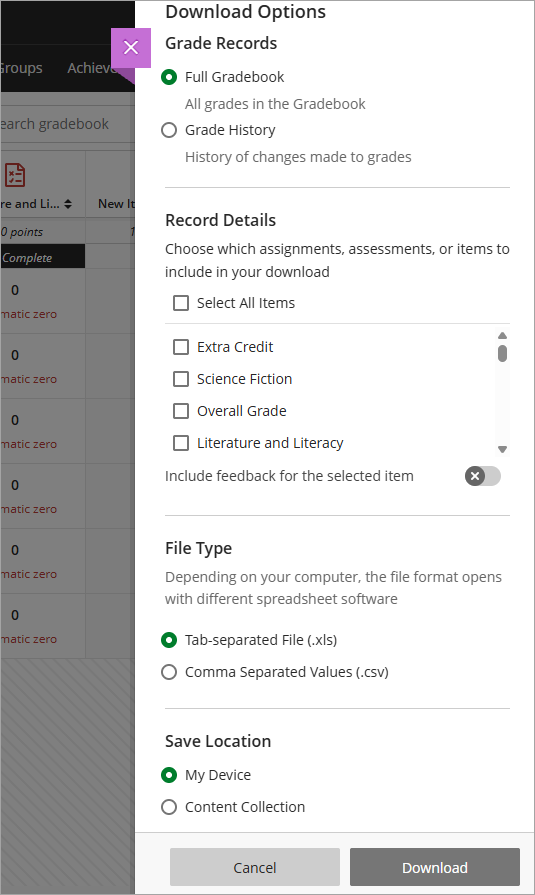
Select Full Gradebook.
Select the file type for the downloaded file. Data files are comma-delimited (CSV) or tab-delimited (XLS).
Select the location for the download. You can save the file to your device or select a folder in the Content Collection.
Select Download.
Exported grade file
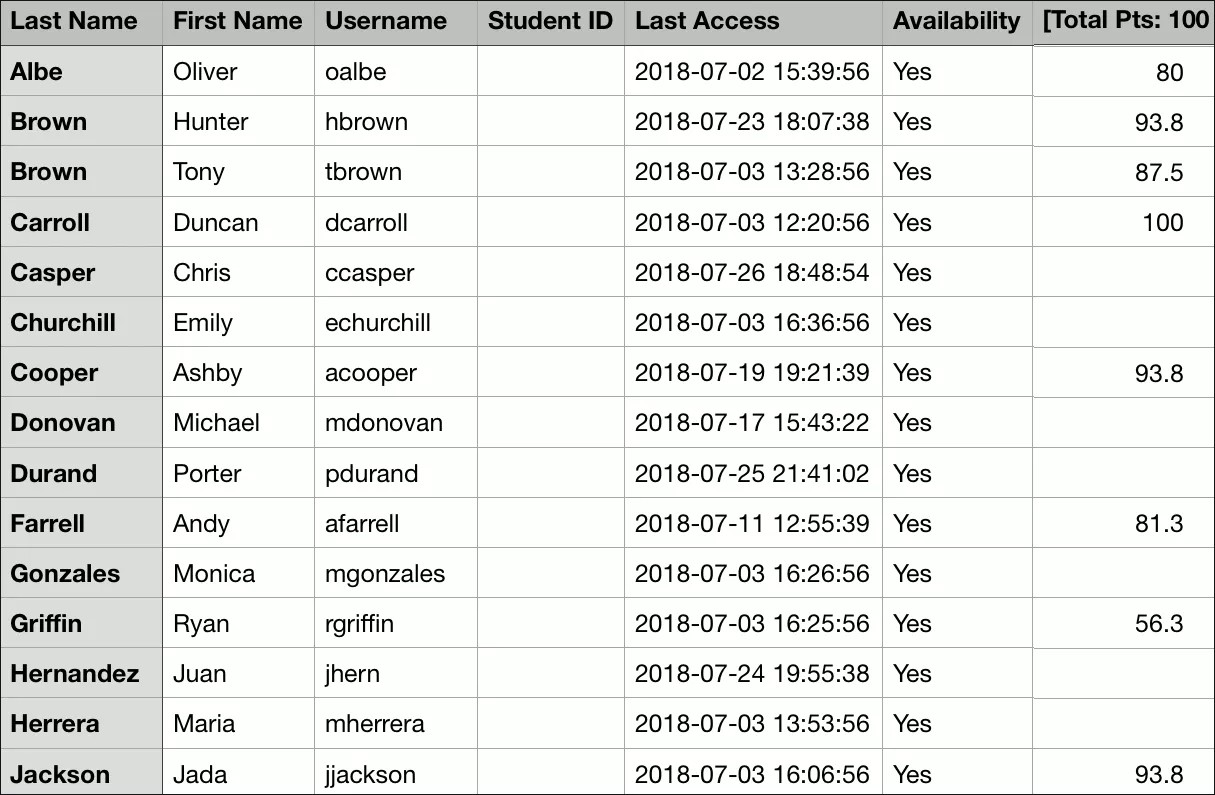
These columns are included in a exported grade file:
Last name, first name, and username
Student ID, last access, and availability
Grade columns
Attendance
Manually added items
Calculations
Overall grade
Grade information
When you download the full gradebook, the file includes the grades you posted or are ready to post. No feedback is included. Overall grades are included if you set that up in your gradebook.
Grades you assigned appear as points, letters, or percentages based on how you chose to display each graded item in the gradebook. The column header includes the grade display.
Note
If you haven't created any graded items, you may still download the gradebook. If you complete a course, you may no longer download the gradebook.
Download results for a single item
You can also download results for an individual test, assignment or form that has at least one submission. In the gradebook list view, select the ellipsis menu for the item, then select Download Results. This option isn’t available for items with anonymous grading turned on.
Note
In the Download Results file, students are listed by an internal system ID, not alphabetically. To view students in alphabetical order, sort the file by the Last Name or Username column in your spreadsheet app. The full gradebook download lists students alphabetically.