Create Assignments
Add an assignment
Note
When you create an assignment, a gradebook item is created automatically.
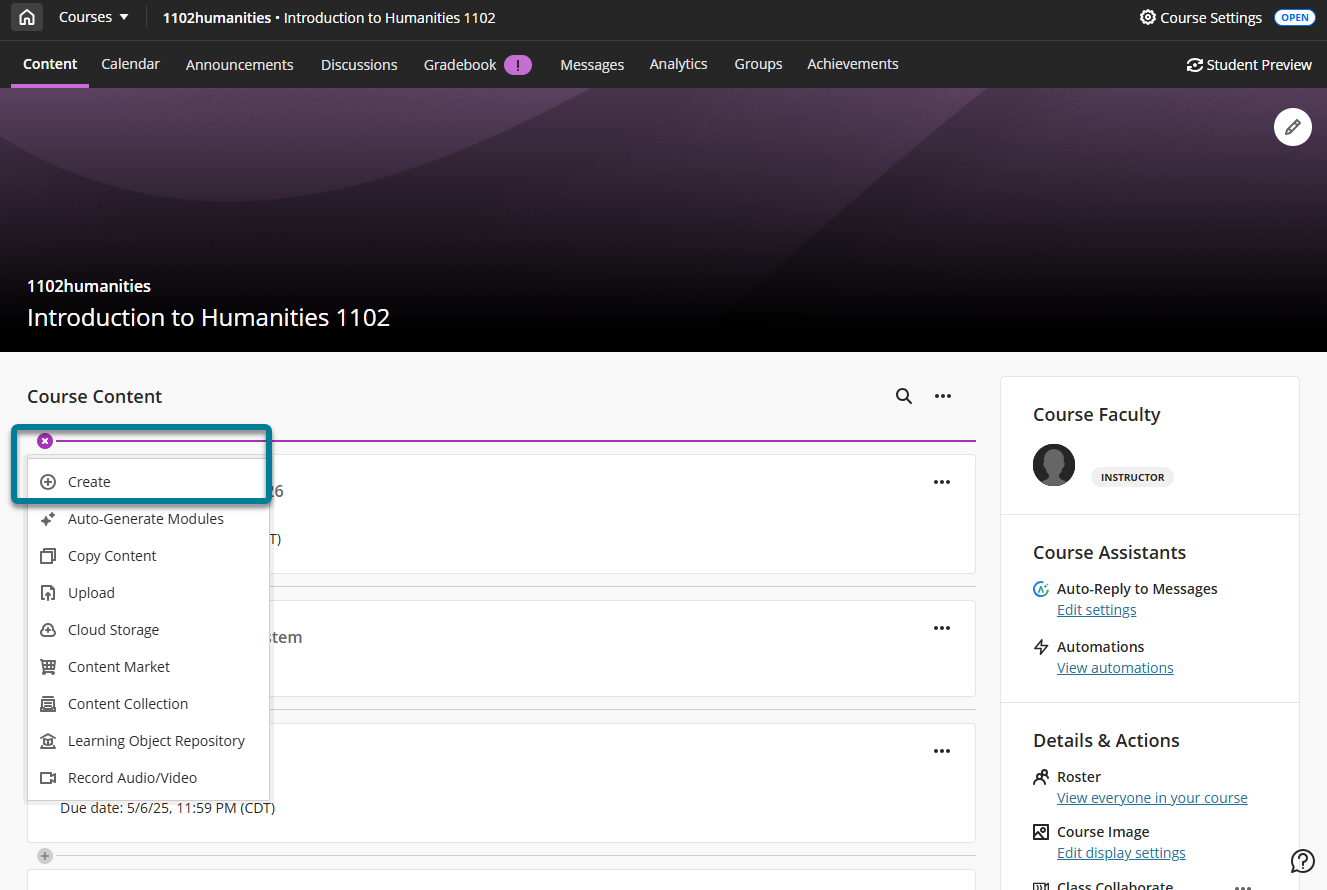
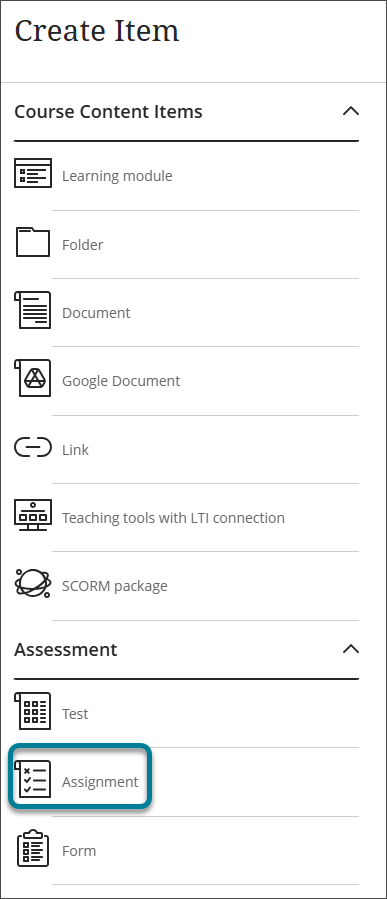
From the Course Content page, select the plus sign wherever you want to add an assignment. In the menu, select Create to open the Create Item panel and select Assignment.
The New Assignment page opens.
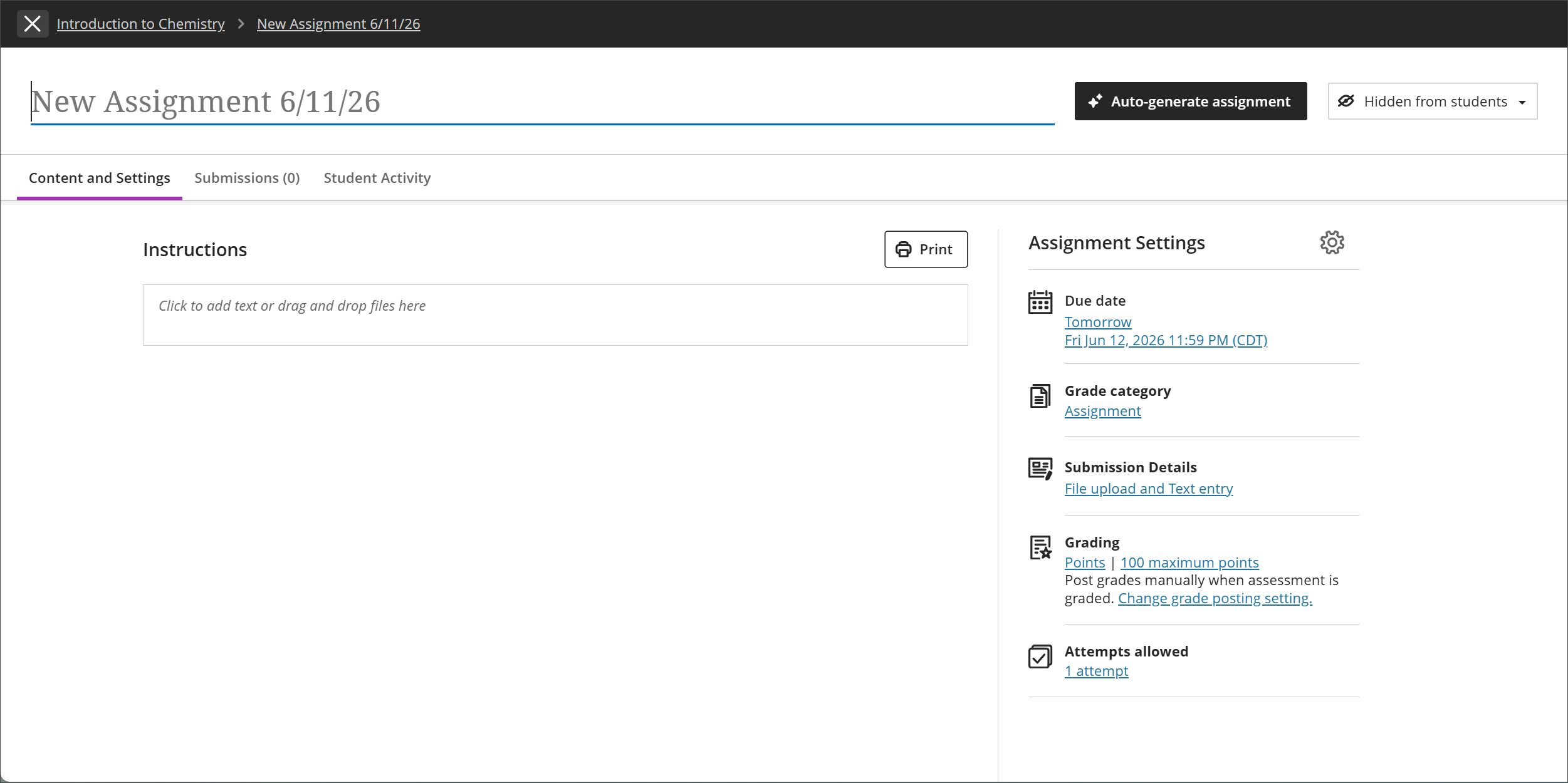
Enter a descriptive title so students can easily find the assignment among your course content. On the Course Content page, the title appears as the link students select to view the materials. If you don't add a title, "New Assignment" and the date appear in the content list. If you don't add content, the assignment won't appear on the Course Content page.
Add assignment instructions and content
Under Instructions, enter the instructions and content for the assignment.
You can drag and drop files from your local device or use the Insert content button to access a menu for course content types.
Note
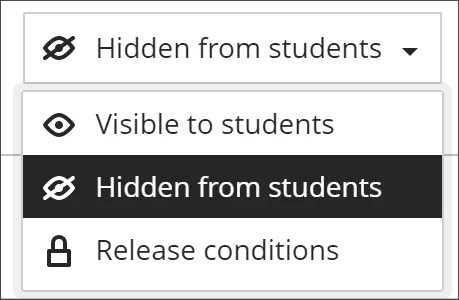
Students can't see what you add until you make your assignments visible.
Assignment Visibility
Students can't see an assignment until you choose to show it. You can create all your content ahead of time and choose what you want students to see based on your schedule. You can also set availability conditions based on date, time, and performance on other items in the course gradebook. On the Course Content page, students can see when you set the assignment to appear.
Auto-generate assignment prompts
AI plagiarism is a growing concern in education. Research indicates a variety of issues with a reliance on AI detection. Detection models cannot keep up with advancements in AI technologies. Blackboard LMS empowers you to take advantage of the effective practice of authentic assessment. If your institution has turned on the AI Design Assistant feature, you can auto-generate assignment prompts that encourage students to:
engage in higher-order thinking
apply knowledge gained from your class
produce authentic submissions that are evidenced
emulate real-world situations
Assignment prompts are generated based on course context. The AI Design Assistant generates three assignment prompts.
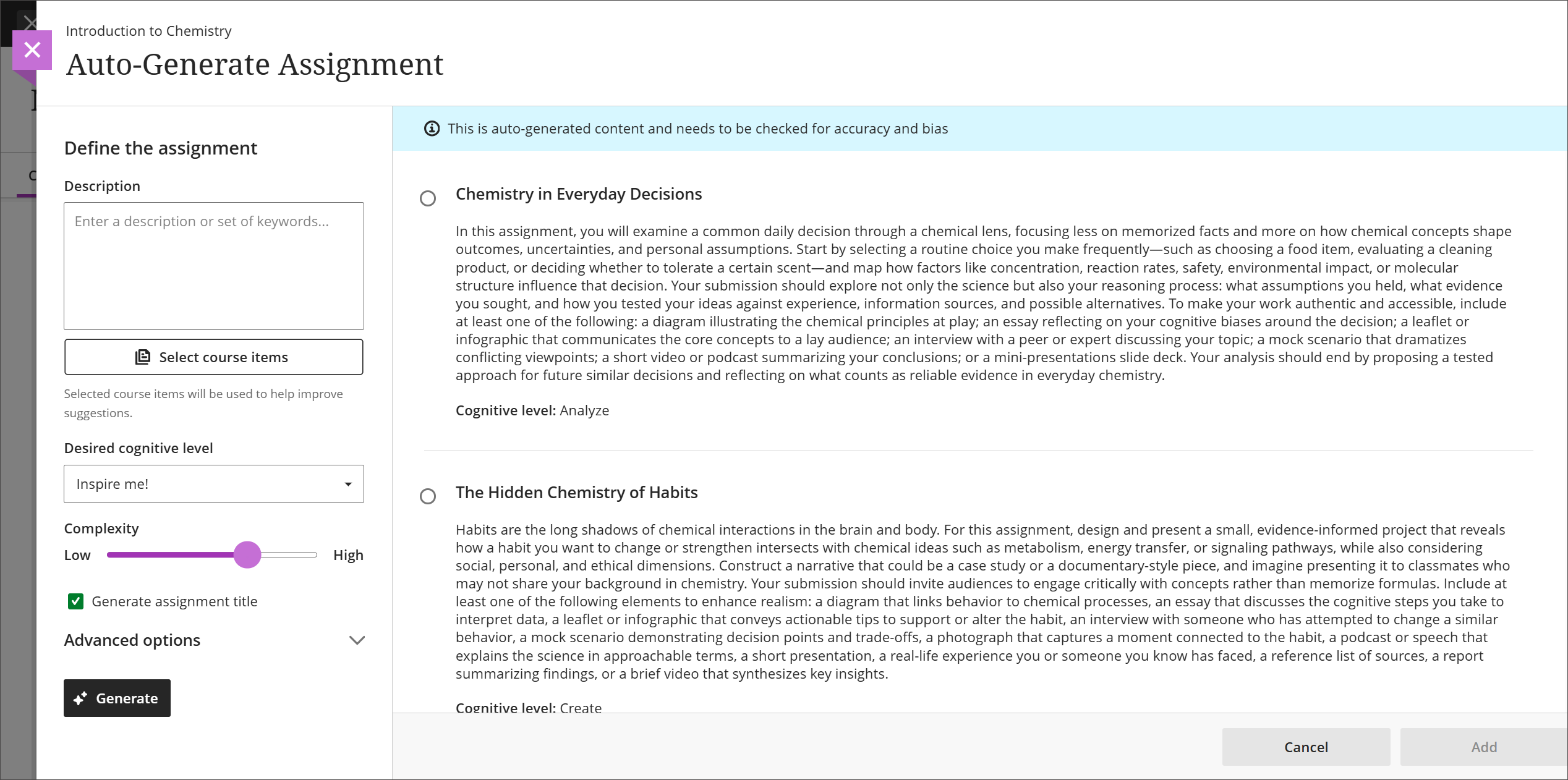
To auto-generate assignments with the AI Design Assistant:
Select Auto-generate assignment.
Optionally, enter a description (up to 2000 characters) to narrow the focus of the prompts.
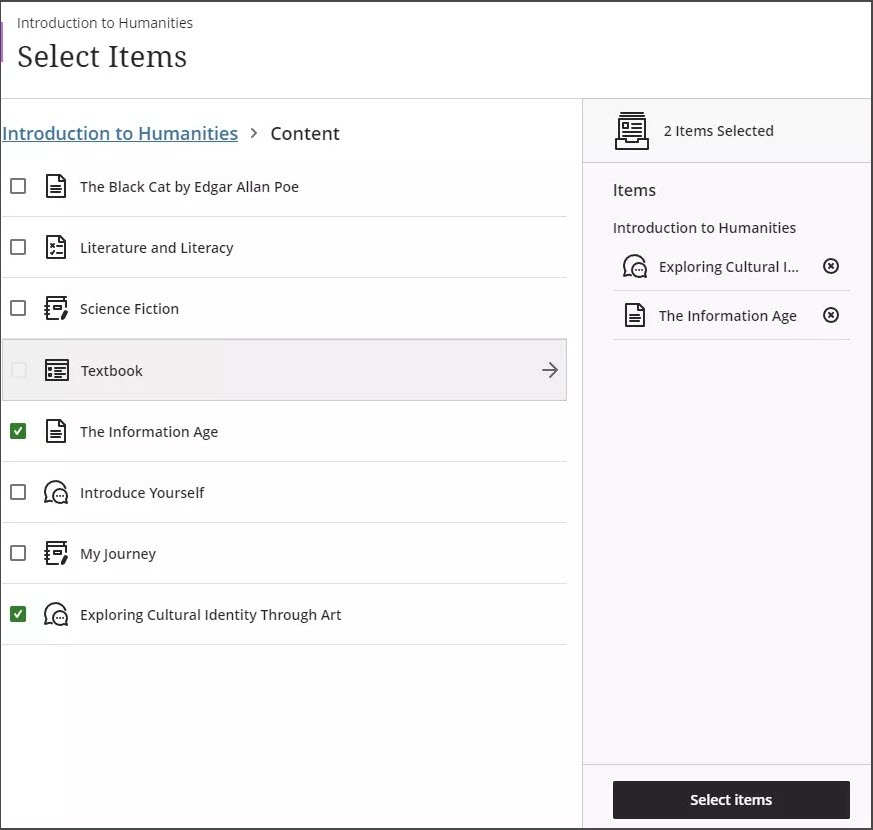
Optionally, select Select course items to provide context for the generated prompts. Select any course content item, folder, or learning module, then select Select items to return to prompt generation.
Note
File types supported by the context picker include PDF, Word, PowerPoint, text, RTF, and HTML.
From the Desired cognitive level menu, select a cognitive level: Apply, Analyze, Evaluate, Create, or Inspire me!
Note
Cognitive levels are based on Bloom’s Taxonomy. Inspire me! generates a mix of levels.
Adjust the Complexity slider to set the complexity of the prompts' focus.
Select or clear whether Generate assignment title.
Select Advanced options to change the output language.
Select Generate.
Review each prompt for accuracy and bias, then choose the prompt you'd like to add to your assignment.
Select Add.
Assignments and the activity stream
Some actions trigger a notification in your activity stream or in your students' activity streams.
When you create an assignment and make it visible to students, they're notified in their activity streams.
After you post assignment grades, students can select View your grade in their activity streams to display their grades. Any feedback you provide appears after the assignment title.
You'll see an alert in your activity stream when you have submissions to grade. Select the assignment title to begin grading on the assignment submissions page.
Video: Creating Assignments
The following narrated video provides a visual and auditory representation of some of the information included on this page. For a detailed description of what is portrayed in the video, open the video on Vimeo.