Math Editor
You can insert math equations and formulas into tests, assignments, discussions, and journals by using the math editor. The math editor runs on any browser and operating system, including smartphones and tablets. You can also type LaTeX formulas into any rich text editor where the math editor is an option.
The math editor and typing LaTeX code are two different ways to add math formulas in the rich text editor. The math editor is a visual, point-and-click tool that lets you build a formula without writing any code. When activated, MathJax renders LaTeX code that you type as plain text into the rich text editor across supported areas of Blackboard LMS. Both methods render using MathJax, so you can choose whichever fits your workflow, such as pasting LaTeX code copied directly from an exam bank, textbook, or other source material. If MathJax is not activated, Wiris will render formulas.
Math formulas are rendered in the PNG image format, which have larger file sizes than text. Math formulas can take a few seconds to appear before the image displays.
Internet connection speeds and content size affect loading time. Some students may have difficulty accessing content with many formula images.
Some recommendations to reduce formula image size and loading time are:
Create each formula separately with either the math editor or LaTeX.
Avoid including question descriptions or extra text inside the math editor or LaTeX code. Instead, use the rich text editor to write any questions, instructions, or textual descriptions and only use the math editor or LaTeX to create the math formulas.
For example, an instructor writes an acceleration math problem in a test. To reduce content file size, the instructor writes the description of the problem and variable values directly in the rich text editor as plain text. The instructor then writes the acceleration formula using the math editor.
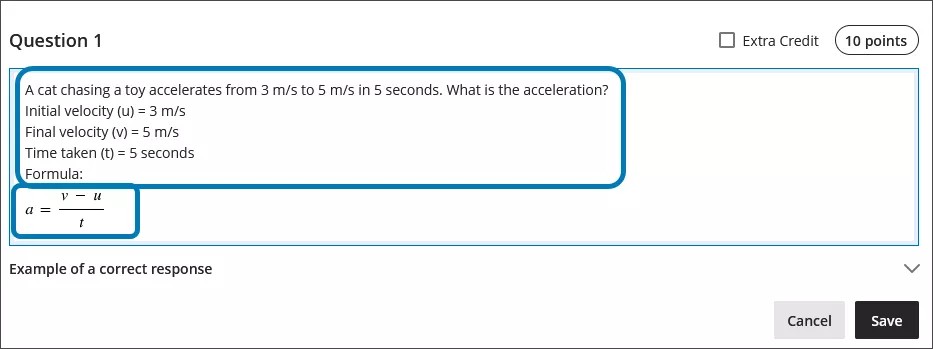
Using the math editor
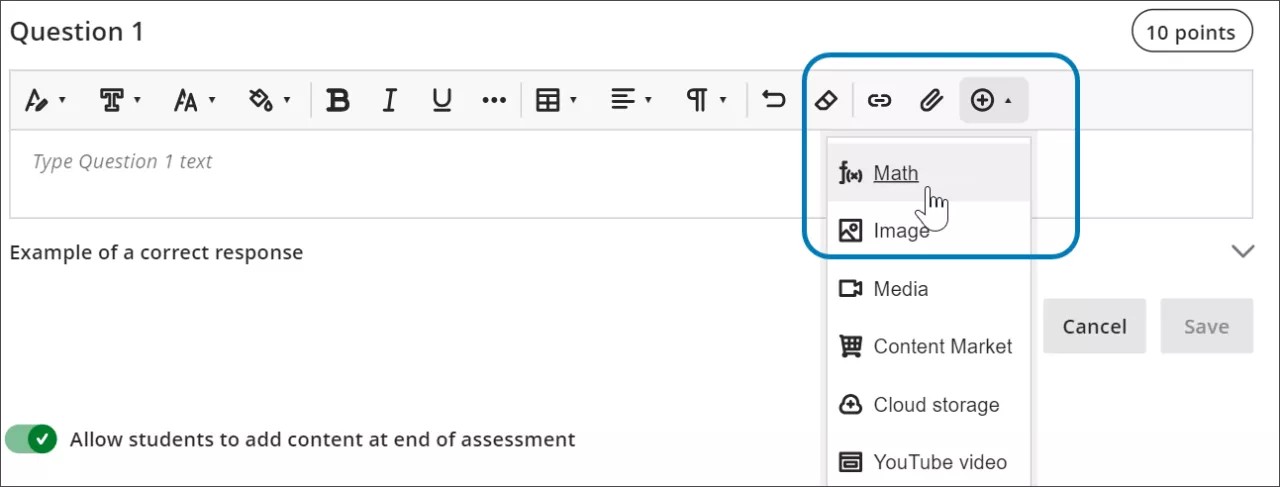
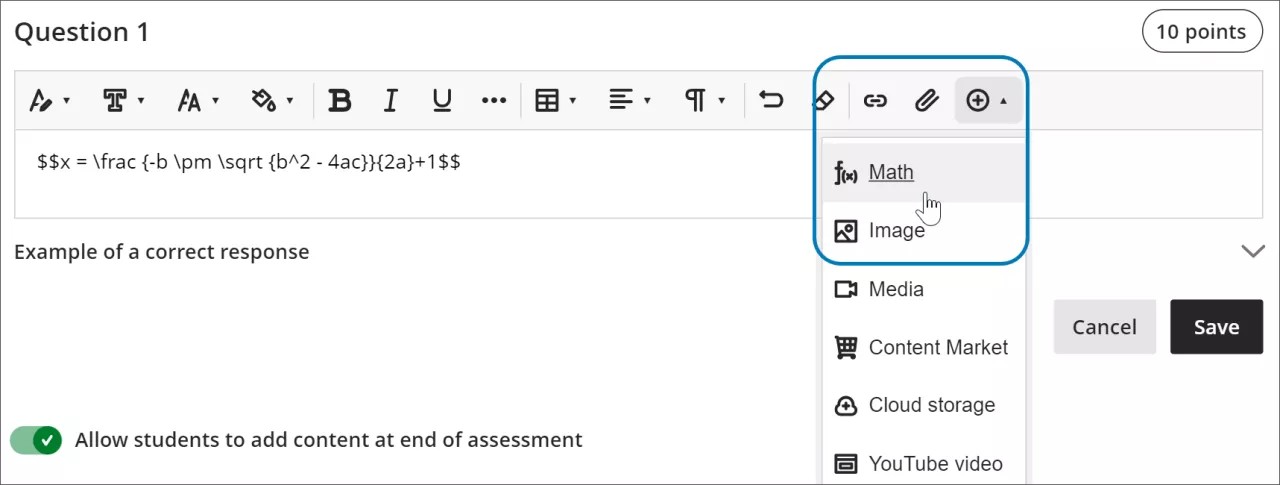
Access the math editor by selecting the + icon in the rich text editor. Select Math in the menu.
You can access many features in the math editor by selecting different tabs at the top.
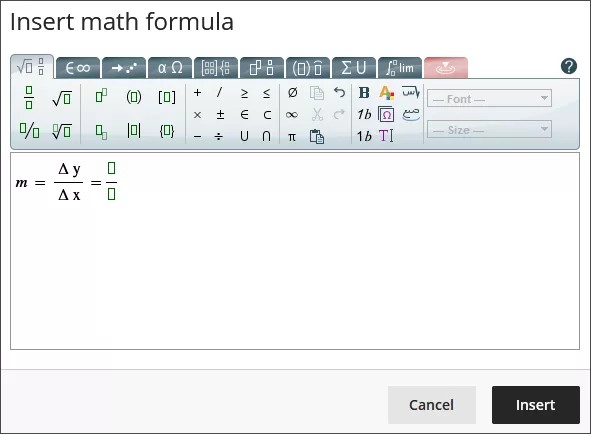
Use your keyboard to enter numbers, letters, and symbols. Select the appropriate icon in the math editor to create complex formulas, such as creating a square root.
If you are using an option that changes the level of the text for your formula, such as subscript or a fraction, use the arrow keys on your keyboard to return to the default level. We recommend using the keyboard to navigate within a formula.
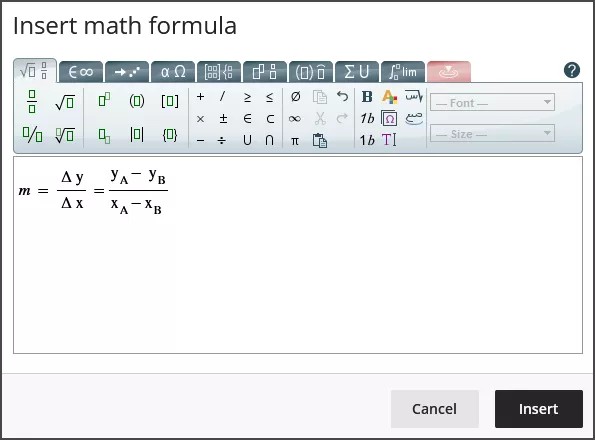
Some of the options for the building formulas in the math editor include:
Basic operations: addition, subtraction, multiplication, division, square roots, exponents, fractions
Greek alphabet: alpha, beta, gamma, and others •
Matrix calculus
Integrals, derivatives, and limits
Trigonometric functions: sine (sin), cosine (cos), tangent (tan)
Font styles and sizes
The WIRIS website provides detailed information about all the functions of the math editor.
Using LaTeX in the rich text editor
LaTeX is a software that can be used to create an image of a formula based on coding conventions written with plain text. Blackboard LMS's rich text editor can render LaTeX coding. Formulas that break across multiple lines in LaTeX can’t be rendered by the rich text editor. Multiline formulas start with /begin and finish with /end. You can get a detailed introduction to using LaTex for mathematical formulas and how to create common formulas on the web.
Enter a LaTeX formula by writing the specific code within delimiters in the rich text editor. MathJax supports the following delimiter options, depending on how you want the formula to display:
$$...$$or\[...\]for display equations, which appear centered on their own line, separated from the surrounding text. Display equations work well for complex expressions such as integrals, sums, and products.\(...\)for inline equations, which appear within a line of text alongside other content.
Using the delimiters that match your original source material makes it faster to copy LaTeX code from textbooks, exam banks, or other STEM materials into Blackboard LMS without needing to reformat the code.
Select Save to review how the formula displays as an image. You can go back into the rich text editor to edit the formula until it displays correctly. Some activities, such as tests and assignments, don’t allow students to save in the rich text editor and preview the rendered LaTeX formula. Students will have to check their submission afterwards to make sure that their formula rendered correctly.
Changing the appearance of the formulas, such as bolding or changing the font size, can’t be done using the rich text editor. To change font styles or sizes of the formula
select anywhere within the formula in the rich text editor.
select the math editor
All changes made in the math editor are applied when you save and added to the LaTeX code.
Example of a formula formatted in LaTeX
Note
This example uses $$ delimiters for a display equation. You can also use \[...\] for a display equation or \(...\) for an inline equation instead, depending on how you want the formula to appear in your content.
The quadratic formula can be formatted in LaTeX.
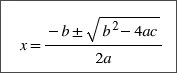
Enter $$ in the rich text editor.
$$
Next, enter the LaTeX code for the formula:
$$x = \frac {-b \pm \sqrt {b^2 - 4ac}}{2a}
Close your formula by entering $$ at the end.
$$x = \frac {-b \pm \sqrt {b^2 - 4ac}}{2a}$$
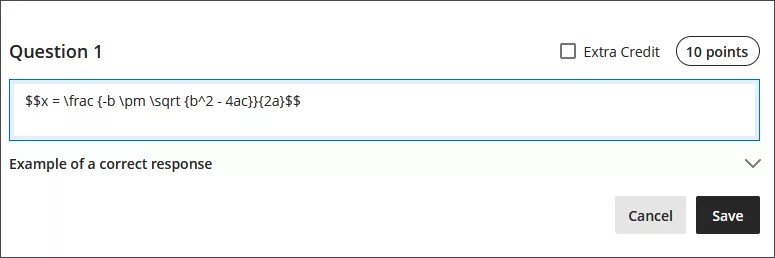
Select Save in the rich text editor. The math formula renders as a PNG image. Rendering the image may take a few seconds, depending on your internet connection and content size.
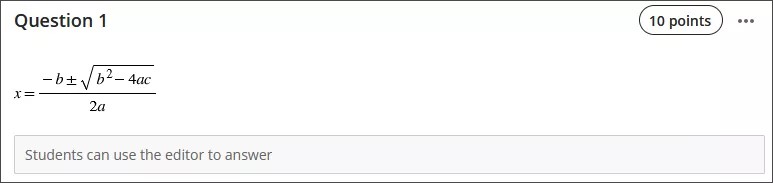
Select Edit in the rich text editor to go back to your LaTeX code.

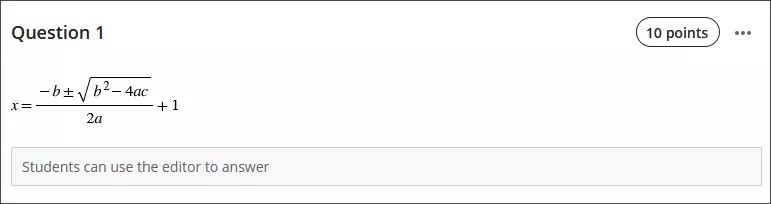
Edit your formula to overwrite your LaTeX code as plain text inside the rich text editor. For example, add a +1 to the end of the quadratic formula.
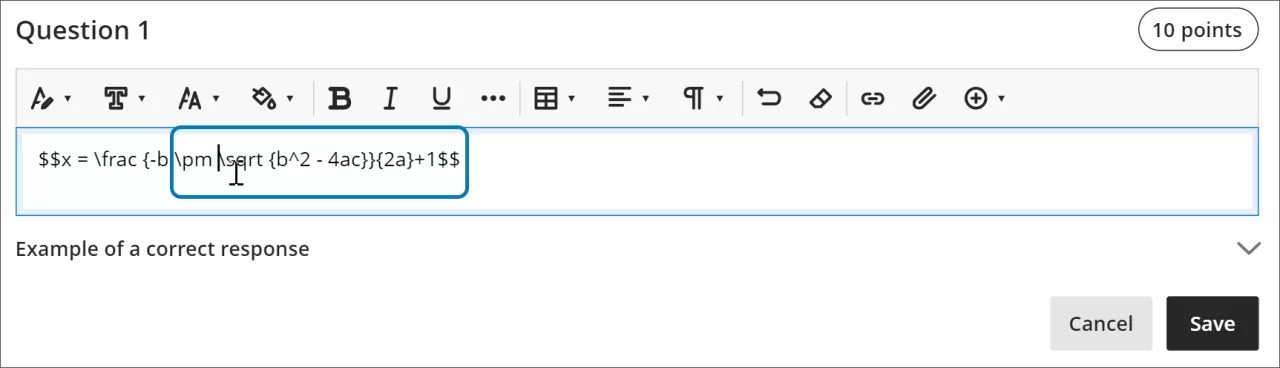
$$x = \frac {-b \pm \sqrt {b^2 - 4ac}}{2a}+1$$
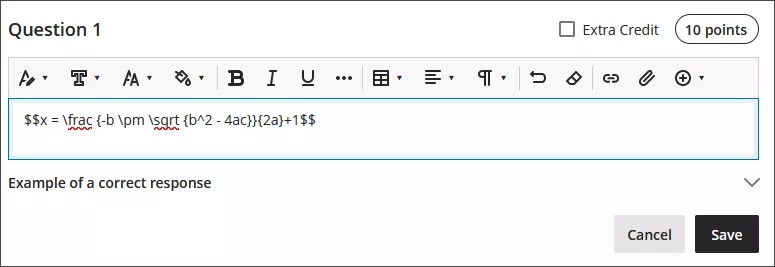
Select Save to render the formula as a new image.
You can make further adjustments to the style of the formula. In the rich text editor, select anything inside the LaTeX code.
Open the math editor.
Apply the styles you want to the formula. For example, you can bold part of the formula and change the font size.
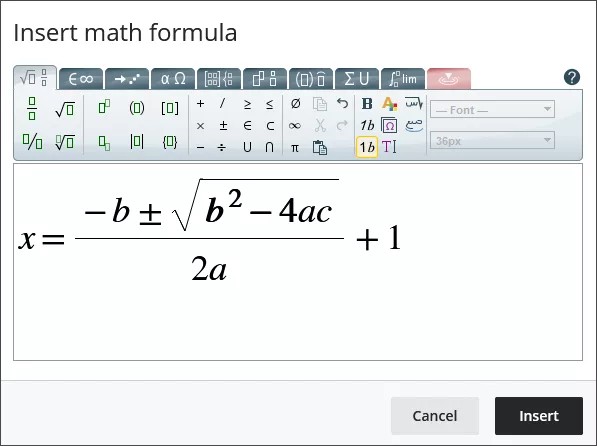
Select Save in the math editor. The LaTeX code for the quadratic formula with your style adjustments is now:
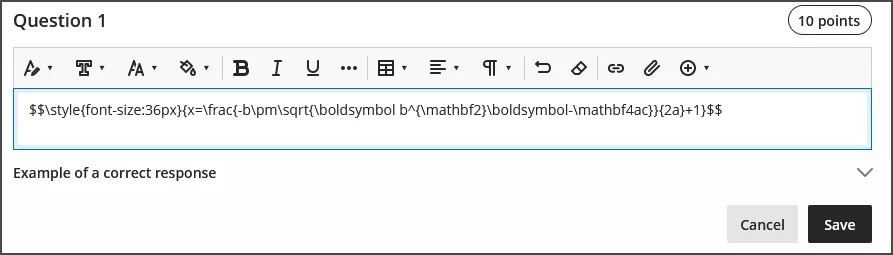
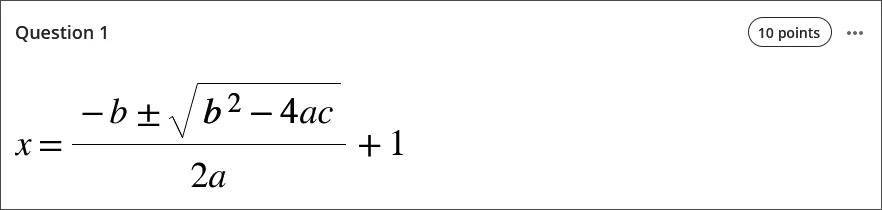
$$\style{font-size:36px}{x=\frac{-b\pm\sqrt{\boldsymbol b^{\mathbf2}\boldsymbol-\mathbf4ac}}{2a}+1}$$
Select Save in the rich text editor to render your adjusted formula as an image.
Accessibility features
Math formula images are high quality, so users can zoom in and the image will still be clear. You can also change the font size to help your students. Bigger font sizes can help your students see the details of a formula with small numbers and symbols.
Formulas are accessible to screen readers as you create them and when they are rendered as images.
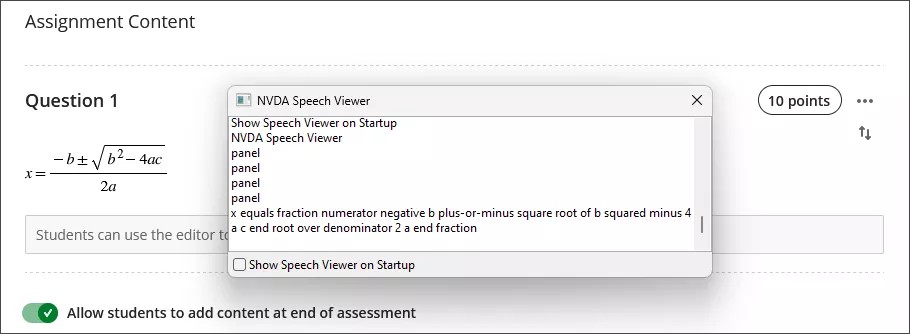
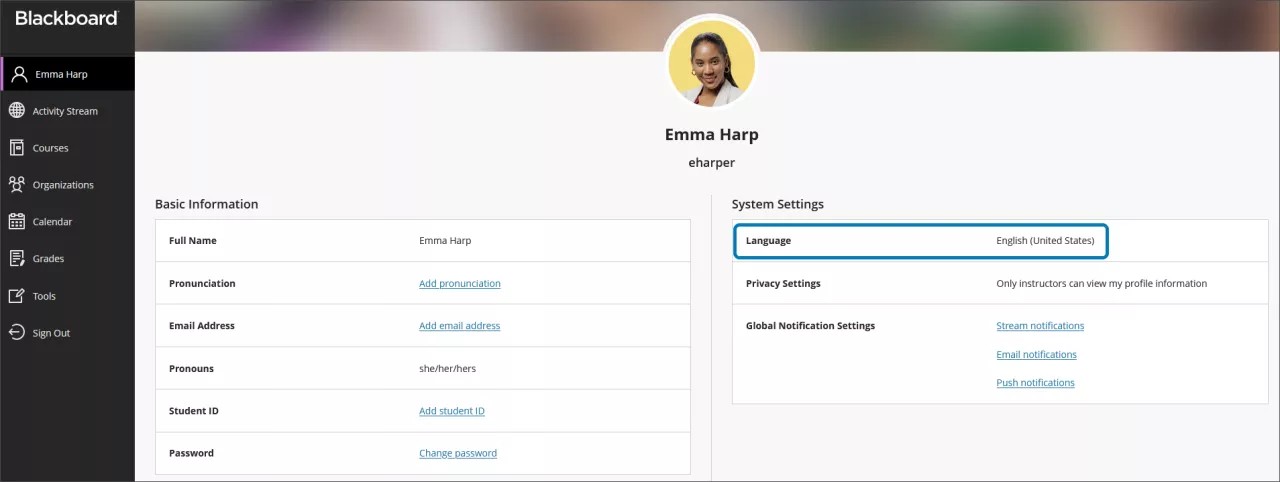
Alternative text for math formulas is automatically generated based on your language setting in your profile in Blackboard LMS. Screen readers follow your local device settings, including language, speed, and voice. To have a better experience with your screen reader and alternative text, make sure that your language setting in Blackboard LMS matches the settings on your local device.
Note
If a language is not supported by the math editor or rich text, formulas are read in English.