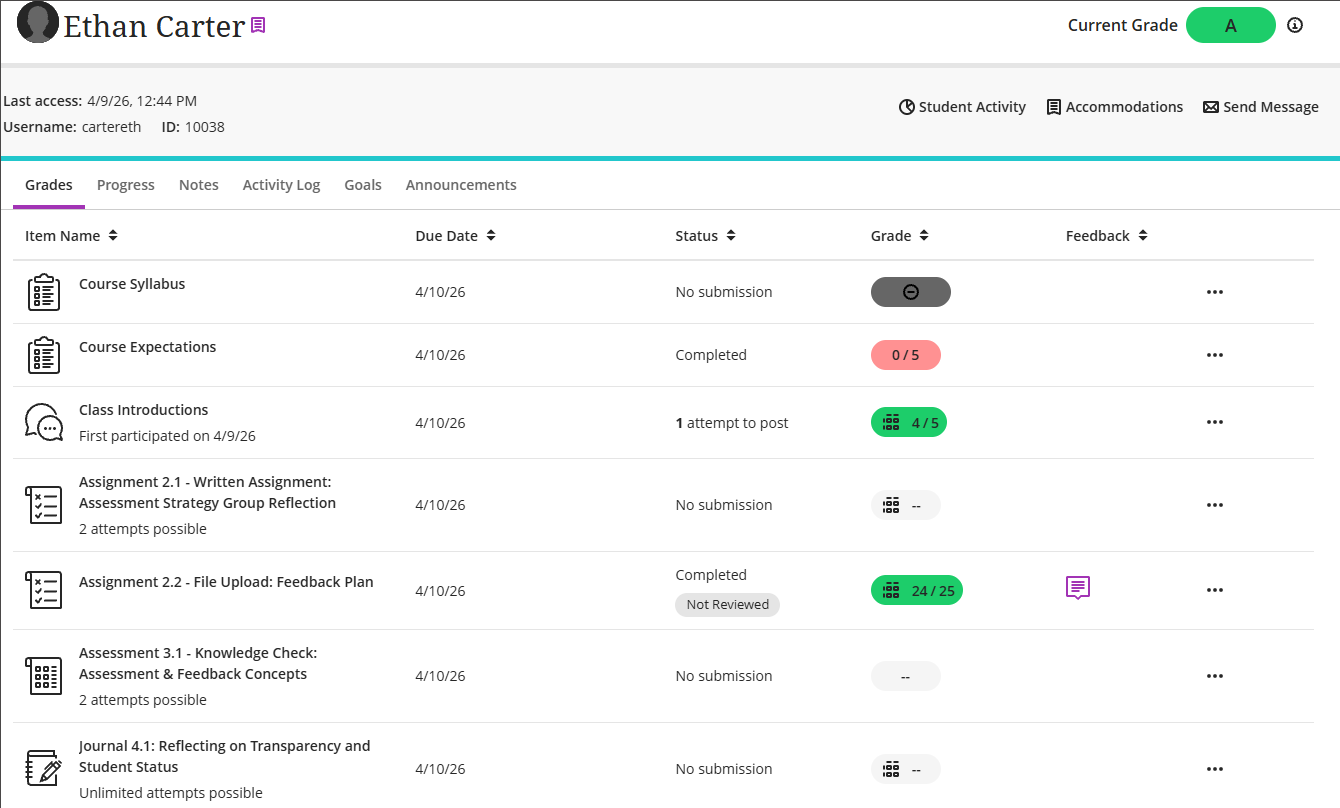
View Student Grades
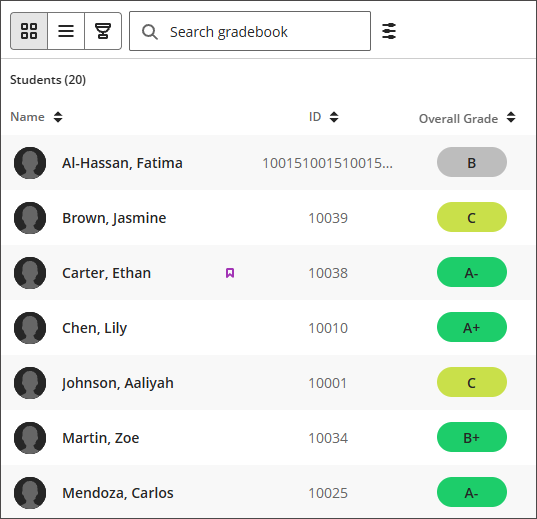
Grid view shows every enrolled student in a row, with their Overall Grade and individual item grades in columns, so you can scan performance across your whole class at a glance.
Reading the grid
Item columns: show the student's grade for each gradable item, one column per item.
Select the sort arrows on the Name column, ID column, Overall Grade column, or any item column to sort ascending or descending. Name display order (First Name Last Name or Last Name, First Name) and whether the student ID column is shown are controlled in Gradebook Settings.
The purple banner icon indicates that the student has an accommodation.
Viewing a student's details
Select a student's name to open their details. From there you can:
Find the student's date of last access to the course.
Find their overall grade.
Message the student directly.
Add or manage an accommodation for the student, described in the Accommodations section.
Students with an accommodation show a flag to the right of their name. If you're grading with student names hidden (anonymous grading), accommodation, exception, and exemption indicators are hidden too.