Create Flashcards
Flashcards are a self-review activity. Students see a question on the front of a card, decide whether they feel confident about the answer, then flip the card to check. Flashcards aren’t graded, so students can work through a deck as many times as they want without affecting their grade.
You can build a deck card by card, or generate cards from your course content and edit the results before students see them. Either way, you control every card in the deck.
This topic covers creating a flashcard activity and reviewing how students use it.
Note
Flashcards are text only, so you can’t add images to a card. Cards appear in the order you create them and can’t be reordered afterward. Create cards in the sequence you want students to see them.
Create flashcards manually
On the Course Content page, select the plus sign where you want to add the activity. Select Create, then select Learning activity.
Give the activity a name and select Create Flashcard.
Enter the text for the front of the card and the text for the back.
Select Save.
Add a description for the activity. Students see the description on the course outline and inside the activity.
Select the plus sign to add another card. You can add cards above, between, and after the cards you already made.
Generate flashcards from course content
On the Course Content page, select the plus sign where you want to add the activity. Select Create, then select Learning activity.
Give the activity a name and select Generate Flashcard.
Describe the flashcards you want. You can set how complex the cards are and how many to create.
Select the course items you want the cards based on. Without a selection, cards are generated from the course name, which produces broad questions. Selecting specific items produces cards tied to the material students just covered.
Review the cards. Select the ones you want to keep, then select Add to Activity.
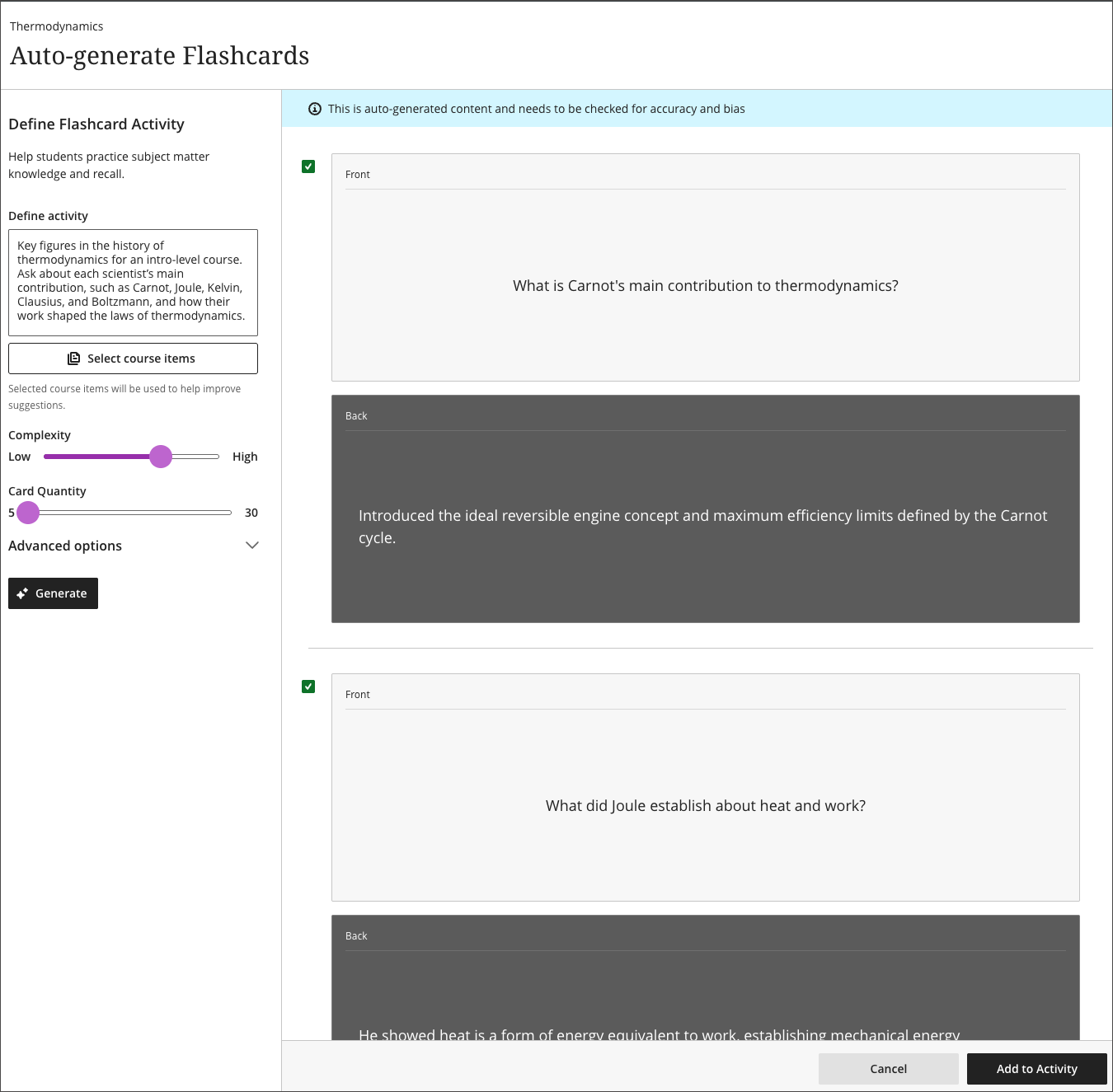
A description for the activity is generated along with the cards. You can edit the description and every card before students see them.
Edit and Delete Flashcards
Select the pencil icon on a card to edit it. You start in the field for the front of the card and can move to the field for the back. Select Save when you finish.
You can add cards manually to a generated deck and delete any card you don’t want.
Make the activity available to students
Note
Flashcards are created by instructors. Students can’t create their own flashcards in a course.
When the deck is ready, make the activity visible to students. You can move the activity in the course outline like any other content item.
Review student activity
Open the activity and select the Student Activity tab to see how students are using the deck:
Which students started the activity, and which marked it complete
Whether students reread the deck, and how many times they did so
How many times each card was marked as needing practice
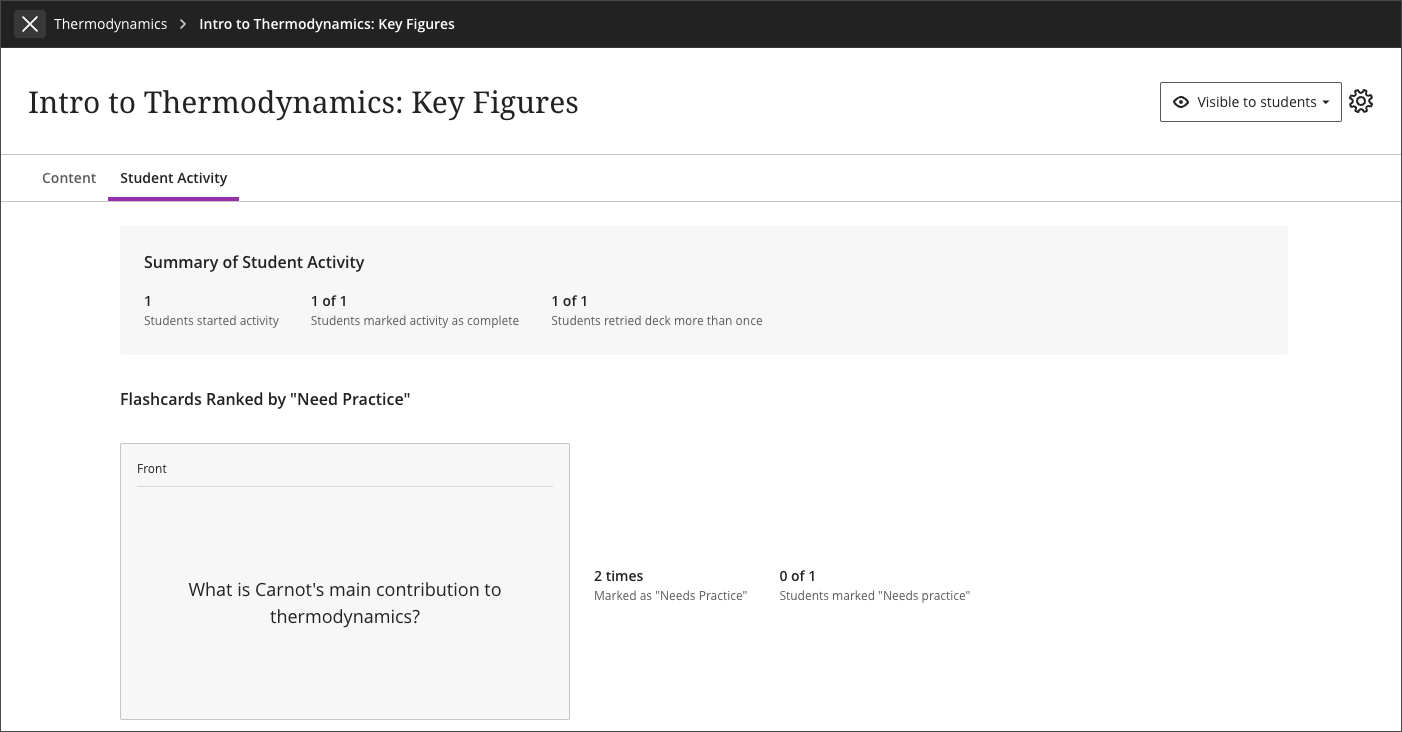
These metrics are useful for instructional design. A card that students repeatedly mark as needing practice can point to a concept they are struggling with, which may mean the underlying course content needs more coverage. A card students consistently mark with full confidence suggests the existing material is doing its job.
Entering the activity without interacting with a card marks it as Started. Interacting with the first card marks the activity as Complete.
What students see
Students work through the deck one card at a time, marking their confidence before flipping each card. They can retry a deck as often as they like. For the full student experience, go to Flashcards.